


If your business runs on appointments, rentals, or reservations, a simple product listing isn’t enough. Customers need to see what’s available and pick a time or date that works for them, right there on your WooCommerce store. Whether you run a salon, rent out equipment, or offer classes, turning your regular products into bookable ones lets customers reserve a slot instantly instead of emailing or calling you to check availability.
In this guide, we’ll walk through what bookable products are, look at a few real-world examples, and show you exactly how to set one up on your WooCommerce store using the Bookings and Appointments for WooCommerce plugin.
On This Page
- What Are Bookable Products in WooCommerce?
- Examples of WooCommerce Bookable Products
- What You Need to Create Bookable Products in WooCommerce
- How to Add Bookable Products in WooCommerce
- Tips for Selling Bookable Products in WooCommerce
- Conclusion
- FAQs
What Are Bookable Products in WooCommerce?
A bookable product is a special WooCommerce product type that lets customers reserve a specific date, time slot, or duration instead of just adding an item to the cart. Rather than a fixed “buy now” experience, customers see a calendar on the product page and choose when they want the service or rental.
This product type works well for any business where the “product” is really a slot of time or a resource with limited availability. Once set up, the calendar handles the back-and-forth of checking availability, so you don’t have to manage bookings manually.
Examples of WooCommerce Bookable Products
Bookable products fit a wide range of businesses. Here are some common examples:
- Salons and spas: Offer appointment slots for haircuts, massages, or treatments so customers can pick a time without calling in.
- Hotels and vacation rentals: Take bookings with check-in and check-out dates, letting guests see availability before they reserve.
- Equipment and vehicle rentals: Rent out items like bike rentals or camera gear for a chosen date range.
- Consultants and coaches: Book one-on-one sessions by the hour, giving clients a clear slot to choose from.
- Event and class organizers: Sell seats for workshops or online courses with a fixed schedule.
- Venue owners: Rent out halls, studios, or meeting rooms by the day or hour based on real-time availability.
Whatever the business, the need is the same: a calendar that shows what’s open and what’s already taken. That’s exactly what a bookable product provides.
What You Need to Create Bookable Products in WooCommerce
Before you set up a bookable product, you just need two things in place:
- Your WooCommerce store: A working WordPress website with WooCommerce installed and active.
- Bookings and Appointments for WooCommerce by PluginHive: This is what turns a regular product into a bookable one. It handles the calendar, availability rules, pricing, and staff management, so you don’t need any coding to get it working.
Having this ready before you start makes the setup process much faster.
How to Add Bookable Products in WooCommerce
Setting up a bookable product is simpler than it sounds. Here’s how to do it using the Bookings and Appointments for WooCommerce plugin. For a detailed setup walkthrough, refer to this WooCommerce Bookings setup guide.
Turn a Product Into a Bookable One
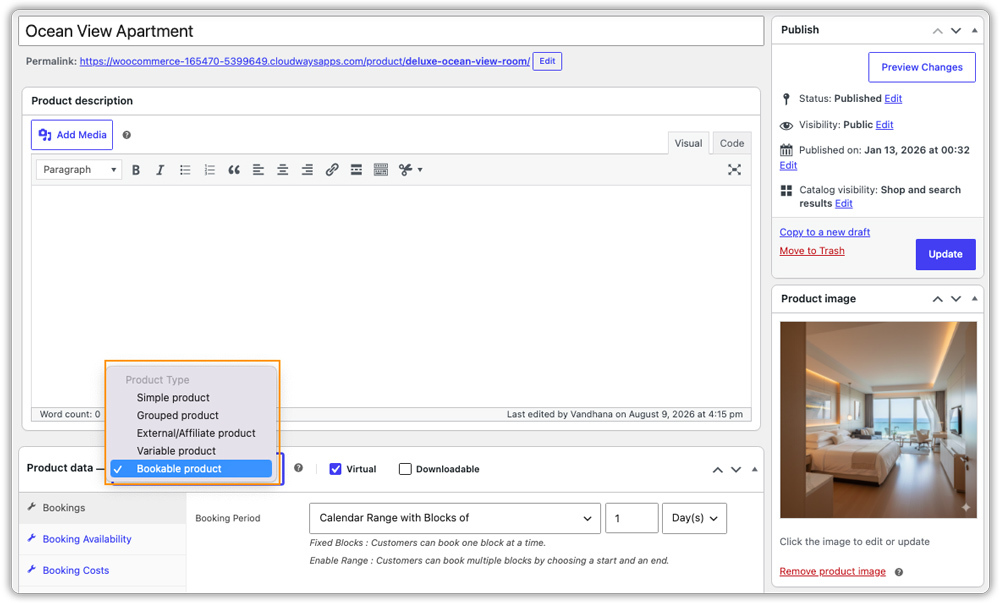
Go to Products > Add New (or edit an existing product), and change the Product Type dropdown to Bookable Product. This adds a new Bookings tab to the product page, where you’ll set everything up.
Choose a Booking Style
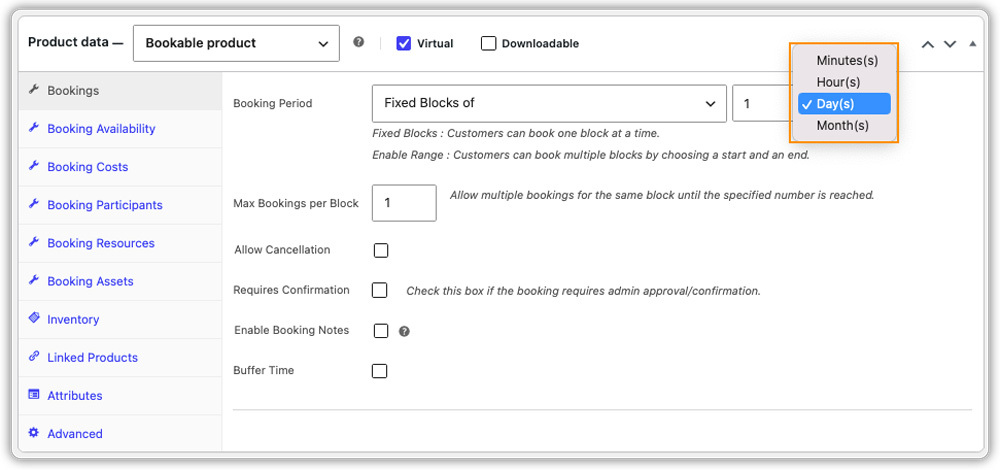
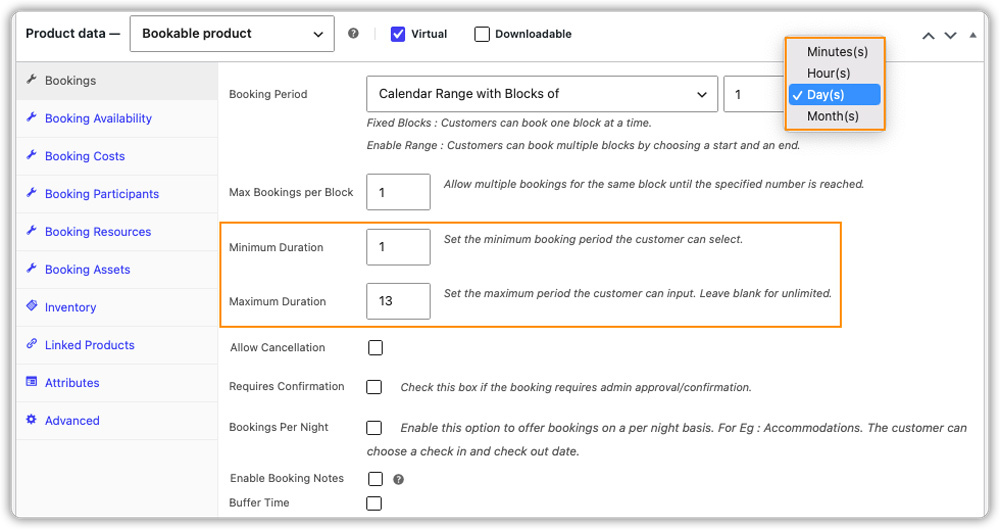
Decide how customers will pick their slot. The plugin gives you two ways to do this:
- Fixed bookings: The customer picks a single block, like a 30-minute slot, a 1-hour appointment, a single day, or even a full month for a longer rental or membership.
- Calendar range bookings: The customer picks a start and end, such as a check-in and check-out date for a hotel stay, or a start and end time for a multi-hour session.
Add Pricing, Availability, and Extras
This is where you shape the rest of the booking experience.
- Add your pricing: Start with a base price, then layer on special pricing for weekends, specific dates, or peak seasons using the booking cost settings.

- Block out unavailable dates: Use the availability settings to close off holidays, maintenance days, or any time slots you don’t want customers booking.

- Add extras with Resources: If a booking needs something on top of the main service, like a parking spot for a hotel stay or an extra bed, attach it using Booking Resources, each with its own price.

- Share availability with Assets: If the same person or item is booked across multiple products, use Booking Assets to keep their calendar in sync across all of them, so they don’t end up double-booked.

Beyond these, the plugin has a few more features worth exploring depending on your business, like managing multiple participants per booking, adding buffer time between appointments, allowing cancellations, or requiring admin approval before a booking is confirmed, and many more. You can check out a live demo to see how these work in practice.
What Customers See on the Product Page
Once everything is set up, customers see a live calendar on the product page. They pick their dates or time slot, add any extras, and see the total price update instantly before checking out.

Tips for Selling Bookable Products in WooCommerce
Getting the calendar working is only half the job. A few small adjustments can make bookings run more smoothly for both you and your customers.
- Add extra fields with Product Add-ons: If a booking needs more than a date and time, like a file upload or special instructions, pair it with the PH Product Add-ons for WooCommerce plugin.
- Accept partial payments for bigger bookings: Pair your bookable product with the PH Deposits for WooCommerce plugin if you want to collect a deposit upfront and the rest closer to the booking date.
- Keep your calendar design consistent with your theme: The plugin offers built-in calendar styles, so pick one that matches your site rather than sticking with the default.
- Automate reminder and follow-up emails: Set these up using the email notifications guide, so customers stay informed without any manual work on your end.
- Sync bookings with your calendar: Turn on two-way sync with Google Calendar or Microsoft Outlook so bookings show up alongside your regular schedule.
These small setup choices can save you a lot of manual follow-up once bookings start coming in.
Conclusion
Bookable products turn a static WooCommerce store into a functioning appointment or reservation system, without needing a separate booking tool. Once you’ve set your booking period, pricing, and availability, the calendar takes care of showing customers what’s open and collecting their booking details automatically. If you run into any setup questions along the way, the PluginHive support team is ready to help.
FAQs
Q: Does WooCommerce have booking?
Not out of the box. You’ll need a plugin like Bookings and Appointments for WooCommerce to add booking calendars to your store.
Q: How do I add a bookable product in WooCommerce?
Edit a product, change its Product Type to “Bookable Product,” and configure the booking period, pricing, and availability from the Bookings tab.
Q: What is the best booking plugin for WordPress?
For WooCommerce stores specifically, Bookings and Appointments for WooCommerce is a strong choice, since it covers appointments, rentals, and reservations.
