


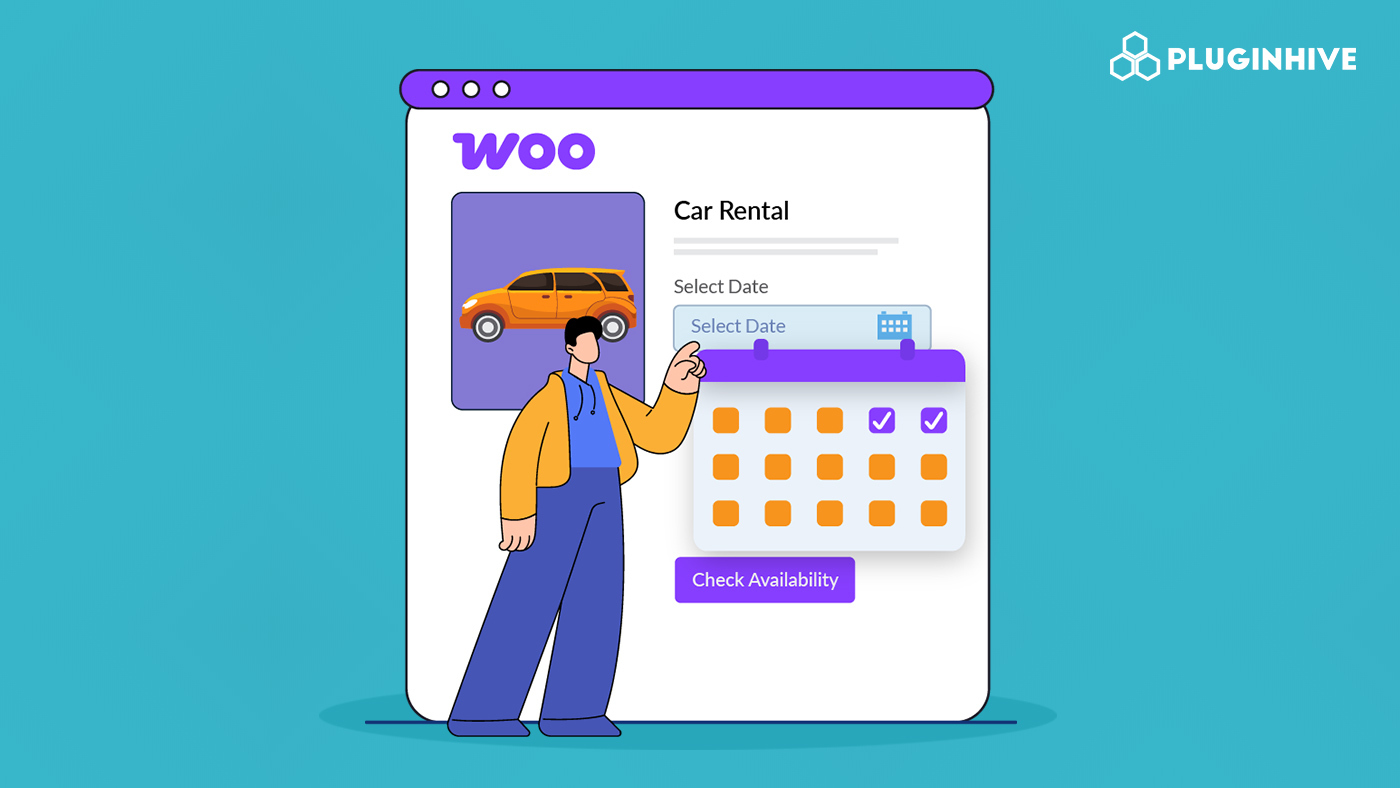
Running a WooCommerce store that takes bookings or custom orders can be frustrating. Customers email or call asking about available dates, you check your calendar, send back options, and wait for their response. This back-and-forth takes up hours of your time every week. Worse, you might accidentally double-book or miss a customer inquiry, which hurts your business and reputation.
A date picker solves this instantly. It lets customers see your available dates right on the product page, pick the one they want, and complete their purchase in seconds. No more endless emails, no more scheduling mistakes, and no more lost sales because customers had to wait. This guide shows you exactly how to add date pickers to your WooCommerce store so customers can book appointments, reserve rentals, or place custom orders without any hassle.
Table of Contents
- Why Your WooCommerce Store Needs a Date Picker
- Two Ways to Add Date Pickers in WooCommerce
- How WooCommerce Stores Use Date Pickers in Real Situations
- Choosing the Right Date Picker Setup for Your WooCommerce Store
- Conclusion
- FAQs
Why Your WooCommerce Store Needs a Date Picker
Adding a date picker to your WooCommerce products helps you collect scheduling details at the right moment when customers are ready to buy. Instead of managing dates later through messages, the product page itself becomes a clear and guided booking experience.
Key Reasons to Add a Date Picker
- Reduce cart abandonment: Customers choose dates instantly instead of leaving the site to ask questions
- Improve order accuracy: Date selection happens before checkout, reducing missing information in orders
- Create a smoother buying flow: Customers complete everything in one step without switching between emails and your store
- Save operational time: Fewer manual updates mean you can focus more on fulfillment and customer experience
- Make scheduling visible: Showing available dates builds trust and sets clear expectations
A date picker is not just an extra feature; it simplifies how customers interact with your products and makes your store easier to manage as orders grow
Two Ways to Add Date Pickers in WooCommerce
Not all date pickers work the same way. The type you need depends on what you’re selling and how you manage availability.
Think about your WooCommerce business this way:
- Do you have limited spots or time slots that fill up? (Like a salon with only 5 appointment slots per day)
- Or do you just need customers to tell you a date? (Like a bakery that needs to know when to deliver a cake)
If availability matters, you need a booking-based calendar. If you just need date information, a simple date field works better. Let’s look at both options.
Adding Date Selection for Bookings and Appointments
This option is best for businesses where availability matters. When a customer selects a date, that slot should no longer be available to others. The Bookings and Appointments for WooCommerce plugin makes this possible by adding a booking calendar directly to your product page.
Before you begin, install and activate the plugin so the booking settings appear inside your product options.
Open an existing WooCommerce product or create a new one and change its type to Bookable Product. From there, enable date-based booking, set availability rules such as working days or blocked dates, and configure the required settings for your store.

Once saved, a date picker calendar appears automatically on the product page, letting customers select available dates before adding the product to their cart.
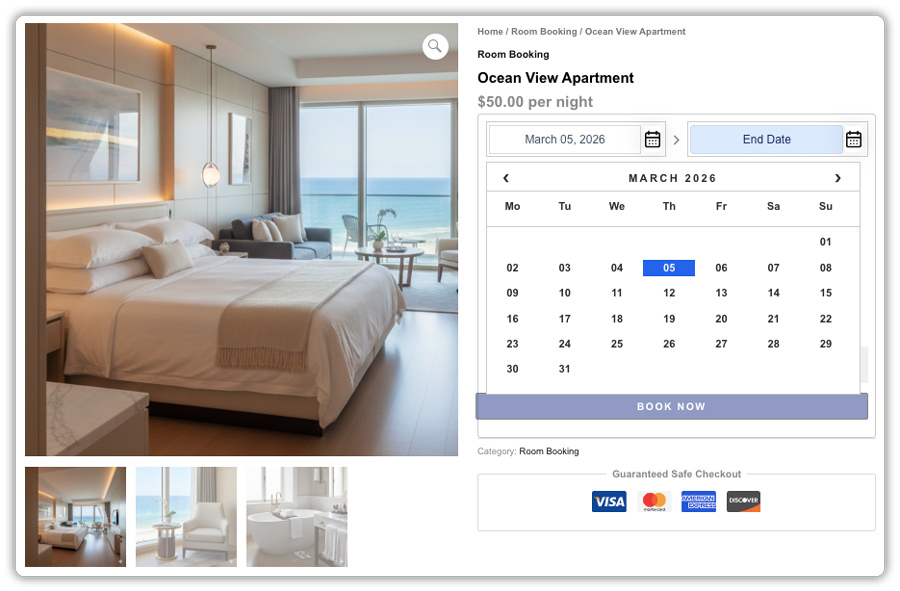
The plugin also supports time-based bookings like hourly, multi-day or monthly scheduling. For detailed steps, refer to the complete setup guide for Bookings and Appointments for WooCommerce .
Customers visit the product page, open the calendar, and select an available date, fully booked days appear grayed out automatically. On your end, all bookings are organized in a calendar view within WooCommerce, helping you track reservations and avoid double-bookings.

Adding Date Pickers for Custom Product Orders
If your store only needs customers to provide a preferred date without managing availability, a simple date picker field is enough. The PH Product Add-Ons for WooCommerce plugin lets you add a date selection field directly to any product page.
Install and activate the plugin first so the add-on field settings become available in your dashboard.
Open the PH Product Add-Ons plugin, create a new add-on field group, and add a date picker field.

Attach this field to specific products or categories and customize it with a label, instructions, required selection, or additional pricing for things like rush orders.

Once configured, customers see the date picker on the product page, select their preferred date, and proceed to checkout.

The selected date is saved with the order and appears clearly in order details, making fulfillment and production planning straightforward.
For a full walkthrough, refer to the complete setup guide for PH Product Add-Ons for WooCommerce .
The Bookings and Appointments plugin controls availability by blocking booked dates. The PH Product Add-Ons plugin collects date information without managing availability. Choose based on whether your business needs scheduling control or just a way to capture customer preferences.
How WooCommerce Stores Use Date Pickers in Real Situations
Date pickers work for many types of WooCommerce businesses. Here are some practical examples.
When Your Business Runs on a Schedule
Any business that operates on a scheduled basis can benefit from the Bookings and Appointments for WooCommerce plugin. Think about businesses like:
- A salon or spa where each appointment takes up a specific time slot, and overbooking is a real problem
- A vacation rental where customers need to select check-in and check-out dates before confirming a reservation
- A fitness studio running classes with limited capacity, where once a class is full, it should no longer appear available
- A consultant or coach who offers one-on-one sessions and requires customers to book from available time slots only
In these cases, the date picker controls availability and prevents overbooking.
When You Just Need a Date from Customers
Some businesses don’t need availability management. They just need a date attached to the order. The PH Product Add-Ons for WooCommerce plugin works perfectly here. Common examples include:
- A custom gift shop where customers engrave a special date on jewelry or keepsakes
- A catering business where customers specify which date they need food delivered
- A print shop taking orders for event invitations, where customers provide the event date
- A flower delivery service where customers choose their preferred delivery date at checkout
Here, the date picker simply gathers information without managing a calendar.
Choosing the Right Date Picker Setup for Your WooCommerce Store
Here’s a quick comparison to help you decide which solution fits your business.
| Feature | Bookings and Appointments for WooCommerce Plugin | PH Product Add-Ons for WooCommerce Plugin |
|---|---|---|
| Best For | Appointments, rentals, classes, venues | Custom orders, personalized products, deliveries |
| Availability Management | Blocks booked dates automatically | Does not control availability, any date can be selected |
| Time Slot / Time Picker | Booking-based scheduling | Simple time or date input fields |
| Confirmation Emails | Automatic booking notifications | Standard WooCommerce order emails |
| Date-Based Pricing | flexible pricing by date or duration | Flat fee or rush order pricing |
| Setup Complexity | Moderate | Simple |
Choosing the right setup from the start keeps your product pages clear and easy to use. Both options integrate smoothly with WooCommerce, work well on mobile devices, and help you create a more organized ordering experience.
Conclusion
Adding a date picker to your WooCommerce product page helps customers choose dates easily while placing an order. It keeps scheduling clear, reduces confusion, and makes the buying process smoother for both you and your customers. Whether you use a booking calendar or a simple date field, the goal is to collect the right information at the right time.
Start with the setup that fits your business and keep the experience simple. If you need help setting up date pickers or configuring PluginHive plugins in your WooCommerce store, the PluginHive support team is ready to assist you with configuration and guidance.
FAQs
1. Does WooCommerce have a built-in date picker on the product page?
No. WooCommerce does not include a native date picker, which is why plugins are commonly used.
2. Can I add a date picker to a WooCommerce product without coding?
Yes. Both the Bookings and Appointments for WooCommerce plugin and the PH Product Add-Ons for WooCommerce plugin let you add date selection directly from your WordPress dashboard without writing code.
3. Will the date picker show up in the order details?
Yes. The chosen date is saved with the order and visible in the WooCommerce order details page.
4. Can I add a date picker to specific products only?
Yes. You don’t have to apply the date picker to your entire store. With the Bookings and Appointments for WooCommerce plugin, you set each bookable product individually. With the PH Product Add-Ons for WooCommerce plugin, you can assign the date picker field to specific products or product categories of your choice.
