


Customers don’t always want just the product; instead, they want it tailored to their needs. Gift wrapped, engraved, delivered faster, or printed with their design. And if you’re a WooCommerce store owner, every one of those requests is either costing you money or slipping through the cracks. The PH Product Add-ons for WooCommerce plugin by PluginHive fixes that. It lets you add extra fees in WooCommerce directly on your product pages, so customers can choose the extras they want and pay for them on the spot – cleanly, transparently, and without any manual work from your end.
In this article, you’ll learn how to set up WooCommerce extra fees on your store, see which businesses benefit the most, and pick up a few practical tips to do it in a way that actually increases your sales.
Table of Contents
- Why WooCommerce Store Owners Should Offer Optional Extra Fees
- WooCommerce Businesses That Benefit Most from Extra Fee Add-ons
- How to Add Extra Fees to Your WooCommerce Products
- Smart Tips to Charge Extra Fees Without Losing Sales
- Conclusion
- FAQs
Why WooCommerce Store Owners Should Offer Optional Extra Fees
Most WooCommerce store owners are leaving money on the table simply because they don’t have a structured way to charge for extra services. Here’s why offering optional extra fees through product add-ons makes smart business sense:
- You cover real costs without raising base prices: Services like custom engraving, special packaging, or express processing come with actual costs. Charging for them separately keeps your core product price competitive.
- Customers who want more, pay more – willingly: When extras are optional and clearly priced, customers feel in control. They don’t feel tricked. They feel served.
- It creates a better shopping experience. Showing add-ons on the product page lets customers customise their order before checkout, reducing back-and-forth with your support team.
- You earn more per order without stocking extra products: Extra fees are essentially pure revenue for services you’re already offering or can easily offer.
- It sets clear expectations: When prices for extras are visible upfront, there are fewer disputes and chargebacks after purchase.
Ultimately, optional extra fees are not about charging more; rather, they help you price transparently while improving customer satisfaction.
WooCommerce Businesses That Benefit Most from Extra Fee Add-ons
Not every WooCommerce store needs product add-ons, but for many types of businesses, they’re practically essential. Here’s a quick look at who benefits the most:
| Business Type | Common Extra Fee Use Case |
|---|---|
| Custom apparel & print-on-demand stores | Charge per line of text or per uploaded design file |
| Gift shops & florists | Gift wrapping, personalized messages, and delivery date selection |
| Bakeries & cake shops | Custom text on cakes, special flavors, premium decoration tiers |
| Photography & design studios | Rush turnaround fees, extra revision rounds |
| Electronics & gadget stores | Extended warranty, installation service, protective packaging |
| Event & booking businesses | Priority seating, equipment add-ons, and early access fees |
| Furniture & home goods stores | Assembly service, room-of-choice delivery, custom color options |
Explore how top industries use product add-ons here.
If your store offers any kind of customization or service layer on top of your core products, the PH Product Add-ons for WooCommerce plugin can help you monetize it properly.
How to Add Extra Fees to Your WooCommerce Products
Unlike other WooCommerce extra fees plugins that work at the cart level, the PH Product Add-ons plugin lets you charge extra directly on the product page.
Here’s how to get it set up in just a few steps. For a detailed walkthrough, refer to the setup guide.
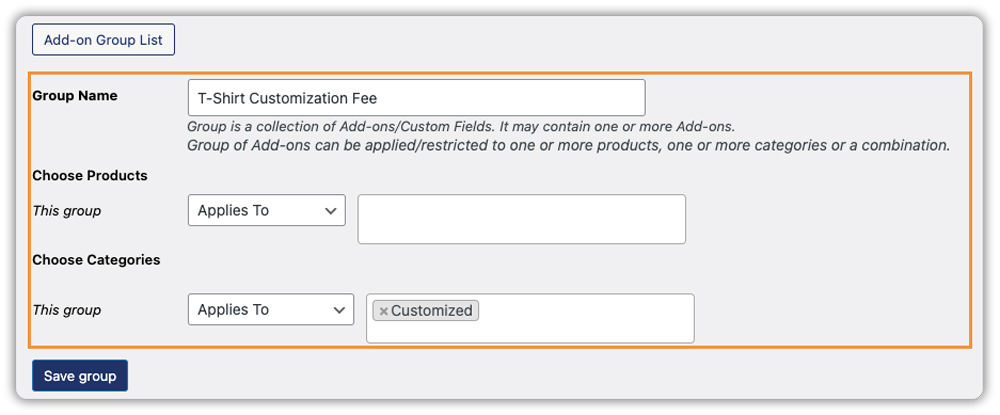
Create a New Add-on Group: Go to WordPress Dashboard → Product Add-ons → Add New. Give your group a name like “Gift Options” or “Custom Printing Fees” and save it.

Assign it to Products or Categories: Choose which products or categories this group applies to. The same group can be assigned to multiple products, so you don’t have to set things up twice.
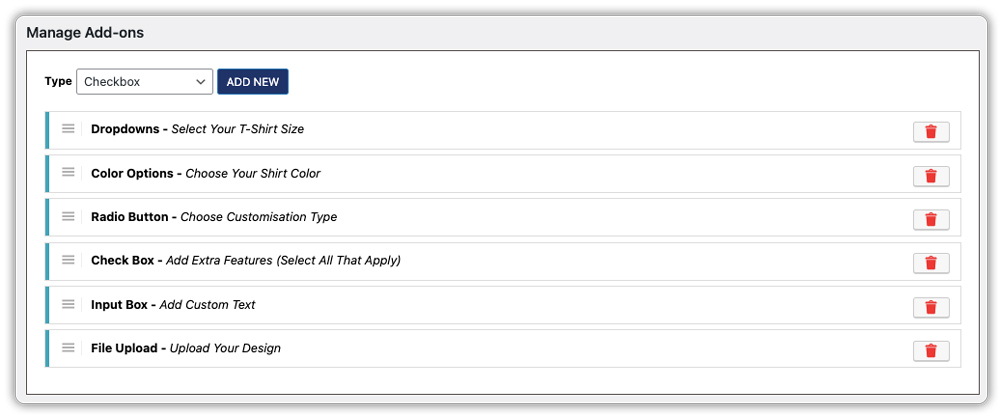
Add Your Fee Fields: Click Add Field and choose the type that fits your need:
- Checkbox – for simple yes/no extras like gift wrapping
- Dropdown – for tiered options like Standard / Express delivery
- Radio Button – for one-choice selections like finish type or material
- Text Input – for custom messages; charge per character if needed
- File Upload – for design or logo uploads with an attached fee
- Hidden Field – for mandatory fees that apply automatically
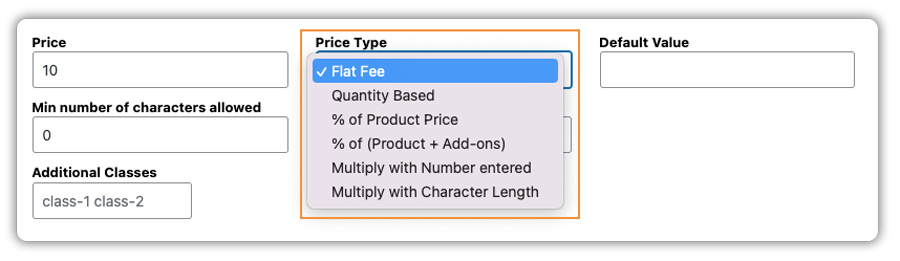
Set the Price: Each field supports multiple pricing methods:
- Flat Fee – a fixed amount (e.g., $5 for gift wrapping)
- Percentage of Product Price – scales with the product value
- Percentage of Product Price + Add-ons – calculates the fee based on the combined total of the product and other selected add-ons
- Quantity-Based – grows as the customer orders more units
- Multiply with Number Entered – useful when customers specify a quantity or measurement themselves
- Multiply with Character Length – ideal for engraving or text printing
- Mark Fields as Required or Optional: Set a field as Required if the customer must fill it before checkout.
- Save and Preview: Click Save, then open the product page on your storefront. The add-ons appear below the product description, and the price updates live as customers make their selections. The selected add-ons and costs carry through to the cart and order confirmation automatically.
Real-World Example: Custom T-Shirt Store
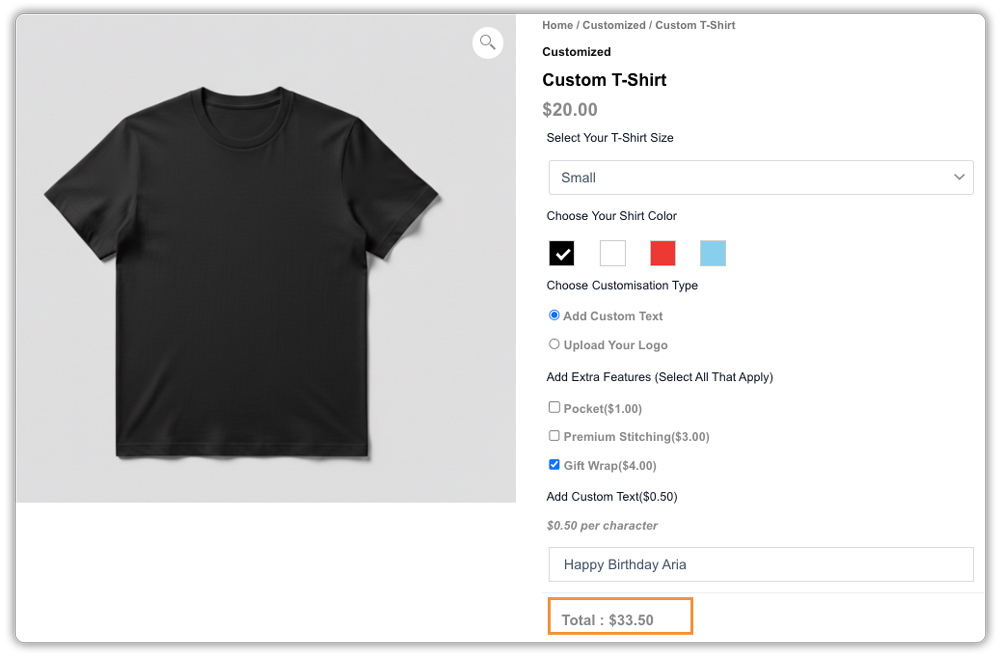
Let’s say you sell customisable t-shirts. Using the PH Product Add-ons plugin, you can let customers choose their size, select a shirt colour, choose a customisation type, and add extras like pocket stitching or gift wrapping, all on the product page. Each option carries its own fee, and the total updates in real time as they make their selections. In the example below, a $20 t-shirt with custom text and gift wrapping comes to $33.50, calculated automatically, with no manual work on your end.
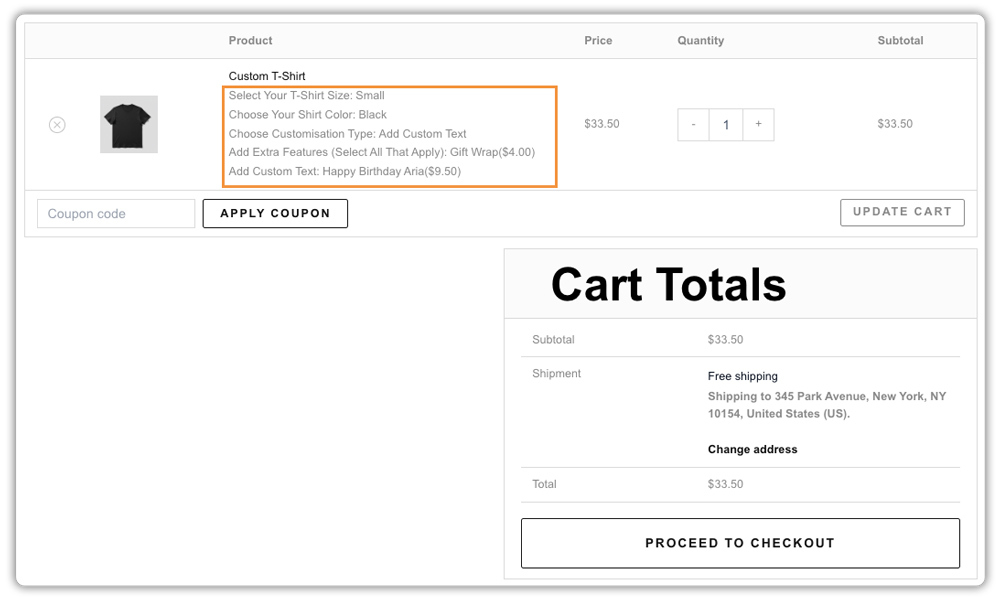
Once customers select extra options, the same price breakdown follows them automatically throughout the purchase process.
On the cart page, each add-on appears as a separate line item along with the base product price, so customers can review the updated subtotal before continuing.
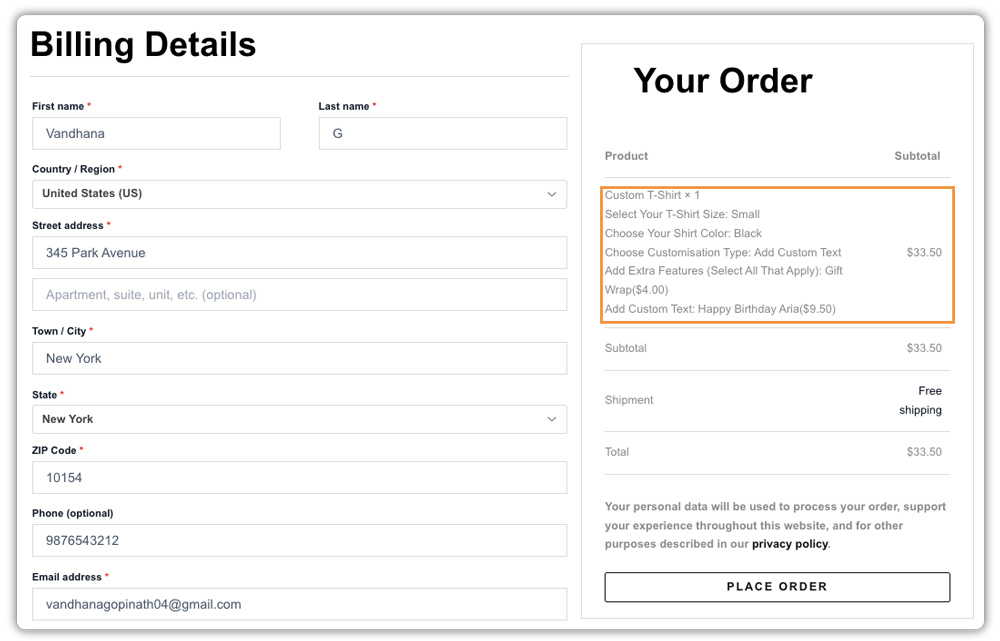
At checkout, the order summary shows the product price, selected add-ons, and final total for complete pricing clarity.
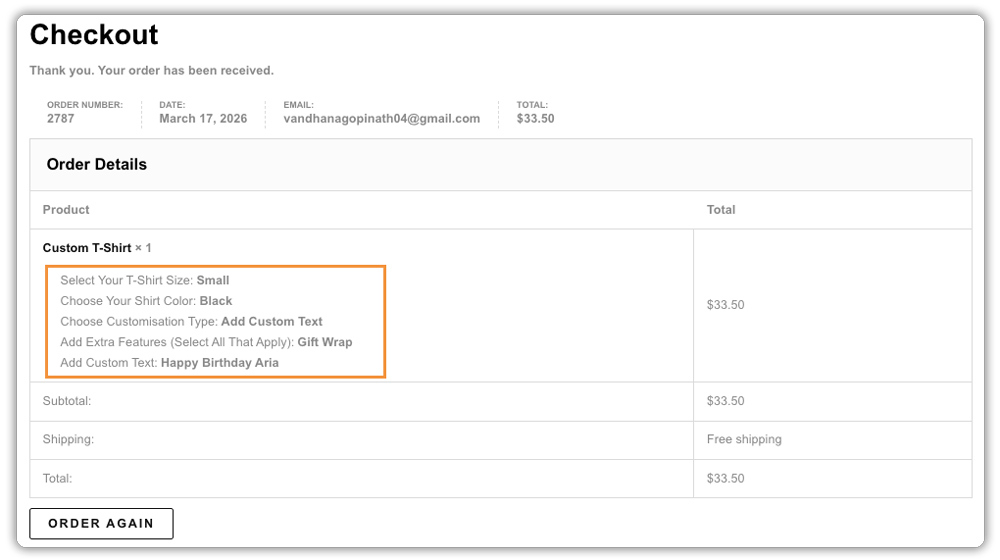
After the order is placed, the same itemized details appear on the order confirmation page and in the confirmation email, giving customers a clear record of their purchase.
For more industry-specific examples, check out how this plugin covers this for print-on-demand stores and stores looking to increase average order value.
Smart Tips to Charge Extra Fees Without Losing Sales
Charging extra fees the right way is just as important as charging them at all. Here are some tips that keep customers happy while protecting your revenue:
- Keep the options to a reasonable number: 3 to 5 add-ons per product is usually the sweet spot. Too many choices overwhelm customers and can actually reduce conversions.
- Name your fees clearly: “Gift Wrapping (+$4)” works much better than “Packaging Option A.” Clear labels help customers make decisions faster.
- Use conditional logic smartly: Don’t show every possible add-on to every customer. Use the plugin’s conditional display feature to only show relevant options based on prior selections.
- Reuse add-on groups across products: The plugin lets you assign one add-on group to multiple products or categories. This saves setup time and keeps your fee structure consistent.
The goal is to make extra fees feel like a natural part of the shopping experience, not an obstacle. When done right, customers don’t just accept them; they appreciate having the choice.
Conclusion
Charging for extras doesn’t have to feel awkward, and with the right setup, it won’t. The PH Product Add-ons plugin is a WooCommerce extra fees plugin that works directly on the product page, making it easy for customers to choose what they want and pay for it before they even reach checkout. Set it up once, and every extra service you offer has a price attached to it, and your store handles the rest.
If you need help setting up this in your WooCommerce store, the PluginHive support team is ready to assist you with configuration and guidance.
FAQs
Q: Will the extra fees show up in the WooCommerce order summary and emails?
Yes. Every extra fee you add in WooCommerce through the PH Product Add-ons plugin for WooCommerce appears on the product page, cart, checkout, and order confirmation email, giving both you and your customer full visibility.
Q: Can I charge based on how many characters a customer types?
Yes. The “Multiply by Character Length” pricing option lets you add an extra fee in WooCommerce per character typed, perfect for engraving, name printing, or any service where effort scales with text length.
Q: Is the plugin compatible with WooCommerce Bookings?
Yes. The PH Product Add-ons plugin works with PluginHive’s Bookings and Appointments plugin for WooCommerce, so you can add paid extras to bookable products as well.
