


Adding a file upload option to your WooCommerce products makes it easy for customers to submit their images, logos, or documents directly while placing an order. This is especially useful if you sell personalized or custom products, as it eliminates the need for separate emails or manual file collection. It streamlines the process, reduces errors, and ensures you receive the exact files needed to complete the order.
Whether you sell custom t-shirts, business cards, photo prints, or offer services that require document uploads, adding a file upload field directly on the product page makes your store more professional and customer-friendly. In this article, we’ll show you how to add file upload functionality using the best WooCommerce file upload plugin.
Table of Contents
- Why Add a File Upload Field to WooCommerce Products
- Real-World Examples of WooCommerce Products Requiring File Uploads
- Introducing PH Product Add-Ons: The Best WooCommerce File Upload Plugin
- How to Add File Uploads to WooCommerce Products
- Conclusion
- FAQs
Why Add a File Upload Field to WooCommerce Products
WooCommerce doesn’t offer a file upload option by default. This creates problems for store owners who sell custom or personalized products because they have to manually collect files through email or chat. Adding a file upload field directly on the product page makes the process faster, easier, and more accurate for both you and the customer.
- Makes Ordering Easier: Customers can upload files while placing the order with no extra steps or follow-up emails.
- Enables Personalization: Ideal for products that need customer images, designs, or documents.
- Reduces Mistakes: You get the required files upfront, which helps you fulfill orders correctly.
- Saves Time: No need to contact customers later for files, making order processing quicker.
- Builds Trust: A smooth and professional process encourages more customers to complete their purchase.
By adding file uploads, you improve the shopping experience and simplify your workflow. In the next section, we’ll look at the types of products and businesses that need file upload options.
Real-World Examples of WooCommerce Products Requiring File Uploads
Not all WooCommerce stores need file uploads, but for businesses that offer personalized, custom, or service-based products, this feature is essential. It allows customers to provide files during the purchase process, ensuring accurate orders and faster fulfillment. Below are the most common use cases where adding a file upload field becomes a must-have:
- Custom Printing Products: Customers can upload images or artwork for items like t-shirts, mugs, posters, and phone cases.
- Photo and Artwork Printing: Users can upload personal photos for printing on canvas, frames, or albums.
- Business Cards and Marketing Materials: Clients can upload their company logo, design files, or brand guidelines for professional printing.
- Personalized Gifts: Items such as engraved jewelry, custom plaques, or gift items often require customers to submit names, images, or messages.
- Digital Services: Service providers offering logo design, resume editing, or artwork creation need customers to upload documents or reference files.
- Document Upload for Services: Legal, medical, or educational services may require users to upload reports, ID proofs, or application files for processing.
- Food and Beverage (Cakes/Catering): Uploading a photo for a custom-printed cake topper.
These examples show that file uploads are crucial for businesses that rely on customer input. In the next section, we’ll introduce the best WooCommerce Product addon plugin for file upload to help you add this feature with ease.
Introducing PH Product Add‑Ons: The Best WooCommerce File Upload Plugin
If your store needs customers to upload files (images, logos, documents) before you fulfill an order, this PH WooCommerce Product Addon plugin is a great fit. It integrates with WooCommerce and lets you add file-upload fields and other custom options right on the product page, no coding required.
Key Features of the PH Product Add-Ons Plugin
- File Upload Field: Let customers upload their files (artwork, photos, documents) directly when they buy a product.
- Multiple Custom Fields: Besides file uploads, you can add text inputs, dropdowns, checkboxes, radio buttons, etc., for complete customization.
- Apply to Many or Individual Products: Create a group of add-on fields and apply them globally (to many products) or just for specific ones.
- Extra Pricing Options: Charge extra for file uploads using flat, percentage-based, or quantity-based pricing.
- Works With Variable Products: Works well whether you sell single products or variable ones (different sizes, colors) while still allowing uploads.
- Mobile-Friendly and fast: Optimized for speed and smooth performance across all devices.
The PH Product Add-Ons plugin makes it simple to accept files directly from customers, helping you process orders more accurately and deliver a better shopping experience. In the next section, we’ll look at how you can start using this feature to enhance your product offerings and boost customer satisfaction.
How to Add File Uploads to WooCommerce Products
Using the PH Product Add-Ons plugin for WooCommerce, you can add a file upload field to your product page in just a few clicks, no coding or technical skills required.
Note: Before you begin, make sure that the plugin is installed, activated, and ready to use. Once your plugin is set up, you can follow the steps below to enable file uploads on your WooCommerce products.
- Create an Add-On Group
In your WordPress dashboard, go to Product Add-Ons and click Add New Add-On Group. Give your group a name (like Custom Upload Options) and choose the products or categories where you want the upload option to appear.

- Add a File Upload Field
Click Add Field and select File Upload from the dropdown. This adds an upload box directly to your product page so customers can attach their files while placing an order.

- Customization Options
After adding the file upload field, you can customize it to match your requirements. You can set the label and description, choose which file types customers are allowed to upload, and define the maximum file size. You can also make the file upload mandatory, so customers must upload a file to place the order.

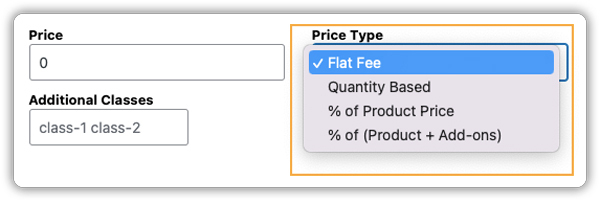
If you want to charge for file uploads, you can choose how the price is added:
- Flat Fee: A fixed cost.
- Quantity-Based: Cost increases with the quantity of product.
- % of Product Price: Charges a percentage of the product cost.
- % of Product + Add-ons: Charges a percentage based on the total, including other add-ons.
- For more flexibility, you can enable multiple uploads or apply conditional logic to show the field only when a customer selects a specific option.

- How Customers Upload Files
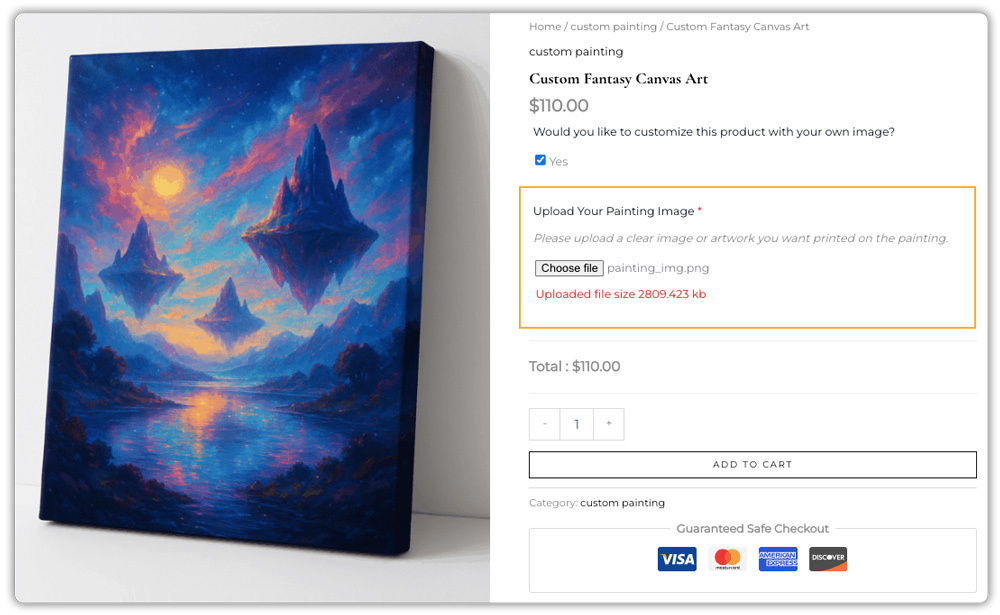
Customers will now see an upload box directly on the product page. They can add their files before clicking “Add to Cart,” making the customization process easy and seamless.
- Managing Uploaded Files from the WooCommerce Admin Dashboard
Go to WooCommerce → Orders and open any order to view the uploaded files directly in the order details. This makes it easy to review and process customer requests.

By adding a file upload option to your product page, you make it easy for customers to share exactly what you need for their order, saving time, reducing back-and-forth communication, and offering a more professional shopping experience.
Note: If you want a detailed step-by-step setup guide for adding different types of custom fields along with the file upload option, you can check out this guide.
Conclusion
Adding a file upload option to your WooCommerce store makes it easier for customers to share the exact files you need for customized products or services. It removes back-and-forth communication, speeds up order processing, and delivers a more professional and seamless shopping experience.
The PH Product Add-Ons plugin gives you full control over how files are collected and managed, making it ideal for businesses offering personalized items, digital services, or made-to-order products. It’s a simple solution that improves customer satisfaction and helps you grow your store with confidence. If you’d like assistance setting this up in your store, contact PluginHive support for expert guidance and personalized setup help.
FAQs
Q1: Does WooCommerce come with a built-in file upload feature by default?
No, WooCommerce does not offer a native option to add file uploads on product pages. You need to use a dedicated WooCommerce file upload plugin like the PH product Add-On for WooCommerce to enable this functionality.
Q2: Will uploaded files in WooCommerce be linked to the customer’s order?
Yes. When a customer uploads a file, it’s automatically attached to their order in WooCommerce. You can view or download it from the order details page.
Q3: Can WooCommerce file upload fields be limited by file type or size?
Absolutely. You can set restrictions on allowed file types (e.g., JPG, PNG, PDF) and file size limits to ensure uploads meet your requirements and server capacity.
Q4: Is it possible to charge extra when a customer uploads a file in WooCommerce?
Yes. WooCommerce file‐upload plugin supports extra fees for file uploads, whether it’s a flat fee, percentage-based, or quantity-based.
Q5: Can I show the file upload field only for specific products in WooCommerce?
Yes. You can display the upload field only on specific products or categories, keeping your product pages clean and relevant.
