



When customers shop online, they rely entirely on what they can see on the screen. If your WooCommerce store sells products that come in different colors, designs, or styles, a plain text dropdown makes customers work hard to imagine what each option actually looks like, and most won’t bother. That hesitation leads to fewer purchases, more “what does this look like?” emails, and higher return rates.
The PH Product Add-ons for WooCommerce plugin fixes this by letting you add clickable image selectors directly on your product pages. Customers see the actual options as photos, click the one they want, and it gets saved straight through to their order. In this article, we’ll walk through exactly how to set this up and get the most out of it for your store.
Table of Contents
- Why WooCommerce Stores Need Image Options on Their Product Pages
- What Are WooCommerce Image Options
- How to Add Image Options to Your WooCommerce Product Pages
- Real-World Example: WooCommerce Image Options in Action
- Tips to Make the Most of WooCommerce Image Options
- Conclusion
- FAQs
Why WooCommerce Stores Need Image Options on Their Product Pages
Most WooCommerce stores default to dropdowns or radio buttons when a product has multiple variants. It works, but it puts an unnecessary barrier between the customer and the buy button.
Here’s why text-only selectors hold your store back:
- Customers have to read and imagine what each option looks like; that’s extra mental effort most shoppers won’t spend
- Color names like “Slate Grey” or “Dusty Rose” mean something different to everyone
- Text lists make product pages feel flat, especially when the product itself is highly visual
- Customers are more likely to hesitate, second-guess, or leave without buying
- Returns go up when buyers receive something that looked different in their head than it does in real life
Showing customers a photo of what they’re actually choosing removes all of that friction. Decisions happen faster, confidence goes up, and your product page looks more professional immediately. Stores selling custom apparel, home decor, accessories, art prints, and personalized gifts see the biggest impact, but any WooCommerce store with visual product variants can benefit from making this switch.
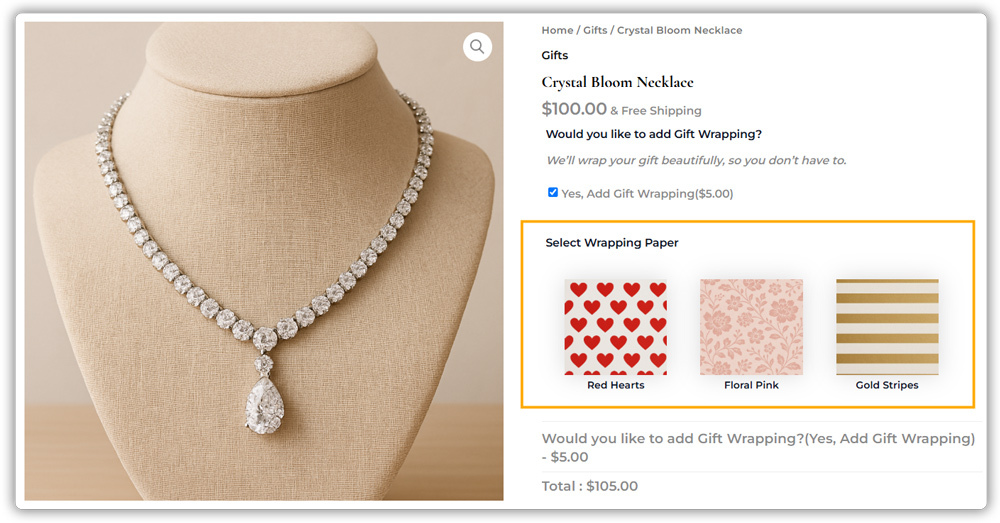
What Are WooCommerce Image Options?
WooCommerce image options are clickable image fields you can add to any product page. Instead of picking “Red” from a dropdown, the customer sees a photo or swatch of the actual red option and clicks it. Their selection gets carried through to the cart, checkout, and order details automatically.
The PH Product Add-ons for WooCommerce plugin makes this possible without any coding or theme changes. It adds a full layer of product customization on top of your existing WooCommerce setup. Image options is just one of many field types the plugin supports:
| Field Type | Best Used For |
|---|---|
| Image Options | Design variants, color swatches, style choices |
| Color Options | Single or multiple color picker |
| Radio Buttons | One choice from a list |
| Checkboxes | Add-ons like gift wrap, engraving, or insurance |
| Dropdown | Size, quantity, or material selection |
| Text / Text Area | Custom names, messages, or special instructions |
| File Upload | Customer-uploaded artwork or images |
| Date / Time Picker | Delivery dates or appointment scheduling |
For stores where appearance drives the purchase decision, image options is the field type that makes the most immediate difference on your product page.
How to Add Image Options to Your WooCommerce Product Pages
Setting this up is straightforward. You don’t need any technical background to get it running.
Create and Assign an Add-on Group
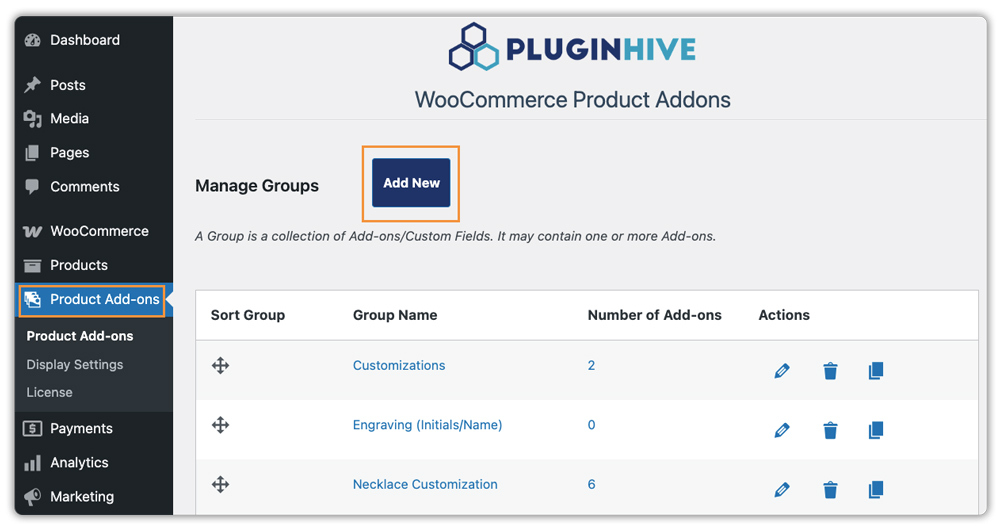
After activating the plugin, go to Product Add-ons in your WordPress dashboard and click Add New Group.
Give the group a clear and meaningful name, such as Pick Your Design or Choose a Color so it’s easy to recognise and manage later.
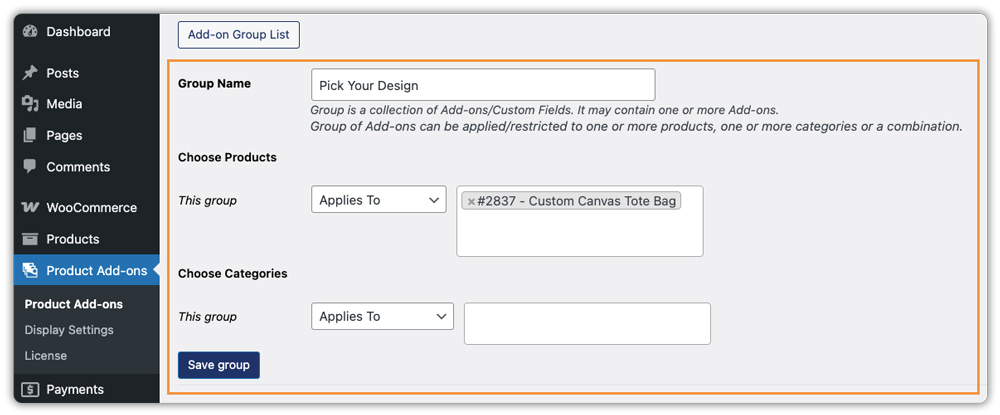
While creating the group, choose the product or product category where you want these image options to appear, and save the group.
Add the Image Options Field
Inside the group, click Add Field, then select Image Options as the field type. Enter a simple label that customers will see on the product page, upload images for each available option, and assign names or additional pricing if required.
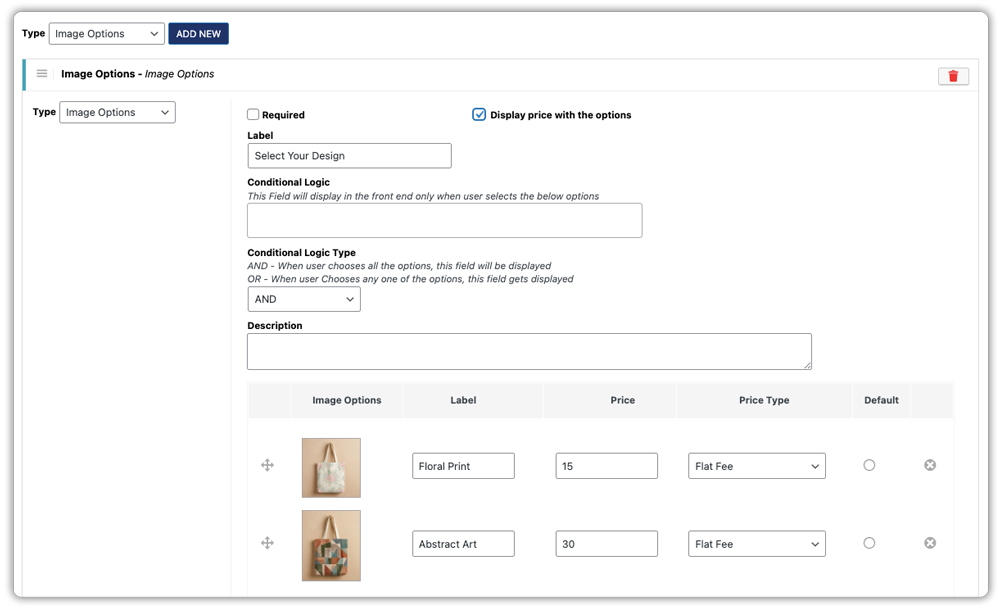
You can also set the image width and height to keep all thumbnails uniform on the product page.
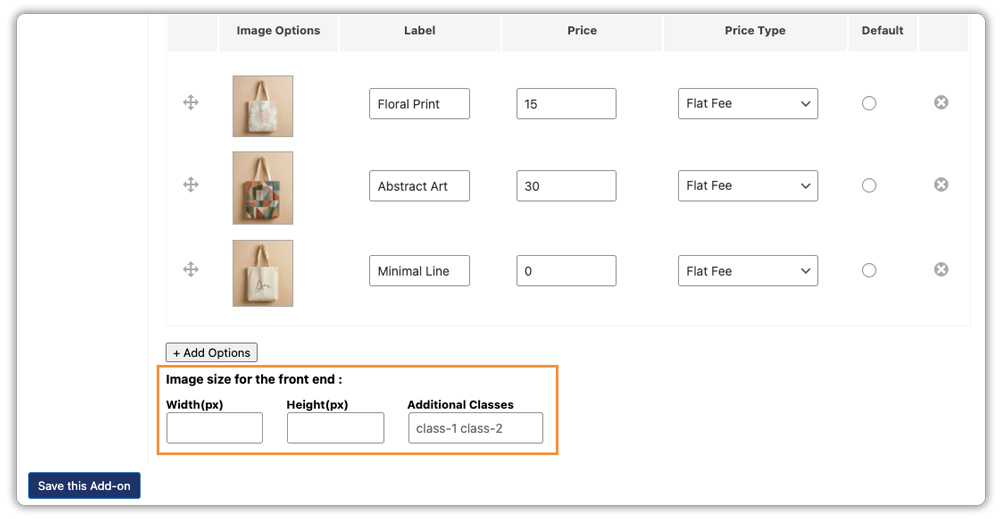
Once the field is added, save the group again to make sure the configuration is applied to the selected products.
Check It on Your Store
Open the product page on your live store, confirm the image selector appears correctly, and add an item to the cart. Make sure the selected option shows up in the cart and order summary just as expected.
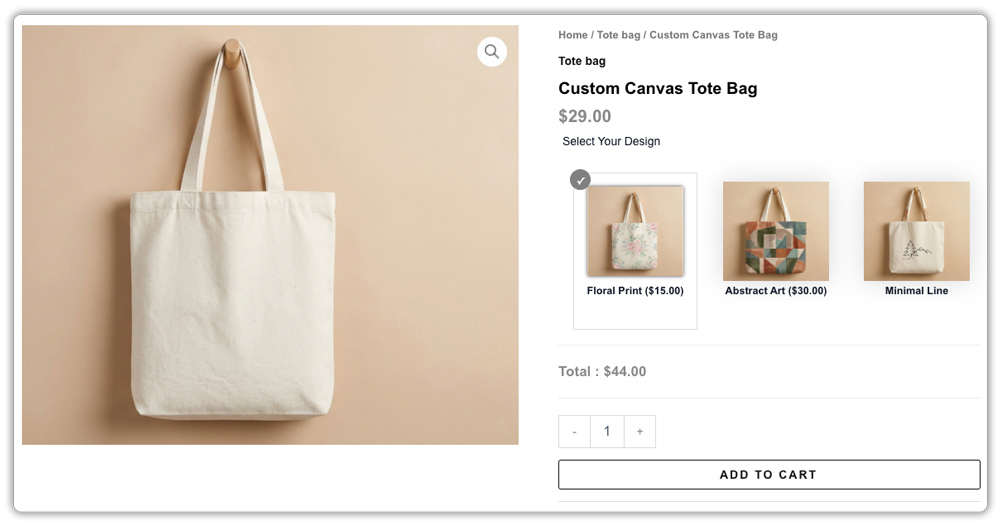
For example, if you run a store that sells customizable tote bags, you can create an add-on group called Choose Your Print. Upload images showing floral, abstract, and minimalist designs, and assign the group to all tote bag products. Customers will then be able to visually select their preferred design directly from the product page, making the buying process faster and more engaging.
Real-World Example: WooCommerce Image Options in Action
Let’s say you run a WooCommerce store that sells custom phone cases. Each case comes in six designs: geometric patterns, nature prints, and minimalist styles.
The situation before image options:
- The product page had a dropdown with options listed as “Design 1, Design 2, Design 3…”
- Customers were emailing to ask what each design actually looked like
- Some were guessing wrong, ordering the wrong one, and requesting refunds
- The product’s conversion rate was noticeably lower compared to other items in the store
After adding image options with PH Product Add-ons for WooCommerce:
- Each design now appears as a clickable thumbnail directly on the product page
- Customers can see all six options at a glance and pick the one they like
- “What does this look like?” Emails dropped significantly
- The premium foil design has a $5 add-on price shown clearly next to the image, no surprises at checkout
- Order accuracy improved because customers are choosing exactly what they see
The product page went from flat and text-heavy to visual and easy to use, with no change to the product itself, just a better way to present the options that were already there.
Tips to Make the Most of WooCommerce Image Options
A few things that make a real difference once your image options are live.
- Use consistent images: same dimensions and background for all options, so the selector looks clean and uniform across the page
- Make the field mandatory: if customers must choose before adding to cart, PH Product Add-ons for WooCommerce supports this with a simple toggle
- Use conditional logic: to show image options only after another selection is made, for example, show design choices only after a size is picked
- Reuse add-on groups: across similar products instead of building them from scratch every time, assign one group to multiple products or an entire category in one click
- Add a short name under each image, so customers know the option at a glance without having to hover
- Combine with other field types: pair image options with a text field if customers also need to add a custom name or message to their order
Small details like these add up to a noticeably smoother buying experience for your customers and far less back-and-forth support work for you.
Conclusion
Giving customers a visual way to choose product options removes one of the most common friction points in online shopping, uncertainty about what they’re actually ordering. When shoppers can see exactly what they’re picking, they decide faster, buy with more confidence, and are far less likely to return the product. For WooCommerce store owners selling anything with visual variants, image options are one of the simplest and most effective upgrades you can make to your product pages without rebuilding anything from scratch.
The PH Product Add-ons for WooCommerce plugin makes the whole setup quick and manageable, even if you’ve never touched a line of code. Try it on one product first, see how your customers respond, and expand from there. If you need help setting up this in your WooCommerce store, the PluginHive support team is ready to assist you with configuration and guidance.
FAQs
1. Does WooCommerce have built-in image options for products?
By default, WooCommerce only supports text-based dropdowns for product variations. To add clickable image selectors or visual swatches, you need a plugin like PH Product Add-ons for WooCommerce.
2. Can I add image options to any WooCommerce product?
Yes. PH Product Add-ons for WooCommerce works with any standard WooCommerce product. You can assign image option fields to individual products or apply them across entire product categories.
3. Can I use image options for color swatches in WooCommerce?
Yes. Although PH Product Add-ons for WooCommerce has a separate Color Options field, many store owners use the Image Options field instead. This helps them show the real fabric texture or material finish, which a simple color picker cannot display.
4. How do I add options to my product in WooCommerce?
You can use PH Product Add-ons for WooCommerce to add option fields like image selectors, color pickers, dropdowns, checkboxes, and text fields to any product page without any coding. Check out this guide on how to add extra product options in WooCommerce for a detailed walkthrough.
