


As a WooCommerce store owner, you already know that customers love having choices, whether it’s selecting a design, picking a service level, choosing ingredients, or adding small upgrades. When people can pick exactly what they want, they’re more likely to buy and enjoy shopping on your site. But the default WooCommerce setup doesn’t make this easy. Adding simple choice fields like checkboxes or radio buttons usually requires extra setup or technical adjustments that many store owners don’t have the time or expertise to handle.
The good news is, you don’t need coding skills to offer these options. With the PH WooCommerce Product Add-Ons plugin, you can add multiple-choice fields to your products in just a few clicks. Customers get clear options, prices update automatically, and your product pages look more professional. In this guide, we’ll walk you through why multiple-choice fields matter and how you can quickly add them to your WooCommerce store.
Table of Contents
- Why Your WooCommerce Store Might Need Multiple Choice Options
- Real-Life Examples of Multiple Choice Add-Ons in WooCommerce Store
- Add Multiple Choice Fields Using WooCommerce Product Add-Ons
- Conclusion
- FAQs
Why Your WooCommerce Store Might Need Multiple Choice Options
When customers can see all available options at a glance, it’s easier for them to make the right choice. Multiple-choice fields make selecting sizes, colours, or add-ons simple, helping customers feel confident and satisfied with their purchase.
Here’s how adding these fields directly benefits your WooCommerce store:
- Increase Your Average Order Value: Make it easy for customers to add accessories, upgrades, or extra services right before checkout. A simple option can boost revenue on every sale.
- Simplify the Buying Experience: Clear, visual choices help customers find what they want faster without reading long descriptions or guessing.
- Enhance Product Page Professionalism: Well-organized options make your store look more polished and trustworthy, building customer confidence.
- Reduce Support Questions & Order Errors: When customers select their preferences upfront, you receive accurate order details. This means fewer mistakes and smoother fulfillment.
Multiple-choice fields make your store more user-friendly and help customers make confident choices. And with the PH WooCommerce Product Add-Ons plugin, adding these options becomes quick and hassle-free
Real-Life Examples of Multiple Choice Add-Ons in WooCommerce Store
Multiple-choice fields are useful in almost every type of online store. They help customers quickly choose what they want and reduce mistakes during ordering. Here are some clear examples of how stores use them:
| Use Case | Description | Benefit |
|---|---|---|
| Product Customization | Customers pick patterns, finishes, or styles. | Makes choices clear and reduces confusion. |
| Food & Meal Options | Customers select toppings, ingredients, or flavors. | Smooth ordering and fewer mistakes. |
| Add-On Services | Offer gift wrapping, installation, priority handling, or faster shipping . | Increases revenue with optional upgrades. |
| Packaging Choices | Standard, premium, eco-friendly, or luxury gift boxes. | Gives customers more control over presentation. |
| Extended Warranties | Options like 6 months, 1 year, or 2 years. | Builds trust and increases order value. |
| Accessories & Add-Ons | Offer cables, attachments, or compatible accessories. | Helps customers get everything they need in one order. |
| Personalization Options | Let customers choose font styles, engraving types, or print positions. | Makes personalized orders easy without extra messages. |
| Marketing Questions | Add a dropdown for “How did you hear about us?” | Gets insights without a long form. |
| Size or Fit Selection | Slim Fit, Regular Fit, Oversized, or similar options. | Helps customers choose the right fit quickly. |
These examples show how simple choice fields make your product pages more interactive and customer-friendly. In the next section, we’ll look at how you can add these multiple-choice options to your WooCommerce products using the PH Product Add-Ons for WooCommerce plugin – quickly and without any technical work.
Add Multiple Choice Fields Using WooCommerce Product Add-Ons
Adding multiple-choice fields to your WooCommerce products is simple with the PH Product Add-Ons for WooCommerce plugin. You can create checkboxes, radio buttons, dropdowns,multi-select boxes, colour swatches, and image options, making it easy for customers to pick exactly what they want.
Note: Before you begin, make sure the PH Product Add-Ons for WooCommerce plugin is installed, activated, and ready to use. Once your plugin is set up, you can follow the steps below to add multiple-choice fields to your WooCommerce products.
1. Create an Add-On Group
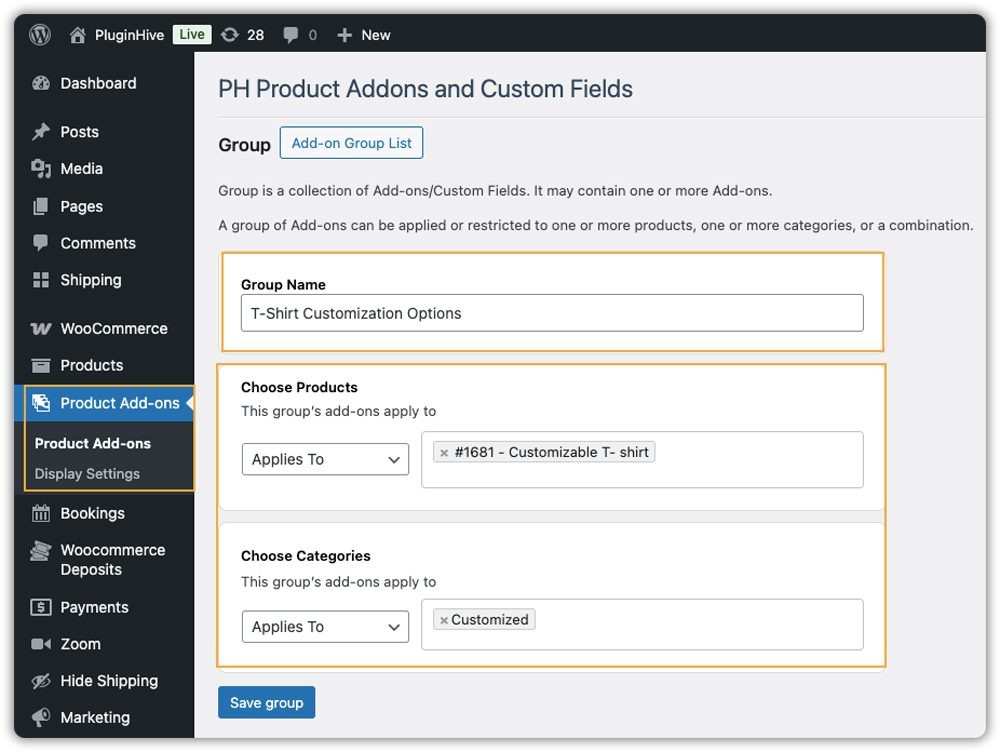
Start by going to your WordPress dashboard and navigating to Product Add-Ons > Settings > Add New. Give your group a clear name, such as “T-Shirt Customization,” and assign it to specific products or product categories. This group will hold all the multiple-choice fields for one or more products, making it easy to manage them together.
2. Add Multiple-Choice Fields
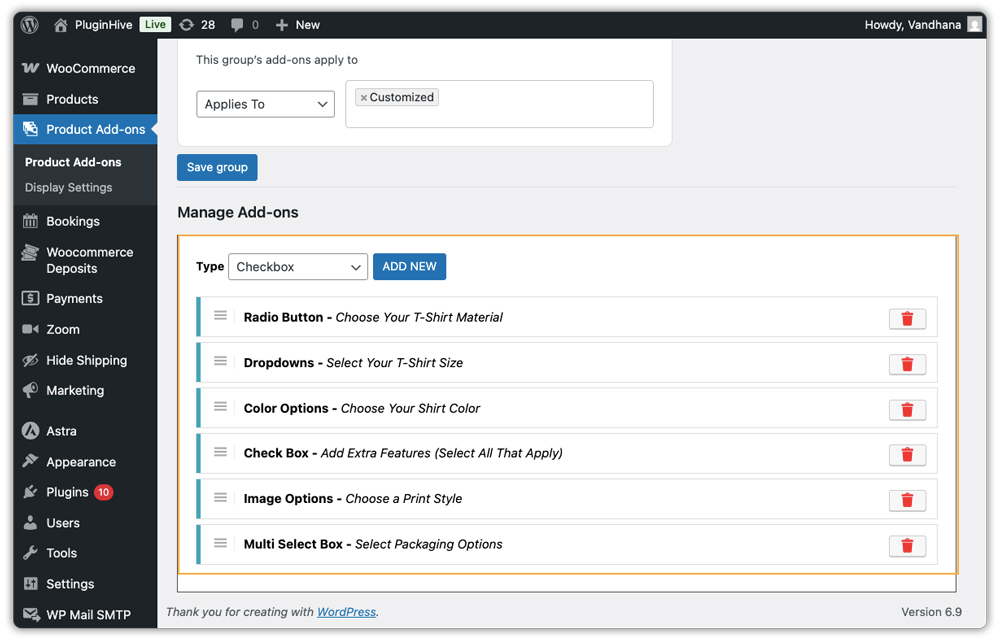
You can add different types of fields depending on what you want customers to choose:
- Checkboxes: Perfect for “select all that apply” scenarios, for example, “Add extra engraving,” “Include gift wrap,” or “Add a matching keychain.”
- Radio Buttons: Ideal when only one option can be chosen, such as t-shirt size or material.
- Dropdowns: Great for longer single-choice lists, keeping the product page clean.
- Multi-Select Boxes: Let customers pick several options at once, such as different styles or multiple accessory items.
- Color Options: Customers can select colors visually for apparel, accessories, or decor.
- Image Options: Customers click on images to choose styles or designs, creating a more engaging shopping experience.
3. Customize Field Options
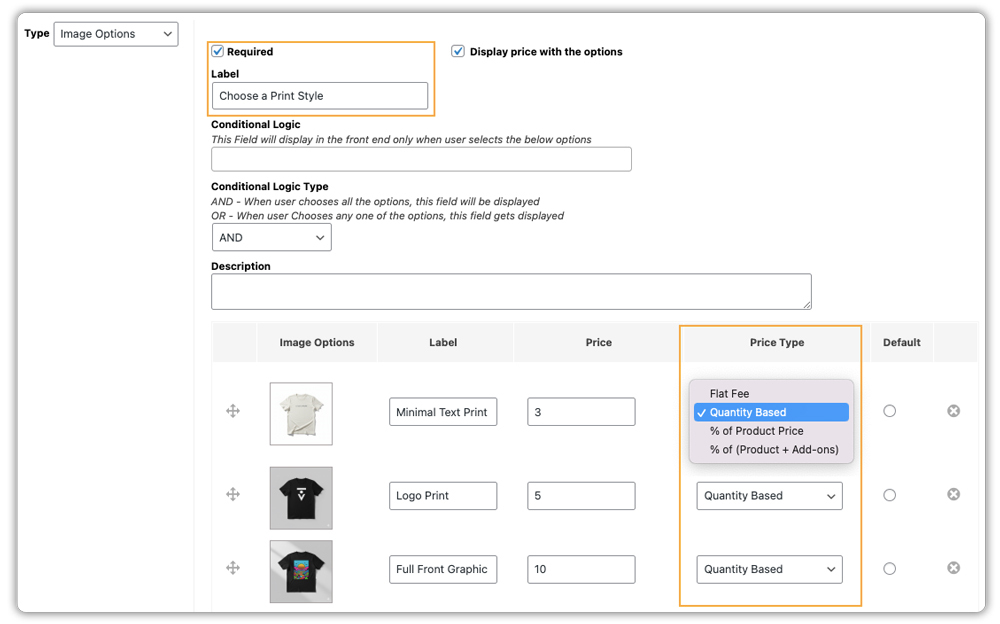
For each field, you can set:
- Label: The text that explains the option.
- Description: Optional instructions or details for customers.
- Pricing: Add a flat fee, percentage, or quantity-based price for each option.
- Mandatory Selection: Make a field required if needed.
4. Use Conditional Logic (Optional)
Conditional logic allows fields to appear or hide based on previous selections. For example, show the text input field only if the customer selects ‘Add Custom Text,’ or display the file upload option only if they choose ‘Add Logo Print.
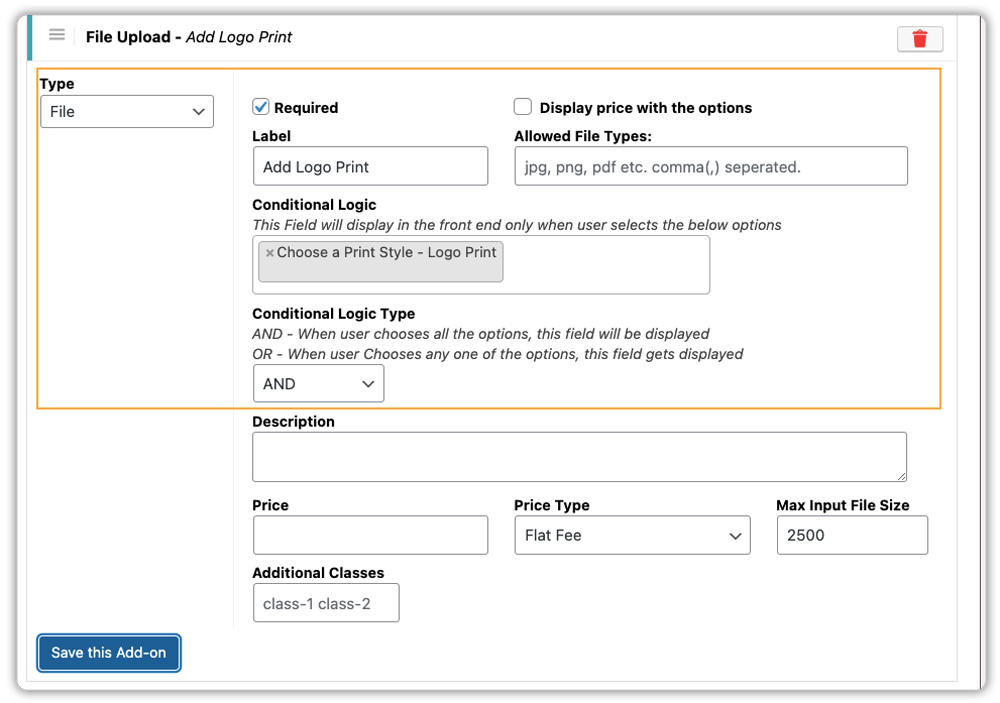
This keeps your product page clean while still offering advanced customization.
Once set up, customers see clear, interactive multiple-choice options on the product page. They can easily select exactly what they want, see visual previews for colors or images, and watch prices update automatically if you’ve added pricing rules. This creates a smooth, engaging, and professional shopping experience.
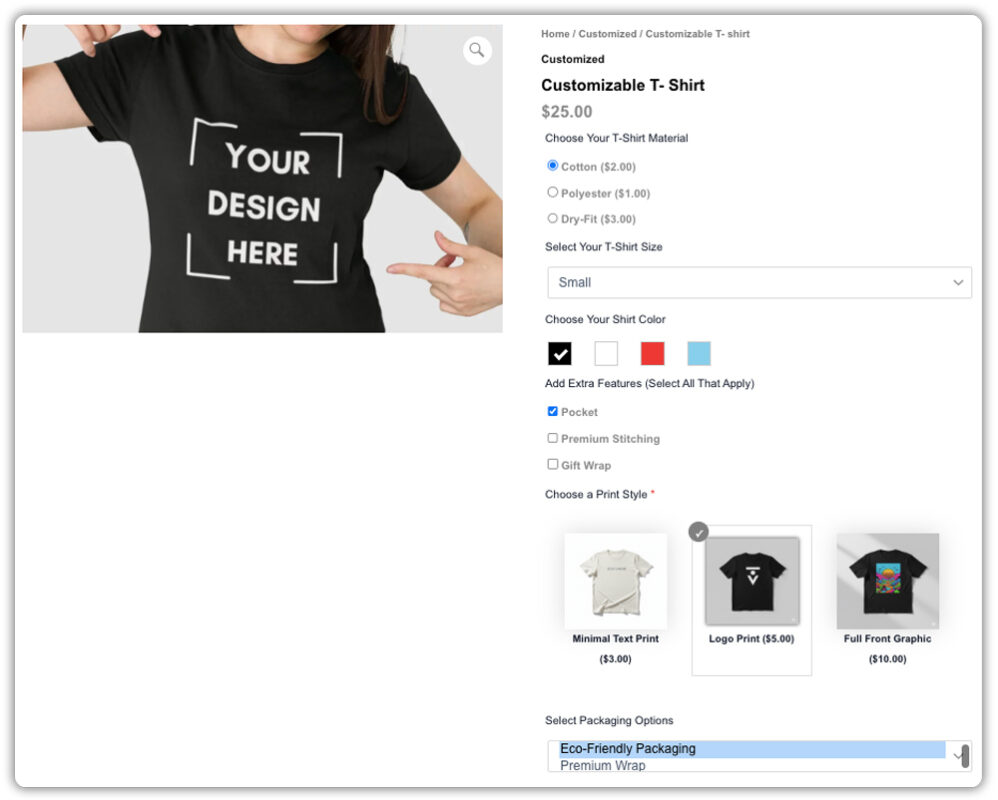
All selected options appear in the WooCommerce order details, making it easy for store owners to view and manage choices.
Multiple-choice fields turn your product pages into engaging, easy-to-use shopping experiences. With PH WooCommerce Product Add-Ons, you can offer these options quickly, letting customers customize products their way.
Note: For a detailed, step-by-step guide on adding all types of custom fields, including checkboxes, radio buttons, dropdowns, multi-select boxes, color options, and image options, refer to this comprehensive guide.
Conclusion
Adding multiple-choice fields makes your WooCommerce products more flexible and user-friendly. Customers can easily pick what they want, which helps them feel confident in their purchase and enjoy shopping on your site.
With PH WooCommerce Product Add-Ons, you can create these options quickly and keep your product pages organized. If you want to add multiple-choice fields to your products and create a better shopping experience, you can reach out to the PluginHive support team for guidance and assistance.
FAQs
Q: Can I let customers choose more than one option for a product?
Yes. If you use field types like checkboxes or a multi-select box, customers can pick multiple options (for example, extra toppings, add-ons, or accessories) before adding to the cart.
Q: Will chosen options and extra pricing appear in the order details and checkout?
Yes. With a properly configured add-on (via the add-ons plugin), selected options and any extra cost are included in the cart, checkout, and order details so you and your customer both see exactly what was selected.
Q: Can I apply add-on fields to many products at once (not one by one)?
Yes. PH Product Add-ons for WooCommerce plugin lets you create a group of fields (an “Add-On Group”) and assign that group to whole product categories or multiple products, so you don’t have to configure each product individually.
Q: What if I only want certain options to show when a customer chooses something else?
That’s possible via conditional logic. You can set rules so some add-ons appear only when a relevant choice is made, for example, show extra options only if the customer chooses “Premium Finish.”
