



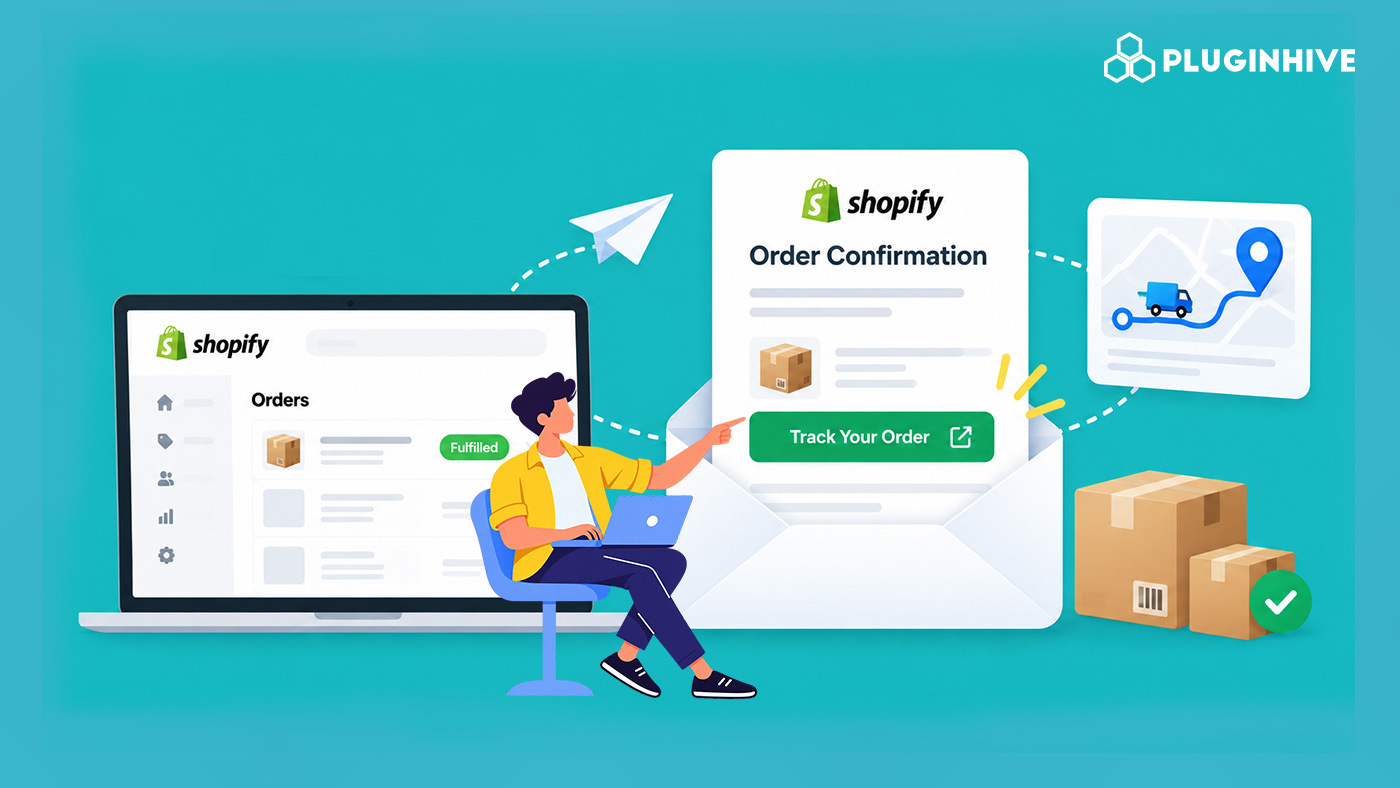
The moment an order leaves your warehouse, your customer starts watching. Whether they check their inbox every hour or just expect a smooth, proactive update, what you send them after fulfilment defines how they feel about your brand. Shopify does send a shipping email with a Shopify tracking link, but that single touchpoint barely scratches the surface of what modern customers expect. This guide walks through how Shopify handles tracking links by default, where the gaps are, and how to build a complete, branded tracking communication setup that works automatically.
In This Article
- How Shopify Adds a Tracking Link to Emails by Default
- What the Default Shopify Tracking Link Cannot Do
- What a Complete Tracking Link Setup on Shopify Looks Like
- How to Set Up a Shopify Tracking Link with PluginHive Shipment Tracking & Notify
- What Customers See After You Go Live
- Benefits of a Proper Shopify Tracking Link Setup
- Conclusion
- FAQs
How Shopify Adds a Tracking Link to Emails by Default
When you fulfil a Shopify order and enter a tracking number, Shopify automatically records it against the order and triggers a shipping confirmation email to the customer. That email contains the tracking number along with a Shopify tracking link that opens either the carrier’s official tracking page or the Shopify order status page, depending on whether Shopify recognises the carrier.
For widely supported carriers like UPS, FedEx, USPS, DHL, Canada Post, and Australia Post, the Shopify tracking link resolves correctly to the carrier’s site. For regional carriers, the link may open a generic Shopify status page that doesn’t always surface live updates.
What the Default Shopify Tracking Link Cannot Do
Shopify’s built-in tracking setup covers the basics, but for merchants who want a proper post-purchase experience, it falls short in a few specific ways:
- No follow-up notifications. After the first shipping email, Shopify sends no further automated updates. Customers hear nothing when the shipment is picked up, in transit, out for delivery, or delivered unless they click the original link and check themselves.
- Off-brand experience. The default Shopify tracking link directs customers to the carrier’s website — UPS.com, FedEx.com, DHL.com — taking them completely off your domain and into a generic carrier interface.
- No merchant dashboard. Shopify shows a tracking number per order, but there’s no consolidated view of all active shipments by status, making it hard to catch exceptions before customers do.
For stores with high order volumes or multiple carriers, these gaps create real operational pressure. To understand how this looks at scale, the guide to tracking orders on Shopify with multiple carriers covers the full picture.
What a Complete Tracking Link Setup on Shopify Looks Like
A complete Shopify tracking link setup goes beyond a static email link. It brings together:
- Live carrier data sync: shipment status pulled directly from the carrier’s network in real time, not a static snapshot from fulfilment
- Automated milestone-based email notifications: emails triggered by actual carrier scan events (picked up, in transit, out for delivery, delivered, exception), not scheduled intervals
- A branded on-store tracking page: a page on your own domain where customers enter their order number and email to see live status, instead of being redirected to the carrier’s website
- A merchant-facing shipment dashboard: a centralised view of all active shipments grouped by status so your team can act on exceptions before customers raise tickets
Together, these turn every Shopify tracking link from a single static reference into an ongoing, automated post-purchase communication channel. If you want to see how this experience looks from the customer’s side, this guide on improving the post-purchase experience on Shopify is a useful companion read.
How to Set Up a Shopify Tracking Link with PluginHive Shipment Tracking & Notify
The most practical way to close these gaps is with the PluginHive Shipment Tracking & Notify app. It automates the full tracking link and notification flow inside Shopify without requiring custom development.
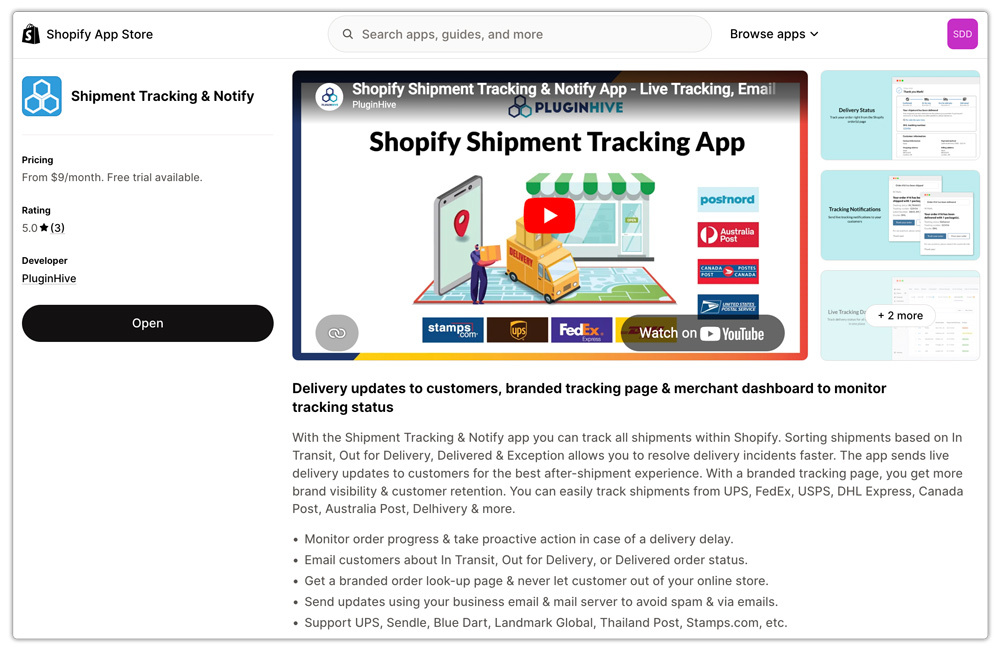
Step 1: Install the app and choose a plan.
Install the app from the Shopify App Store. Plans are available to match different order volumes:

Step 2: Connect your carrier.
Navigate to the Carriers section in the app. Several carriers work immediately without account credentials, including DHL Express, Australia Post, and Aramex. For carriers like UPS, USPS, FedEx, and Amazon Shipping, connect your own carrier account.

Step 3: Configure email notifications.
Under Settings → Notifications, enable email notifications. The app sends tracking emails using your own SMTP server.

Step 4: Fulfil orders as usual.
Once set up, your fulfilment workflow stays the same. When you fulfil a Shopify order and enter a tracking number, the app automatically detects the carrier and begins syncing live status.
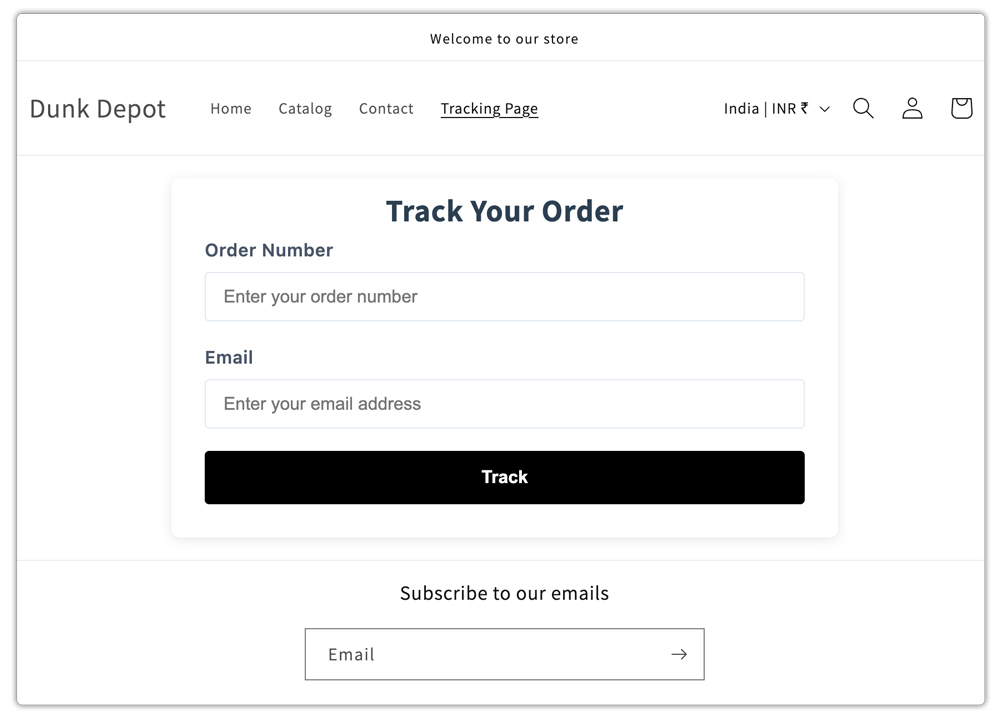
Step 5: Add the tracking page to your store navigation.
This step creates a Shopify tracking link that points to your own store, not the carrier’s website. Customers visit the page, enter their order number and email address, and see the current live shipment status all on your domain.
Step 6: Enable the Custom Tracking Lookup Page option.
Inside the app’s tracking page settings, enable the Custom Tracking Lookup Page option. When this is turned on, all tracking emails sent from your store automatically include a Shopify tracking link that points to your branded tracking page.

For a deeper look at how a branded tracking page builds customer trust, the article on how branded order tracking pages help Shopify stores goes into the business case in detail.
What Customers See After You Go Live
From the customer’s perspective, the post-purchase experience looks like this:
- They place an order and receive Shopify’s standard order confirmation
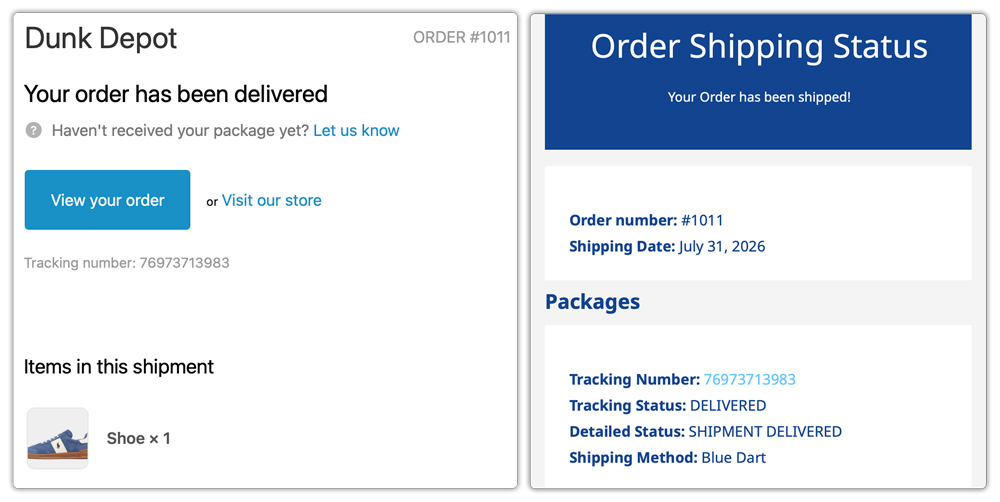
- Once the order is fulfilled with a tracking number, they receive a branded shipping notification email from your business email address, containing a Shopify tracking link that opens your store’s tracking page
- As the shipment moves through the carrier’s network, they automatically receive follow-up emails at key milestones: picked up, in transit, out for delivery, delivered, triggered by real carrier scan events
- Customers can visit your tracking page, enter their order number and email, and view live updates without leaving your store.
- If there is a delivery exception or delay, they are notified proactively, not left to discover it themselves
On the merchant side, the app’s Orders page shows all active shipments grouped by status: Initial, In Transit, Out for Delivery, Delivered, Exceptions, and Cancelled. Filter by carrier, search by order number, or click into any order to view its complete tracking lifecycle. For a walkthrough of how this tracking page setup looks in practice, the Shopify order tracking page guide covers the full configuration.
Benefits of a Proper Shopify Tracking Link Setup
Investing in a complete tracking link setup has direct business impact beyond customer experience:
- Fewer WISMO tickets. When customers receive proactive updates and can self-serve on a tracking page, “where is my order?” support requests drop significantly
- Branded post-purchase experience. Customers stay on your domain throughout the tracking journey rather than being handed off to a carrier’s generic website
- Scalability. Manual tracking lookups don’t scale. Automated notifications and a self-serve tracking page keep pace with order volume without adding headcount
- Higher customer retention. Proactive delivery alerts through every stage of transit improve satisfaction and encourage repeat purchases
Conclusion
Shopify’s default Shopify tracking link in the shipping email is a starting point, not a complete solution. It handles one moment in the post-purchase journey and outsources everything after it to the carrier’s website. By setting up PluginHive Shipment Tracking & Notify, you convert that single static link into an automated, branded post-purchase experience with emails triggered by real carrier events, a self-serve tracking page on your own domain, and a merchant dashboard that keeps your team in control. The result is fewer support tickets, stronger customer trust, and a post-purchase experience that reflects your brand at every step.
FAQs
Q. Can I change the Shopify tracking link in the default shipping email to point to my own store page?
Not natively. Shopify’s default tracking link points to the carrier’s website. With PluginHive Shipment Tracking & Notify, you can redirect it to a branded page on your own store by enabling the Custom Tracking Lookup Page option in the app settings.
Q. Will tracking notifications send from my own email address?
Yes. The app uses your own SMTP settings, so all notifications send from your business email address, not a third-party domain. This improves deliverability and keeps your branding consistent across all customer communication.
Q. Does the app work if I ship with multiple carriers?
Yes. Many carriers like DHL Express, PostNord, Australia Post, Blue Dart, and Aramex work without credentials. For UPS, FedEx, USPS, and others, you connect your own carrier account. All carriers are managed from a single dashboard inside the app.
