


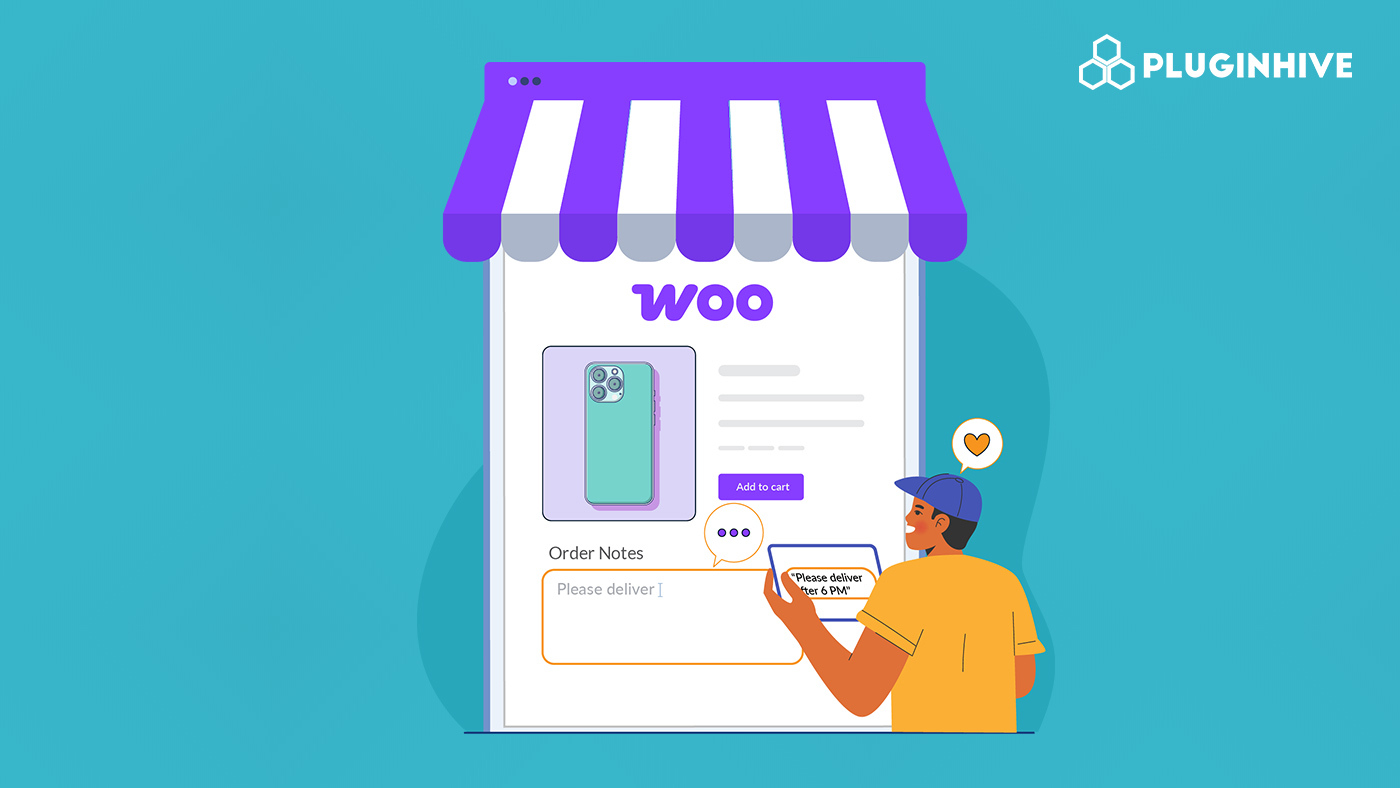
When a customer buys a custom mug, they need to tell you what text goes on it. When someone orders a birthday cake online, they need to share the flavor, the message, and the pickup date. However, the default WooCommerce order notes field at checkout is just one generic box for the entire order. As a result, it cannot capture product-specific details reliably, and in many cases, it gets skipped entirely.
PH Product Add-ons for WooCommerce solves this by letting you add a dedicated WooCommerce customer note field, special instructions box, or any other product input field directly on the product page, right where the customer is making their decision. In this article, you’ll learn exactly how to set it up.
Table of Contents
- Why the Default WooCommerce Order Notes Field Is Not Enough
- What Are WooCommerce Product Input Fields
- How to Add a Customer Notes Field to Your WooCommerce Products
- Real-World Example: WooCommerce Customer Note in Action
- Tips to Get the Most Out of Your WooCommerce Notes Fields
- Conclusion
- FAQs
Why the Default WooCommerce Order Notes Field Is Not Enough
WooCommerce includes a single order note field at the bottom of the checkout page. For stores selling personalized or made-to-order products, it creates more problems than it solves.
Here is why it falls short:
- It is placed at checkout, far away from the product, so customers frequently forget to fill it in
- One box covers the entire order instructions for multiple products, which get mixed into a single block of text
- You cannot make it product-specific, mandatory, or conditional based on what the customer selected
- It cannot carry additional pricing if custom engraving costs extra, and the order notes field has no way to reflect that
Consequently, when customers cannot clearly submit their requirements at the point of purchase, you end up chasing them over email. As a result, fulfillment slows down, errors increase, and the buying experience suffers on both sides.
What Are WooCommerce Product Input Fields
WooCommerce product input fields are custom fields added directly to individual product pages. They give customers a structured way to submit notes, instructions, personalizations, or any other details your store needs before processing an order.
The PH Product Add-ons for WooCommerce plugin makes this possible without any coding. It supports a comprehensive set of field types, each suited to a specific kind of customer input:
| Field Type | Best Used For |
|---|---|
| Textarea | Special instructions, order notes, gift messages |
| Text (Input Field) | Custom names, initials, short engraving text |
| Checkbox | Optional add-ons like gift wrapping or rush processing |
| Radio Button | Single choice from a list, finish style, product type |
| Dropdown | Size, quantity, material selection |
| Multi-Select Box | Multiple selections: meal options, service bundles |
| Image Options | Visual design or style choices as clickable thumbnails |
| Color / Color Options | Product color or packing color selection |
| File Upload | Artwork, reference images, PDFs, media files |
| Date Picker | Delivery date, event date, date of birth |
| Time Picker | Appointment time, pickup or delivery slot |
| Telephone Number | Customer contact number for order communication |
| Heading | Section labels or important product information |
| Hidden | Mandatory services with a fixed cost, not shown to the customer |
Importantly, every detail the customer enters travels with the order. It appears in the cart, on the checkout page, and inside the WooCommerce order in your admin panel. Meanwhile, empty optional fields are hidden automatically, keeping order summaries clean and easy to read.
How to Add a Customer Notes Field to Your WooCommerce Products
Setting up a WooCommerce customer notes field using PH Product Add-ons is straightforward. Here is a step-by-step walkthrough.
Create a New Add-on Group
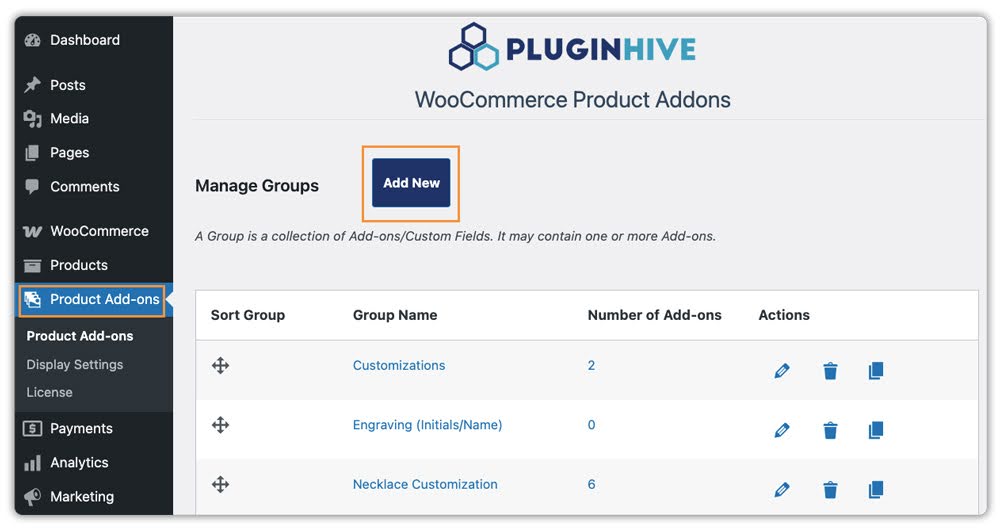
Go to Product Add-ons in your WordPress dashboard and click Add New Group. An add-on group is the container for all the fields you want to display on a product page.
Name and Assign the Group
Give the group a descriptive name, something like “Customer Instructions” or “Order Notes” works well. Then use the Applies To setting to select which products or categories this group should appear on. Assigning at the category level means every product in that category automatically gets the same fields, with no individual product configuration needed.

Add Your Fields
Inside the group, click Add Field and choose the field type that matches what you need to collect.

For customer notes and special instructions, the two most relevant types are:
- Textarea: best for detailed inputs such as personalized messages, delivery instructions, or special order requirements. Gives customers enough space to write clearly.

- Text (Input Field): best for shorter, structured inputs such as a name for engraving or a single line of custom text. Can be restricted to accept only text, numbers, email IDs, or passwords.

For each field, configure the following:
- Label: the text your customer sees, for example, “Special Instructions” or “Add a Note to Your Order.”
- Description: a short line guiding the customer on what to enter
- Required: Enable this if the field must be filled before adding to the cart
- Display Price with Options: Enable this to show additional charges for the field
- Conditional Logic: Use this to show the field only when specific options are selected
Attach Pricing If Needed
If the note triggers extra work, engraving, handwriting, or personalized printing, attach a price to the field. Supported pricing modes include a flat fee, cost per character, percentage of the product price, or a quantity-based cost. The charge calculates in real time on the product page, so there are no surprises at checkout.

Save and Check It on Your Storefront
Once saved, open your product page, say, a Custom Birthday Cake. You’ll see the fields appear below the product options: a dropdown for cake flavour, checkboxes for add-ons, and a textarea labeled “Special Instructions” right before the Add to Cart button.
A customer might choose their options and add details such as: “Please avoid nuts – allergic.”

The entered note, along with all selected fields, is automatically saved and shown in the cart, checkout, and WooCommerce → Orders section.

Real-World Example: WooCommerce Customer Note in Action
Let’s say you run a WooCommerce store that sells personalized jewelry. Every piece needs an engraving of a name, a date, or a short message before it can be made.
The challenges without a product-level notes field:
- WooCommerce has no built-in way to collect engraving text at the product page level
- Customers place orders without including the required text, forcing you to follow up manually before production can begin
- Order details collected over email are inconsistent and prone to errors
- Without a mandatory field, some orders arrive in your dashboard incomplete, stalling the entire fulfillment queue
How PH Product Add-ons solves it:
With PH Product Add-ons for WooCommerce, you can set up the product page to:
- Show a mandatory Text field labeled “Engraving Text” so customers must enter their message before adding to the cart
- Add a character limit using built-in validation to match your engraving constraints
- Attach a flat fee to the engraving field so the cost is added automatically at the product page level
- Use the “Restrict Special Characters” option to ensure only clean, printable input reaches your production team
Every order arrives in your dashboard complete and ready to process, no follow-ups, no missing details, no delays. As a result, your team spends less time chasing order information and more time fulfilling orders.
Tips to Get the Most Out of Your WooCommerce Notes Fields
A few practical adjustments make a significant difference once your fields are live.
- Use conditional logic: Show a notes field only when relevant, for example, display an engraving box only when “Add Engraving” is selected. This keeps the product page clean for customers who don’t need it
- Make critical fields mandatory: If production cannot begin without the customer’s input, enable the Required toggle so the field must be completed before adding to cart
- Match the field type to the input: Use Text (Input Field) for short entries like a name or initials. Use a Textarea when customers need space for longer messages or instructions
- Reuse groups across products: Assign one “Special Instructions” group to an entire category instead of rebuilding fields for each product individually
- Combine field types: Pair a Textarea for written instructions with a File Upload for reference images, both in the same add-on group. This works especially well for stores selling personalized gifts, where customers need to submit both written instructions and visual references
Conclusion
The default WooCommerce order notes field at checkout is too far removed from the product and too generic to reliably collect product-specific instructions. Adding a dedicated WooCommerce customer notes field directly on the product page using PH Product Add-ons for WooCommerce gives your customers a clear, structured way to submit their requirements at the right moment, and gives your team complete, accurate order details without any follow-up. If you need help configuring this for your store, the PluginHive support team is ready to help.
FAQs
How do I add notes to WooCommerce?
WooCommerce has a default order notes field at checkout. For product-specific notes, you can use plugins like PH Product Add-ons for WooCommerce to add note fields directly on the product page.
How do I add a text field to a product in WooCommerce?
You can add a text field using a plugin like PH Product Add-ons for WooCommerce. It lets you create text or textarea fields so customers can enter details on the product page.
How to add a custom field in a WooCommerce product?
Use a product add-ons plugin to create custom fields like text boxes, dropdowns, or uploads. PH Product Add-ons for WooCommerce makes it easy to add these without coding.
Can I make the WooCommerce customer notes field mandatory?
The default WooCommerce notes field cannot be made mandatory. But with PH Product Add-ons for WooCommerce, you can make product fields required before adding to cart.
