


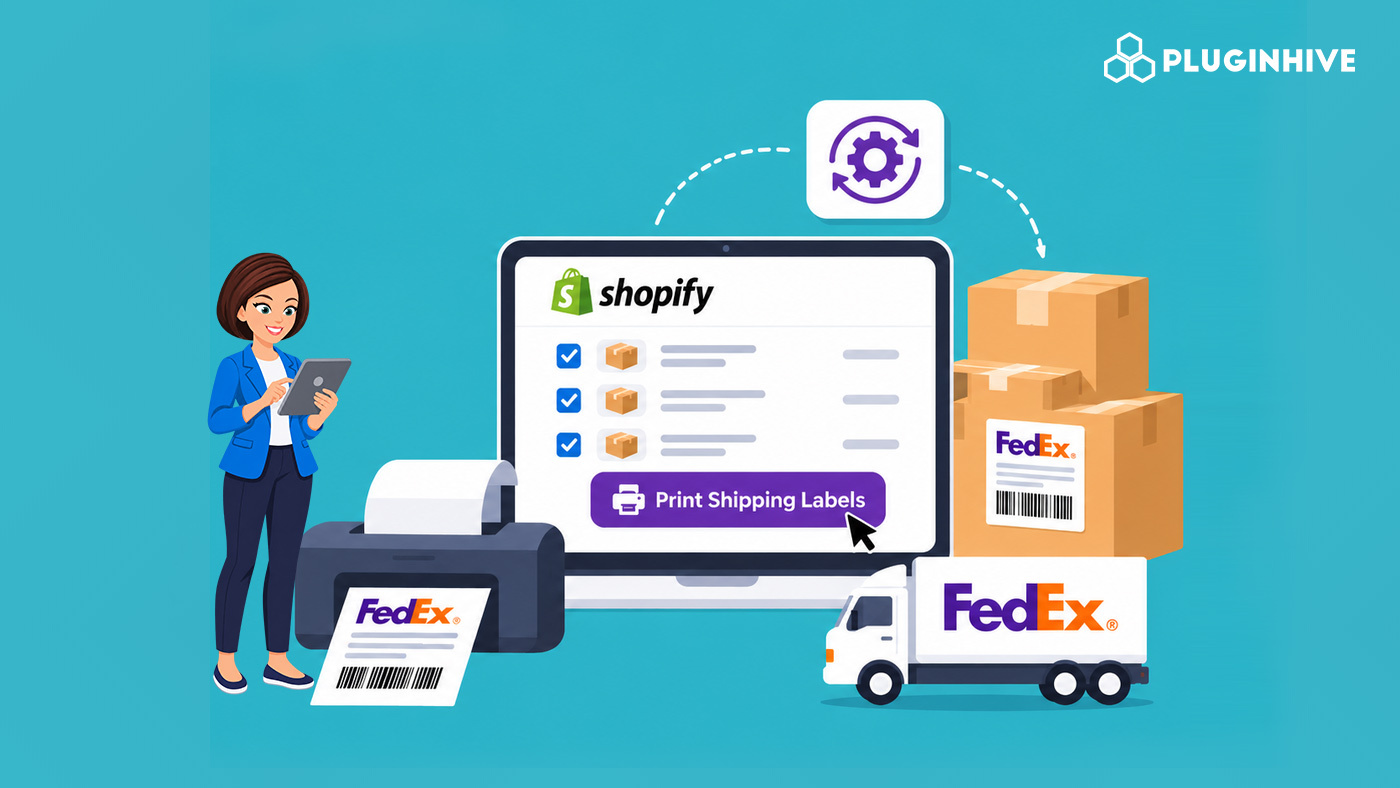
It’s 4 p.m. and 150 orders are waiting. If someone on your team is opening each order, picking a FedEx service, and clicking print one at a time, that is hours of repetitive work. It is also where wrong service levels, missed signature settings, and misread barcodes creep in. Printing a Shopify shipping label should take minutes, not an afternoon. This guide covers what FedEx offers for batch label creation, how to set up printers correctly, which settings to lock in before you print, and how to automate the process inside Shopify.
In This Article
- Why Bulk Labels Matter for FedEx Shipping on Shopify
- FedEx Ship Manager: Native Batch Shipping Options
- Connecting Your Shopify Store to FedEx
- Printer Setup for Every Shopify Shipping Label
- FedEx Settings to Lock In Before Bulk Printing on Shopify
- FedEx Label Placement Rules for High-Volume Shopify Orders
- How PH Ship, Rate & Track for FedEx Automates Every Shopify Shipping Label
- Conclusion
- FAQs
Why Bulk Labels Matter for FedEx Shipping on Shopify
Manual label creation doesn’t scale. Every order handled by hand is another chance to pick the wrong service, forget a signature requirement, or mistype an address. Those errors become redelivery attempts, surcharges, and support tickets.
Bulk printing fixes this by making label creation consistent. The same rules apply to every order, and your team spends its time packing instead of entering data. The rest of this guide shows how to build that workflow with FedEx’s own tools and with automation inside Shopify.
FedEx Ship Manager: Native Batch Shipping Options
FedEx’s free online tool, FedEx Ship Manager, includes batch shipping. You upload a single file to create and print hundreds of shipment labels in one go, with no need to create each label by hand. It also covers the rest of the shipping process:
- Getting rates and transit times, creating shipment profiles for repeat shipping, and printing labels in one click for single or bulk shipments.
- Shipment profiles prefill your details for recurring shipment types, so you don’t re-enter them each time.
- Address book uploads in CSV format.
- Up to 300 packages in a single shipment, using either your own packaging or FedEx-branded packaging.
Batch upload works well if you’re comfortable exporting orders to a spreadsheet and mapping fields. The catch is that it sits outside Shopify, so tracking numbers don’t flow back to your orders unless you connect the store.
Feature availability depends on your country, so check FedEx’s page for your region before building a workflow around any single feature.
Connecting Your Shopify Store to FedEx
FedEx Ship Manager can import orders directly. It currently supports Shopify, along with BigCommerce, Etsy, Magento, PrestaShop, and WooCommerce. Once your store is connected, orders sync automatically, address details are prefilled, and tracking numbers are shared with your customers. To connect, log in, click E-commerce in the left-hand menu, and follow the steps.
If you’d rather handle rates, labels, and tracking inside the Shopify admin, a Shopify FedEx app is the other route, covered below. Whichever route you choose, confirm the integration uses the current FedEx API. Our guide to migrating your Shopify store to the FedEx REST API explains why that matters for label and rate accuracy.
Printer Setup for Every Shopify Shipping Label
Even perfect data fails if the printed barcode won’t scan. Here is what FedEx says about printers:
- You can connect either a laser or a thermal printer to print shipping labels and customs documents directly from FedEx Ship Manager.
- The Print & Integration app can send documents and labels to your printer automatically, which speeds up printing.
For high-volume Shopify stores, a thermal printer with 4″ x 6″ label stock is the practical choice. It prints faster, needs no ink, and produces labels that peel and stick. Laser printers work fine for lower volumes on standard paper. In either case, set the printer to print at 100% scale. Resizing a label can distort the barcode and cause scan failures.
FedEx Settings to Lock In Before Bulk Printing on Shopify
Bulk printing multiplies mistakes as easily as it multiplies speed, so fix these settings first:
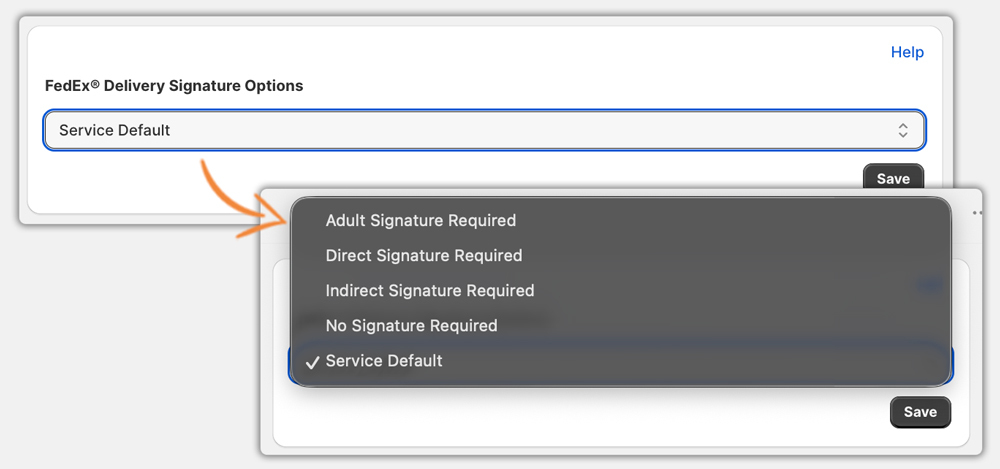
- Signature option. Signature options can’t be added, removed, or changed once FedEx has taken possession of the package. Set adult, direct, or indirect signature rules per product type before printing. Our guide to FedEx signature required for Shopify shows when each option applies.
- Service level. Match the service to what the customer chose at checkout. Our guide to controlling FedEx shipping options in Shopify covers which services to offer.
- Declared value. Set it accurately, since it caps FedEx’s liability for the shipment.
- Package dimensions. Wrong dimensions mean wrong rates and surprise surcharges. Our FedEx packaging guidelines for Shopify merchants cover box, tube, and envelope requirements.
Print one test label from a small batch before running a large one. A misconfigured default repeated across 200 labels is expensive to fix.
FedEx Label Placement Rules for High-Volume Shopify Orders
Speed at the packing bench is where labels get applied badly. FedEx’s packaging guidance asks for the following:
- Put the label on the package’s largest surface, with the packing slip facing the same direction on the same side.
- Don’t wrap a label around a corner, edge, or seam.
- Don’t cover the label with tape or wrapping, because that makes the barcode unreadable.
- Remove or cover old labels on reused boxes.
Build these rules into your packing station checklist. A label that won’t scan can mean a delayed or misrouted package, and a lost-package claim with a weak paper trail. If you ever need one, our guide to filing a FedEx claim in Shopify explains the process. Damaged or missing-contents claims must be filed within 60 days of the ship date for U.S. packages and 21 days for international packages, and lost shipment claims within nine months.
How PH Ship, Rate & Track for FedEx Automates Every Shopify Shipping Label
FedEx Ship Manager handles batch uploads well, but you still work outside Shopify. The Shopify FedEx app brings label creation into the Shopify admin. Here is what the Shopify FedEx app handles:
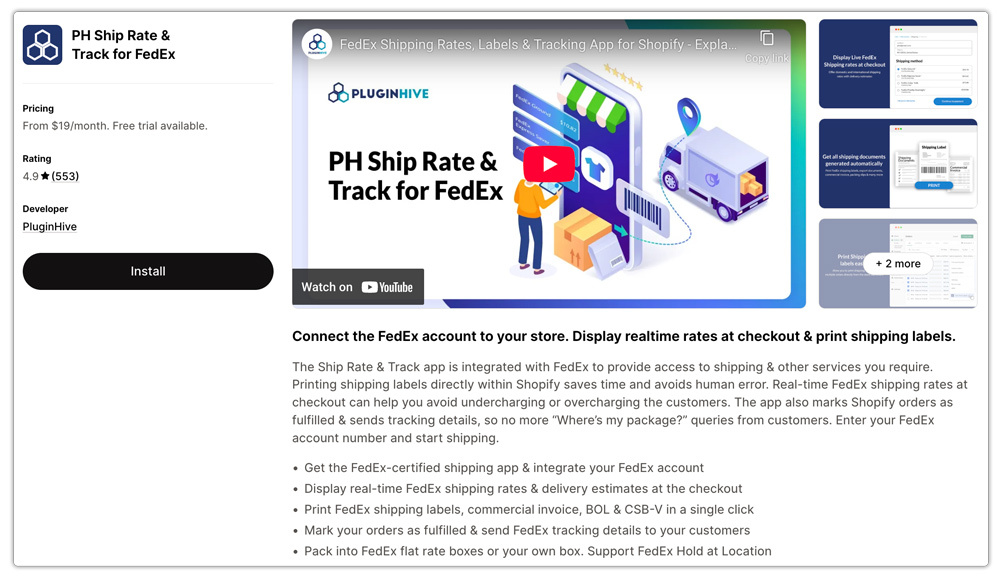
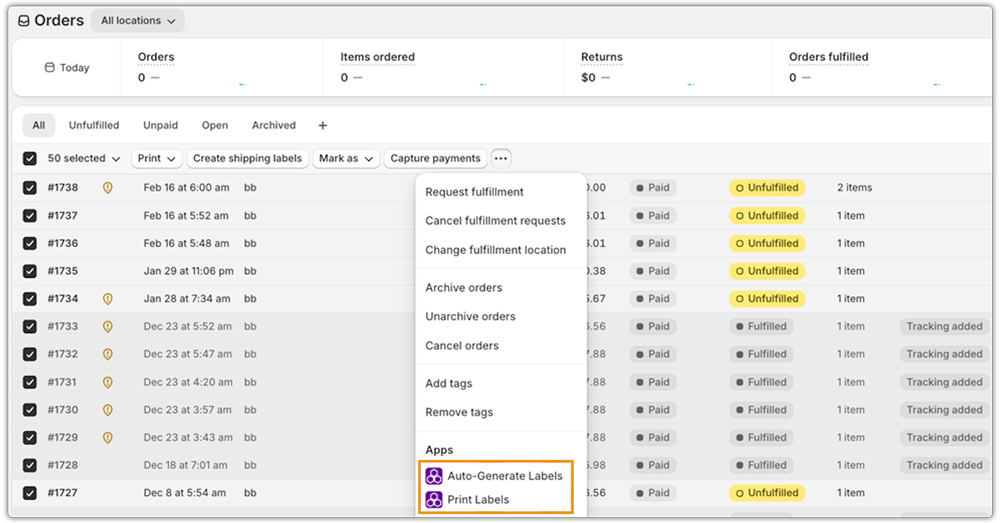
- Bulk label generation. Select multiple orders and generate FedEx labels in one pass instead of opening each order separately.
- Service carried through from checkout. Live FedEx rates appear at checkout, and the service the customer picked flows to the label.

- Packing logic. Configure boxes, tubes, and envelopes once. The app assigns the right package to each order, so dimensions on the label match what’s in the box.

- Label-level options. Set signature type, declared value, and Saturday delivery. Your jewelry orders can carry adult signature while apparel ships with none, without anyone choosing by hand.
The practical result is that your team spends its time on packing and pickup, not on re-entering order details into another tool.
Conclusion
Bulk printing is about consistency as much as speed. FedEx gives you batch upload, shipment profiles, printer support, and Shopify store connections in Ship Manager. The next step is locking in signature, service, declared value, and dimensions before you print, and applying labels according to FedEx’s placement rules.
For stores that want the whole process inside Shopify, the Shopify FedEx app from PluginHive handles bulk label creation, packing logic, and tracking sync in one place. Every Shopify shipping label then comes from the same rules, whether you ship 20 orders a day or 2,000.
FAQs
Q. Can I print multiple FedEx labels at once?
Yes. FedEx Ship Manager supports batch shipping from a single uploaded file, and it can create and print hundreds of labels in one go. Availability can vary by country.
Q. What printers work with FedEx labels?
FedEx says you can connect either a laser or a thermal printer. Thermal printers with 4″ x 6″ label stock are common for high-volume shippers.
Q. Can I connect my Shopify store directly to FedEx Ship Manager?
Yes. Shopify is among the supported platforms. Orders sync automatically, addresses are prefilled, and tracking numbers are shared with customers.
Q. Can I change the signature option after printing a label?
No. Signature options can’t be changed once FedEx has the package, so set them before printing, especially in a bulk run.
Q. Where should I place the label on the package?
On the largest surface, away from edges and seams, and never covered by tape. Keep the packing slip on the same side facing the same direction.
Q. Does PH Ship, Rate & Track for FedEx support bulk label printing?
Yes. You can generate FedEx labels for multiple Shopify orders from the admin, with your configured packing logic, signature options, and declared values applied to each.
