


Every order that needs a manual touch costs you time. Checking the address, picking a carrier service, typing package details into a label form, and pasting a tracking number back into the order all add up. At 10 orders a day, it’s annoying. At 200, it’s a bottleneck. Good Shopify order processing removes those touches, so orders move from checkout to carrier with a person handling only the exceptions. This guide covers the built-in settings, Shopify Flow, batch tools, and the PluginHive apps that take over the label step.
In This Article
- Where Order Processing Slows Down
- Shopify Order Processing Settings You Should Know
- Automate Shopify Order Processing with Flow and Routing
- Build a Simple End-to-End Workflow
- Process Orders in Batches
- Speed Up Shopify Order Processing with PluginHive Apps
- Test Before You Rely on Automation
- Conclusion
- FAQs
Where Order Processing Slows Down
Most delays come from the same few steps:
- Sorting: finding orders that are ready, held, risky, or late
- Routing: deciding which location ships each order
- Label creation: retyping addresses, weights, boxes, and services
- Tracking: copying numbers back and notifying customers
- Cleanup: leaving finished orders in your open list
Each can be automated or batched, but not with the same tool.
Shopify Order Processing Settings You Should Know
Shopify’s order processing settings sit in Settings > General > Order processing. By default, stores use manual fulfillment, which Shopify recommends if you make products to order, sell pre-orders, sometimes run out of stock, or want partial fulfillment.
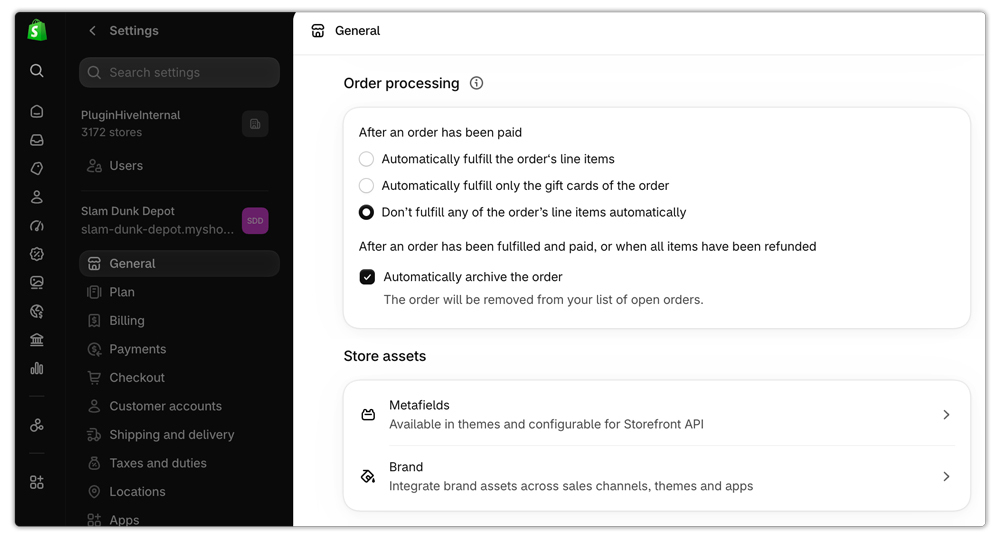
The key caution: if you package and ship products yourself, don’t turn on automatic fulfillment. Every new order is marked as fulfilled, so you can no longer sort out which still need shipping. Automatic fulfillment suits digital downloads, gift cards, or stores that use fulfillment services for every product.
A few more details worth knowing:
- With manual payment capture, funds must be captured before an order can fulfill automatically.
- Automatic fulfillment doesn’t apply to in-store pickup orders.
- Post-purchase upsell apps place orders on hold for up to an hour while the offer is showing, so a short On hold status is normal.
Turn on automatic archiving to keep your Open list clean:
- From your Shopify admin, go to Settings > General
- In the Order processing section, select Automatically archive the order
- Click Save
Paid and fulfilled orders, and fully refunded orders, are then archived automatically and moved to the Closed view.
Automate Shopify Order Processing with Flow and Routing
Shopify Flow handles the sorting. It’s a free automation platform that uses triggers, conditions, and actions to automate tasks in your store.
Useful order workflows include:
- Tag orders by sales channel, payment gateway, or specific products
- Hold fulfillment by total order value or customer flags
- Combine shipments: one template holds orders when a customer places more than one in 24 hours, so they can ship together and save postage
- Flag late orders: a template tags unfulfilled orders older than two days
- Send a daily summary: another email sends a list of fulfillment orders that are on hold
To start from a template:
- From your Shopify admin, go to Apps > Flow
- Click Browse templates
- Pick a template and edit its conditions
- Turn the workflow on
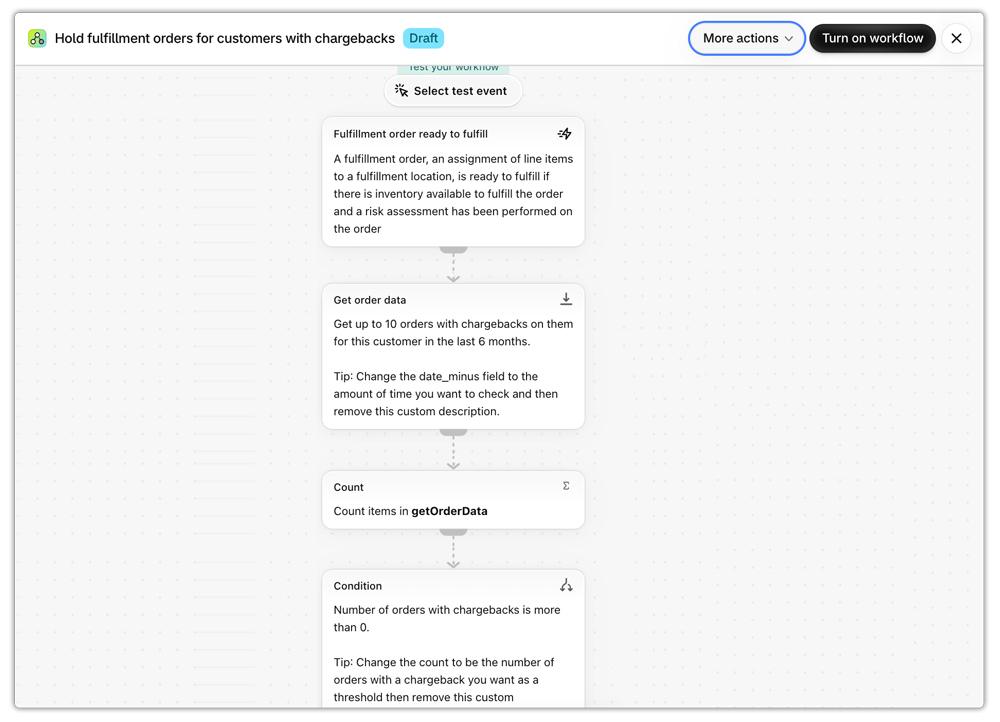
Held orders stay out of your Unfulfilled list until released. You can add up to 10 manual holds to one fulfillment, and the status shown on the order depends on the other fulfillments. See the guides on Shopify partial fulfillment and Shopify backorders for how holds and releases work.
If you fulfill from more than one location, routing does the sorting. Orders are assigned to locations based on your order routing rules and available inventory. Set those rules once instead of reassigning orders by hand.
Build a Simple End-to-End Workflow
Here is a practical sequence that combines everything in this guide:
- A customer places an order, and Shopify assigns it to a location
- Flow tags the order and holds any that need review
- Your team prints labels in a batch using pre-filled order data
- Tracking syncs to the order and the customer is notified
- Fulfilled orders archive automatically
- A daily Flow summary shows anything late or on hold
Your team now only touches exceptions, not every order.
Process Orders in Batches
Even with automation, someone still ships the box. Batching cuts the clicks. Shopify lets you buy and print up to 250 shipping labels at once from the Orders page. The bulk label printing guide walks through the steps.

A few features speed this up:
- Group orders by Same item name or Same item quantity, then apply settings to the whole group
- Edit package, weight, or service for many labels at once on desktop
- A suggested service is pre-selected based on past similar orders
- Red errors block a label until fixed; yellow warnings don’t
Batching works best when order data is already clean: accurate product weights, saved package sizes, complete addresses, and customs information stored on products for international orders.
Speed Up Shopify Order Processing with PluginHive Apps
The label step is where most manual typing happens. PluginHive’s apps read the order, so the label form arrives pre-filled with the customer’s address, the items, product weights, and the shipping option they picked at checkout. Your team confirms and ships instead of typing.
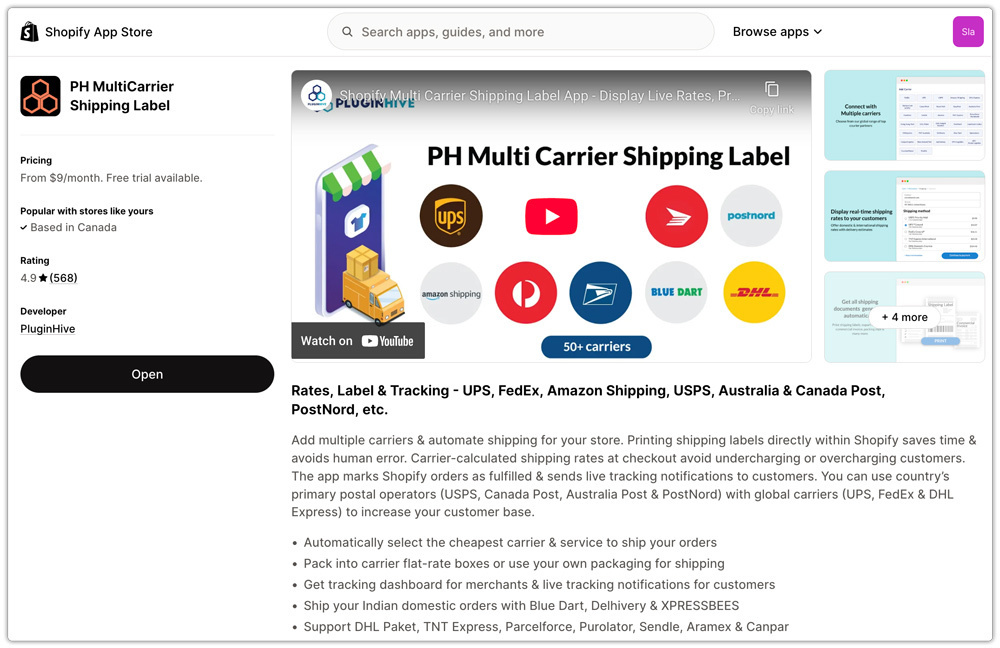
PH MultiCarrier Shipping Label App
The PH MultiCarrier Shipping Label App adds rules on top of Shopify’s data.
- Automation rules, under Settings > Automation > Setup Rules, control which carrier account generates each label.
- Criteria include shipping zone, order weight, order price, and order quantity
- Auto Generate Label applies your packaging settings and picks boxes from product dimensions, with no manual edits per order.
- Tracking numbers sync back to the Shopify order
The app setup guide covers each setting. For the checkout side of the same rules, see Shopify shipping rules by weight, value, and quantity.
PH Ship, Rate & Track for FedEx
The PH Ship, Rate & Track for FedEx app generates labels from your Shopify orders.
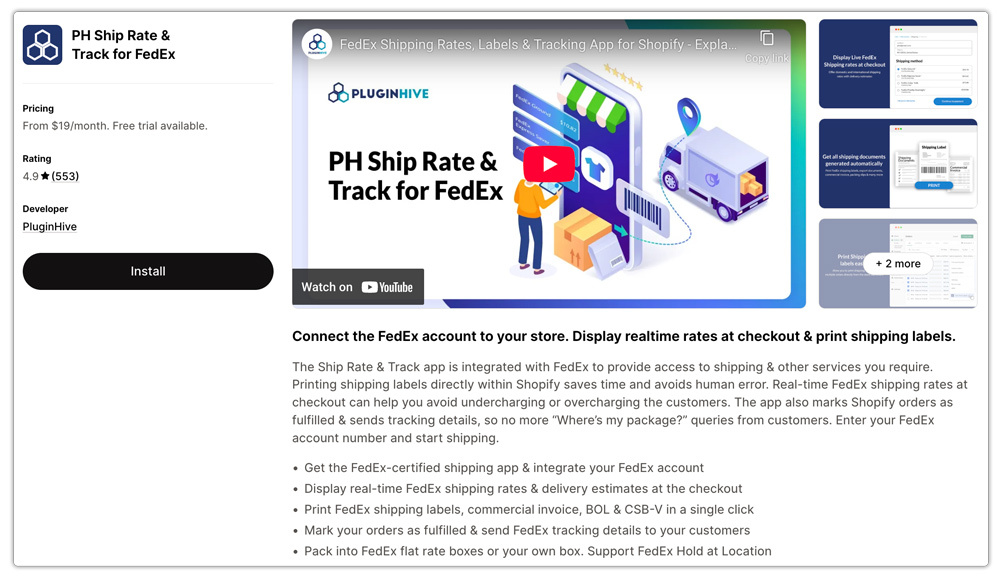
- Select orders, open More Actions, and choose Auto Generate Label to create labels for all of them at once.
- Labels use your packing rules and FedEx service settings, so there’s no per-order data entry
- Return labels can be generated alongside forward labels
- Tracking syncs to the order after fulfillment
PluginHive Australia Post Ship App
For Australian stores, the PluginHive Australia Post Ship App works from the Orders page too.
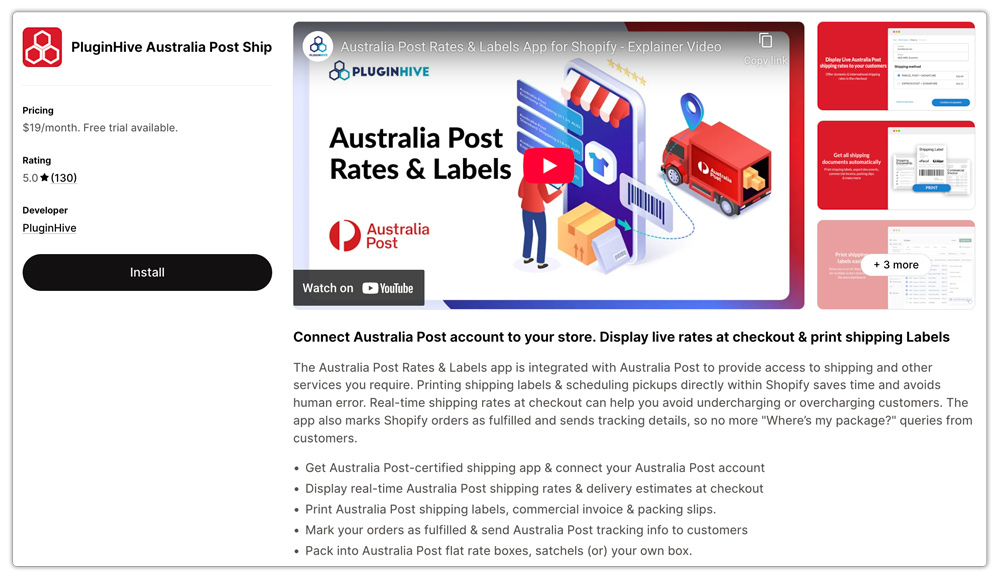
- Select multiple orders, open More Actions, and click AU Post Generate Labels.
- Auto Label Settings define the defaults for automatic label generation
- Generate the Australia Post manifest for a group of orders from the Shipping tab
- Live Australia Post rates appear at checkout, and tracking syncs back to Shopify
For all three, accurate product weights and saved packaging are what make pre-filled labels correct.
Test Before You Rely on Automation
An automated mistake repeats on every order. Before going live, place a few test orders and check:
- The right carrier and service are selected
- Weights and boxes match your real packaging
- Tracking appears on the order and in the customer email
- Held orders stay out of your pick list
- Late-order tags and daily summaries fire as expected
Common mistakes to avoid:
- Turning on automatic fulfillment while shipping physical goods yourself
- Skipping product weights, which breaks labels and rates
- Auto-fulfilling high-risk orders without review
- Building Flow rules without a daily check on held orders
Conclusion
Fast Shopify order processing is mostly about removing repeat work. Keep automatic fulfillment off if you ship physical goods, and turn on automatic archiving. Use Flow to tag, hold, and flag orders, and let routing assign locations. Then batch your labels and use a shipping app so label forms arrive pre-filled from the order. Test the setup before volume grows.
FAQs
Q. Should I turn on automatic fulfillment in Shopify?
Only if you sell digital products, gift cards, or use fulfillment services for everything. If you ship products yourself, it marks every order as fulfilled and hides what still needs shipping.
Q. Where are the order processing settings in Shopify?
Go to Settings > General and open the Order processing section.
Q. How many labels can I buy at once in Shopify?
Up to 250 labels from the Orders page.
Q. Can the PluginHive apps create labels automatically?
They generate labels from order data, with bulk actions for selected orders. The MultiCarrier app adds automation rules for choosing carriers and services.
Q. Why does my order show On hold right after checkout?
If a post-purchase upsell app is active, Shopify holds the order temporarily while the offer shows. It returns to Unfulfilled once the customer accepts or declines.
