



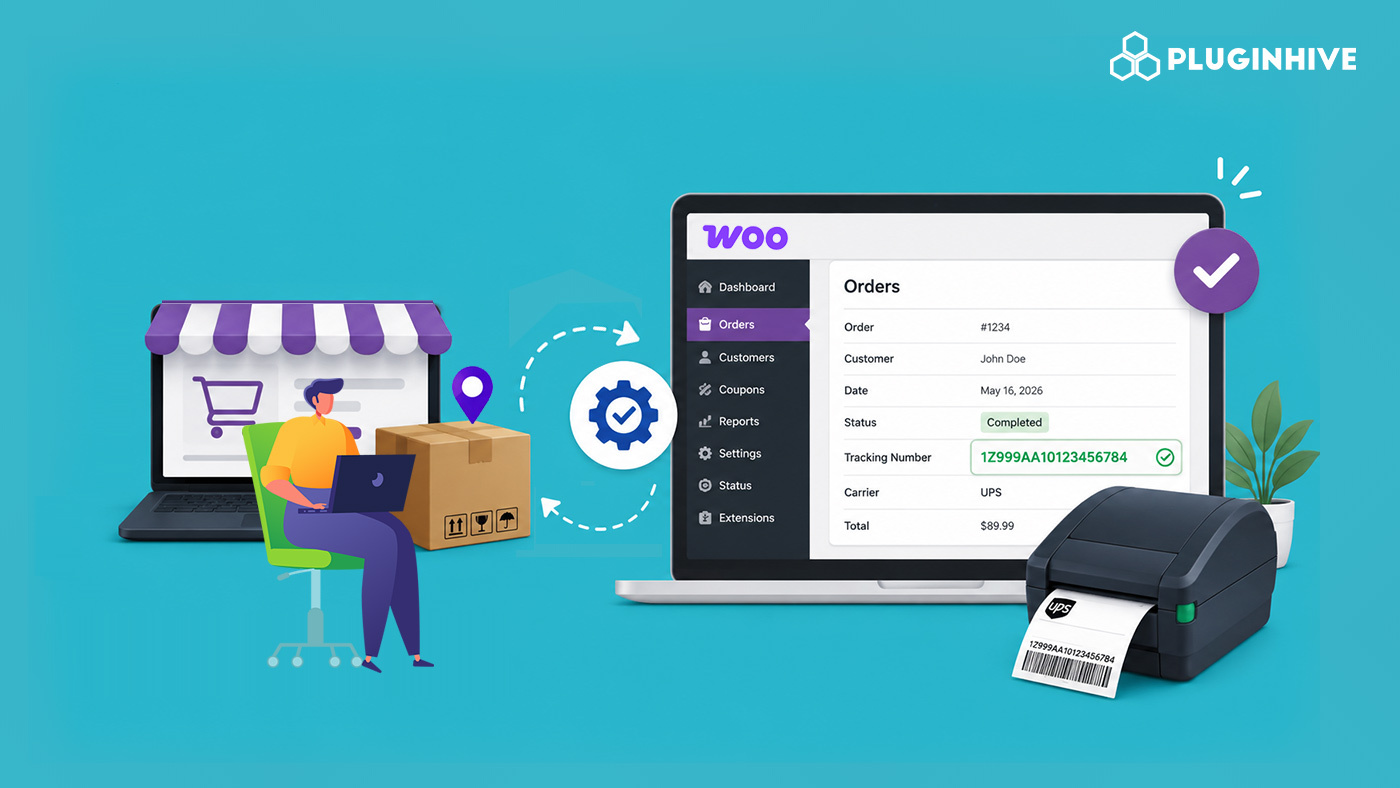
Manually opening every WooCommerce order to type in a tracking number gets old fast, especially once your daily order count starts climbing. It also means customers are left refreshing their inbox, wondering where their package is, until you find the time to update each order one by one. This is exactly the kind of task that shipment tracking automation was built to remove from your plate.
In this article, we’ll show you how to automatically add tracking numbers to WooCommerce orders using the Shipment Tracking Pro for WooCommerce plugin, so you can stop chasing tracking details order by order.
On This Page
- Why Add Tracking Numbers Automatically in WooCommerce?
- How to Automatically Add Tracking Numbers to WooCommerce Orders
- Example Scenario
- Best Practices for Automating WooCommerce Tracking Numbers
- Conclusion
- FAQs
Why Add Tracking Numbers Automatically in WooCommerce?
Tracking numbers are usually generated by your shipping carrier or fulfillment system, not directly in WooCommerce. This means you need a way to bring those tracking details back into your store, and doing it manually for every order isn’t sustainable once volume picks up.
Automating this process makes it easier to:
- Update orders faster: Add tracking details to the correct WooCommerce orders without entering them individually.
- Keep tracking information in one place: View shipment details directly from your WooCommerce orders.
- Reduce errors: Avoid copying and pasting long tracking numbers manually.
- Keep customers informed: Give customers access to tracking details as soon as you add them.
As a result, automatic tracking imports keep your WooCommerce orders updated while reducing repetitive work.
How to Automatically Add Tracking Numbers to WooCommerce Orders
Shipment Tracking Pro for WooCommerce is built to add tracking details to your orders without you doing it manually every time. Depending on how your fulfillment process works, you can import tracking numbers in bulk from a CSV file, set up an FTP/SFTP connection so the plugin pulls the file on its own, or connect the plugin directly to a shipping platform you already use.
Import Tracking Numbers Using CSV
If your shipping software gives you a CSV file with tracking details, just upload it under Shipment Tracking → Import Tracking Details in your WordPress dashboard.

The file typically includes the order number, carrier, tracking number, and shipment date. Shipment Tracking Pro matches each row to the right order and updates them all at once, so you’re not editing orders one by one.

Import Tracking Numbers Using FTP or SFTP
If your fulfillment system regularly drops a tracking file onto an FTP or SFTP server, you don’t have to download and re-upload it every time. Just point Shipment Tracking Pro to that server once, and it’ll fetch the file on its own from then on.

You can also set this up to run on a schedule, so new tracking numbers get pulled in and applied to orders automatically, without you having to remember to do it.
Import Tracking Numbers from Shipping Platforms
If you’re already shipping through a platform like Shippo, ShipStation, ShippingEasy, or Pirate Ship, you don’t need files at all. Shipment Tracking Pro can connect to these directly, so once you turn on the integration, tracking numbers created on that platform land in the matching WooCommerce order on their own.

That means you can carry on fulfilling orders exactly the way you already do, and the tracking details will still show up inside WooCommerce for you and your customers.
Sync Tracking Numbers from PluginHive Shipping Plugins
The same kind of syncing happens with PluginHive’s own shipping plugins, including:
- WooCommerce UPS Shipping Plugin with Print Label
- FedEx Shipping Plugin for WooCommerce with Print Label
- Canada Post Shipping Plugin for WooCommerce with Print Label
- WooCommerce Shipping Services
Whenever a shipping label gets created through one of these, the tracking number is handed straight to Shipment Tracking Pro and attached to the matching order, no extra step needed on your end.
For the complete setup process and configuration options, refer to the Shipment Tracking Pro setup guide.
What Happens After Tracking Numbers Are Imported in WooCommerce?
Once the tracking information is imported, the plugin can update the relevant WooCommerce orders and make the tracking details available to customers.
Depending on your settings, you can:
- Send the order completion email with the tracking ID, carrier name, shipment date, and tracking link.

- Display the tracking number on the customer’s My Account → Orders page.
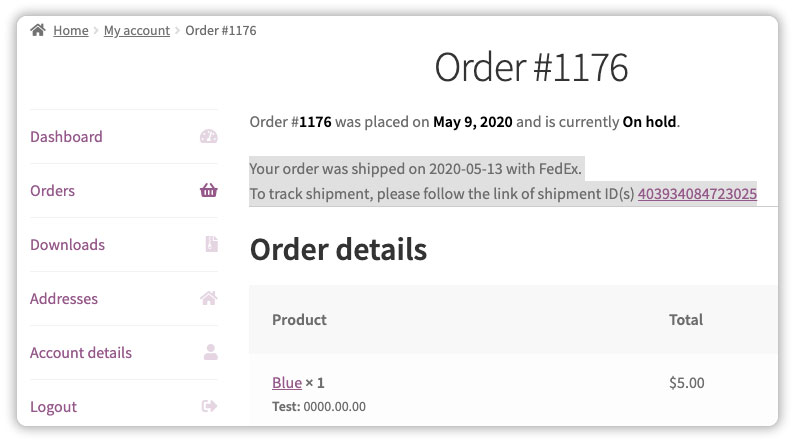
- View the tracking details in your WooCommerce order, making it easy to check shipment information when needed.
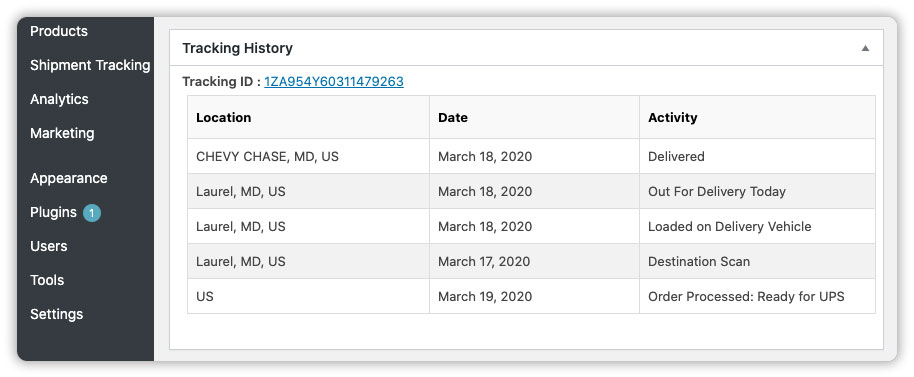
This keeps your order and tracking information updated in one place and makes it easier for customers to follow their shipments.
Example Scenario: Shipping Across Multiple Carriers Without Losing Track of Orders
Let’s say you run a WooCommerce store that ships domestically with USPS, switches to UPS for heavier orders, and uses Royal Mail for UK customers. Here’s what you’re likely dealing with:
Challenges You’re Probably Facing
- Tracking numbers come in from different carriers, each in its own format.
- You’re manually matching each number to the right order and carrier.
- Customers get an inconsistent tracking experience depending on which carrier shipped their order.
- There’s no single place to check shipment status across all your carriers.
How Shipment Tracking Pro for WooCommerce Solves This
Shipment Tracking Pro for WooCommerce handles all 85+ supported carriers, including USPS, UPS, and Royal Mail, from one place.
- Each order keeps its own carrier assignment, so tracking details never get mixed up.
- Live status updates pull directly from the carrier, no matter which one shipped the order.
- Customers get the same tracking experience regardless of carrier.
Results
- Tracking numbers land on the right order automatically.
- Customers see consistent tracking emails and updates across carriers.
- You get one view of all shipments instead of checking multiple dashboards.
- Fewer “where’s my order” queries in your support inbox.
Once Shipment Tracking Pro is set up, managing multiple carriers stops being something you handle order by order, it becomes part of how your store runs.
Best Practices for Automating WooCommerce Tracking Numbers
Getting the most out of automated tracking comes down to a few setup choices that are easy to miss. Here are a few worth paying attention to.
A few simple setup choices can make automated tracking imports more reliable. Keep these practices in mind:
- Check your CSV format before scheduling imports: Make sure the file contains the required order number, carrier, and tracking information. Missing or incorrect details can prevent the plugin from matching an order.
- Choose a suitable import interval: Most stores don’t need to check for new tracking files every few minutes. Choose an interval that matches how often your fulfillment system generates tracking information.
- Keep your order numbers consistent: If you use a plugin such as WooCommerce Basic Order Numbers, make sure the order numbers in your tracking file match the numbers used by WooCommerce.
- Test with a small batch first: Upload a small CSV file before scheduling larger imports. This helps you confirm that the plugin matches tracking numbers with the correct orders.
- Customize your tracking emails: A clear subject line and helpful message can make tracking notifications easier for customers to understand.
These small steps can help you avoid import errors and keep your tracking workflow running smoothly.
Conclusion
Adding tracking numbers to WooCommerce orders one at a time doesn’t scale, and it shouldn’t have to. With Shipment Tracking Pro for WooCommerce, you can bring tracking details in through CSV, FTP/SFTP, or a shipping platform you already use, and let the plugin handle the rest, updating orders, notifying customers, and keeping everything inside WooCommerce. If you’d like help setting this up in your store, feel free to reach out to PluginHive Support.
FAQs
Q: Does WooCommerce automatically add tracking numbers to orders?
No, WooCommerce doesn’t have this built in. You need a shipment tracking plugin like Shipment Tracking Pro for WooCommerce to add tracking numbers, whether manually or through automated import.
Q: Will customers be notified automatically once tracking numbers are added?
Yes. Once tracking details are imported, the plugin marks the order as Completed and sends the customer an order completion email with the tracking ID and carrier link.
Q: Which shipping carriers are supported for automatic tracking in WooCommerce?
Shipment Tracking Pro supports 85+ carriers, including UPS, FedEx, USPS, DHL Express, Royal Mail, and Canada Post, with live tracking available for select carriers.
