


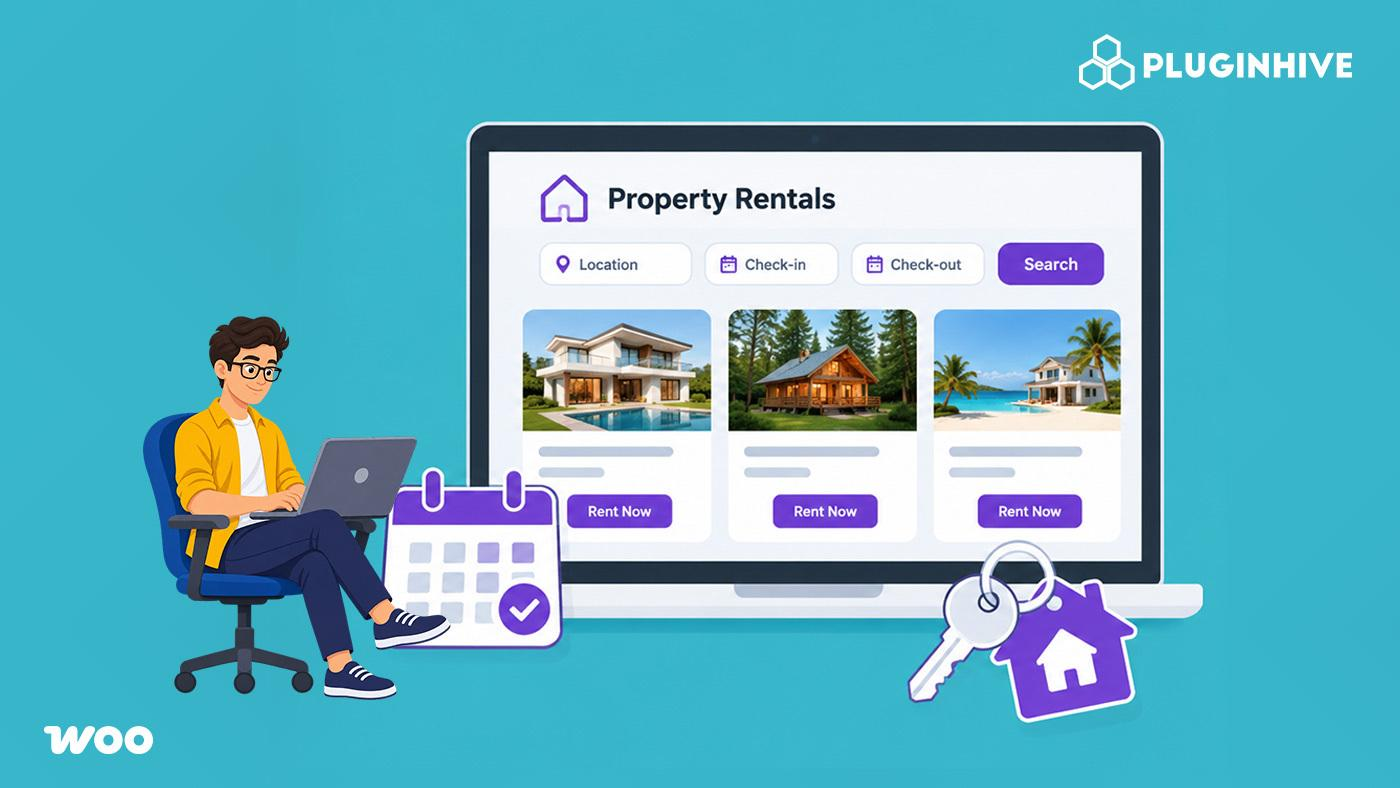
Renting out apartments, houses, or villas often means answering phone inquiries, tracking bookings by hand, and paying hefty commissions to third-party listing sites. A property rental website puts you back in control. You own your branding, take bookings directly from tenants, and manage everything in one place.
With WooCommerce and the Bookings and Appointments for WooCommerce plugin, you can build one on your existing WordPress site. In this article, we’ll walk you through how to create your property rental website and manage bookings online.
Table of Contents
- Benefits of Offering Property Rentals Online
- What You Need to Create a Property Rental Website with WooCommerce
- How to Rent Out Your Properties Online with WooCommerce
- Example Scenario: Managing Multiple Properties on Your Rental Website
- Tips for Managing Your Property Rental Website
- Conclusion
- FAQs
Benefits of Offering Property Rentals Online
Offering property rentals online makes it easier to manage your rental business and connect with potential tenants. Instead of handling every inquiry and reservation manually, you can manage your rental properties through your own website.
Here are some benefits of offering property rentals online:
- Reduce third-party commissions: Accept rental bookings directly through your website instead of paying commissions to third-party listing platforms.
- Build your own brand: Showcase your properties with your own photographs, descriptions, rental prices, and policies.
- Connect directly with tenants: Handle customer inquiries, discuss rental requirements, and communicate directly with potential tenants.
- Manage property availability: Let customers check available rental dates and avoid manually responding to every availability inquiry.
- Manage bookings in one place: View and manage your property reservations from your WordPress dashboard.
By offering property rentals through your own website, you have more control over your rental listings, customer communication, pricing, and reservations.
What You Need to Create a Property Rental Website with WooCommerce
Before creating your property rental website, make sure you have the following:
- WordPress website: Your website where you can display and manage rental properties.
- WooCommerce: To create property listings, manage orders, and accept payments.
- WooCommerce-compatible theme: To design your website and display property listings clearly.
- Bookings and Appointments for WooCommerce plugin: To add booking calendars, manage property availability, and configure rental pricing.
- Property information: Photographs, descriptions, rental prices, amenities, and other details for each property.
Once you have these ready, you can start creating your property listings and accepting online reservations.
How to Rent Out Your Properties Online with WooCommerce
Follow these steps for each property you want to list using the Bookings and Appointments for WooCommerce plugin. For a complete walkthrough of every setting, refer to the setup guide.
Create a Bookable Product for Each Property
Go to Products > Add New, enter the property name, and change the product type to Bookable Product. Add photos and the details tenants check first, such as location, bedrooms, bathrooms, furnishing, parking, and house rules.

Each property gets its own page and its own calendar. You can also use WooCommerce product categories like Apartments, Houses, and Villas to help visitors browse.
Set the Booking Period and Stay Rules
Open the Bookings tab and pick the booking period that matches how you rent.
- Short stays: Select Enable Calendar Range with Blocks of 1 day(s) so tenants choose a start and end date. Then enable Bookings per night. The end date is not charged, and it stays open for the next booking.
- Month-to-month stays: Set the booking period in months.
- Stay rules: Add a minimum and maximum duration, such as 3 to 28 nights. Set Max Bookings per Block to 1 so the property is never booked twice for the same dates. You can also add buffer time before or after each booking for cleaning, inspections, or repairs.

Set Your Rent and Availability
Enter a base rent for the property, then add special prices where they make sense. You can charge more on weekends, raise the rate for peak months or seasons, lower the nightly rate for longer stays, or price by the number of people. The total updates on the product page automatically. The booking costs guide covers each option.

Next, block weekdays, specific dates, or whole months for owner visits, repairs, or a current tenant. You can also let bookings start only on certain days of the week, such as Mondays, and add a last-minute cut-off. See the availability guide for the rule options.

Collect Tenant Details and Offer Extras
Add a participant field so tenants can enter how many people will stay. Turn on the Booking Notes field for special requests, and make it mandatory if you need it filled in.
For a longer form, PH Product Add-ons for WooCommerce works alongside the booking calendar. To offer priced extras, such as a parking space or an additional cleaning, use Booking Resources.

Approve Bookings and Collect a Deposit
Most owners like to know who is booking. Turn on Requires Confirmation so each request stays pending. The tenant gets an email saying the request is under review. Once you approve it from your dashboard, the confirmation email with a payment link goes out automatically.
To take a security deposit or a partial payment upfront, add PH Deposits for WooCommerce. This guide explains partial payments for bookings.
Set Up Emails and Calendar Sync
The plugin sends email notifications to you and the tenant for new bookings, confirmations, and cancellations. It can also send reminders before an upcoming booking.

To see bookings next to your other plans, sync them with Google Calendar or Outlook Calendar.
If you also list a property on Airbnb, Vrbo, or Booking.com, connect that calendar using the plugin’s external calendar integration, which works via iCal. This helps keep your dates aligned across platforms and avoids double bookings.
Once these are done, your listing is ready. Place a test booking yourself to see the calendar, price, and emails exactly as a tenant will.

Example Scenario: Managing Multiple Properties on Your Rental Website
Let’s say you own a two-bedroom apartment, a three-bedroom house, and a villa. You rent them out for short and long periods, and so far you have managed everything over calls and a shared spreadsheet.
Challenges You Face
- Renters call to ask whether dates are free, and answers get delayed.
- Two requests for the same dates arrive on the same day.
- You have no time to clean or inspect between renters.
- Rates change with the season, and you quote them by hand each time.
- You want to know who is renting the villa before you confirm.
How Bookings and Appointments for WooCommerce Solves It
- Each property is a bookable product with its own calendar and photos.
- Booked dates close automatically, so there are no clashes.
- Buffer time leaves a gap for cleaning between renters.
- Seasonal and weekday rates calculate the total on their own.
- Requires Confirmation lets you review each villa request before payment is asked.
- Dates you block for your own use never show as available.
You manage all three properties from one dashboard, and renters get their answers instantly.
Tips for Managing Your Property Rental Website
Managing multiple rental properties becomes easier when your listings and booking details are well organized. Here are some tips to help you manage your property rental website:
- Provide detailed property descriptions: Include details such as floor area, furnishing, available utilities, amenities, and pet policies.
- Use high-quality photographs: Add clear images of each room and important areas of the property to help potential tenants make informed decisions.
- Create separate listings for each property: Maintain individual product pages so customers can view property details and check availability separately.
- Monitor incoming bookings: Regularly check the All Bookings section in your WordPress dashboard to keep track of reservations and pending bookings.
- Set clear cancellation policies: Define your cancellation terms so customers understand the conditions before making a reservation.
- Check your website on mobile devices: Make sure property details, booking calendars, and reservation options are easy to view and use on smaller screens.
Following these practices can help you keep your property listings organized and make the rental booking process easier for customers.
Conclusion
Building a WooCommerce property rental website makes it easier to showcase apartments, houses, and villas while accepting rental reservations directly through your website. It also gives you better control over property listings, rental prices, availability, and customer bookings without depending entirely on third-party platforms.
With the Bookings and Appointments for WooCommerce plugin by PluginHive, you can turn your property listings into bookable products, configure rental durations, manage availability, and accept online reservations. Whether you manage a single property or multiple rentals, the plugin helps simplify your booking process through WooCommerce.
FAQs
Q: Does WooCommerce have a booking system?
Not by default. WooCommerce handles products, checkout, and payments, but it has no booking calendar. To take bookings, you need a plugin like Bookings and Appointments for WooCommerce, which adds a calendar, pricing rules, and availability settings to your property listings.
Q: Can I add buffer time between rentals for cleaning or repairs?
Yes. You can add buffer time before and after each booking. During this window, the property cannot be booked, which gives you time for cleaning, inspection, or repairs before the next tenant moves in.
Q: Can other property owners list their properties on my site?
Yes. With Dokan Business Pro and the PH Dokan Bookings Integration, vendors can host their own bookings on your store.
