


If you are fulfilling orders one by one, clicking into each order, selecting a service, buying a label, and then moving to the next, you are spending significant time on a process Shopify is built to handle in bulk. When order volume is low, this is manageable. As volume increases, it becomes the bottleneck that slows down every other part of your fulfilment workflow. Shopify allows you to buy and print Shopify shipping labels at the same time from the Orders page in your admin. This guide walks through exactly how to do that, what to check before you start, how to handle errors, and when a dedicated shipping app makes more sense than Shopify’s built-in label workflow.
In This Article
- What You Need Before Buying Labels in Bulk
- Method 1: Buy Labels in Bulk from the Shipping Labels Page
- Method 2: Select Labels in Bulk from the Orders Page
- Reviewing and Editing Labels Before Purchase
- How to Print Shopify Shipping Labels in Bulk
- Handling Errors in Bulk Label Purchases
- When to Use a Shipping App for Bulk Labels
- Conclusion
- FAQs
What You Need Before Buying Labels in Bulk
Before you start selecting orders for bulk label purchase, a few things need to be in place.
Carrier availability by country:
Depending on your fulfillment locations, you can purchase labels from the following carriers through Shopify’s carrier accounts:
- United States: USPS, UPS, DHL eCommerce, DHL Express, FedEx
- Canada: Canada Post, DHL Express Canada, Purolator, UPS
- Australia: Australia Post
- United Kingdom: Evri, DPD, Royal Mail, InPost UK, DHL Express Europe
- Other supported regions: France, Germany, Italy, Netherlands, Poland, Spain
Orders that are excluded from bulk label purchase:
The following orders aren’t included when buying shipping labels in bulk: orders that contain only items that don’t require shipping; orders that don’t have a valid shipping address; orders that are already fulfilled.
Other important considerations:
- If you’re shipping internationally, then your shipment’s declared value can’t exceed $2,500 USD.
- The Shipping labels page displays only 100 orders per page. If you need to review a batch with more than 100 labels, you can open, review, and select labels from a batch.
- For international orders, HS codes and country of origin must be set on your products before bulk label purchase. The Shopify HS code guide covers how to add and manage these across your product catalog.
Method 1: Buy Labels in Bulk from the Shipping Labels Page
This is the most streamlined method for purchasing Shopify shipping labels in bulk, using Shopify’s dedicated Shipping Labels queue.
Select labels to purchase in bulk:
- From your Shopify admin, go to Orders > Shipping labels
- Click Buy labels
- If you fulfill from multiple locations, select the appropriate location and click Continue
- You are taken to the Create shipping labels page to review and purchase

Alternatively, if you want to select from a previously created batch:
- From your Shopify admin, go to Orders > Shipping labels
- Click the checkmark next to the batch of labels you want to purchase (identified by purchase date)
- Click View all
- Optional: Deselect any shipping labels you don’t want to purchase
- Click Buy labels
- If you fulfill from multiple locations, select the appropriate location and click Continue
Method 2: Select Labels in Bulk from the Orders Page
If you prefer to start from your full Orders list and select specific orders manually:
- From your Shopify admin, go to Orders
- Select the checkbox next to each order you want to create a shipping label for
- Click Create shipping labels
- If you fulfill from multiple locations, select the appropriate location and click Continue

You can also use Shopify’s batch fulfilment feature for more structured workflows. Batches let you group up to 250 fulfillments based on criteria such as product type or shipping destination, so you can pick, pack, purchase labels, and print documents in a way that matches your workflow.
To create a batch:
- From your Shopify admin, go to Orders
- Click Batch recent orders to automatically group recent orders, or manually select orders and add them to a batch
- Move through the batch steps: pick, pack, then buy shipping labels

Batching is particularly useful for stores that fulfil from a warehouse with organised pick-and-pack workflows, rather than shipping individual orders as they arrive.
Reviewing and Editing Labels Before Purchase
Before you confirm a bulk purchase, the Create shipping labels page lets you review each order’s shipping details and make changes where needed. On desktop, you can select multiple orders and apply a change to a shared field, such as package type, total weight, or shipping service, across all selected orders at once using the column header.
How to Print Shopify Shipping Labels in Bulk
After purchasing your labels, printing them in bulk is straightforward:
- From your Shopify admin, go to Orders > Shipping labels
- Select the orders you want to print labels for
- Click Print documents
- Select the documents you want to print: labels only, or labels combined with packing slips and customs forms
- Review or edit the document size
- Click Print shipping labels (if printing labels only) or Print documents (if printing combined)
After you buy shipping labels in your Shopify admin, you can manage your shipping labels from the Shipping labels page. You can print and reprint labels individually or in bulk, void labels to get refunds for unused labels, and track delivery status of your shipments.
For printing packing slips separately in bulk:
- Go to Orders
- Select the orders that require packing slips
- Click Print > Print packing slips
Eligible labels from the United States receive up to $200 USD of included shipping insurance.
Handling Errors in Bulk Label Purchases
When buying Shopify shipping labels in bulk, some orders may flag errors. Shopify uses two error levels:
- Warning (yellow icon): This error doesn’t prevent you from purchasing the label, but it might cause issues with the shipping carrier or customs. Common causes include missing secondary address lines or weight discrepancies.
- Critical error (red icon): This error prevents you from buying the label, but after you fix the error, you can continue with your label purchase. Common causes include invalid shipping addresses or missing required customs fields.
If any of your labels have a critical error, then the Review and buy button is deactivated. You need to either fix the error or remove the label from the bulk purchase.
To remove a problematic label from the batch:
- Select the order you want to remove
- Click the X order selected drop-down menu
- Click Remove X order
Address accuracy is one of the most common sources of critical errors in bulk label workflows. The UPS address correction guide for Shopify covers how to prevent address-related errors and the fees they generate after shipment.
When to Use a Shipping App for Bulk Labels
Shopify’s native bulk label purchasing works well when you are using carriers available through Shopify’s carrier accounts. For merchants who ship with their own carrier accounts to access negotiated rates or carriers not in Shopify’s native list, a dedicated shipping app handles bulk label generation with those accounts.
Merchants shipping with multiple carriers:
- The PH MultiCarrier Shipping Label App by PluginHive connects your own carrier accounts (UPS, DHL, USPS, India Post, and others) directly to Shopify. From the Orders page, you can select multiple orders and generate bulk labels using your connected carrier accounts, with live rates applied per order based on actual package dimensions and destination.

For FedEx merchants:
- The PH Ship, Rate & Track for FedEx app allows you to generate FedEx shipping labels directly from the Shopify order page without navigating to the FedEx portal. Select your FedEx service, confirm package details, and print the label in one step from within Shopify. Live FedEx rates based on your account pricing are shown at checkout. For more on FedEx service options for Shopify stores, the FedEx shipping services guide for Shopify covers what is available by service tier.
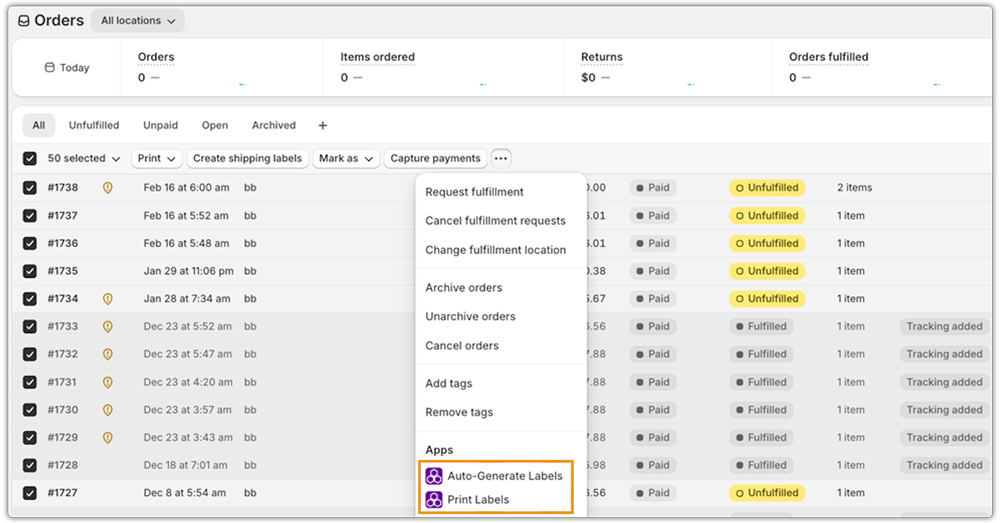
For Australia Post merchants:
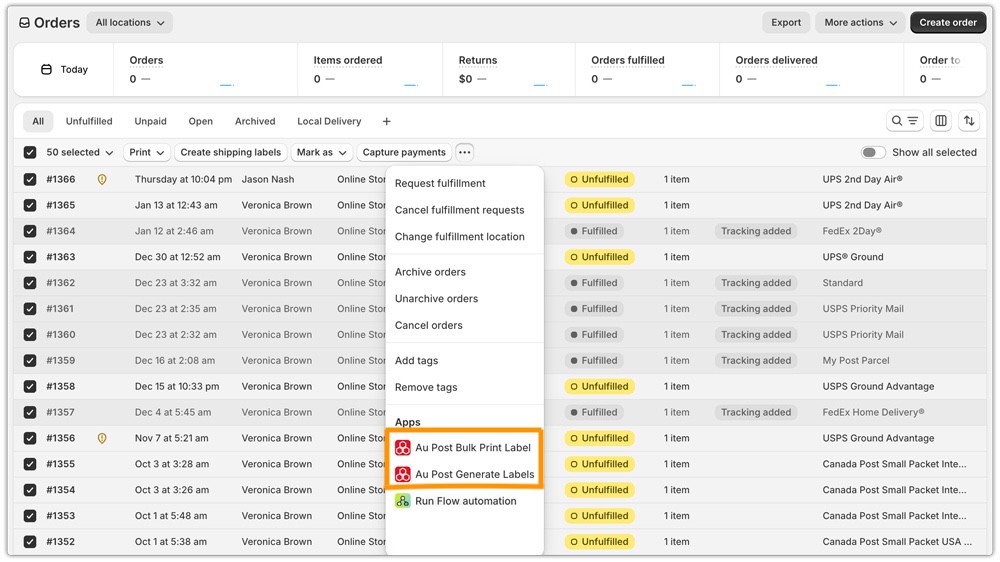
- The PluginHive Australia Post Ship App lets you generate Australia Post labels directly from the Shopify order page for both domestic and international Australia Post services. Live rates are fetched from your connected Australia Post account, labels are printed within Shopify, and tracking updates are synced back to orders automatically. The Australia Post shipping guide for Shopify covers the full setup process.
Conclusion
Bulk printing Shopify shipping labels saves time when processing multiple orders. Shopify’s built-in workflow works well for supported carriers, allowing you to purchase and print labels directly from the admin.
If you use your own carrier accounts, negotiated rates, or multiple carriers, a dedicated shipping app can provide more flexibility. Whichever method you choose, checking addresses, package details, and customs information beforehand helps avoid errors and keeps fulfilment running smoothly.
FAQs
Q. Can I edit multiple labels at once before purchasing in bulk?
Yes, on desktop. The Create shipping labels page allows you to select multiple orders and apply changes to a shared field such as package type, total weight, or shipping service across all selected orders at once using the column header.
Q. What happens if some orders have errors during bulk label purchase?
Shopify flags errors with warning icons (yellow, non-blocking) or critical error icons (red, blocking). Critical errors prevent purchase of that label until fixed. You can either resolve the error or remove that order from the batch and purchase the remaining labels.
Q. Do I need to set HS codes before buying international labels in bulk?
Yes. For international shipments, Shopify requires item weight, value, description, country of origin, and HS code for each product. These can be pre-set at the product level in Shopify so they populate automatically during bulk label creation, avoiding manual entry for every order.
