



Running a booking business on WooCommerce is very different from selling regular products. Customers are not simply placing an order and waiting for delivery; they are reserving time slots, scheduling services, and managing their reservations. When customers can’t easily make bookings or manage their schedules, they naturally reach out through emails or calls, adding extra pressure to your daily operations.
This guide walks you through the complete booking experience: how customers make bookings in your WooCommerce store and how they can manage those bookings independently afterwards. By creating a seamless booking workflow from start to finish, you reduce support requests and give customers the control they expect.
Table of Contents
- The Importance of Booking Experience in WooCommerce
- How Customers Make Bookings on WooCommerce
- Let Customers Manage Their Bookings On WooCommerce
- Real-World Examples: Reducing WooCommerce Support Requests Through Self-Service
- Best Practices for WooCommerce Customer Booking Management
- Conclusion
- FAQs
The Importance of Booking Experience in WooCommerce
When customers can easily book services and manage reservations without assistance, both your business and your customers benefit:
- Faster bookings: Customers reserve instantly without waiting for availability confirmations or back-and-forth emails.
- Better scheduling clarity: Clear booking forms reduce confusion about service options, dates, times, and availability.
- Customer independence: Self-service gives customers control over their bookings from reservation to cancellation.
- Fewer interruptions: When customers handle routine tasks themselves, your team focuses on service delivery instead of administrative work.
- Higher trust: A smooth, transparent booking process makes customers feel confident about their purchase.
Creating this experience requires two essential components: an intuitive booking process and tools that let customers manage bookings on their own. When both pieces work together, your WooCommerce workflow stays organised without constant manual intervention.
How Customers Make Bookings on WooCommerce
The first step in a successful booking experience is making it easy for customers to reserve your services, resources, or time slots. The Bookings and Appointments for WooCommerce by PluginHive transforms your WooCommerce product pages into booking interfaces where customers can select what they need, choose dates and times, and complete their booking in just a few steps.
When customers visit your booking-enabled product page, they see:
- Service or resource selection: Choose from available options, whether that’s spa treatments, equipment rentals, event tickets, class sessions, consulting hours, or venue reservations
- Date and time picker: View your real-time availability and select a convenient slot or duration
- Booking details: Add any required information, such as the number of people, equipment preferences, special requests, or participant details
- Checkout: Complete the booking through WooCommerce’s standard checkout process
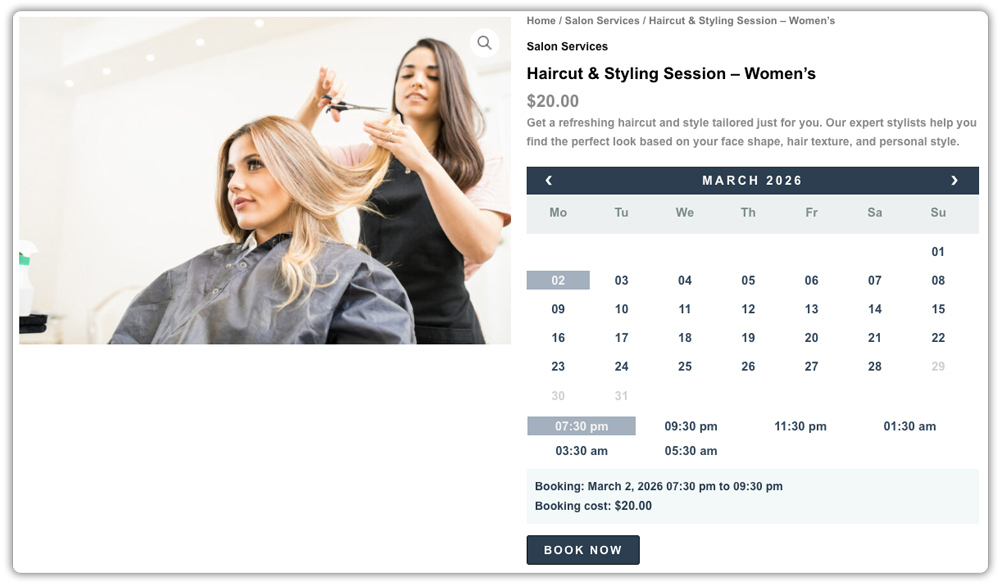
This booking interface integrates directly into your existing WooCommerce product pages, so customers experience a familiar checkout flow while making reservations.
To enable this booking functionality in your store, you’ll need to install and configure the Bookings and Appointments for WooCommerce plugin. The setup documentation provides step-by-step guidance.
Let Customers Manage Their Bookings On WooCommerce
After customers complete their booking, they need a way to access booking details, make changes, and handle common actions without contacting support. The Bookings and Appointments for WooCommerce by PluginHive extends the WooCommerce My Account area by adding booking-specific actions within the order details page, letting customers view details and handle their reservations independently.
What Customers Can Do with Their WooCommerce Bookings
- View Detailed Booking Information: Customers can see appointment date, time, duration, and service details instead of only standard order summaries. This reduces confusion and prevents customers from contacting support just to confirm booking information.
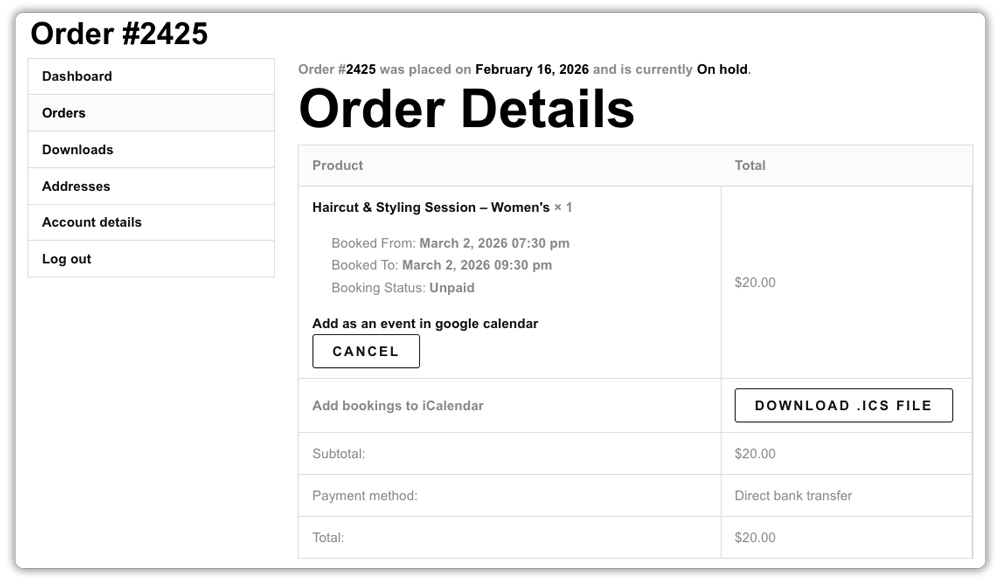
- Cancel Bookings Themselves: Customers can cancel appointments directly from their account when plans change. This instantly updates availability and helps you avoid manual scheduling adjustments.
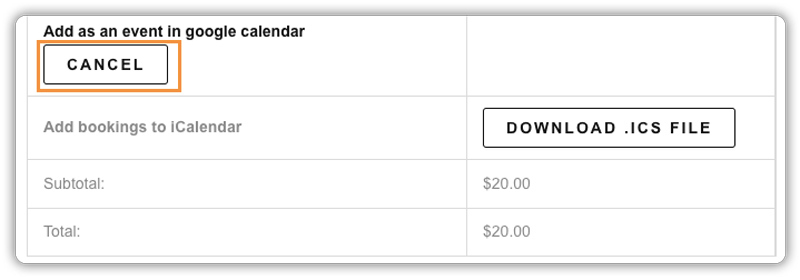
- Export Bookings to Calendar Apps: Customers can add bookings to Google Calendar, iCalendar, or Microsoft Outlook. When appointments appear alongside personal schedules, customers are more likely to remember them and arrive on time.
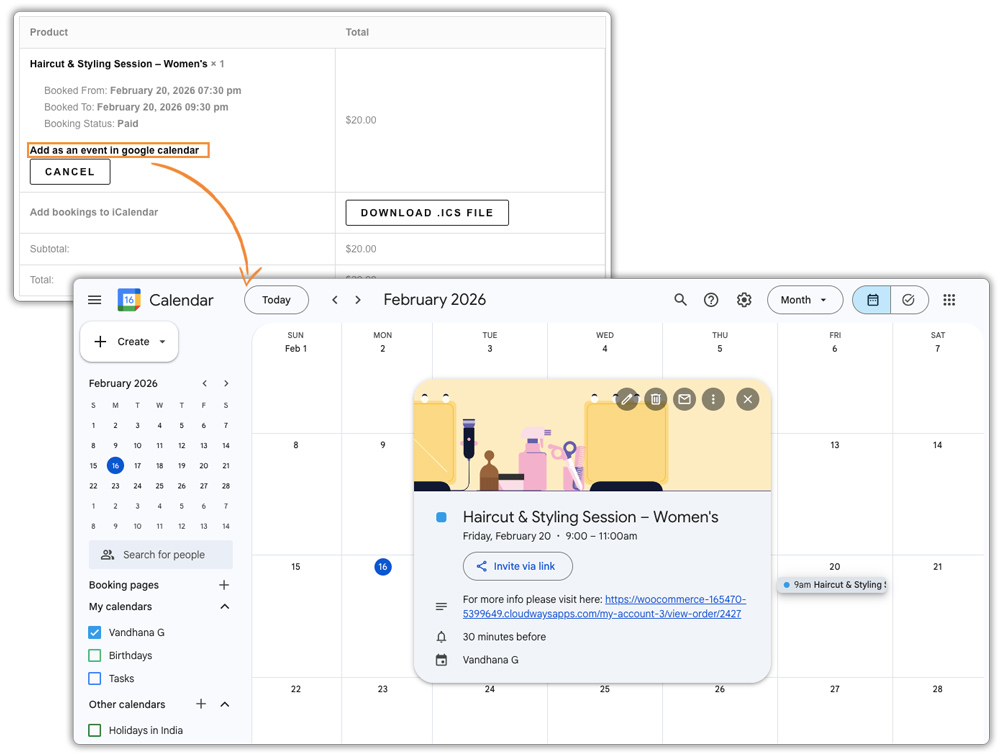
- Pay for Confirmed Bookings: For bookings that require confirmation before payment, customers can return to their account and use a simple Pay Now option. This improves payment collection and removes the need for follow-up emails.
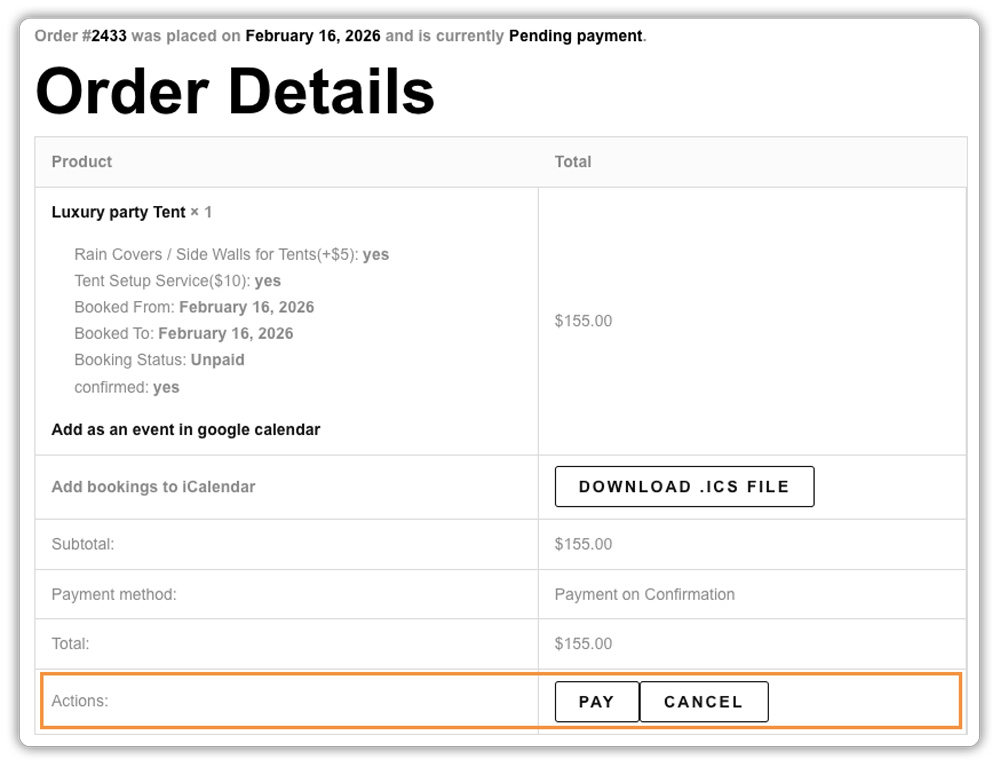
These options help customers handle common booking actions directly from their account, which keeps your workflow organised without extra effort.
Real-World Examples: Reducing WooCommerce Support Requests Through Self-Service
Customer self-service has a direct impact on how much time your team spends handling routine requests. Below are examples of how different businesses benefit from the Bookings and Appointments for WooCommerce plugin:
| Business Type | Common Problem | Self-Service Result |
|---|---|---|
| Salon | Staff spend time handling last-minute cancellation calls during busy hours | Customers cancel appointments themselves from the My Account orders page, freeing staff to focus on in-store clients |
| Healthcare Clinic | Patients forget appointment dates and contact support to reconfirm schedules | Clear booking details and calendar exports help patients track appointments without calling reception |
| Consulting Service | Clients delay payments after booking confirmation, requiring manual follow-ups | Customers complete payment directly from their order details page, which speeds up payment collection and reduces reminders |
| Coaching Business | Customers frequently email asking for session details or timing clarification | Detailed booking visibility inside WooCommerce reduces repetitive emails and improves communication clarity |
These examples show that when customers can manage bookings on their own, businesses spend less time answering routine questions and more time delivering services efficiently.
Best Practices for WooCommerce Customer Booking Management
A well-structured booking experience helps customers manage appointments easily while reducing unnecessary support work for your team. The following practices focus on keeping your WooCommerce booking workflow clear, efficient, and easy for customers to follow.
- Only review what’s necessary: Use “Confirmation-Based” bookings only for complex services. For everything else, let customers book and pay instantly to keep your schedule moving.
- Display cancellation policies before checkout: Show your cancellation and refund terms clearly on the booking page before customers complete their purchase, so they understand the rules upfront, and you avoid disputes later.
- Guide customers to manage bookings themselves: Use emails or checkout messages to direct customers to the My Account → Orders page, where they can view and manage their bookings without contacting support.
- Promote calendar integration actively. Encourage customers to add bookings and appointments to their phone calendars in the confirmation emails because this single action reduces no-shows significantly.
Applying these ideas helps you use the plugin more strategically rather than just functionally. When booking management feels intentional and organised, customers rely more on self-service, and your WooCommerce workflow stays efficient without extra effort.
Conclusion
A successful WooCommerce booking business needs two things: an easy booking process and self-service tools for customers. When customers can book services and manage their bookings on their own, viewing details, cancelling, or adding to their calendar, you spend less time on support and more time delivering your services.
The Bookings and Appointments for WooCommerce plugin handles both parts. From enabling bookings on your product pages to letting customers manage their reservations through My Account, it transforms how your booking business operates. If you need help setting this up, the PluginHive support team is available to assist.
FAQs
- Do customers need a WooCommerce account to make bookings?
Customers can book as guests during checkout, but they need to create an account to access booking management features like viewing details, cancelling, or exporting to their calendar. - Can customers cancel their WooCommerce bookings themselves?
Yes, customers can cancel bookings directly from their My Account page. Store owners control how far in advance customers can cancel through cancellation deadline settings. - How do customers pay for WooCommerce bookings that require confirmation?
Once a booking is confirmed, customers receive an email with a payment link. They can also log into their My Account page and complete payment directly from their order details using the “Pay Now” option. - What types of bookings can be managed through WooCommerce?
WooCommerce booking plugins support various booking types, including appointments, equipment rentals, class registrations, venue reservations, event tickets, consultation sessions, and any time-based or resource-based bookings.
