


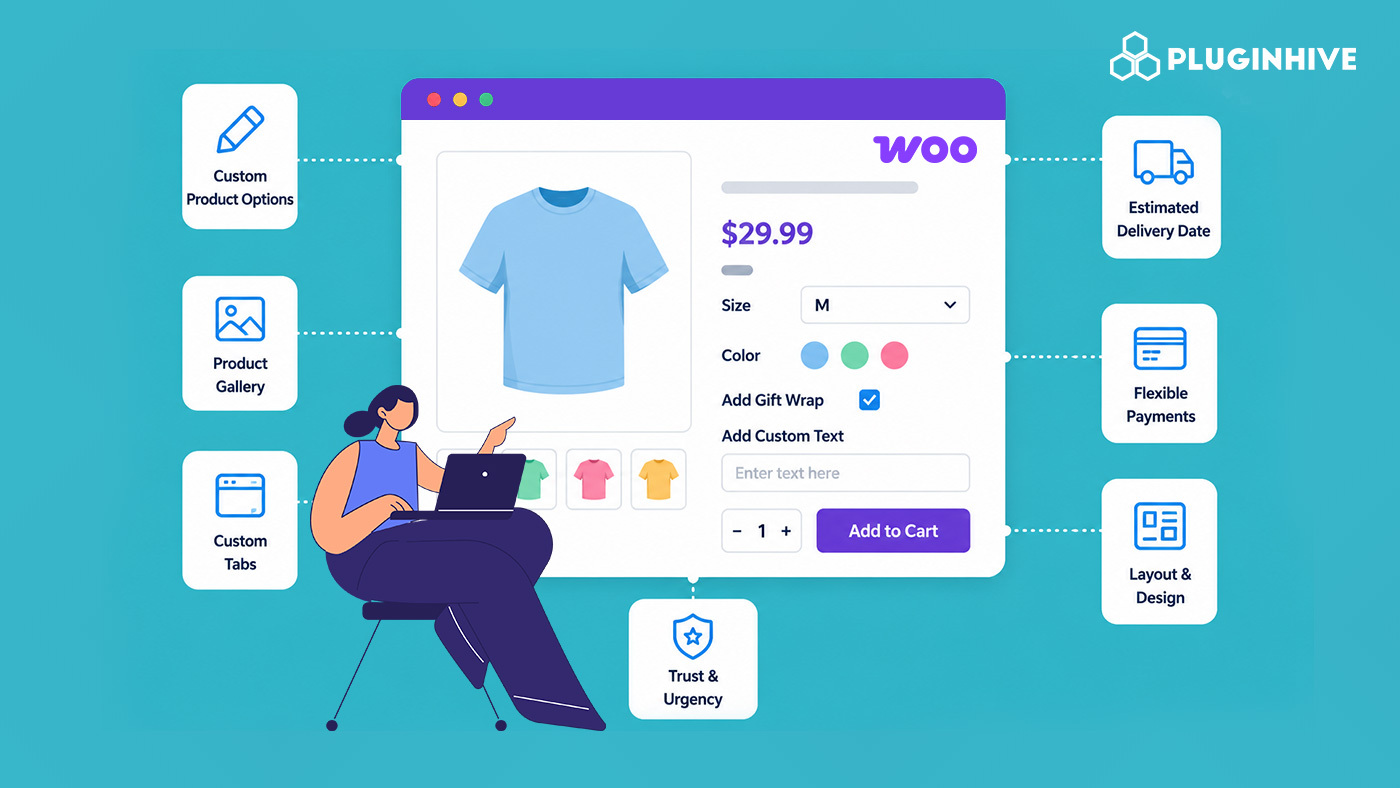
A default WooCommerce product page shows a title, a price, and an Add to Cart button. That may be enough for a simple store, but many shoppers expect more before they buy, such as options to personalize products, estimated delivery information, and flexible payment options.
If your product pages feel too generic, this guide covers seven practical ways to customize your WooCommerce product page, along with plugins that can help you add these features without complicated changes.
On This Page
- Why Customize Your WooCommerce Product Page?
- 7 Ways to Customize Your WooCommerce Product Page
- Add Custom Product Options to Your WooCommerce Products
- Improve Your WooCommerce Product Image Gallery
- Add Custom Tabs to Your WooCommerce Product Page
- Show Estimated Delivery Dates on WooCommerce Product Pages
- Offer Deposits and Flexible Payments for WooCommerce Products
- Customize WooCommerce Product Pricing and Purchase Options
- Improve Your WooCommerce Product Page Layout and Design
- Best Practices for Customizing WooCommerce Product Pages
- Conclusion
- FAQs
Why Customize Your WooCommerce Product Page?
The default WooCommerce product page works well for simple products, but it may not be enough for every type of store. A product page can be customized to match the way you sell and the information customers need before placing an order.
For example, a clothing store may need size guides and variation details, a personalized gift store may need custom text or file uploads, and a furniture store may need delivery information and product specifications. Customizing the page lets you add these details where customers need them, instead of making them search for answers elsewhere.
7 Ways to Customize Your WooCommerce Product Page
Here are seven ways to make your product pages work harder, from personalization to payment flexibility.
1. Add Custom Product Options to Your WooCommerce Products
Fixed variations like size and color don’t always cover what customers actually want to choose. The PH Product Add-ons for WooCommerce plugin lets you add extra fields directly to the product page so customers can personalize what they’re buying.
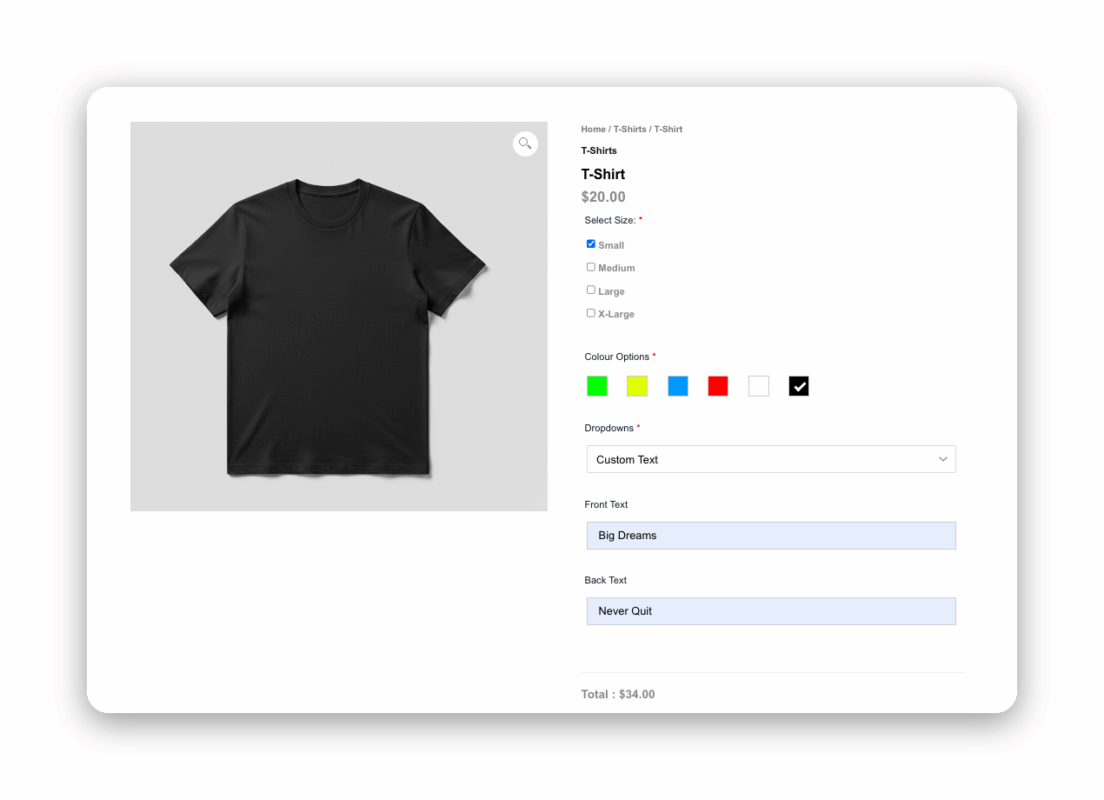
You can offer:
- Dropdowns and radio buttons for choices like size or product type
- Checkboxes for optional extras like gift wrapping or insurance
- Text and textarea fields for names, monograms, or custom messages
- File upload for customer-supplied images or designs
- Color options, date pickers, and time pickers for scheduling or styling choices
You can also set conditional logic so extra fields only appear when relevant. For example, a “Custom Text” input only shows up if the customer selects “Personalize This Product” first, keeping the page from feeling cluttered. The setup guide covers creating add-on groups and assigning them to products step by step.
If you’re deciding between this approach and WooCommerce’s built-in variations, this comparison of Product Add-ons vs. Variations breaks down when each makes sense.
2. Improve Your WooCommerce Product Image Gallery
Product images are one of the first things customers notice on a product page. A clear and well-organized gallery helps customers understand the product and make a more informed decision.
- Show multiple angles: Give customers a complete view of the product.
- Enable image zoom: Allow customers to view product details more closely.
- Add product videos: Show the product from different perspectives or demonstrate how it works.
- Use descriptive alt text: Add relevant alt text to improve accessibility and image SEO.
Most WooCommerce themes support basic gallery features, so you can often improve your product images without adding another plugin. Focus on using clear, high-quality visuals, and a photo enhancer can help sharpen images that aren’t quite there yet before you upload them.
3. Add Custom Tabs to Your WooCommerce Product Page
A product page can contain a lot of information, and placing everything in one long description can make it difficult to scan. Custom tabs help organize important details into separate sections, making it easier for customers to find what they need.
You can use tabs for:
- Product details: Add specifications, features, or other important information.
- Guides and instructions: Include size guides, usage instructions, or care details.
- Additional information: Add shipping details, return policies, or other useful information.
- FAQs: Answer common questions without adding more content to the main description.
Using tabs keeps the product page organized while giving customers quick access to additional information.
4. Show Estimated Delivery Dates on WooCommerce Product Pages
Customers often want to know when they can expect their order before they buy. Showing an estimated delivery date on the product page gives them this information upfront and can make the purchase decision easier.
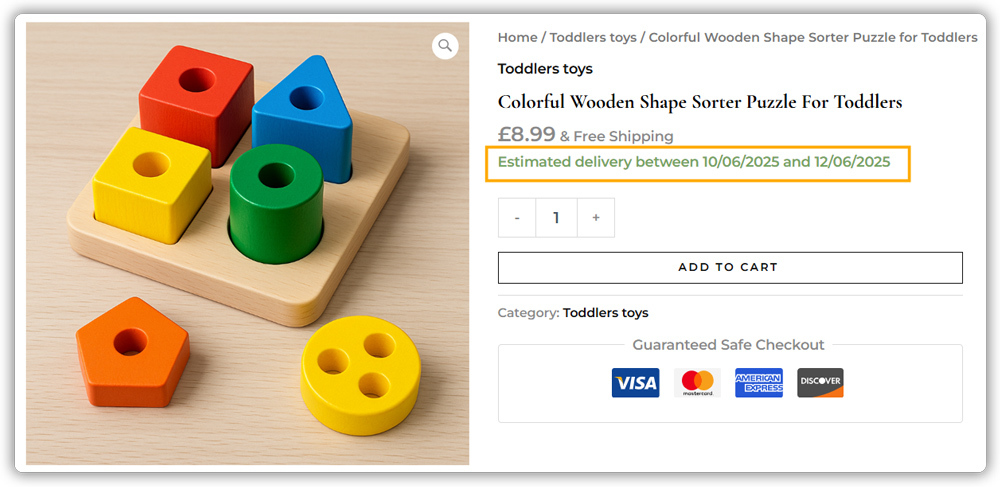
The Estimated Delivery Date Plugin for WooCommerce lets you display delivery estimates on the product page. You can set estimates based on:
- Shipping zones: Show different delivery estimates for different regions.
- Shipping classes: Set different estimates for products with different handling or processing times.
- Shipping methods: Display different dates for different shipping options.
- Cut-off times and holidays: Adjust delivery estimates based on your shipping schedule.
You can display a specific estimated date or a date range based on your store’s requirements. For setup instructions, refer to the Estimated Delivery Date Plugin setup guide.
5. Offer Deposits and Flexible Payments for WooCommerce Products
For higher-priced products, asking customers to pay the full amount upfront may not always be ideal. The PH Deposits for WooCommerce plugin lets customers pay a deposit first and the remaining amount later.

You can configure:
- Fixed or percentage deposits: Choose a set deposit amount or a percentage of the product price.
- Mandatory or optional deposits: Require a deposit or let customers choose whether to pay one.
- Scheduled payment plans: Split the remaining balance into daily, weekly, or monthly payments.
- Payment reminders: Send automated reminders for upcoming or overdue payments.
You can apply deposit rules to your entire store or set them for individual products. The WooCommerce Deposits setup guide explains how to configure different deposit and payment options.
6. Customize WooCommerce Product Pricing and Purchase Options
Small visual elements can help customers quickly understand important product information without adding more text to the page. You can use badges or labels to highlight details that may influence a purchase decision.
- Product badges: Highlight products as new, popular, featured, or on sale.
- Stock status: Clearly show whether a product is available or has limited stock.
- Trust information: Display details such as secure payment, easy returns, or product guarantees.
- Important notices: Highlight information customers should know before purchasing.
These elements make key information easier to notice and can help customers make decisions faster.
7. Improve the WooCommerce Product Page Layout
Once you’ve added the features your customers need, make sure they are easy to find and use. A cluttered product page can make even useful features difficult to understand.
- Keep the Add to Cart button easy to find: Make sure customers don’t have to search for the main purchase action.
- Organize product information: Place related details together so the page is easy to scan.
- Use clear sections: Separate product details, options, pricing, and other information to avoid a cluttered layout.
- Optimize for mobile: Check that buttons, images, fields, and other elements work properly on smaller screens.
- Keep the design consistent: Make sure new elements match the overall look and feel of your store.
A clean, well-organized layout helps customers move through the product page without confusion.
8. Improve Your WooCommerce Product Reviews
Customer reviews can make a big difference to how shoppers feel about a product. Plugins like YayReviews helps you improve the standard WooCommerce review section and turn customer feedback into useful social proof.
You can use it to:
- Show photo and video reviews: Let customers share visual feedback along with their written reviews.
- Highlight verified buyers: Show badges to indicate that a review comes from an actual customer.
- Make reviews easier to find: Let shoppers filter and search reviews by rating, date, helpfulness, or keywords.
- Encourage more reviews: Send automated review reminders and offer discount rewards for customer feedback.
- Display reviews across your store: Use review widgets to showcase customer feedback beyond the default review section.
- Highlight useful feedback: Pin important reviews so shoppers can see valuable customer experiences more easily.
- Summarize customer opinions: Use AI-generated summaries to help shoppers quickly understand common feedback about a product.
Adding useful review features can make your product pages more informative and give shoppers the social proof they need to feel more confident about their purchase.
Best Practices for Customizing WooCommerce Product Pages
Keep these points in mind as you apply the changes above:
- Add features gradually: Test one change at a time so you can see what actually improves conversions.
- Match features to your products: Not every store needs every feature covered here – choose based on what your customers actually ask for or need.
- Test on mobile: Since a large share of shopping traffic comes from mobile devices, confirm every new element displays and functions correctly on smaller screens.
- Review analytics regularly: Track how changes affect add-to-cart rates and conversions so you can refine your setup over time.
Following these practices helps you add new features without compromising the speed, usability, or consistency of your product pages.
Conclusion
Customizing your WooCommerce product page doesn’t require a full redesign. Adding personalization fields, showing delivery estimates, and offering flexible payment options each address a specific reason customers hesitate before buying. Start with the change most relevant to your store, and if you run into questions setting any of this up, the PluginHive Support team is available to help.
FAQs
Q: How to add FAQ in WooCommerce product page?
You can add FAQs directly to the product description or use custom tabs to keep questions and answers organized. A product tab can make FAQs easier for customers to find without making the main description too long.
Q: How do I customize a WooCommerce product page?
You can add product options, custom tabs, delivery dates, deposit payments, better images, and other features using WooCommerce plugins and theme settings.
Q: How do I display a custom field on a WooCommerce product page?
Use the PH Product Add-ons for WooCommerce plugin to create fields such as text boxes, dropdowns, checkboxes, or file uploads and display them on the product page.
Q: How to add product badge in WooCommerce?
You can add product badges to highlight products as new, featured, on sale, or limited in stock. Depending on your theme, you may be able to add badges through its built-in settings or use a WooCommerce plugin.
Q: How do I embed videos into my WooCommerce product image gallery?
You can add product videos using a WooCommerce-compatible gallery plugin or a theme that supports video galleries. Videos can help customers see the product in use or understand its features more clearly.
