


If you run a WooCommerce store and ship with FedEx, you’ve probably noticed that FedEx offers a lot of shipping services, including FedEx Ground, FedEx 2Day, FedEx Express Saver, FedEx Priority Overnight, and many more. Showing all of them at your WooCommerce checkout can confuse your customers and make it harder for them to pick the right option. The good news is that you don’t have to show every single one; you can choose exactly which FedEx services appear on your checkout page.
With the FedEx Shipping Plugin for WooCommerce with Print Label, controlling which services your customers see is straightforward. Whether you want to offer only affordable ground options, only express services, or just one single preferred method, the plugin gives you full flexibility. In this guide, you’ll learn exactly how to set it up, step by step.
On This Page
- Why Your WooCommerce Checkout Shouldn’t Show Every FedEx Service
- What You Need Before Getting Started in WooCommerce
- How to Show Only Specific FedEx Services on Your WooCommerce Checkout
- Common FedEx Services and When to Use Them
- Real-World Scenario
- Extra Tips to Get More Out of FedEx in WooCommerce
- Conclusion
- FAQs
Why Your WooCommerce Checkout Shouldn’t Show Every FedEx Service
Too many choices at checkout can actually hurt your sales, and showing every available FedEx service is a common mistake store owners make without realizing it.
- Reduces customer confusion: Showing too many FedEx services at checkout can overwhelm shoppers. Displaying only the relevant ones makes it easier for them to choose and move forward.
- Speeds up checkout: Fewer choices mean faster decisions, which means more completed orders and fewer abandoned carts.
- Keeps shipping costs predictable: You can hide expensive FedEx services that don’t fit your business model or product type.
- Matches your actual shipping strategy: If you only ship domestically via ground, there’s no point in showing overnight express rates to your customers.
- Improves customer trust: A clean, simple WooCommerce checkout feels more professional and encourages customers to complete their purchase.
Think of it like a restaurant menu. A shorter, well-curated menu is always easier to order from than one with 50 options. The same logic applies to your checkout page.
What You Need Before Getting Started in WooCommerce
Let’s make sure you have everything in place before diving in.
- FedEx account credentials: You need an active FedEx account with API credentials, such as the account number, API key, and password, ready to go.
- Installed FedEx Shipping Plugin: Install and activate the FedEx Shipping Plugin for WooCommerce with Print Label by PluginHive on your store.
- Correct store shipping settings: Ensure your store address, shipping zones, and product weights are configured correctly in WooCommerce before proceeding.
- Plugin connected to FedEx: Connect the plugin to your FedEx account to fetch real-time shipping rates and display them at checkout.
If you haven’t set up the plugin yet, follow the FedEx Shipping plugin setup guide.
How to Show Only Specific FedEx Services on Your WooCommerce Checkout
Follow these steps carefully, and you’ll have your FedEx services filtered in no time:
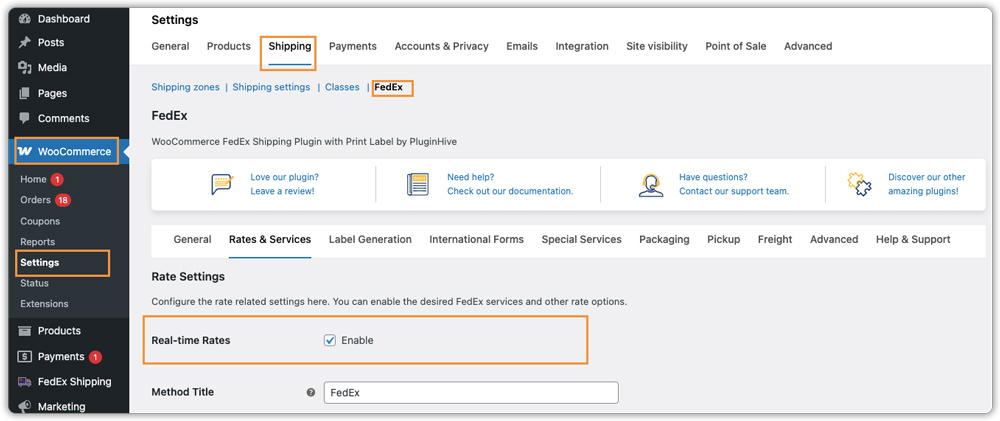
- Go to the FedEx plugin settings and enable real-time rates: From your WordPress dashboard, navigate to WooCommerce → Settings → Shipping → FedEx, then open the Rates & Services tab. Here, enable the Real-Time Rates option so the plugin can fetch live shipping rates from FedEx based on the order details such as weight, dimensions, and destination.
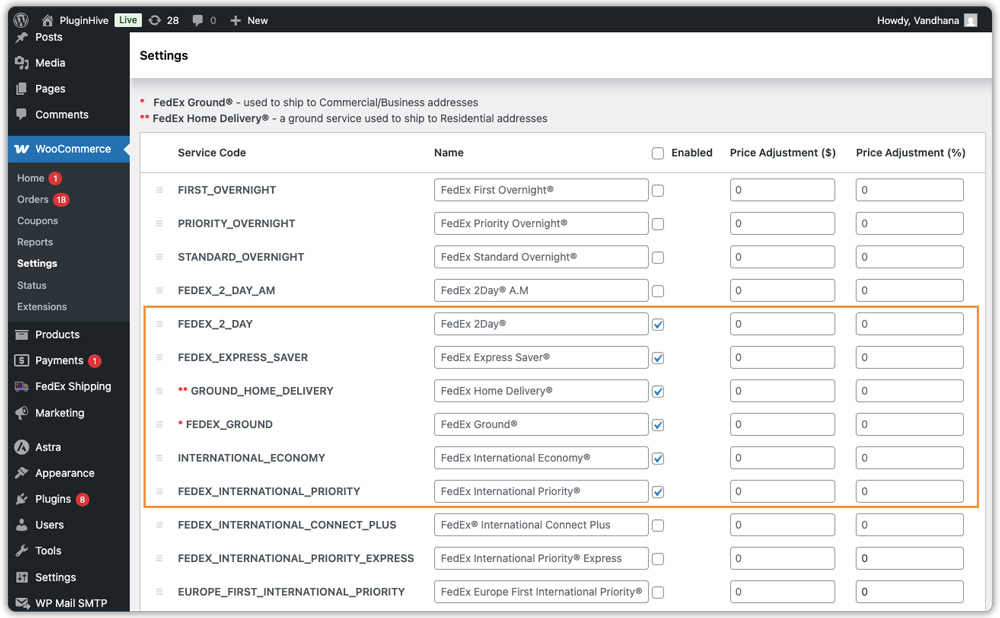
- Check only the services you want to show: In the services list, you’ll see a list of options like FedEx Ground, FedEx 2Day, FedEx Priority Overnight, and more. Simply check the ones you want your customers to see at checkout and uncheck the rest.
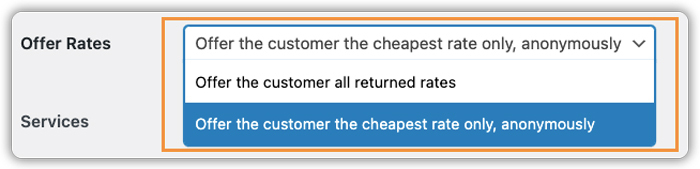
- Show just the cheapest rate if you want to keep it simple: If you’d prefer to skip the list altogether and show customers only the lowest available FedEx rate, enable the “Show Cheapest Rate Only” option.
- Save and test: Click Save Changes, add a product to the cart, enter a test address, and confirm only your selected services are showing.
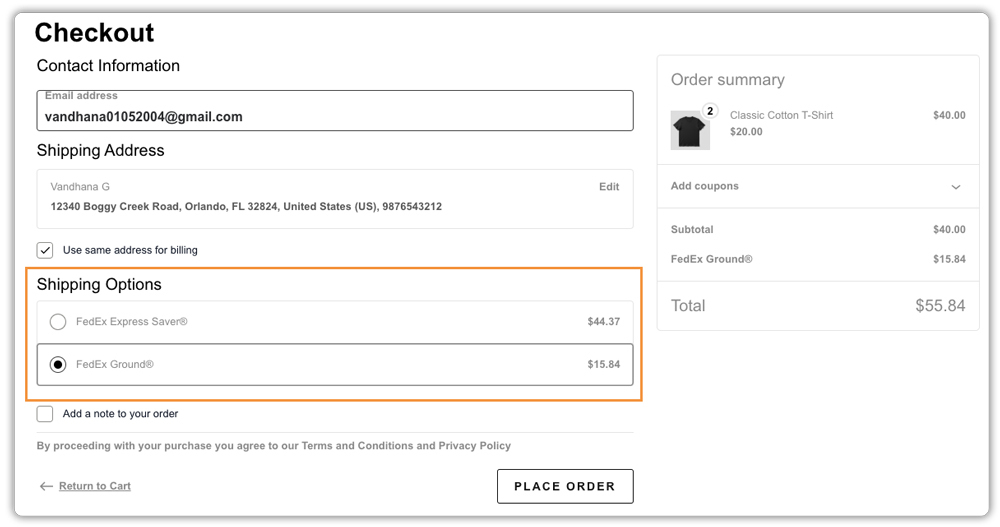
That’s it! Your WooCommerce checkout will now show only the FedEx services you selected.
Common FedEx Services and When to Use Them
Not sure which FedEx services to keep on your checkout? Here’s a quick reference to help you decide.
| FedEx Service | Delivery Time | Best For |
|---|---|---|
| FedEx Ground | 1 – 5 business days | Affordable domestic shipping for everyday products |
| FedEx Home Delivery | 1 – 5 business days | Residential orders |
| FedEx Express Saver | 3 business days | Budget-friendly express option |
| FedEx 2Day | 2 business days | Mid-speed delivery with a deadline |
| FedEx Standard Overnight | Next business day | Urgent, non-emergency orders |
| FedEx Priority Overnight | Next morning | Time-critical shipments |
| FedEx International Economy | 2 – 5 business days | Affordable global shipping |
| FedEx International Priority | 1 – 3 business days | Fast international delivery |
Use this table to match FedEx services to your store’s product type and customer expectations. Choose only what fits your business, and your customers will thank you for it.
Real-World Scenario: Simplifying FedEx Shipping Options in WooCommerce
Consider a WooCommerce store that sells home office equipment across the United States. The store ships products like office chairs, desks, and accessories using FedEx.
Before Limiting FedEx Services
At first, the store displays every available FedEx service at checkout: FedEx Ground, Home Delivery, Express Saver, FedEx 2Day, and multiple Overnight services. This quickly creates problems:
- Some shoppers struggle to understand the difference between similar options
- A few customers accidentally select expensive overnight services, only to complain about the shipping cost after placing the order
- Support teams receive repeated questions about which shipping option to choose
- Checkout takes longer because customers spend more time comparing delivery choices instead of completing their purchase
While the store offers many shipping options, the checkout experience feels cluttered and harder to navigate.
After Showing Only Selected FedEx Services
The store owner uses the FedEx Shipping Plugin for WooCommerce with Print Label to show only the most relevant services:
- FedEx Ground for standard, affordable delivery
- FedEx 2Day for customers who need faster shipping
After updating the settings:
- Customers see only two clear shipping options at checkout
- Checkout becomes easier and faster to complete
- Fewer customers accidentally choose expensive express services
- Shipping choices align better with the store’s delivery strategy
- The checkout page feels cleaner and more professional
This simple adjustment helps the store create a clearer shipping experience while still giving customers a choice between standard and faster delivery.
Extra Tips to Get More Out of FedEx in WooCommerce
Once your basic setup is done, here are a few more things worth knowing to make your WooCommerce FedEx shipping even smarter.
- Use your negotiated FedEx rates: If your FedEx account has discounted rates, enable the “Use Negotiated Rates” option in the plugin settings. Your customers will see those lower rates at checkout instead of standard FedEx prices
- Add a markup or discount to rates: Need to cover packaging costs or offer a small discount? The plugin lets you apply a flat or percentage adjustment to any FedEx rate in just a few clicks.
- Show delivery dates at checkout: Enable estimated delivery dates next to each FedEx service so customers know exactly when their order will arrive before they place it.
- Print labels without leaving WooCommerce: Generate and print FedEx shipping labels directly from your order page. No need to log into your FedEx account separately.
- Use Debug Mode if a service isn’t showing: Turn on Debug Mode in the plugin’s General settings to see exactly what FedEx is returning and figure out why a service isn’t appearing at checkout.
These small adjustments can make a big difference in how professional and efficient your WooCommerce FedEx shipping setup feels both for you and your customers.
Conclusion
Managing your FedEx shipping options doesn’t have to be complicated. With just a few clicks inside the FedEx Shipping Plugin for WooCommerce with Print Label, you can hide the services you don’t need and show only the ones that matter, making checkout faster and easier for your customers.
Give it a try today. A cleaner shipping section means happier shoppers and fewer abandoned carts. If you need help setting up this in your WooCommerce store, the PluginHive support team is ready to assist you with configuration and guidance.
FAQs
Q. How do I add FedEx shipping to WooCommerce?
Install and activate the FedEx Shipping Plugin for WooCommerce with Print Label by PluginHive. Once installed, go to WooCommerce → Settings → Shipping → FedEx, enter your FedEx account credentials, and the plugin will automatically fetch and display live FedEx rates at your checkout.
Q. How do I change the delivery option on FedEx?
With the FedEx Shipping Plugin for WooCommerce, you can easily change which FedEx delivery options appear at checkout. Just go to WooCommerce → Settings → Shipping → FedEx → Rates & Services tab, check the services you want to show, and uncheck the ones you don’t.
Q. What are the services provided by FedEx?
FedEx provides a wide range of shipping services, including FedEx Ground, FedEx Home Delivery, FedEx 2Day, FedEx Express Saver, FedEx Standard Overnight, FedEx Priority Overnight, FedEx International Economy, and FedEx International Priority. Using the plugin, you can choose which of these services to display on your WooCommerce store.
Q. What are FedEx service types?
FedEx service types are broadly divided into domestic and international services. Domestic options include ground, express, and overnight services, while international options cover economy and priority delivery. The FedEx Shipping Plugin for WooCommerce with Print Label supports all major service types and lets you control exactly which ones appear at your checkout.
