



If you run a booking-based WooCommerce store, you already know the challenge: customers wait until the last minute to book, leaving you with little time to plan, unpredictable revenue, and half-filled calendars. Early bird discounts solve this by giving customers a clear incentive to commit early.
Whether you manage a yoga studio, a rental service, a tour business, or an online class platform, setting up early bird booking discounts in WooCommerce can help you fill your calendar faster and reward customers who plan. In this article, you’ll learn exactly how to set up early bird discounts in WooCommerce using the Bookings and Appointments plugin for WooCommerce.
On This Page
- What Is an Early Bird Discount?
- Why Offer Early Bird Discounts for WooCommerce Bookings?
- Best Early Bird Discount Ideas for WooCommerce Bookings
- How to Set Up Early Bird Discounts in WooCommerce Bookings
- Example Scenario
- Best Practices for Offering Early Bird Booking Discounts in WooCommerce
- Conclusion
- FAQs
What Is an Early Bird Discount?
An early bird discount is a reduced price offered to customers who book a service, event, or appointment before a set date. The earlier the customer books, the lower the price they pay.
For WooCommerce stores that accept bookings, this means setting specific price rules tied to booking dates, not order dates. You’re not giving a generic coupon; you’re automatically applying a discounted rate when a customer selects a date that falls within your early booking window.
A simple example: a photography workshop normally priced at $200 per session could be offered at $150 for anyone who books at least 30 days in advance.
Why Offer Early Bird Discounts for WooCommerce Bookings?
Customers who book last-minute create operational headaches due to insufficient preparation time, underutilised earlier slots, and unpredictable revenue. Early bird discounts shift customer behaviour without requiring manual intervention.
Here’s what early bird pricing does for your WooCommerce booking store:
- Fills your calendar in advance: you reduce the risk of empty slots as the date approaches
- Improves cash flow: confirmed bookings mean payment collected earlier
- Reduces no-shows: customers who pay in advance are more likely to show up
- Creates urgency: a time-limited discount price encourages faster decisions
- Gives you planning confidence: you can prepare staffing, resources, and materials based on confirmed numbers
For businesses like tour operators, fitness studios, or venue rentals, predictable booking windows are directly tied to operational costs. Early bird discounts are a practical solution, not just a marketing tactic.
Best Early Bird Discount Ideas for WooCommerce Bookings
The right early bird structure depends on your booking type and how far ahead your customers typically plan. Here are ideas that work across common use cases:
- Date-specific flat discount: offer a fixed lower price for bookings made before a specific date (e.g., book before June 1 and pay $50 less)
- Tiered early bird pricing: set multiple price tiers based on how far in advance the booking is made (90 days out = 20% off, 60 days = 10% off, 30 days = 5% off)
- Season-based early pricing: apply discounted rates to specific months when demand is low, but you want early fills (useful for holiday periods or off-season slots)
- Weekday early bird rates: combine day-of-week pricing with booking rules to encourage weekday bookings, which are often harder to fill
- Group early bird pricing: offer discounts based on the number of participants booking early, rewarding both advance commitment and larger groups
How to Set Up Early Bird Discounts in WooCommerce Bookings
The Bookings and Appointments for WooCommerce plugin by PluginHive is a complete booking management solution for WooCommerce stores. It lets you accept single-day bookings, multi-day reservations, hourly appointments, and more, all from a built-in calendar on your product page.
Before setting up early bird pricing, make sure your bookable product is already configured with your booking period, availability, and base cost. If you haven’t done that yet, follow the Setup Guide for Bookings and Appointments for WooCommerce first, then come back here to layer in your early bird discount rules.
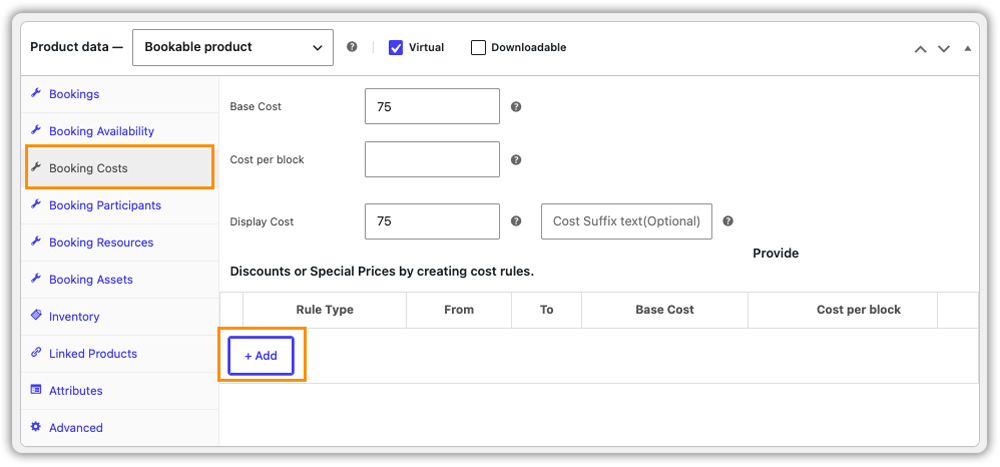
Once your product is ready, setting up early bird discounts takes just a few steps inside the Booking Cost tab.
Step 1 – Open the Booking Cost tab
In the product edit page, scroll to the booking settings and click the Booking Cost tab.
Step 2 – Add a new cost rule
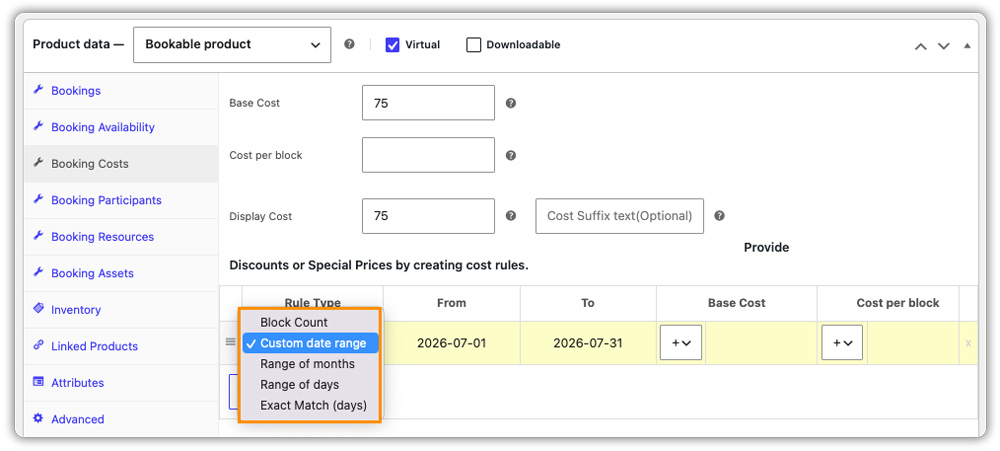
Click Add Rule and select the rule type. For early bird discounts, choose:
- Custom Date Range: applies the discounted price to any booking date that falls within a defined start and end date range
- Specific Dates: applies the discount to individual calendar dates, useful for one-off events or workshops
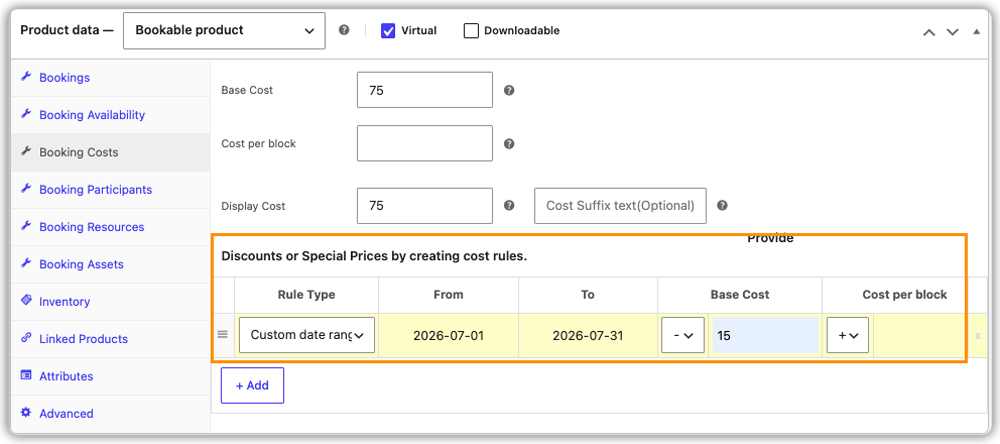
Step 3 – Set the discounted price
Enter the reduced price for that date range. The discount will apply automatically when a customer selects an eligible date on the calendar.
Step 4 – Save and test
Save the product and verify the front-end calendar. Select a date within your early bird window and confirm the discounted price shows correctly in the booking summary before checkout.
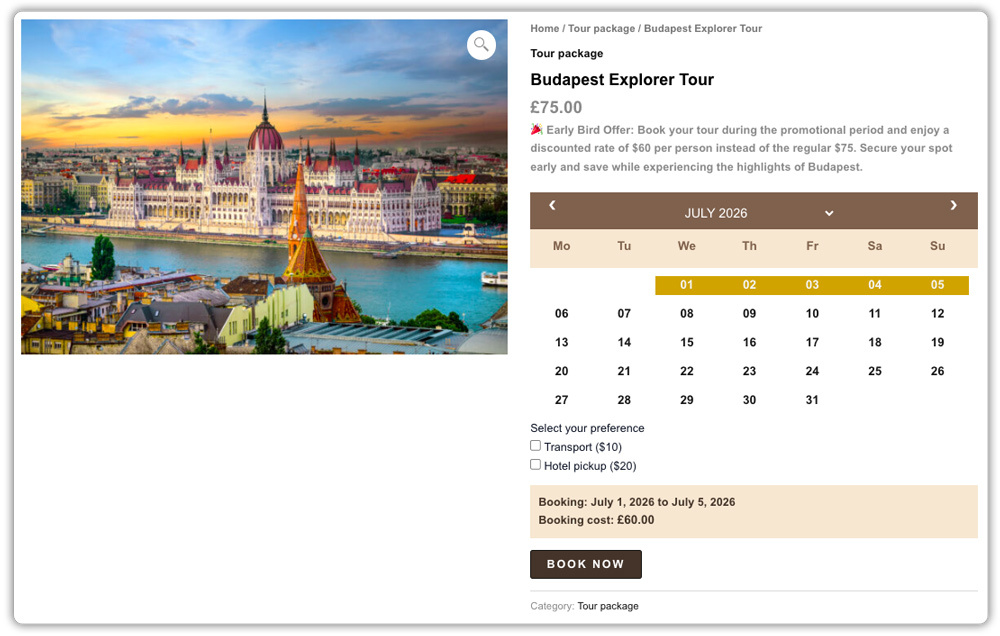
Example Scenario: Early Bird Discount for WooCommerce Online Workshop
A WooCommerce store offers monthly photography workshops at $200 per session. The store owner wants to encourage customers to book at least 30 days in advance.
Setup: A Custom Date Range cost rule is created under the Booking Cost tab. The rule applies a flat price of $150 for any booking date that falls within the defined early bird window, 30+ days before the session date.
What the customer sees: When they open the booking calendar and select a date within the early bird window, the booking summary automatically shows the discounted price of $150. No coupon code needed.
What changes for the store owner:
- Sessions start filling earlier each month
- Cash is collected further in advance, smoothing out revenue
- Planning for materials and instructor schedules becomes easier with confirmed participant counts
- Customers who miss the early bird window see the standard $200 price, creating urgency to act sooner next time
Once the pricing rule is set up, the early bird discount applies automatically for every booking; it becomes part of how the store operates.
Best Practices for Offering Early Bird Booking Discounts in WooCommerce
A well-structured early bird discount does more than just reduce the price; it shapes when and how customers book. Here are the most effective practices to follow:
- Communicate the discount before the booking flow starts: Mention the early bird price directly in your product description so customers see it before they ever open the calendar. A discount discovered too late won’t drive early bookings.
- Use tiered pricing to extend urgency over time: A single cutoff creates one short burst of early bookings. Stacking two or three discount tiers at different intervals, say 90, 60, and 30 days out, keeps customers motivated across the entire lead-up period and rewards those who commit earliest.
- Collect partial payments upfront to secure early bookings: Early bird prices work best when paired with upfront commitment. Use the Deposits and Partial Payments for WooCommerce Bookings integration to collect a percentage at the time of booking, which reduces no-shows and locks in revenue early.
- Use a clear early bird slogan to drive action. A simple line on your product page like “Book early, save big” or “Lock in your spot at the lowest price” makes the offer instantly clear and creates urgency before the customer even opens the booking calendar.
- Combine early bird discounts with seasonal pricing for year-round relevance: If your bookings follow a seasonal pattern, pair early bird rules with off-peak pricing to make slow periods more attractive. The Set Up Booking Costs Based on Different Seasons guide shows how to layer both rule types on the same product.
Conclusion
Early bird discounts for WooCommerce bookings are one of the most effective ways to shift customer behaviour, smooth your revenue, and take control of your booking calendar. The Bookings and Appointments for WooCommerce plugin gives you date-based cost rules to set this up natively – no extra plugins needed.
If you need help configuring your early bird discount structure, reach out to the PluginHive support team.
FAQs
Q: What is an early bird discount?
A reduced price for customers who book before a set deadline – the earlier you book, the more you save.
Q: Can I set up multiple early bird discount tiers in WooCommerce?
Yes. The Bookings and Appointments for WooCommerce plugin supports multiple cost rules on the same product. You can create separate Custom Date Range rules for different advance booking windows, each with its own price, and the plugin applies the correct rate based on the date the customer selects.
Q: Does the early bird booking discount apply automatically, or does the customer need a coupon?
It applies automatically. When a customer selects a booking date that falls within your early bird window, the discounted price appears directly in the booking summary – no coupon code is needed.
