


Managing bookings efficiently is crucial for WooCommerce store owners, especially when offering services, appointments, or rentals. Apple Calendar is a popular choice among users for keeping track of events. Exporting WooCommerce bookings to Apple Calendar via iCal ensures you never miss a scheduled appointment and streamlines your workflow.
This guide covers the benefits of exporting bookings to Apple Calendar and how you can do it easily using PluginHive’s WooCommerce Bookings and Appointments plugin.
Table of contents
- Benefits of Exporting WooCommerce Bookings to Apple Calendar
- Exporting iCal Events in WooCommerce Bookings
- Customising Event Details with Placeholders
- Best Practices / Tips
- Conclusion
- FAQs
Benefits of Exporting WooCommerce Bookings to Apple Calendar
Managing multiple WooCommerce bookings can be overwhelming, but exporting them to Apple Calendar using iCal helps you keep everything in one place. With your bookings accessible on your calendar, you can plan better and reduce scheduling conflicts.
Advantages for Apple Calendar Users
- Stay Organised Across Devices: Exported bookings appear automatically on all your Apple devices.
- Never Miss a Booking: Get timely reminders and notifications for upcoming events.
- Simplified Scheduling: View your WooCommerce bookings alongside personal calendar events for easier planning.
- Quick Updates: Regular exports ensure your calendar stays current with new or modified bookings.
- Improved Customer Experience: Customers can also export their bookings, helping them manage their schedules and reducing missed appointments.
The WooCommerce Bookings & Appointments plugin makes exporting iCal events simple and efficient, helping both store owners and customers keep their schedules organised and streamlined. Next, we’ll look at how to export iCal events from WooCommerce Bookings.
Exporting iCal Events in WooCommerce Bookings
Note: To start with, make sure the WooCommerce Bookings plugin is installed, activated, and configured. You can follow this quick setup guide if needed.
Before exporting, make sure iCal export is enabled in the plugin settings. You can also allow customers to export their bookings, which will add an Export Event button on their My Account page. Clicking this button downloads an .ics file that can be added to Apple Calendar. You can even customize the button text in the settings.
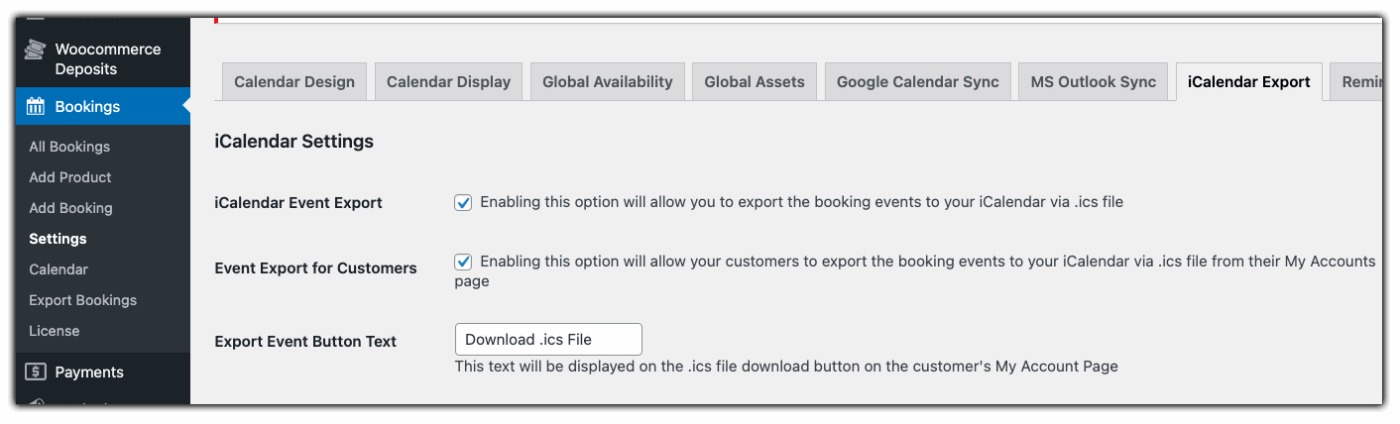
Now that everything is set up, here’s how you can export your WooCommerce bookings as iCal events for Apple Calendar.
Exporting as an Admin (Single & Bulk)
As an admin, you can export bookings individually or in bulk:
1. Single Booking Export:
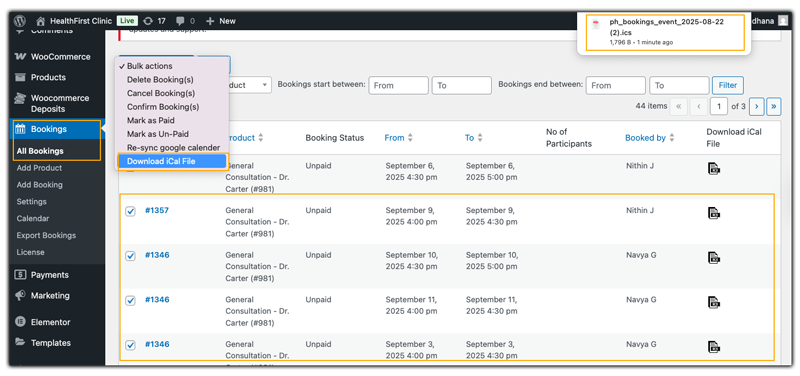
In your WordPress dashboard, go to WooCommerce → Bookings, select the booking you want to export, and click Download iCal File to get an .ics file that can be opened in Apple Calendar.

2. Bulk Export:
For bulk export, go to the Bookings list, select multiple bookings, and choose Export to iCal from the Bulk Actions dropdown. A single .ics file containing all selected bookings will be generated, ready to import into Apple Calendar.

Exporting as a Customer (My Account Page)
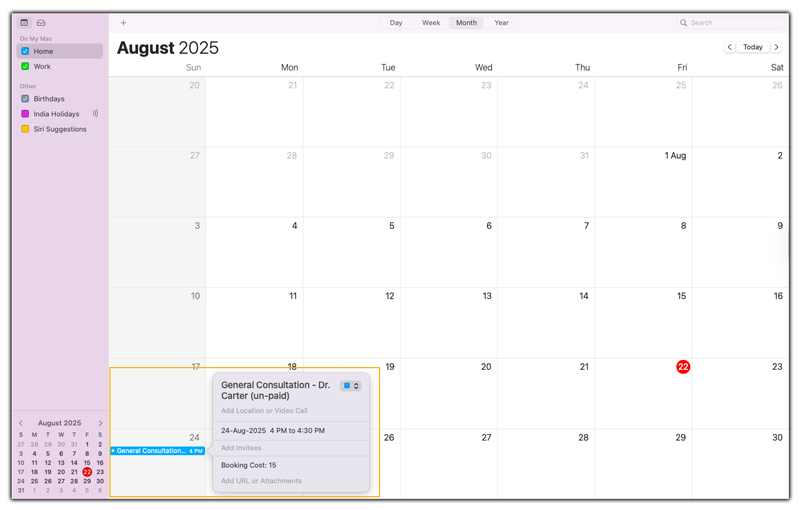
Customers can export their bookings by logging in to their WooCommerce account, going to Orders, selecting the booking they want to export, and clicking Download .ics File. The iCal file will download automatically, ready to be added to Apple Calendar.

Customising Event Details with Placeholders
The PluginHive WooCommerce Bookings & Appointments plugin allows you to customize the details that appear in your iCal events using placeholders. Placeholders automatically pull booking information into your calendar events, ensuring they are informative, clear, and professional.
Available Placeholders
You can use the following placeholders in the event title or description to add booking details:
[RESOURCE] – Adds resource details from the booking.
[ASSET] – Adds asset details from the booking.
[BOOKING_STATUS] – Displays the booking status.
[BOOKING_COST] – Shows the total booking cost.
[BILLING_ADDRESS] – Adds the billing address.
[BOOKING_NOTES] – Includes any booking notes.
[CUSTOMER_NAME] – Shows the customer’s name.
[CUSTOMER_PHONE] – Adds the customer’s phone number.
[CUSTOMER_EMAIL] – Includes the customer’s email.
[PARTICIPANT] – Shows participant details (if applicable).
[PRODUCT_NAME] – Adds the bookable product’s name.

Benefits of Using Placeholders
- Automatic Details: Calendar events are automatically populated with relevant booking information.
- Time-Saving: No need to manually edit each event.
- Clear & Professional: Both admins and customers can quickly understand booking details at a glance.
Using placeholders with the WooCommerce Bookings plugin ensures every calendar event contains all essential booking information, making scheduling simple and efficient for both store owners and customers.
Best Practices for Exporting WooCommerce Bookings to Apple Calendar
To get the most out of exporting WooCommerce bookings to Apple Calendar with the PluginHive WooCommerce Bookings & Appointments plugin, follow these tips:
- Regularly Export Bookings: Even though iCal exports are quick, regularly exporting ensures your calendar stays updated with the latest bookings, reschedules, and cancellations.
- Use Placeholders Strategically: Include essential details like [BOOKING_STATUS], [BOOKING_COST], [CUSTOMER_NAME], and [PRODUCT_NAME] to make calendar events informative and easy to read.
- Separate Personal and Booking Events: Consider using a dedicated calendar for WooCommerce bookings to avoid mixing them with personal appointments.
- Test Exports Before Going Live: Export a few sample bookings to check that all details appear correctly in Apple Calendar and that placeholders work as expected.
- Inform Your Customers: If you allow customers to export bookings from their My Account page, provide a small note or guide so they know how to add bookings to their calendar.
By following these best practices, both store owners and customers can enjoy a smooth, organised, and reliable booking experience with iCal and Apple Calendar.
Conclusion
Efficiently managing WooCommerce bookings keeps your store organised and ensures a seamless customer experience. Export bookings to Apple Calendar with iCal and use placeholders to make every event detailed and easy to track for both admins and customers.
With the WooCommerce Bookings & Appointments plugin, you can simplify the entire process, reduce manual effort, and keep schedules accurate and up-to-date. Need assistance to customise your exports? Reach out to PluginHive Support for expert guidance tailored to your WooCommerce store.
Frequently Asked Questions (FAQs)
1. Can customers export their WooCommerce bookings to Apple Calendar?
Yes, by enabling the “Event Export for Customers” option in the WooCommerce Bookings plugin settings, customers will see an “Export Event” button on their My Account page. Clicking this button downloads an .ics file that can be added to Apple Calendar.
2. What is an .ics file, and how do I use it with WooCommerce bookings?
An .ics file is a standard calendar file format that stores event information. To use it, download the file and open it with Apple Calendar. The event will be added to your calendar automatically.
3. Can I export multiple WooCommerce bookings at once?
Yes, in the WooCommerce admin panel under “All Bookings,” you can select multiple bookings and choose the “Download iCal file” option to export them as a single .ics file.
4. Will exported WooCommerce bookings update automatically in Apple Calendar?
No, iCal exports are typically one-time exports. To keep your calendar updated, you’ll need to export new or modified bookings regularly.
5. Do I need a Google account to export WooCommerce bookings to Apple Calendar?
You don’t need a Google account to export bookings to Apple Calendar. The process uses the .ics file format, which Apple Calendar supports directly.
