



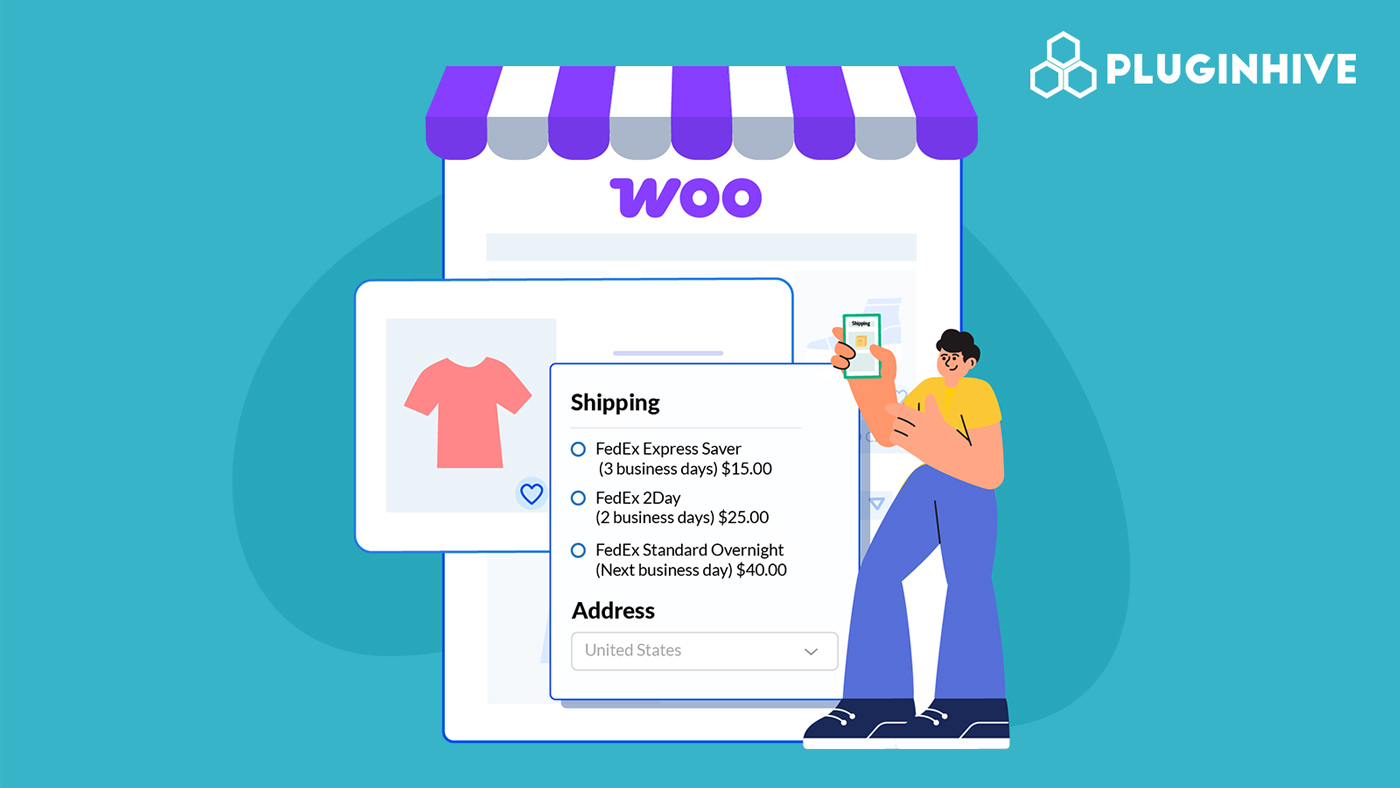
Accurate delivery estimates are crucial for boosting customer confidence at checkout. When WooCommerce stores shipping with FedEx display reliable and precise delivery dates, shoppers feel more assured about when their order will arrive, making them far more likely to complete their purchase, especially during weekends, peak seasons, and holiday periods.
This guide explains how FedEx delivery timelines work and how to display accurate delivery estimates in your WooCommerce store.
On This Page:
- Understanding WooCommerce Delivery Estimates with FedEx
- FedEx Delivery Schedule for WooCommerce: Weekdays, Weekends & Cut-Off Times
- How to Display FedEx Delivery Estimates in WooCommerce
- Best Practices for Accurate FedEx Estimates in WooCommerce
- Conclusion
- FAQs
Understanding WooCommerce Delivery Estimates with FedEx
Before displaying delivery dates at WooCommerce checkout, it’s essential to understand how FedEx calculates transit times and how WooCommerce interprets this information. FedEx delivery estimates are based on a combination of factors.
In WooCommerce, the estimated delivery date shown to customers is typically calculated using:
- FedEx Service Type: Each FedEx service, such as FedEx Ground, FedEx Express, 2Day®, or Overnight, has its own defined transit time. FedEx provides these transit windows through their API, and WooCommerce uses this data to calculate the delivery dates.
- Transit Time Returned by FedEx: When WooCommerce requests shipping rates, FedEx returns a transit-time estimate (e.g., “3 business days”). This number represents the shipping duration only and does not include preparation or handling time on the merchant’s side.
- Handling Time Added by the Store: WooCommerce allows you to define the time you need to pack and prepare an order before it is ready for pickup. This processing time is added to the FedEx-provided transit days to generate a final estimated delivery date.
- Store Working Days: The days your store is available to process and hand over packages also influence delivery estimates. If your store doesn’t pack orders on certain days, WooCommerce automatically shifts the estimated ship date to the next working day.
- Carrier Operating Days & Holidays: Because FedEx doesn’t operate every single day of the year, WooCommerce needs to consider FedEx non-working days (holidays or restricted service days) when calculating delivery dates.
By combining FedEx’s transit-time data with your store’s handling time, working days, and holiday rules, WooCommerce generates a delivery estimate that reflects how long it will realistically take for an order to ship and arrive.
FedEx Delivery Schedule for WooCommerce: Weekdays, Weekends & Cut-Off Times
When you set up delivery estimates in your WooCommerce store for FedEx-shipped orders, understanding the carrier’s schedule rules is essential. Here’s how FedEx’s operational calendar and cut-off requirements influence what you display to customers.
Weekday Delivery & Operating Hours
- For residential deliveries, FedEx notes typical delivery hours as 8 a.m. to 8 p.m., Monday through Friday.
- For many services such as Ground® and Home Delivery®, transit is expressed in business days (i.e., Monday–Friday) for standard shipments.
- When you estimate a delivery date in WooCommerce, count only the working days that match both the merchant dispatch calendar and FedEx’s pickup and delivery availability.
Weekend Delivery Options
- FedEx Home Delivery® delivers to residences every day of the week — including Saturday and Sunday (to over 98 % of the U.S. on Saturdays and nearly two-thirds on Sundays).
- Some Express/Overnight services offer Saturday delivery (and in special cases Sunday) for an extra fee, or where enabled.
- Important for your store: If your WooCommerce setup shows “delivery in 2 days” but includes a weekend, you must verify whether the service used actually counts Saturday or Sunday as a delivery day. If not, shift the estimate accordingly.
Cut-Off Times & Drop-Off Requirements
- For next-day/overnight FedEx services, the shipper must meet the drop-off or pickup cut-off time for the selected service in the local area. “Cutoff times and the availability of Saturday drop off vary by location.”
- If a WooCommerce order is placed after your fulfilment cut-off or FedEx’s local cut-off, you must push the ship date out, which in turn moves the delivery estimate by at least one working day.
- It’s best to configure your last shipping-processing time (store cut-off) in WooCommerce
Putting It All Together for Estimation
When calculating the estimated delivery date in WooCommerce for a FedEx-shipped order, combine:
- The day the order becomes ready (after store processing and hand-off)
- The number of transit business days specified by FedEx for the service
- Whether Saturday/Sunday delivery is available for that service
- Whether the order falls after the cut-off (which moves the ship date)
- Whether the service’s operational days include weekends or not
FedEx schedules can seem complex, but the good news is that all of these rules can be automated in WooCommerce with the right FedEx integration. Let’s see how easy it is to display accurate FedEx delivery estimates directly at checkout.
How to Display FedEx Delivery Estimates in WooCommerce
The WooCommerce FedEx Shipping Plugin makes it easy to display accurate FedEx delivery estimates in your WooCommerce store. This plugin connects your store directly with FedEx, fetches real-time rates, and automatically calculates and displays expected delivery dates at checkout.
For step-by-step installation and configuration, refer to the FedEx Shipping Guide for WooCommerce.
Once the plugin is configured,
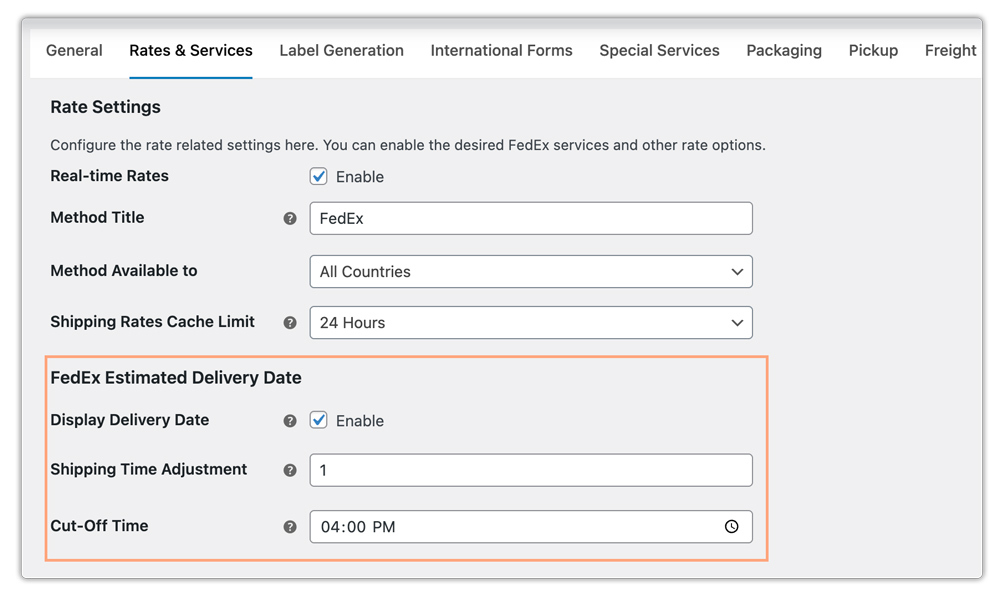
- You can enable the option “Display Delivery Date.”
- Additionally, set a Shipping Time Adjustment, which adds buffer days if your store requires extra packing or handling time.
- Set your daily cut-off time; after this time, new orders will roll over to the next business day for delivery calculation.
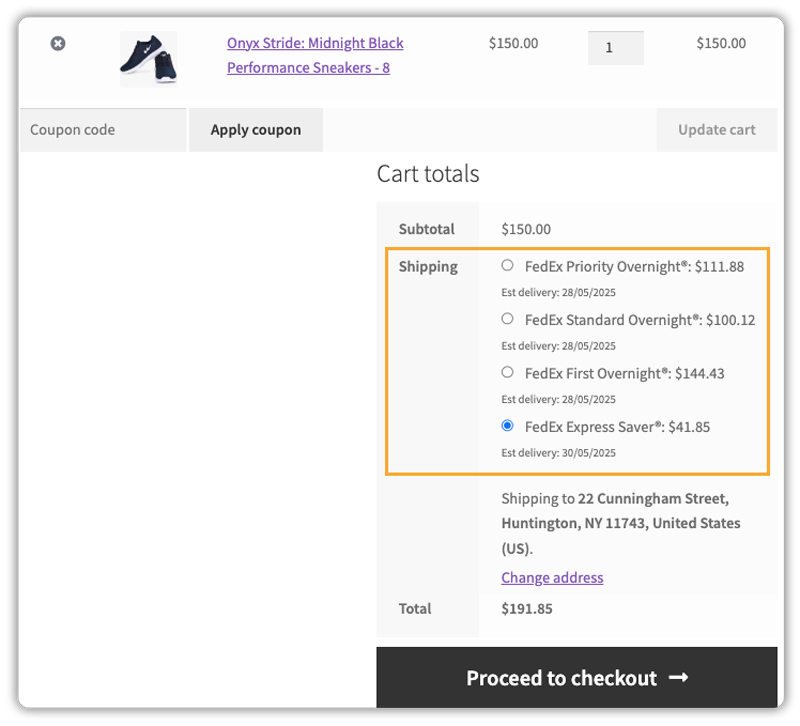
- Once configured, the plugin fetches live FedEx shipping rates with the delivery date directly on the WooCommerce cart and checkout pages, helping them choose the best FedEx option for their orders.
For stores that need greater control over how delivery dates appear (for example, adding buffer days, handling weekends differently, or syncing store holidays), you can use the Estimated Delivery Date Plugin for WooCommerce alongside the FedEx Shipping Plugin.
To learn more about the plugin, watch this video.

Best Practices for Accurate FedEx Estimates in WooCommerce
To ensure your WooCommerce store provides reliable and transparent FedEx delivery dates, follow these best practices:
- Define your daily order cut-off time within the FedEx plugin settings to ensure the delivery estimates reflect your warehouse’s actual shipping schedule.
- Account for weekends and FedEx holidays. Adjust your delivery estimate settings or add buffer days to make sure customers see realistic delivery dates.
- Use the Hide WooCommerce Shipping Methods & Rate Adjustment Plugin to hide redundant or higher-cost FedEx services. This keeps your checkout page clean and ensures customers only see the most relevant FedEx options.
- Display a delivery range (e.g., “Delivery between Nov 14–16”) instead of a single date. This helps manage customer expectations and accommodates potential delays due to holidays, weekends, or weather conditions.
- Use a WooCommerce order tracking plugin to automatically share FedEx tracking details with customers once an order ships. This improves post-purchase transparency and reduces “Where’s my order?” inquiries.
By following these best practices, your WooCommerce store can display accurate FedEx delivery estimates, improve checkout transparency.
Conclusion
Accurate delivery estimates boost customer trust, reduce cart abandonment, and improve satisfaction. When calculating FedEx delivery dates in WooCommerce, even small adjustments, like buffer days or delivery ranges, make estimates more reliable. Automating these calculations ensures customers see realistic delivery expectations, enhancing transparency and store credibility.
For questions or support regarding plugin configuration, reach out to Pluginhive Support.
FAQs
- How can I handle holidays when showing FedEx delivery dates in WooCommerce?
Use buffer days or configure FedEx-observed holidays in your delivery estimate settings. This prevents displaying unrealistic delivery dates during peak holiday periods when FedEx may not operate.
- Can I display delivery dates for FedEx international services in WooCommerce?
Absolutely. Once the delivery date option is enabled in the plugin, WooCommerce will display estimated delivery timelines for both FedEx domestic and international shipping.
- Can I track FedEx shipments in WooCommerce?
Yes! You can automatically generate FedEx tracking numbers and share them with customers. Tracking details appear in the WooCommerce order page, customer emails, and the customer account section. For more info, check out – FedEx Tracking for WooCommerce Order.
- Does FedEx support pickup scheduling in WooCommerce?
Yes. With the FedEx Shipping Plugin, you can schedule pickups directly from WooCommerce. While this does not affect transit time, it automates the shipping workflow and ensures timely dispatching. For more info, visit: FedEx pickup in WooCommerce.
