


WooCommerce store owners often rely on real-time FedEx rates to provide accurate shipping costs at checkout. However, some merchants notice that FedEx Ground Economy rates don’t appear, causing confusion and potential lost sales. This issue can stem from account settings, plugin configurations, or service restrictions.
In this guide, we’ll explain why FedEx Ground Economy rates may not show in WooCommerce and how to resolve the issue to ensure your customers see accurate shipping options.
On This Page
- Understanding FedEx Ground Economy
- Common Reasons FedEx Ground Economy Rates Don’t Show in WooCommerce
- How to Fix FedEx Ground Economy Rates Issues in WooCommerce
- Real-World Use Case
- Conclusion
- FAQs
Understanding FedEx Ground Economy
FedEx Ground Economy, formerly known as FedEx SmartPost, is a cost-effective residential shipping service in the U.S. It is designed for low-weight, non-urgent packages and is popular among e-commerce merchants who want to balance shipping costs with acceptable delivery times.
This service works by using the FedEx ground network for pickup and sorting, then handing packages over to the USPS for final-mile delivery to residential addresses. Typical transit times range from 2-7 business days, depending on the distance between the origin and the destination.
Key features of FedEx Ground Economy include:
- Affordable residential shipping: Ideal for low-priority, cost-sensitive shipments.
- Weight and size limits: Packages typically must weigh under 70 lbs and meet USPS size constraints.
- Residential delivery focus: Supports delivery to homes, P.O. boxes, and other USPS-serviced addresses.
This makes FedEx Ground Economy a practical solution for WooCommerce merchants who want low-cost shipping for residential deliveries, though its special setup and USPS handoff can sometimes affect rate visibility in WooCommerce.
Common Reasons FedEx Ground Economy Rates Don’t Show in WooCommerce
Many WooCommerce merchants face issues where FedEx Ground Economy rates fail to appear at checkout. This can be frustrating, especially when other FedEx services like Ground or Express display correctly. Common causes include:
- Service Not Enabled on FedEx Account:
FedEx Ground Economy is a contractual service. Unlike standard FedEx options, it won’t automatically appear on your account. Merchants must have the service activated and approved by FedEx before rates can display.
- Package Dimensions or Weight Exceed Limits:
Packages that exceed the maximum weight or size limits set by FedEx or USPS for Ground Economy will not return a rate. Small errors in product weight or dimensions in WooCommerce can prevent the service from showing.
- Incorrect Shipping Address Type:
FedEx Ground Economy is primarily for residential deliveries. If an address is marked as commercial or isn’t recognized as residential, rates may not display.
- Destination Restrictions:
Certain ZIP codes, especially remote areas, may not be supported for FedEx Ground Economy. Packages destined for these regions will not generate rates at checkout.
- WooCommerce FedEx Plugin Settings:
Misconfigured shipping plugin settings, such as disabled services, missing account credentials, or incorrect shipping origin, can prevent FedEx Ground Economy from appearing.
- Conflicts with Other Shipping Rules or Plugins
Other WooCommerce shipping rules, Table Rate Shipping setups, or rate adjustment plugins can sometimes block or override FedEx Ground Economy rates.
While these issues may seem complex, all of them can be resolved with the right setup and plugin configuration. Let’s see how in the next section.
How to Fix FedEx Ground Economy Rates Issues in WooCommerce
Getting FedEx Ground Economy rates to display correctly in WooCommerce is simple with the right solution. Use the WooCommerce FedEx Shipping Plugin with Print Label to ensure rates appear without errors. You can register your FedEx account where Ground Economy is enabled, and this plugin will automatically fetch rates, including FedEx Ground Economy, for your store.
To configure the plugin in your WooCommerce store, refer to this guide: FedEx Shipping Guide for WooCommerce.
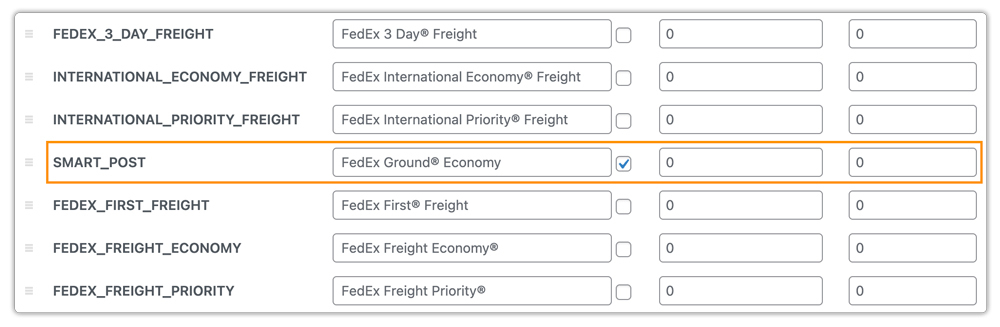
Once your FedEx account is connected, check whether FedEx Ground Economy is enabled under the Rates & Services tab.
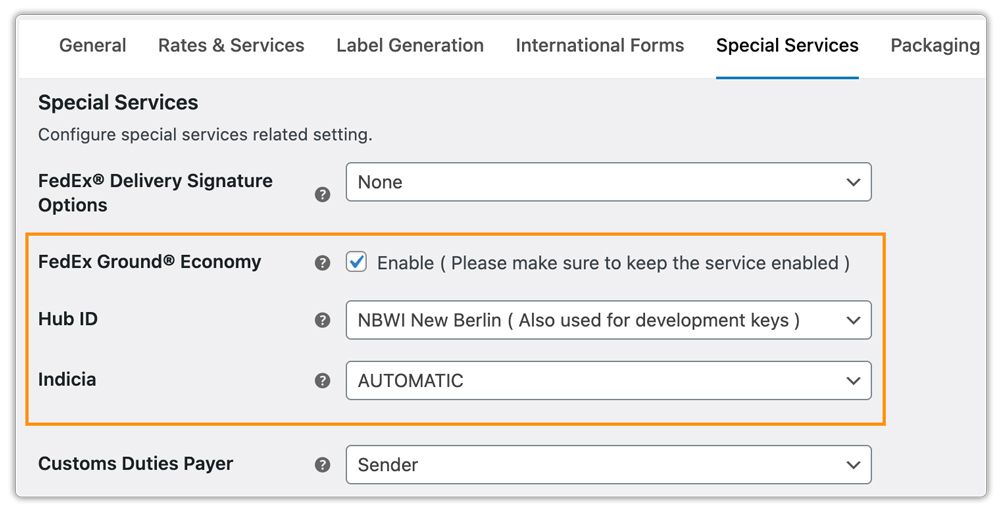
Next, enable FedEx Ground Economy under the Special Services settings. Select the appropriate SmartPost Hub ID assigned to your FedEx account and choose the correct Indicia type based on your shipment and account configuration.
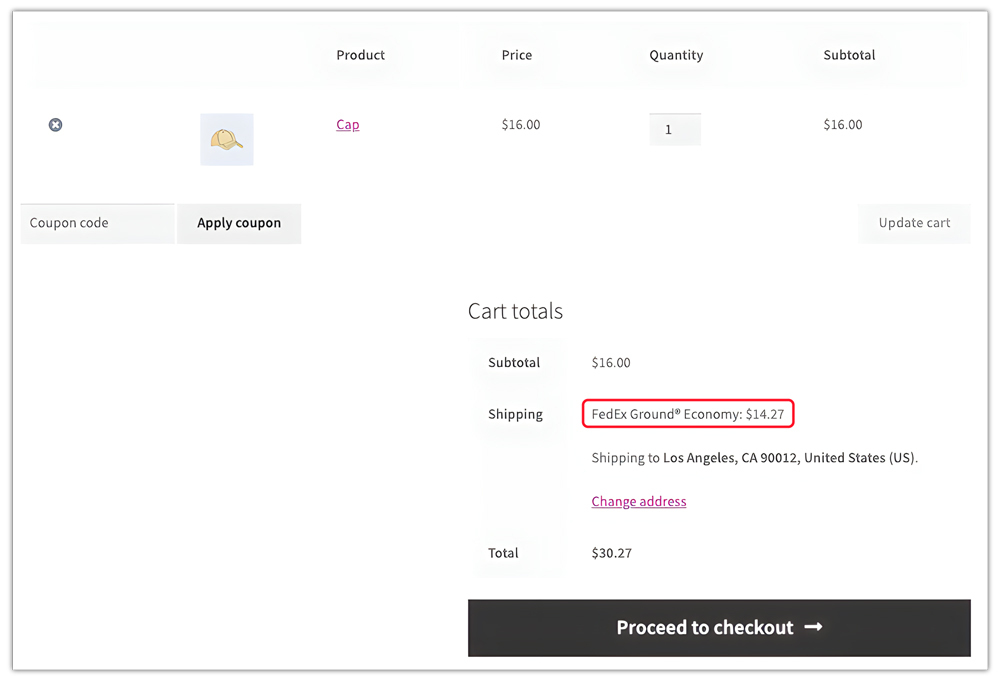
Once both steps are completed, check the cart/checkout page to see live FedEx Ground Economy rates displayed.
Once the order gets placed, you can generate and print FedEx shipping labels in your WooCommerce dashboard itself.
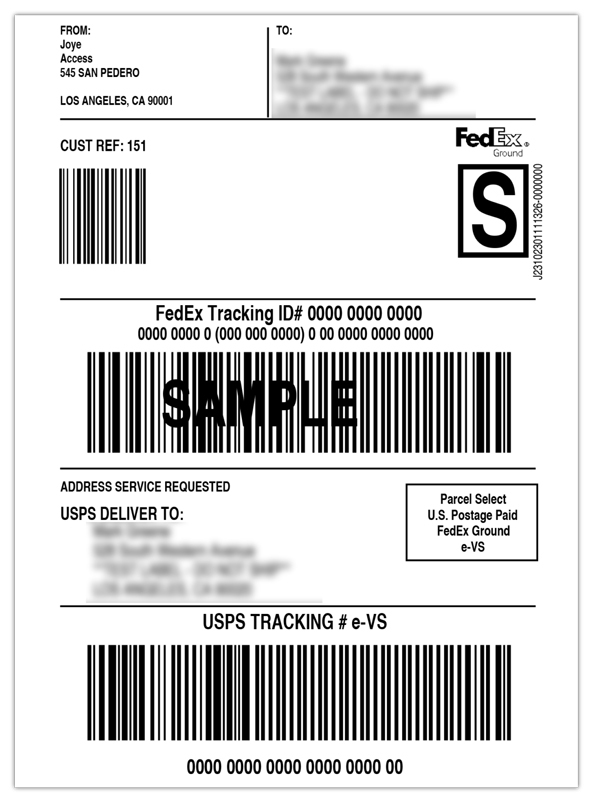
The FedEx Ground Economy label includes both a FedEx tracking number and a USPS tracking number, with the FedEx tracking number enabling full tracking throughout the shipment journey and the USPS number used during the final delivery leg.
Real-World Use Case: WooCommerce Store Using FedEx Ground Economy
A WooCommerce store selling low-weight fashion accessories ships hundreds of orders daily across the United States. The store wanted to offer an affordable shipping option with FedEx for customers without compromising delivery reliability.
Challenges Faced
- FedEx Ground Economy rates were not showing at checkout, limiting low-cost shipping options.
- Customers often abandoned carts due to higher shipping charges.
- The store relied on manual rate checks, which slowed order processing.
- Lack of clarity around the Ground Economy setup caused inconsistent shipping availability.
Solution Implemented
The store integrated FedEx with WooCommerce using the WooCommerce FedEx Shipping Plugin with Print Label. They connected their FedEx account and enabled FedEx Ground Economy under Rates & Services. They also configured the correct SmartPost Hub ID and Indicia under Special Services to activate the service.
Results
- FedEx Ground Economy rates displayed correctly at checkout.
- Customers gained access to a cost-effective shipping option.
- Reduced cart abandonment due to lower shipping costs.
- Shipping labels and tracking were generated directly from the WooCommerce dashboard.
- Improved fulfillment efficiency with automated rate calculation.
By configuring FedEx Ground Economy correctly in WooCommerce, the store reduced costs for customers and streamlined its order fulfillment process.
Conclusion
WooCommerce stores can offer FedEx Ground Economy rates as a cost-effective shipping option, but you must properly enable and configure it for it to appear at checkout. Most rate issues stem from account settings or service configuration rather than WooCommerce itself. With the right FedEx shipping plugin, you can display accurate Ground Economy rates and offer customers an affordable delivery option.
For setup or troubleshooting help, contact PluginHive Support.
FAQs
Q. Can I hide FedEx Ground Economy or other FedEx services based on order conditions?
Yes. You can hide specific FedEx shipping methods based on factors like weight, cart value, destination, or service type. The PH Hide WooCommerce Shipping Methods & Rate Adjustment Plugin helps you control which FedEx services appear at checkout.
Q. Can I set different shipping rates based on cart weight, quantity, or product type?
Absolutely. With the WooCommerce Table Rate Shipping Pro Plugin, you can create flexible shipping rules based on weight, quantity, destination, product category, or shipping class.
Q. Can I offer FedEx along with other carriers in WooCommerce?
Yes. Using a Multi-Carrier Shipping Plugin, you can display FedEx rates alongside carriers like UPS, USPS, and DHL, giving customers more delivery options and reducing dependency on a single carrier.
Q. Can I provide advanced shipment tracking for FedEx Ground Economy orders?
Yes. While the FedEx plugin adds basic tracking, the WooCommerce Shipment Tracking Pro Plugin enables advanced tracking features, including real-time tracking updates and customer email notifications.
Q. Can I show estimated delivery dates for FedEx Ground Economy shipments?
Yes. You can display estimated delivery dates at checkout and on order pages using the Estimated Delivery Date Plugin for WooCommerce, helping customers know when they can expect their orders to arrive.
