


Shipping labels play an important role in ensuring that orders reach customers accurately and on time. For WooCommerce store owners, the ability to print FedEx shipping labels directly from the store can make the entire fulfillment process faster and more efficient. Instead of switching between platforms or handling labels manually, you can manage everything in one place.
In this guide, we’ll explore why FedEx labels matter, the basic requirements, and provide a simple step-by-step process to start printing them directly in WooCommerce.
On This Page
- Importance of FedEx Labels in WooCommerce
- Requirements to Print FedEx Shipping Labels
- How to Print FedEx Labels in WooCommerce
- Real-World Example
- Best Practices for Printing FedEx Labels
- Conclusion
- FAQs
Importance of FedEx Labels in WooCommerce
Shipping labels are more than just a piece of paper; they contain all the critical details needed for FedEx to process and deliver an order correctly. From addresses and barcodes to tracking numbers and service types, they ensure packages move smoothly through the shipping network.
For WooCommerce store owners, being able to generate FedEx labels directly within the store has several advantages:
- Accuracy in Shipping: Labels automatically pull customer order details, reducing errors caused by manual entry.
- Time Savings: No need to re-enter information on external platforms; labels are ready with just a few clicks.
- Streamlined Fulfillment: Orders, labels, and tracking details are all managed in one place, keeping operations organized.
- Professional Packaging: A properly formatted FedEx label ensures compliance with FedEx standards, avoiding delays or returns.
- Improved Customer Experience: Customers receive correct shipments faster, often with tracking updates sent automatically.
FedEx labels in WooCommerce simplify fulfillment, boost efficiency, and help deliver a seamless experience for both store owners and customers.
Requirements to Print FedEx Shipping Labels
To print FedEx shipping labels in your WooCommerce store, you only need a few essentials:
- A FedEx Account
You’ll need a registered FedEx account to access shipping rates and generate labels. If you don’t already have one, you can sign up for free on the FedEx website.
- FedEx Web Services (API) Credentials
FedEx requires API credentials to connect your WooCommerce store with their system. These details are available through your FedEx account once it’s approved for Web Services.
- WooCommerce Shipping Plugin for FedEx with Print Label
The WooCommerce Shipping Plugin for FedEx with Print Label is the tool that connects your store to FedEx. It automatically retrieves real-time shipping rates, lets you generate labels directly from WooCommerce orders, and even supports bulk printing and tracking.
If you’re new to the plugin, start with this setup guide for a quick integration: FedEx Plugin Setup for WooCommerce.
How to Print FedEx Labels in WooCommerce
Once your FedEx account is connected and live rates are showing at checkout, you can easily generate and print FedEx shipping labels directly from WooCommerce. The plugin gives you three options:
Manual Label Printing
- Open the order from your WooCommerce dashboard.

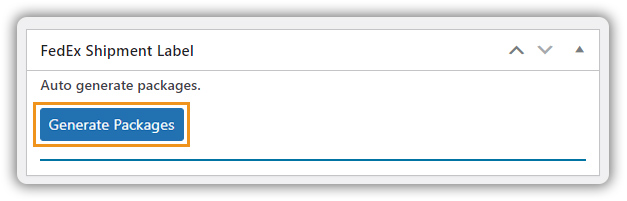
- Generate packages automatically or add them manually with custom weight, dimensions, or insurance.
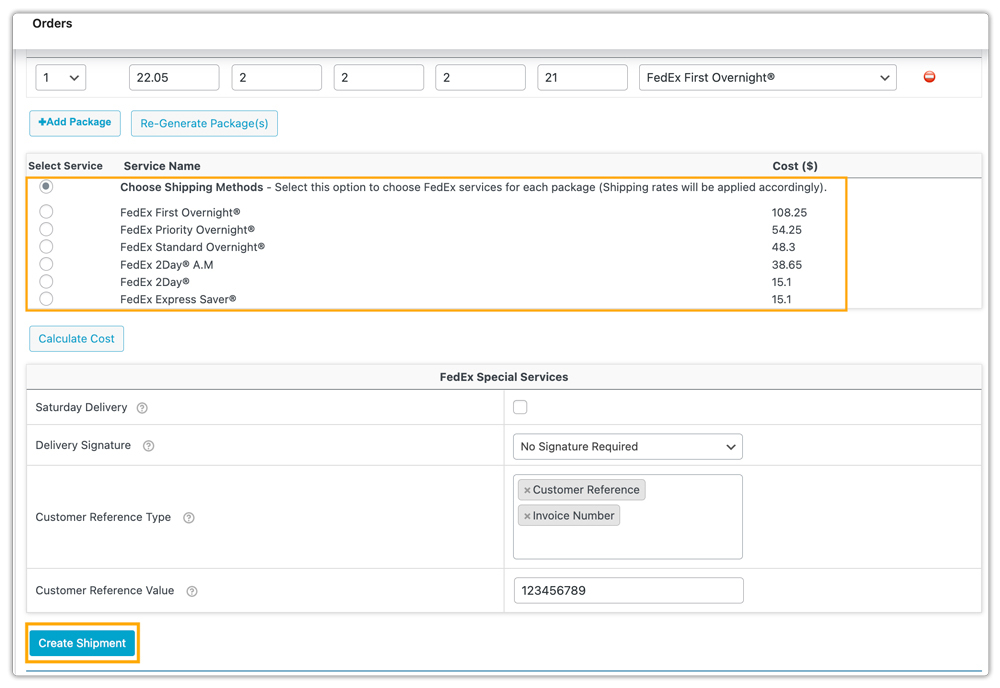
- You can select the preferred FedEx service and create the shipment to generate the label.
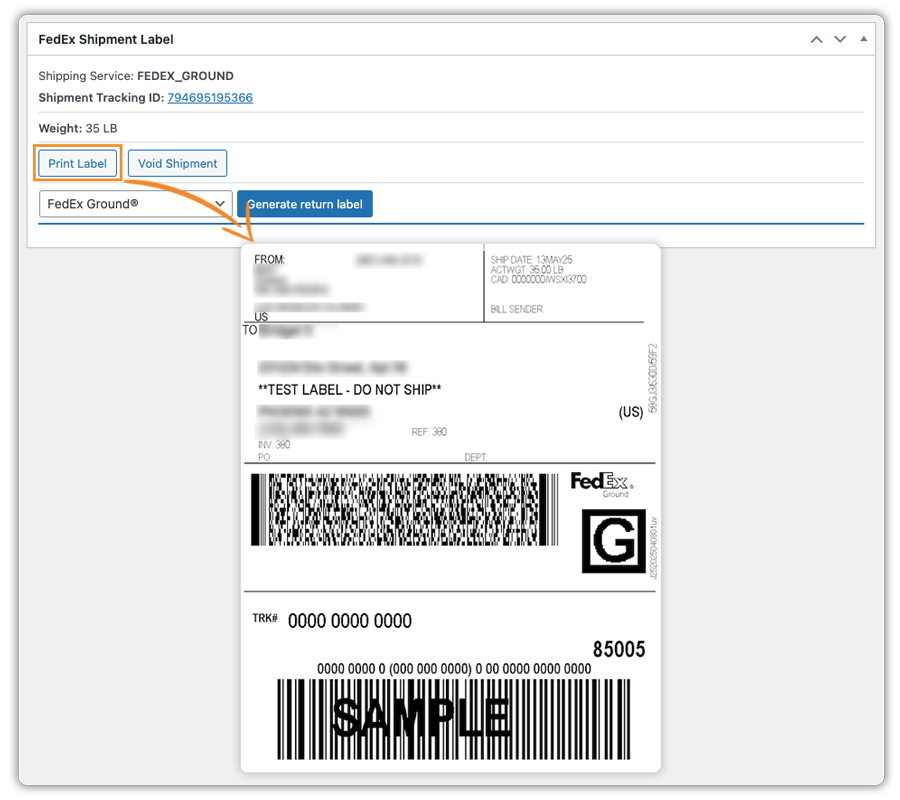
- Print the FedEx label and get the tracking number instantly.
Automatic Label Generation
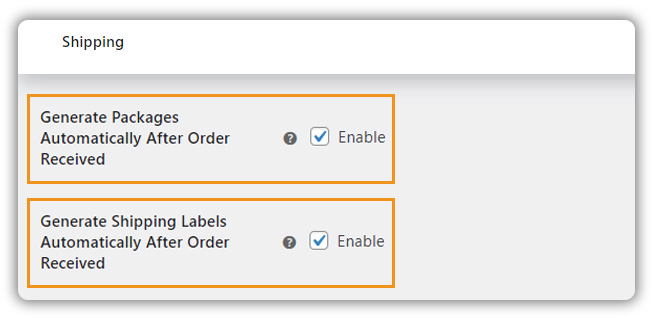
Configure the FedEx plugin to automatically create packages and generate labels as soon as an order is placed. Labels will then be available to print directly from the order page without extra steps.
With this plugin, you can also print bulk labels by selecting multiple orders. Visit: Print Shipping Labels for Multiple Orders in Bulk to learn more.
This flexibility means that whether you ship a single package, run automatic fulfillment, or process bulk orders, FedEx label printing in WooCommerce stays fast and efficient.
Real Business Case: Custom Gift Box Store with Holiday Season Spikes
Let’s say you run a WooCommerce store selling custom gift boxes for birthdays, anniversaries, or corporate gifting. You rely on FedEx (or want to use FedEx) to deliver these gifts quickly and reliably.
The Challenges:
You likely handle a steady stream of orders year-round, but during holidays like Christmas or corporate gifting seasons, volumes can surge, going from a few daily orders to dozens or even hundreds. With each box customized and shipped to different locations, this leads to challenges such as:
- Single-label generation becomes a hassle, as you need to log into the carrier’s website, enter shipment details manually, and repeat the process for each order.
- High risk of mistakes while typing out shipping details.
- Manual label generation becomes a bottleneck as volume spikes.
- Customers expect faster delivery and instant tracking updates.
The Solutions:
To overcome these bottlenecks, you start using the WooCommerce Shipping Plugin for FedEx with Print Label. Now, with this plugin,
- On regular days, the store used the plugin’s manual label feature, just a click inside each order to print the FedEx label.
- With a few clicks, all pending orders were labeled at once, no tab-switching or copy-pasting needed.
- During the holiday rush, bulk label generation saved the day.
- Tracking numbers were auto-generated and sent to customers, cutting down on support queries.
The Impact:
The store cut label generation time by over 70% during the busy season, and the order errors dropped significantly since everything was pulled directly from the WooCommerce order data.
For a business where order volume fluctuates between personal and seasonal gifting spikes, this plugin made FedEx shipping faster, smarter, and completely scalable.
Best Practices for Printing FedEx Labels
Before implementing FedEx label printing in your WooCommerce store, following some best practices can help reduce errors and save time.
- Use bulk label printing for high-volume orders to save time.
- Set default package dimensions and weights to avoid errors or extra costs.
- Enable tracking auto-sync to update tracking numbers automatically in WooCommerce.
- Choose the right label format for your printer (PDF for desktop, ZPL for thermal).
- Test the setup before peak periods to ensure smooth printing and tracking.
- Combine label printing with FedEx pickup scheduling for a seamless fulfillment workflow.
Conclusion
Printing FedEx shipping labels directly in WooCommerce streamlines your fulfillment process, reduces errors, and saves valuable time. By leveraging automation, bulk printing, and tracking integration, you can efficiently manage orders of any volume while keeping customers informed. Whether you run a small store or handle seasonal spikes, following best practices ensures faster, accurate, and professional shipping every time.
Need help setting up or troubleshooting? Contact PluginHive Support for assistance.
FAQs
- Can I print return labels along with my shipments?
Yes, the WooCommerce FedEx plugin allows you to include return labels, making it convenient for customers to send items back if needed. To learn more, visit – FedEx Return Label in WooCommerce
- Which label format should I use for printing?
Choose a format compatible with your printer: PDF is best for desktop printers, while ZPL is ideal for thermal label printers.
- Can I include package insurance or special services in the label?
Yes, you can add insurance, signature confirmation, or FedEx-specific services like Saturday Delivery directly when generating labels in WooCommerce.
- Does bulk printing affect tracking integration?
No, tracking numbers are automatically assigned to each order, even when printing labels in bulk, ensuring customers receive accurate tracking updates.
