


Running a WooCommerce store with international customers can be tricky when it comes to bookings. A slot set for 10 AM store time might mean the middle of the night for someone overseas, leading to confusion, missed appointments, and unhappy customers.
Timezone conflicts are a common challenge for online services, rentals, and events. In this article, we’ll look at why these mismatches happen, how they impact your business, and the best ways to fix them, including a smart WooCommerce bookings solution that handles timezones automatically.
Table of Contents
- The Real Impact of Timezone Mismatches on WooCommerce Businesses
- Tips to Fix Timezone Conflicts in WooCommerce
- Fixing Timezone Conflicts with PluginHive’s Bookings Plugin
- Real-World Example
- Conclusion
- FAQs
The Real Impact of Timezone Mismatches on WooCommerce Businesses
Timezone mismatches might seem like a small issue, but they can have a ripple effect on your entire booking process. For a customer, it’s just a mix-up, but for your business, it can mean:
- Missed appointments: A client may show up at the wrong time due to a time zone error, resulting in lost revenue and wasted resources.
For example, a career coaching session booked by a client in New York for 10 AM their time might be missed if the system records it as 10 AM London time. - Overlapping or double bookings: Misaligned booking times can create conflicts, especially for rentals or resource-based services.
For example, A tourist from Sydney books a London apartment for a week, but the booking overlaps with another guest due to incorrect timezone conversion. - Customer frustration: Confusing booking times lead to disappointment and frustration. Clients may hesitate to rebook or recommend your services.
- Negative Reviews: One missed appointment or booking error can result in a bad review, which may discourage future customers from trusting your business.
- Extra admin work: Correcting errors manually, rescheduling, sending clarification emails, or issuing refunds consumes valuable time and resources.
If you’re serving a global audience, getting the time right isn’t optional; it’s essential for customer satisfaction and smooth operations.
Tips to Fix Timezone Conflicts in WooCommerce
Timezone mix-ups can be frustrating, but the good news is, they’re easy to avoid with a few smart tweaks. Here are some simple ways to make sure your customers always book the right slot, no matter where they are in the world.
1. Set your store’s timezone correctly
It sounds obvious, but it’s worth checking. Go to WordPress> Settings > General and make sure your store’s timezone is set accurately. This keeps everything consistent in the backend.
2. Add a Note for International Customers
A brief reminder, such as “All times are shown in your local timezone,” sets clear expectations and reduces confusion. Small notes like this go a long way in improving the booking experience.
3. Show times in your customer’s local timezone
Instead of showing your store’s time and expecting customers to do the math, display booking slots in their local time. It’s one small change that removes a lot of confusion.
4. Send confirmation emails with the exact booking time
Make sure the time in your confirmation and reminder emails matches exactly what the customer selected on the booking page. This keeps things consistent and avoids confusion.
5. Let a plugin handle it for you
The easiest way to prevent timezone conflicts is to use a WooCommerce booking plugin that auto-detects and adjusts times for each customer. One such tool is PluginHive’s Bookings And Appointments for WooCommerce plugin, which we’ll look at in the next section.
Fixing Timezone Conflicts with PluginHive’s Bookings Plugin
Note: To get started, make sure the PluginHive Bookings plugin is installed, activated, and configured. Follow this quick setup guide.
Managing time zones manually for every booking is time-consuming and prone to errors. Bookings And Appointments for WooCommerce plugin makes it simple with its Time Zone Conversion setting (found in the Calendar Display Settings). Once enabled, customers can view booking slots in their local timezone, no matter where they are in the world – no mental math, no confusion, just accurate scheduling for everyone.
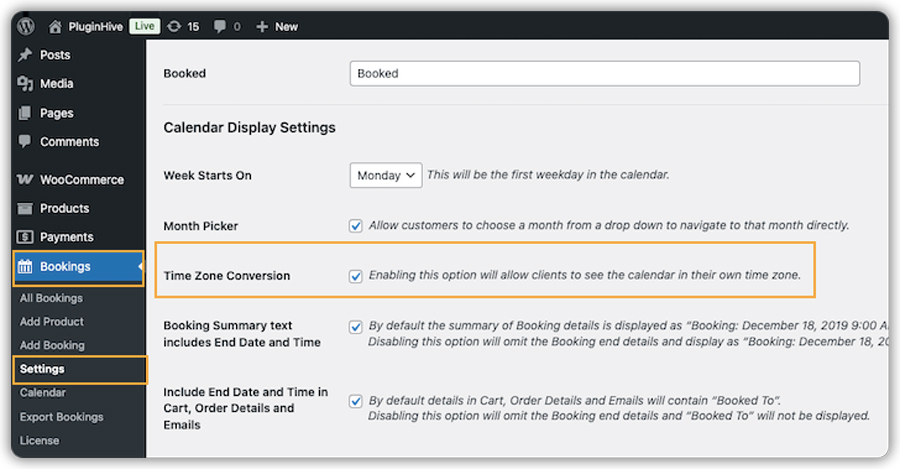
Here’s how it helps:
- Keeps admin controls simple: You still set business hours in your time zone, while customers see the converted time automatically.
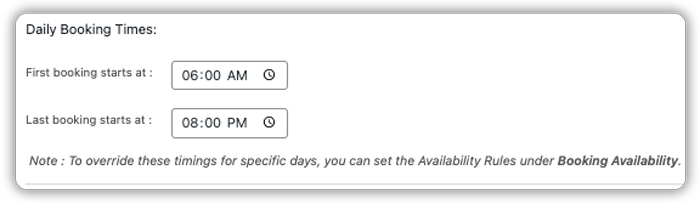
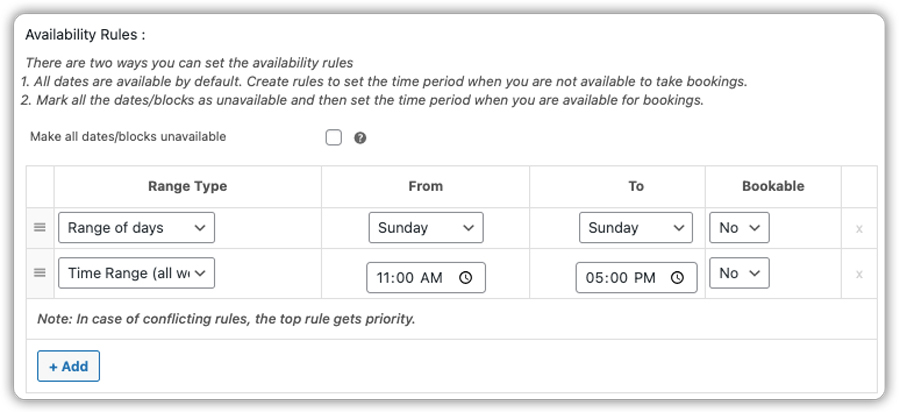
Need help setting up booking availability? Check this guide.
- Displays Customer Local Time & Prevents Double Bookings – Shows booking slots in the client’s local timezone, ensuring they always see accurate times while seamlessly avoiding double bookings, even with customers from different regions.
Example: Let’s say you run an online yoga class from India and your availability is set as shown in the images above.
For a client in London, the times will appear in their local timezone as shown in the image below.

For a client in Tokyo, the times will appear in their local timezone as shown in the image below.
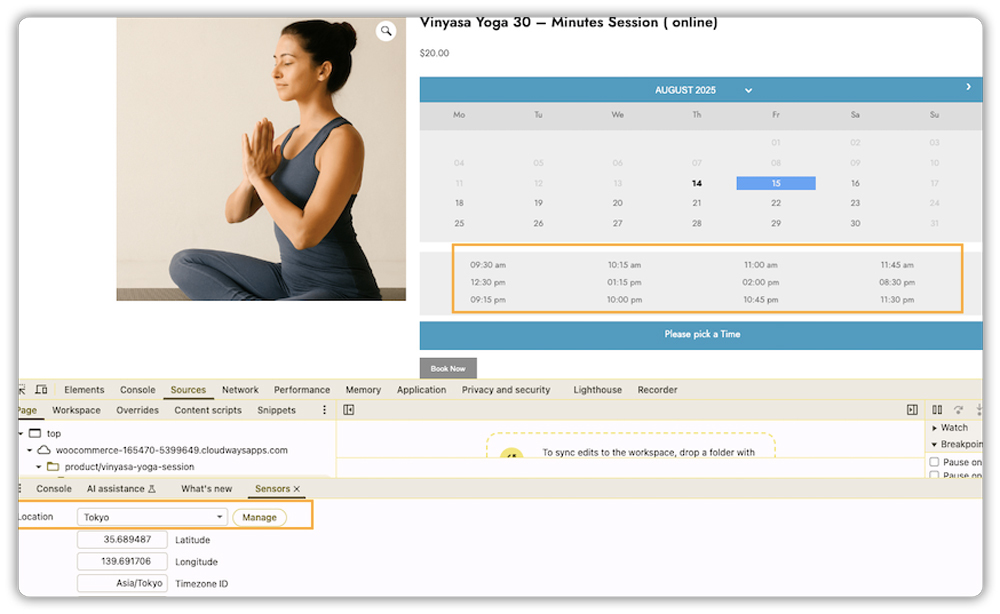
- Emails Match Booking Time: Whatever the customer saw on the booking page appears exactly in their confirmation and reminder email.
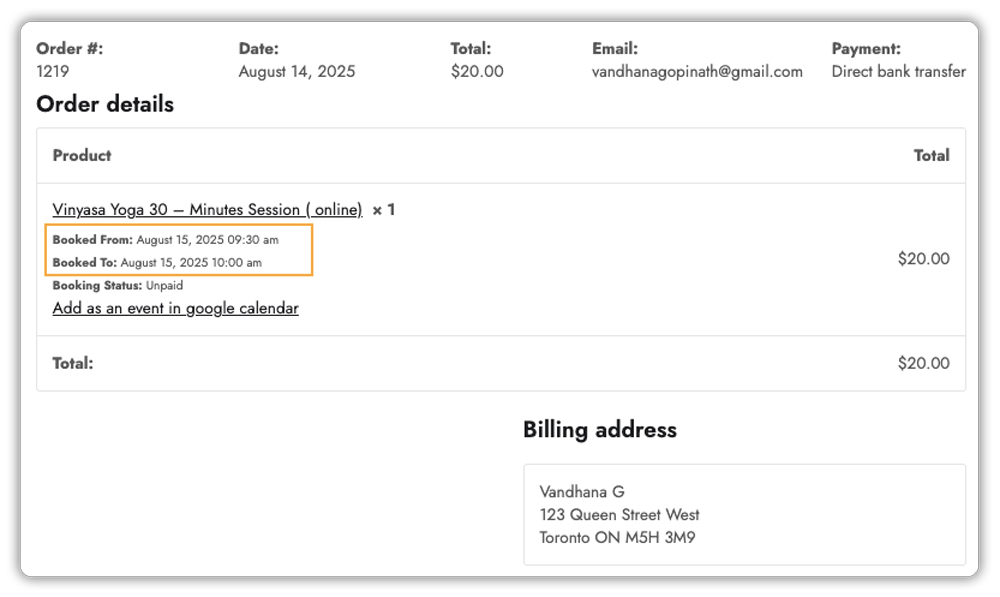

Learn how to enable email notifications.
- Google Calendar Integration: Customers can add bookings directly to their personal calendar with correct local time reminders.

Want to offer this feature on your store? Check out this guide on how to set up Google Calendar.
With PluginHive’s Booking solution, you don’t have to worry about missed appointments or late arrivals due to timezone mix-ups. It’s a “set it and forget it” fix that keeps your booking process smooth and your customers happy.
Real-World Use Case: Online Coaching Business Serving Global Clients
Let’s say you run a WooCommerce-based coaching business from London, offering career consulting, interview preparation, and skill development sessions to clients around the world. Your customers come from cities like New York, Sydney, Dubai, and Singapore.
Challenges You Might Face:
- Clients often get confused about session timings because your store shows booking slots in your timezone.
- You spend time manually clarifying session timings over emails or calls, increasing the risk of missed or late appointments.
- Customers may accidentally show up hours early or late, creating frustration and breaking trust.
- Without proper timezone management, managing multiple back-to-back sessions across regions becomes exhausting.
How It Can Be Solved:
By using PluginHive’s Bookings And Appointments for WooCommerce plugin with the Time Zone Conversion feature enabled, you can completely remove the guesswork.
- Customers see available slots directly in their own local time when booking.
- You set your business hours in your own timezone, and the plugin automatically converts them for each customer.
- Bookings can be added to the customer’s Google Calendar, saved in their timezone, so they get reminders at the right time.
- The email confirmation and reminders include the exact time they booked, matching what they saw on your site, preventing confusion and reducing no-shows.
With these features, you save hours of manual communication, avoid missed sessions, and create a smooth booking experience for customers no matter where they are in the world.
Conclusion
Timezone conflicts can create confusion, missed bookings, and extra work for WooCommerce store owners serving international clients. By setting your store’s timezone correctly, showing booking times in the customer’s local time, and using a timezone-aware plugin like Bookings And Appointments for WooCommerce plugin, you can streamline scheduling, reduce errors, and improve the customer experience.
Want to ensure everything is set up correctly? Enable the Time Zone Conversion feature in the plugin settings, and if you need assistance, reach out to PluginHive support for guidance.
FAQs
1. Does this WooCommerce booking plugin support multiple time zones for different customers?
Yes, the plugin automatically detects the customer’s time zone based on their browser settings and displays available slots accordingly. This feature is particularly beneficial for businesses with a global clientele.
2. Will enabling Time Zone Conversion affect my store’s time zone settings?
No, your store’s default time zone remains unchanged. The Time Zone Conversion feature only affects how booking times are displayed to customers, ensuring they see times in their local time zone.
3. Can I customize the time format displayed to customers?
Yes, you can easily customize the time format in the plugin. Simply go to Settings > General in your WordPress dashboard, choose your preferred format (12-hour or 24-hour) under the Time Format section, and save the changes. The selected format will appear in the booking calendar and in all customer communications.
4. Is it necessary to manually adjust booking times for international clients?
No, once the Time Zone Conversion feature is enabled, the Bookings And Appointments for WooCommerce plugin handles all timezone adjustments automatically.
5. Is the PluginHive’s Bookings And Appointments for WooCommerce plugin compatible with multilingual sites and international users?
Yes! The plugin offers built-in support for multiple languages and is fully compatible with the WPML (WordPress Multilingual) plugin, which adapts all elements, including time zones and confirmation emails, to the customer’s language and region
