



If you ship internationally from a WooCommerce store in Canada, Canada Post customs forms are part of every cross-border order. Canada Post requires a customs declaration for all international shipments, and incomplete or incorrect Canada Post customs forms are among the most common reasons packages get held at the border.
The problem isn’t that customs forms are complicated. Rather, it’s that filling out Canada Post customs forms manually for every international order is slow, inconsistent, and doesn’t scale. This article walks you through how to automate Canada Post customs form generation directly inside WooCommerce, so your international fulfilment works the same way your domestic fulfilment does.
On This Page
- Understanding Canada Post Customs Forms for WooCommerce International Shipping
- Automate WooCommerce International Shipping with Canada Post
- Example Scenario
- Best Practices to Reduce Customs Delays in WooCommerce
- Conclusion
- FAQs
Understanding Canada Post Customs Forms for WooCommerce International Shipping
Canada Post has specific requirements for international shipments. Here’s what they are and where most stores run into trouble.
Why Canada Post Customs Forms Matter
Every international parcel leaving Canada needs a customs declaration. This document tells the destination country’s customs authority what’s in the package, what it’s worth, and where it was made. Without it or with incomplete information, your shipment won’t clear the border.

For WooCommerce stores, accurate Canada Post customs forms matter beyond just compliance. Customs documentation directly affects:
- Delivery speed – Complete and accurate forms clear customs faster
- Customer experience – Held or delayed packages generate support requests and chargebacks
- Compliance – Incorrectly declared values or missing HS codes can result in fines or seized shipments
Canada Post requires merchants to fill out customs documents in English or French, and a hard copy must accompany the physical shipment, regardless of whether data is also transmitted electronically.
Common Causes of Canadian Customs Delays
Understanding what causes customs delays helps you prevent them before they happen. The most frequent issues WooCommerce store owners run into include:
- Missing or incorrect HS Tariff Codes: Every internationally shipped product needs a harmonised system classification code; wrong codes trigger a manual customs review
- Inaccurate declared values: Undervaluing a shipment to reduce duties at the destination is a customs violation and a common reason packages are held
- Incomplete product descriptions: Vague descriptions like “merchandise” or “gift” don’t satisfy customs requirements; be specific
- Missing recipient phone number: Some destination countries require a contact number for delivery; leaving it blank can stall clearance
- No Country of Manufacture: Required on the commercial invoice; its absence causes customs to request additional documentation
You can use the Canada Border Services Agency HS code lookup tool to find accurate codes for each product category.
Challenges of Manual Customs Form Creation
If you generate Canada Post customs forms manually, either through the Canada Post online portal or by filling out paper forms, the process breaks down quickly as order volume grows:
- You re-enter the address and product data that already exists in WooCommerce, duplicating work on every order
- Information becomes inconsistent across orders because it’s entered by hand each time
- International orders take significantly longer to process than domestic ones
- Errors or missing information on those forms often hold packages at the border
This is the core problem the Canada Post Shipping Plugin for WooCommerce with Print Label is designed to solve.
Automate WooCommerce International Shipping with Canada Post
The Canada Post Shipping Plugin for WooCommerce with Print Label connects your WooCommerce store directly to the Canada Post API. For international orders, this means shipping labels, commercial invoices, and customs declarations are all generated from inside your WooCommerce dashboard with no separate Canada Post portal login required.
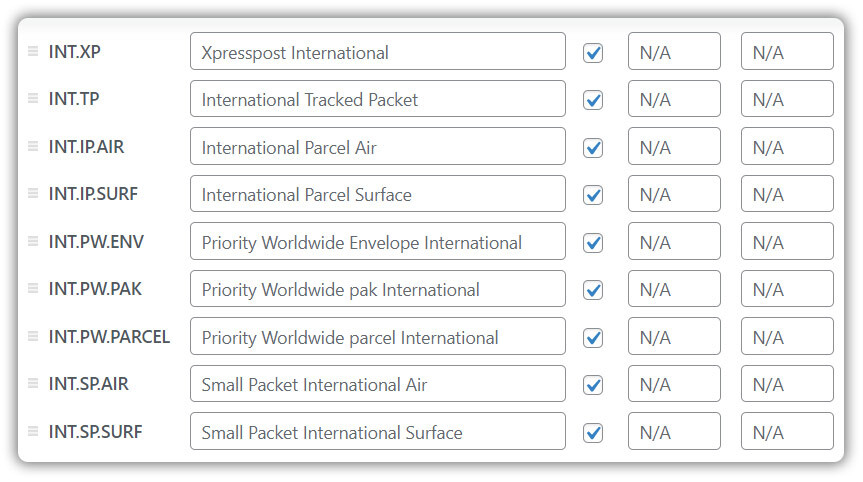
The plugin supports the full range of Canada Post international shipping services, including Xpresspost International, International Parcel Air and Surface, Priority Worldwide, Tracked Packet International, and Small Packet International. Live rates for all available services are displayed at checkout based on destination, package weight, and dimensions.
Generate Canada Post International Customs Forms in WooCommerce
Here’s how customs documentation works within the plugin:
Step 1 — Set up product-level customs data
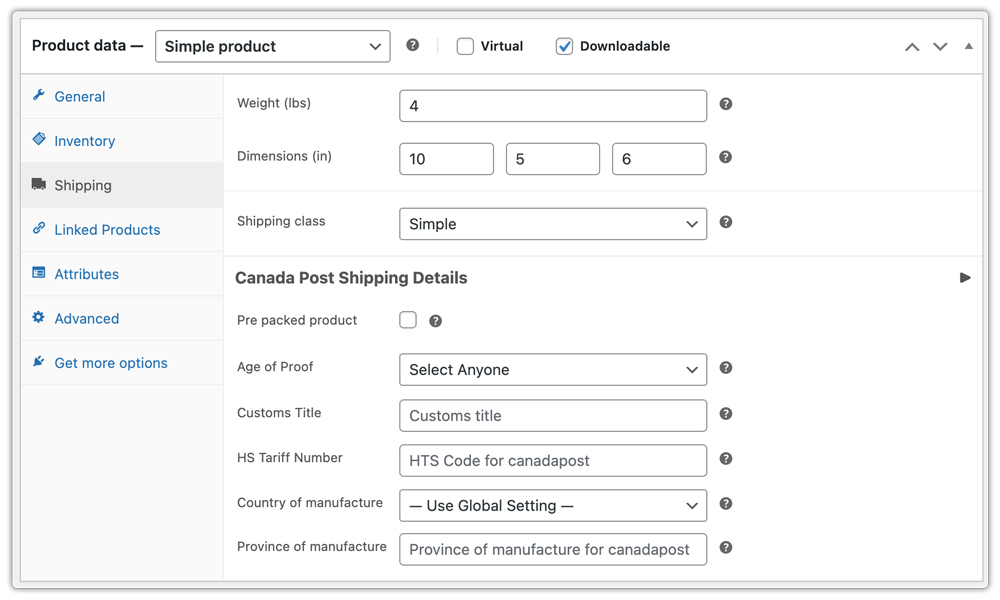
Before generating any international labels, fill in the following fields for each product. Navigate to WooCommerce Dashboard > Products > Edit Product > Shipping tab:
- HS Tariff Number – Required for all international shipments; classifies your product for customs
- Country of Manufacture – Two-letter country code (e.g., CA, US, CN)
- Province of Manufacture – Optional, but recommended for Canadian-made goods
- Product weight and dimensions – Required for rate calculation and label generation
For variable products, set these per variation. A global Country of Manufacture default is available under Global Settings – override it per product where needed.
Step 2 – Configure international shipping settings
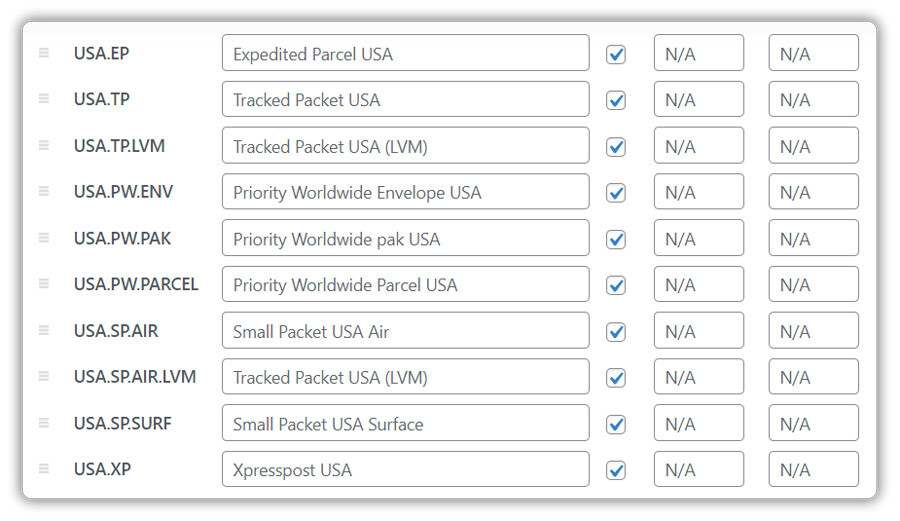
Under the Rates and Services tab, enable the international services you want to offer and set your rate display preferences.
Canada Post Services for the USA:
Canada Post International Services:
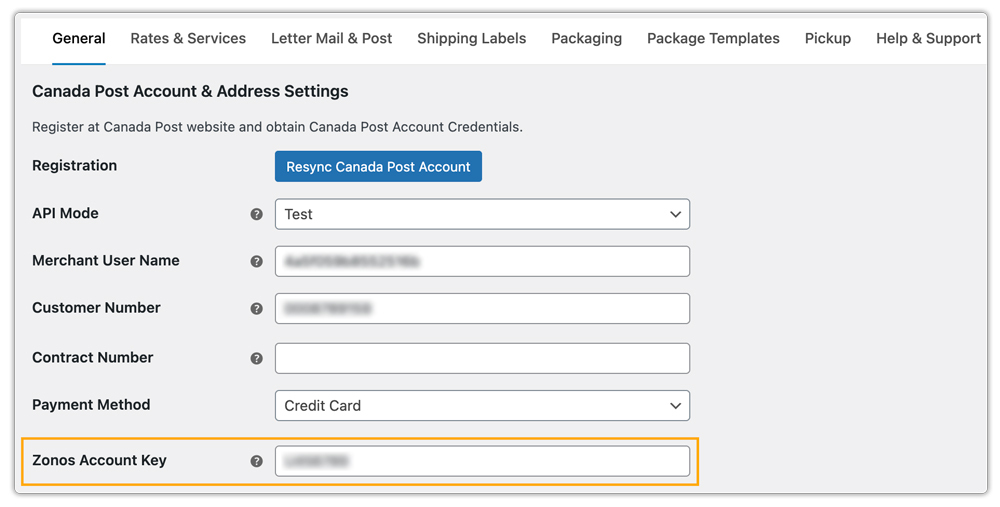
For US shipments, add your Zonos Account Key and Declaration ID under Global Settings for cross-border duty and tax calculation at checkout.
Step 3 – Generate the label and customs documents
Open the international order and generate the shipment. The plugin automatically creates the shipping label and the commercial invoice, which serves as the Canada Post customs document for international shipments.
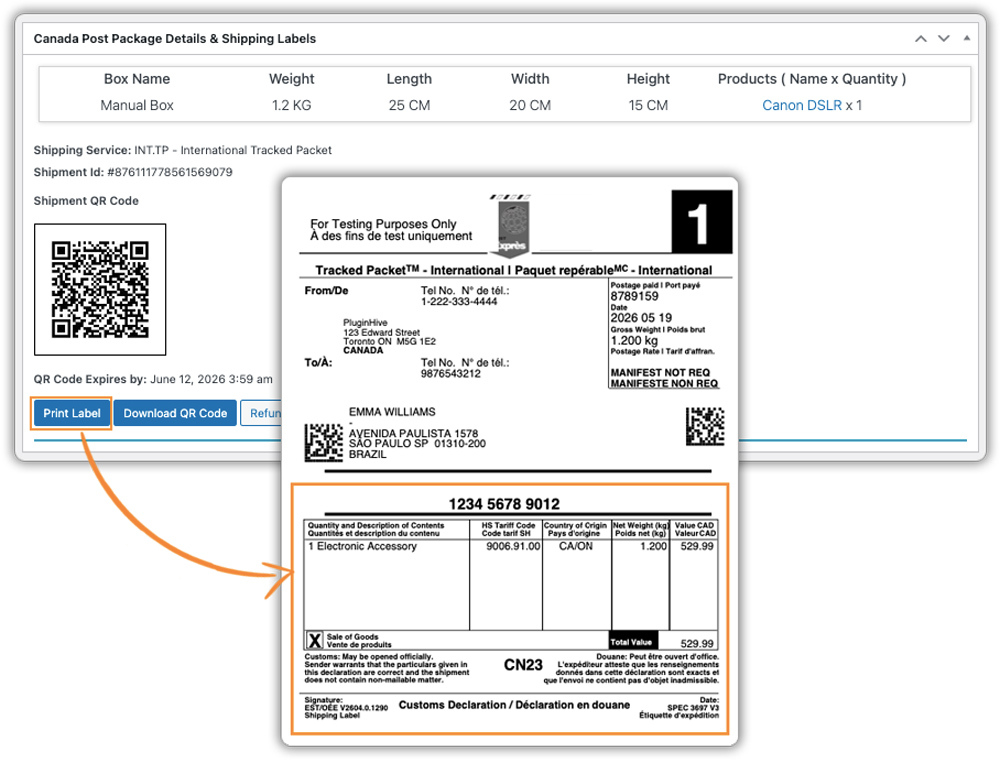
The invoice includes all required details: product description, HS code, country of manufacture, and declared value.
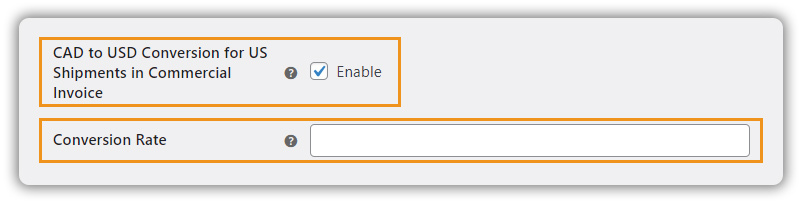
For US-bound shipments, enable the CAD to USD conversion setting in the plugin and values are converted automatically.
Step 4 – Bulk generation for multiple orders
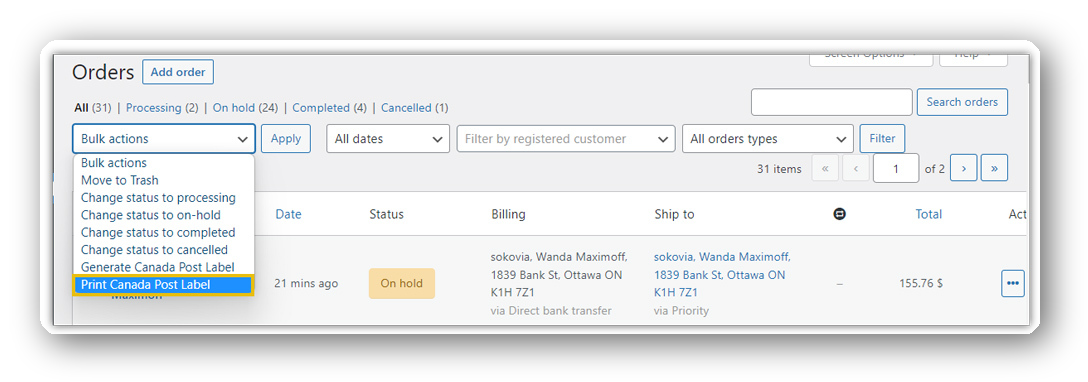
Use Bulk Shipment Generation to create shipping labels and commercial invoices ( custom forms) for multiple international orders in a single action.
For full setup details, refer to the WooCommerce Canada Post Shipping Plugin setup guide.
Example Scenario: How a Canadian WooCommerce Store Automates Canada Post Customs Forms
Let’s say you run a WooCommerce store selling handcrafted home goods in Canada and you’re regularly receiving international orders. Here’s what you’re likely dealing with.
Challenges You’re Probably Facing
- Logging into Canada Post separately to create customs declarations for each order, re-entering data that already exists in WooCommerce
- International orders taking significantly longer to process because every shipment needs a manual documentation step
- Shipments getting delayed at the border due to missing HS codes or inconsistent product descriptions
- Manually copying tracking numbers back into WooCommerce and notifying customers separately
How the Canada Post Shipping Plugin Solves This
With the Canada Post Shipping Plugin for WooCommerce with Print Label, Canada Post customs forms generate automatically alongside every shipping label. As a result:
- Product data – HS codes, country of manufacture, and declared values pulls directly from WooCommerce
- Tracking numbers are attached to orders and go to customers automatically
- Bulk generation handles multiple international orders in one action
- International orders are processed the same way as domestic orders are
Once the plugin is set up, generating Canada Post customs forms is no longer a separate task – it becomes part of how every international order moves through your store.
Best Practices to Reduce Customs Delays in WooCommerce
Even with automated Canada Post customs forms, a few simple practices help ensure smoother international deliveries.
- Check Destination Restrictions: Some countries restrict specific products, so verify import rules before shipping internationally.
- Keep Customer Details Complete: Missing address details or contact information creates delivery and clearance issues, so collect a recipient phone number at checkout for all international orders.
- Keep HS Tariff Codes Accurate: Incorrect HS codes trigger manual customs reviews. Use the Canada Border Services Agency lookup tool and assign codes based on each product category instead of using a single code across your catalogue.
- Review Delayed Shipments: Monitor held or returned orders to identify recurring issues in your Canada Post customs forms and improve future shipments.
- Verify Customs Document Placement: Confirm with Canada Post whether customs documents should be attached externally or placed inside the package for the shipping service you use.
Small improvements in store data and shipping practices can significantly reduce customs delays and create a smoother WooCommerce international shipping process.
Conclusion
Generating Canada Post customs forms in WooCommerce doesn’t have to be a manual process. With the Canada Post Shipping Plugin for WooCommerce with Print Label, Canada Post customs forms generate automatically alongside every shipping label – directly from your WooCommerce dashboard.
The key is getting your product-level data right: HS codes, country of manufacture, and declared values. Once those are in place, international order processing runs the same way domestic processing does, no separate portal, no manual form-filling, no customs delays. For setup help or questions about international shipping configuration, contact the PluginHive support team.
FAQs
Q: Why is my package stuck in customs with Canada Post?
A package may get stuck in customs due to incomplete Canada Post customs forms, incorrect HS codes, inaccurate declared values, missing recipient details, or customs inspections. Using accurate shipment information and properly generated customs documents helps reduce delays significantly.
Q: How long does it take Canada customs to clear a package?
Clearance times vary depending on the destination, shipment details, and customs workload. While many shipments clear within a few hours or days, missing documentation or additional inspections can increase processing time considerably.
Q: How do I fill out Canada Post customs forms?
To fill out Canada Post customs forms, provide accurate product descriptions, declared values, HS tariff codes, country of manufacture, and recipient information. The Canada Post Shipping Plugin for WooCommerce with Print Label automates this process and generates the commercial invoice directly from your WooCommerce order data – no manual form-filling needed.
