


Running a WooCommerce booking business means juggling more than just online orders. Walk-ins, phone bookings, staff availability – a lot of that still gets managed on a regular calendar, not inside WooCommerce. That’s exactly where Google Calendar and Outlook Calendar sync come in for the Bookings and Appointments for WooCommerce plugin – both connect your WooCommerce bookings to a calendar your team already checks every day, and keep both sides updated automatically.
The question most store owners run into is simple: Google Calendar or Outlook – which one should you actually connect to WooCommerce? This guide breaks down what each does and how to decide.
Table of Contents
- What Is Google Calendar Sync for WooCommerce Bookings?
- What Is Outlook Calendar Sync for WooCommerce Bookings?
- Google Calendar vs Outlook Sync: At a Glance
- Which Should You Use for Your WooCommerce Store?
- How to Set Up Calendar Sync in WooCommerce
- Best Practices for Calendar Sync in WooCommerce Bookings
- Conclusion
- FAQs
What Is Google Calendar Sync for WooCommerce Bookings?
Google Calendar sync connects your WooCommerce store to Google Calendar and keeps both sides updated in real time, in both directions.
Here’s what it does for your WooCommerce store:
- Every WooCommerce booking shows up on Google Calendar automatically – no manual entry needed
- Bookings made outside WooCommerce also get accounted for. If your team takes a walk-in or phone booking and adds it straight to Google Calendar, WooCommerce picks that up and blocks the matching slot on your website so there’s no risk of double-booking that time
- Reschedule or cancel a booking directly from Google Calendar, and the change reflects on your WooCommerce store without needing to log into WordPress
- Customers can add their own booking to their personal Google Calendar with one click if you enable the option
- A quick manual sync button is available if you don’t want to wait for the next automatic update
This works well if your WooCommerce store’s team already runs their day on Gmail and Google Workspace.
What Is Outlook Calendar Sync for WooCommerce Bookings?
Outlook Calendar sync does the same job for WooCommerce stores that run on Microsoft 365, keeping your bookings and your Outlook calendar in sync, in both directions.
Here’s what it offers for your WooCommerce store:
- Every WooCommerce booking is pushed to Outlook automatically as a calendar event
- Walk-in or phone bookings added directly in Outlook get picked up by WooCommerce, and the matching slot is blocked on your website, preventing the same slot from being booked twice
- Reschedule or cancel a booking straight from Outlook, without opening your WooCommerce dashboard
- Customers can also be notified by email when a booking is added as a calendar event, by turning on the Add Customer as Event Attendee option
- A manual sync option lets you update immediately instead of waiting for the next automatic check
This is the better fit if your WooCommerce store’s team manages their schedule through Microsoft 365 and Outlook.
Google Calendar vs Outlook Sync: At a Glance
| Feature | Google Calendar Sync | Outlook Calendar Sync |
|---|---|---|
| WooCommerce bookings show up automatically | Yes | Yes |
| Walk-in/phone bookings added to the calendar block the slot in WooCommerce | Yes | Yes |
| Reschedule or cancel from the calendar | Yes | Yes |
| Customers can add their WooCommerce booking to their own calendar | Yes | Available |
| Best suited for WooCommerce stores using | Gmail / Google Workspace | Microsoft 365 / Outlook |
Both syncs do essentially the same job for your WooCommerce store; the only real difference is which calendar app they connect to.
Which Should You Use for Your WooCommerce Store?
Choose Google Calendar sync if:
- Your WooCommerce store’s team uses Gmail and Google Workspace day to day
- Staff mostly check their schedule from Google Calendar on their phones
- You want an easy way for customers to add their WooCommerce booking to their own calendar
Choose Outlook sync if:
- Your WooCommerce store runs on Microsoft 365 and Outlook
- Your team already manages their day-to-day schedule from Outlook
Use both if:
- Different team members at your WooCommerce store use different calendar apps
- You want customers to add bookings to Google Calendar while your internal staff manages everything from Outlook
How to Set Up Calendar Sync in WooCommerce
Setting up either sync for your WooCommerce store follows a similar process:
- Install and activate the Bookings and Appointments for WooCommerce plugin, if you haven’t already
- Go to the calendar sync settings for the calendar you want to connect to your WooCommerce store – Google or Outlook
- Follow the on-screen steps to link your account – this only needs to be done once
- Turn on two-way sync so your WooCommerce bookings and calendar events stay updated automatically in both directions
- Run a manual sync to confirm your WooCommerce store and calendar are connected correctly
For exact click-by-click steps, follow the Google Calendar Sync Setup Guide or the Outlook Calendar Sync Setup Guide for WooCommerce Bookings.
Once set up, here’s what this looks like in action:
Google Calendar: A booking added directly on Google Calendar blocks that slot on your WooCommerce store, and every WooCommerce booking shows up as an event on Google Calendar.

Outlook Calendar: Same behaviour, a booking added on Outlook blocks the slot on your store, and every WooCommerce booking appears as an event on Outlook.

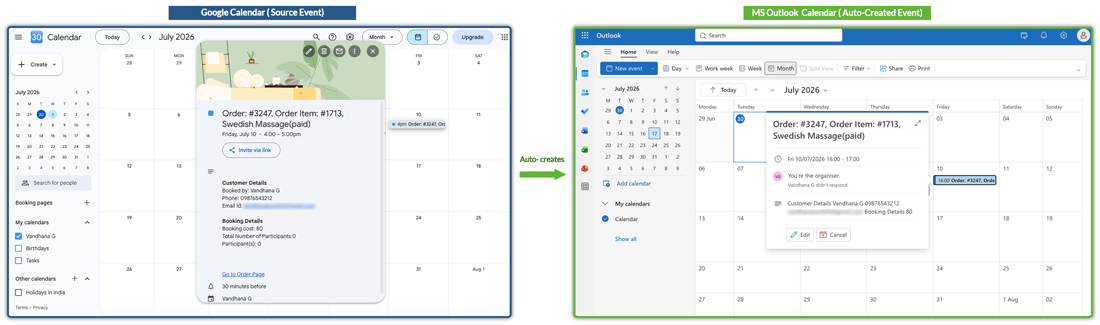
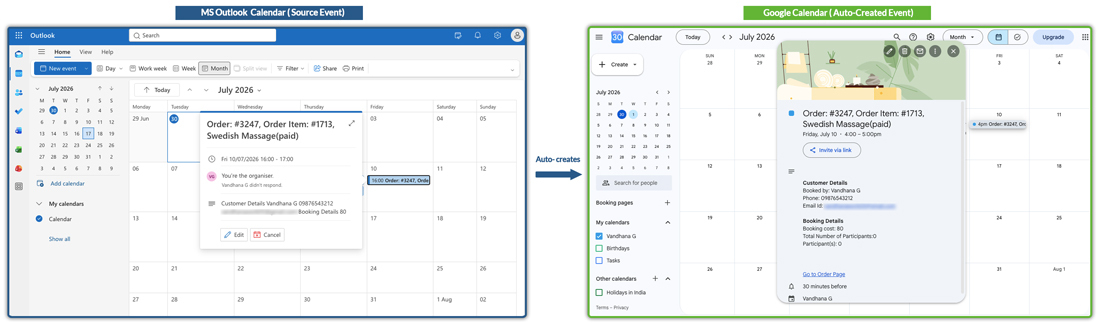
Using both calendars? If Google Calendar Sync and Outlook Calendar Sync are both enabled on your store, the plugin keeps them in sync with each other. A booking created from a Google Calendar event automatically creates a matching Outlook event, and vice versa. No manual work is needed to keep both calendars aligned.
Best Practices for Calendar Sync in WooCommerce Bookings
Once your calendar sync is up and running, a few habits go a long way in keeping bookings accurate and your team on the same page:
- Check availability before rescheduling from the calendar side: the sync won’t warn you about overlaps, so it’s worth glancing at your WooCommerce bookings calendar first.
- Use the exact product name or ID from WooCommerce when adding a walk-in or phone booking to the calendar, so the plugin matches it to the right product on your store.
- Run a manual sync after busy periods: instead of waiting for the next automatic check, especially when several walk-in bookings are added at once.
- Only connect the calendar your team actually uses: syncing both without a real need just adds an extra place to check for your WooCommerce store.
Following these keeps your calendar sync running smoothly and avoids the small mismatches that can otherwise lead to a double-booked slot.
Conclusion
Both Google Calendar and Outlook sync do the same core job for your WooCommerce bookings, keeping your calendar and your store automatically updated in both directions. The right choice isn’t about which one has more features; it’s about which calendar your team already checks every day. Pick that one, and the rest of your booking workflow gets a lot simpler.
Need a hand setting either one up? Reach out to the PluginHive support team anytime.
FAQs
Q: Is it better to use Outlook or Google Calendar?
Neither is better overall; both offer the same core sync features for WooCommerce Bookings. The right choice depends on which calendar your team already uses: Google Calendar for Gmail/Google Workspace stores, or Outlook for Microsoft 365 stores.
Q: Can I connect both Google Calendar and Outlook to the same WooCommerce store?
Yes. You can enable both, and the plugin keeps them in sync with each other automatically – no manual work needed to manage two calendars.
Q: Can I switch from Google Calendar to Outlook Calendar later?
Yes. You can enable Outlook sync anytime and disable Google Calendar sync, or run both together, without affecting your existing WooCommerce bookings.
