



If your Shopify store ships internationally, Harmonized System code is not optional. Every product that crosses a border needs an HS code for customs to determine what it is, where it is from, and what duty rate applies. Without one, your shipments face delays, penalties, or outright denial of import at the destination country. This guide covers what the Harmonized System Code in Shopify actually does, why getting it right matters more than ever given current tariff changes, and every method Shopify provides to add HS codes to your products from individual product pages to bulk updates via CSV.
In This Article
- What Is a Harmonized System Code and Why Does Shopify Require It?
- Country of Origin and Country-Specific HS Codes in Shopify
- Method 1: Add Harmonized System Code on the Shopify Product Page
- Method 2: Add HS Codes Using the Shopify Bulk Editor
- Method 3: Add Harmonized System Code During Label Purchase
- Set a Default Country of Origin in Shopify
- Manage HS Codes and Country-Specific Variants with the PH MultiCarrier Shipping Label App
- Conclusion
- FAQs
What Is a Harmonized System Code and Why Does Shopify Require It?
An HS code, short for Harmonized System code, is an international trade classification number used by customs authorities in over 200 countries to identify what a product is. The Harmonized System is maintained by the World Customs Organization and provides a standardised six-digit code that forms the basis for determining which duty rate applies to a product at the border.
An HS code uses a six-digit international trade classification to identify a product. Adding HS codes to your products helps to avoid non-compliance penalties, border delays, seizure of the products, or denial of import.
For Shopify merchants, the Harmonized System Code Shopify stores against each product serves two purposes:
- Customs documentation: The HS code appears on commercial invoices and customs declarations generated at label creation. Customs officials use it to process shipments quickly and consistently.
- Duty calculation: Duty calculations are estimates based on product Harmonized System (HS) codes, country of origin, and the customer’s location.
The accuracy stakes have increased alongside recent tariff changes. A product’s HTS subheading and country of origin determine whether the duty applies, so keep the HS codes and country of origin on your products accurate. For Shopify merchants shipping to or from the US or Canada, incorrect HS codes can place products in the wrong tariff tier.
For context on how HS codes interact with current cross-border tariff measures, the US–Canada tariff guide for Shopify merchants covers how classification errors compound tariff risk for cross-border shipments.
Country of Origin and Country-Specific HS Codes in Shopify
Understand how Shopify handles HS codes and country of origin before adding customs information.
The country of origin (COO) identifies where manufacturers make or assemble a product and assign its HS code classification. For example, a table assembled in India from materials sourced from multiple countries has India as its country of origin.
The more nuanced point is how country-specific HS codes work. Individual countries can add digits after the first six of an HS code for further classification. When a country-specific HS code exists, that code is used to calculate duties. If a country-specific HS code doesn’t exist, then the six-digit global code is used instead. For example, your product has a Harmonized System code of 3210.00, and you sell to Canada and to the United Kingdom. You don’t have a country-specific code for Canada, but you have 3210.00.123 for the United Kingdom. UK orders use 3210.00.123, and Canadian orders use 3210.00.
This means a single product may legitimately need different HS code entries for different destination markets.
Method 1: Add Harmonized System Code on the Shopify Product Page
If you don’t have many products to update and you don’t know your product HS codes, then you can add the HS code directly on a product’s page.
Steps:
- From your Shopify admin, go to Products
- Click the product you want to edit
- Click Country of origin and select the country or region of origin from the drop-down menu
- In the Harmonized System (HS) code field, enter the HS code. If you don’t know the code, start typing a product description to search for the appropriate code. Shopify’s search will suggest relevant codes
- Click Save
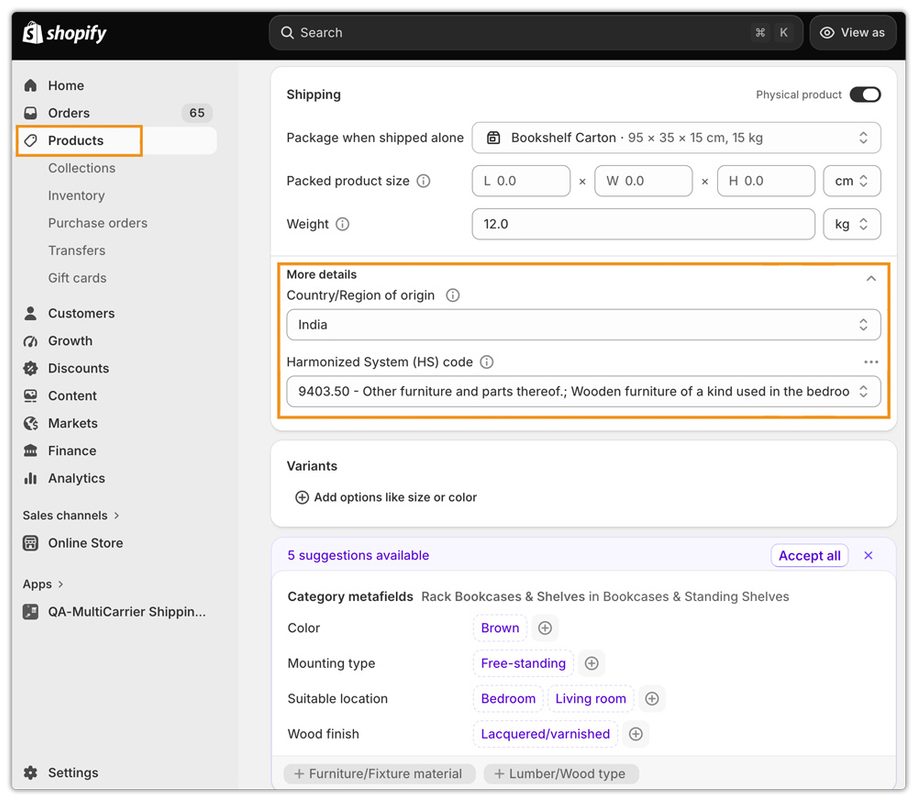
This method works well for small catalogs or when you need to verify or set country-specific codes for individual products.
Method 2: Add HS Codes Using the Shopify Bulk Editor
If you don’t have many products to update and you already know your product HS codes, then you can add the HS code and country or region of origin using the bulk editor.
Steps:
- From your Shopify admin, go to Products
- Check the products you want to modify
- Click Bulk edit
- Enter HS codes for each product across the table
- Click Save

This method is the fastest approach for merchants who already know their HS codes and need to update a moderate number of products without exporting a file.
Method 3: Add Harmonized System Code During Label Purchase
If a product does not yet have an HS code assigned and an international order comes in, Shopify allows you to add the code during the label purchase flow.
Steps:
- From your Shopify admin, go to Orders
- Click the order containing unfulfilled items
- In the Unfulfilled section, click Create shipping label
- In the Items section, click Edit customs information
- Add an HS code for each item
- Click Save
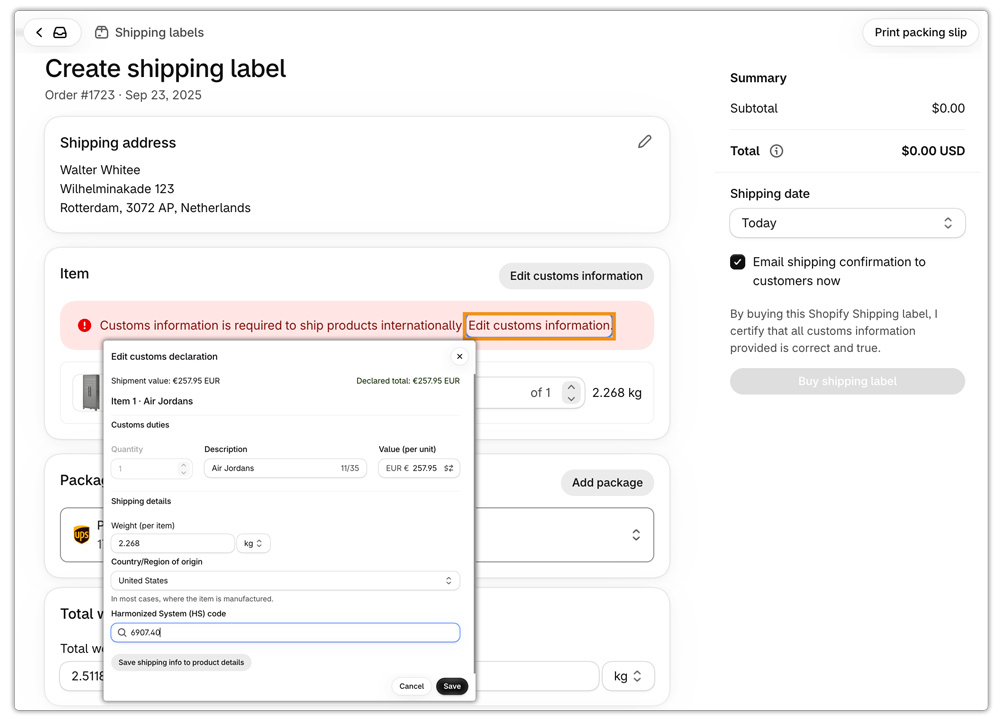
When a shipment needs a customs declaration, you can’t create its label until every item has an HS code and a country or region of origin. This method is a useful fallback for one-off orders but is not scalable.
Set a Default Country of Origin in Shopify
If the majority of your products are from the same country or region of origin, then you can set a COO to be automatically used for the calculation of duties and import taxes. The default COO is used only when a product doesn’t have a COO assigned to it. If a product has a COO assigned, then the COO that’s been manually assigned overrides your default COO.
Steps:
- From your Shopify admin, go to Settings > Taxes and duties
- In the Customs information section, click the horizontal menu icon
- Click Default country of origin
- Select the country to use as the default COO
- Click Save
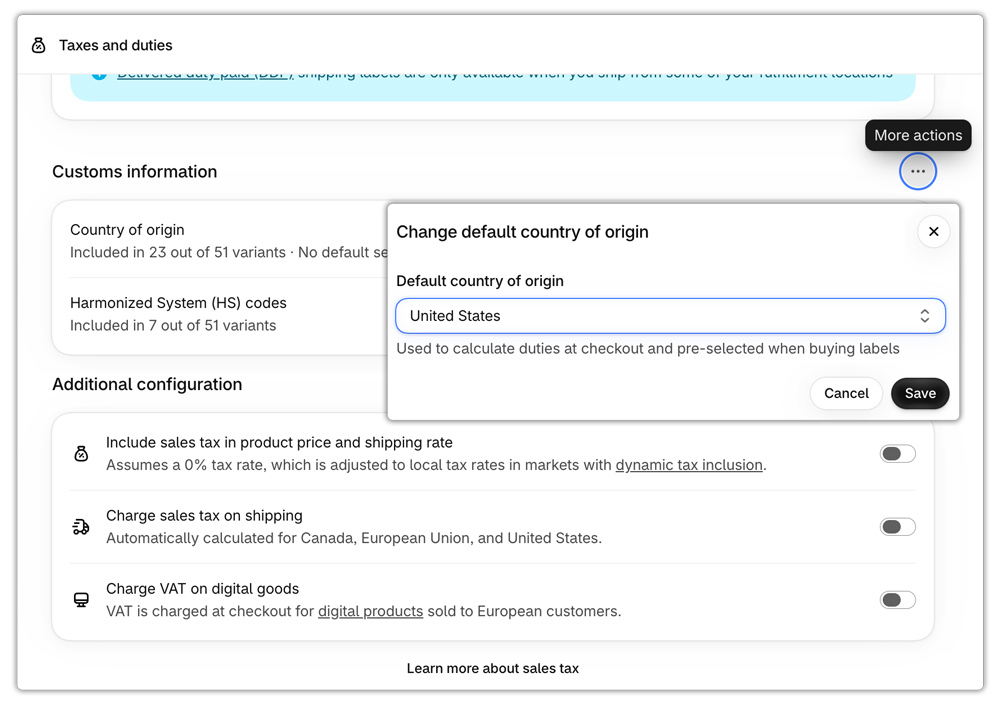
This setting saves merchants time by automatically applying the same COO to every new product they add.
Manage HS Codes and Country-Specific Variants with the PH MultiCarrier Shipping Label App
Shopify’s native HS code management handles the basics well, but there are two gaps that Shopify merchants shipping internationally at scale frequently run into: adding HS codes directly within the label generation workflow without going back to the product page, and managing country-specific HS code variations per product in a way that flows through automatically to the correct label.
The PH MultiCarrier Shipping Label App by PluginHive addresses both within a single Shopify shipping workflow.
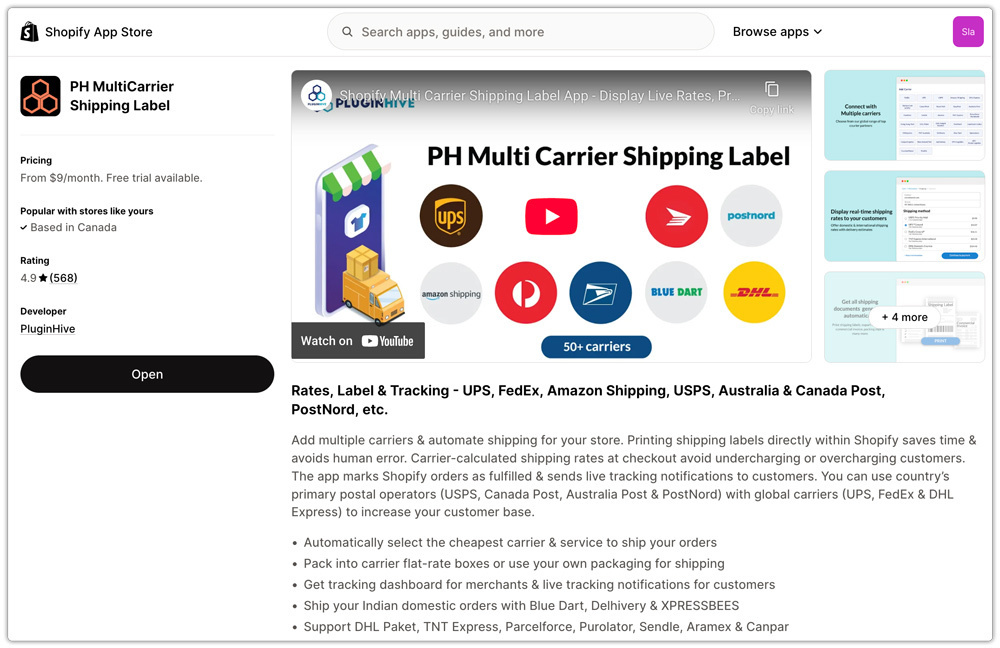
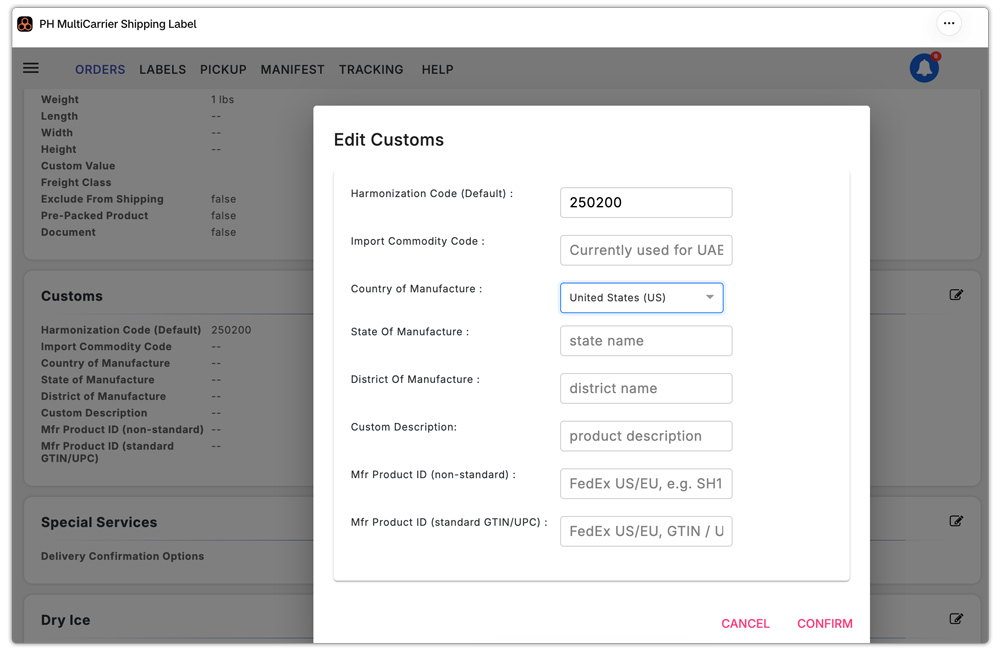
- Add and manage HS codes per product directly in the app: The app allows you to set HS codes at the product level from within the app’s interface without having to navigate back to the Shopify product page separately. When generating a label for an international shipment, the stored HS code is pulled automatically into the customs documentation, so the commercial invoice and the carrier label are always consistent.
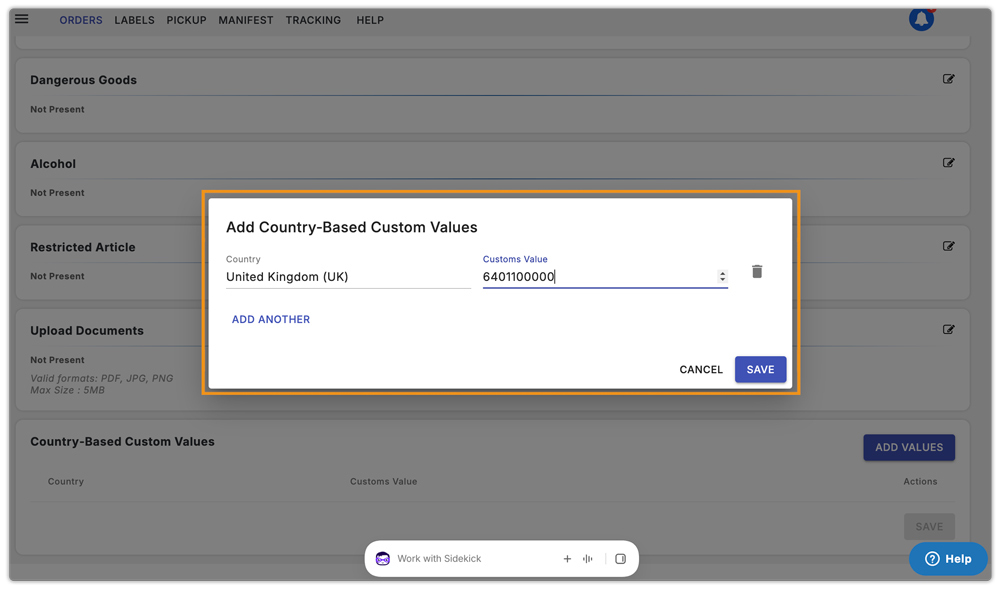
- Country-specific HS code configuration per product: Different countries extend the standard six-digit HS code with additional digits for further product classification, and those digits differ by market. The app supports setting product-wise HS codes on a country-specific basis, so a product shipping to the US uses its HTS code format, the same product shipping to the EU uses the correct CN code format, and the UK gets its UK-specific code — all configured once per product and applied automatically based on the shipment destination.
For Shopify merchants managing cross-border shipments across multiple carrier services, the Shopify shipping integration checklist covers verifying HS code and customs documentation flow as part of a full pre-launch test sequence.
Conclusion
The Harmonized System Code in Shopify is essential for products shipped internationally, helping customs classify goods correctly and calculate applicable duties. Shopify lets merchants add HS codes through individual product pages, the bulk editor, or during shipping label creation, while a default country of origin can reduce repetitive setup.
For merchants handling a larger volume of international shipments, the PH MultiCarrier Shipping Label App provides a more streamlined approach. You can manage product-level and country-specific HS codes within the app and automatically apply the appropriate information when generating international shipping labels and customs documents. This makes it easier to keep HS code information consistent across destinations while managing the rest of the shipping process from Shopify.
FAQs
Q. Are HS codes required for all Shopify shipments or only international ones?
International shipments require HS codes. Domestic shipments within the same country do not require HS codes on the label or customs documentation.
Q. How many digits does an HS code need to be in Shopify?
The minimum is six digits, the global standard set by the World Customs Organization. Individual countries may require additional digits beyond six for further classification. For example, the US uses a 10-digit HTS code for imports.
Q. What happens if a product is missing an HS code when I try to create an international shipping label in Shopify?
You cannot create a shipping label for an international shipment until every item in the order has an HS code and a country of origin assigned. Shopify will prompt you to add the missing information in the customs section of the label creation flow before proceeding.
