


Online learning has transformed how businesses connect with customers. Whether you’re a yoga instructor, music teacher, fitness coach, or run professional training, offering classes online helps you reach more people and grow your business without location limits. If your store runs on WooCommerce, integrating Zoom makes your classes live, interactive, and easy to access.
With PluginHive’s Zoom for WooCommerce and WooCommerce Bookings and Appointments, you can manage online classes directly from your store. From scheduling and payments to automatically creating Zoom meetings, everything happens in one smooth workflow. In this guide, we’ll walk you through how these plugins help you host online classes effortlessly while keeping everything organized within your WooCommerce store.
On this page
- Benefits of Hosting Online Classes with Zoom on Your WooCommerce Store
- Requirements for Hosting Online Classes with Zoom on WooCommerce
- How to host Online Classes with Zoom on WooCommerce
- Best Practices for Hosting Online Classes on WooCommerce Using Zoom
- Conclusion
- FAQs
Benefits of Hosting Online Classes with Zoom on Your WooCommerce Store
Hosting online classes through your WooCommerce store using Zoom opens up a world of opportunities. It not only allows you to connect with customers in real time but also helps you deliver professional, interactive, and organized sessions all from a single platform.
Here’s why integrating Zoom with your WooCommerce store is a game-changer:
- Reach Customers Anywhere, Anytime: Students can join from anywhere, whether it’s a yoga session, a music lesson, or an online workshop. This flexibility helps you expand your reach and grow your audience.
- Seamless Booking and Payment: Customers can schedule and pay directly during checkout, reducing back-and-forth emails and mistakes.
- Automatic Zoom Meetings: Each booking generates a Zoom meeting link automatically and sends it to the student.
- Engaging Classes: Features like screen sharing, breakout rooms, chat, and recording make sessions interactive.
- Easy Management: All bookings, customer info, and Zoom links are organized in your WooCommerce dashboard.
By hosting online classes with Zoom on your WooCommerce store, you offer a professional, convenient, and reliable learning experience. It’s a setup that saves time, reaches more students, and adds real value to your business, all while keeping everything organized in one place.
Requirements for Hosting Online Classes with Zoom on WooCommerce
Before you start hosting online classes on your WooCommerce, it’s important to have the right tools and setup in place. Here’s what you’ll need:
- WooCommerce Store Setup: Ensure your WooCommerce store is fully set up with products and payment gateways so customers can easily book and pay for classes.
- WooCommerce Bookings and Appointments Plugin: This plugin allows you to create bookable products for your online classes. Customers can select their preferred date and time and reserve their session directly from your store.
- A Zoom Account: A Zoom account is required to host your online classes. A Pro plan or higher is recommended for longer sessions or advanced features like recording and breakout rooms.
- Zoom Integration for WooCommerce Bookings: Using PluginHive’s Zoom for WooCommerce plugin, you can automatically generate Zoom meetings for each booking and seamlessly send meeting details to your customers.
With these requirements in place, you’ll be ready to host professional, smooth, and engaging online classes directly from your WooCommerce store.
How to host Online Classes with Zoom on WooCommerce
Once your WooCommerce store is ready and you have the necessary plugins, you can start hosting online classes effortlessly. By using PluginHive Zoom for WooCommerce alongside WooCommerce Bookings and Appointments, you can create, schedule, and manage your classes directly from your store, making the entire process smooth and automated.
If you haven’t set up your WooCommerce Bookings plugin yet, you can check out this setup guide . For setting up the Zoom Integration Addon, refer to this Zoom setup guide .
- Connecting Zoom with WooCommerce
After installing the Zoom integration, you simply link your Zoom account to WooCommerce. This allows the plugin to create Zoom meetings automatically whenever a customer books a class. With everything connected, your customers will receive their meeting link right after booking, no manual setup required.
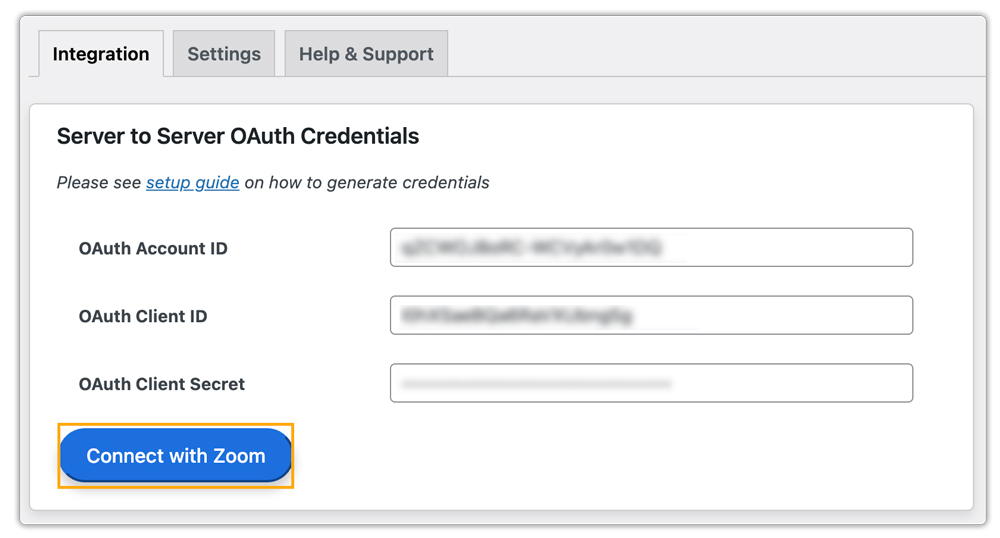
You’ll need Server-to-Server OAuth credentials from Zoom. You can create these via the Zoom App Marketplace by building a Server-to-Server OAuth app and adding the necessary scopes for full functionality.
- Deciding How Your Classes Run
You can control every aspect of your class, from choosing the host and adding assistants to setting the duration and allowing early entry. Decide whether sessions should be recorded, and configure camera, mute, and cancellation settings to keep everything organized and professional.
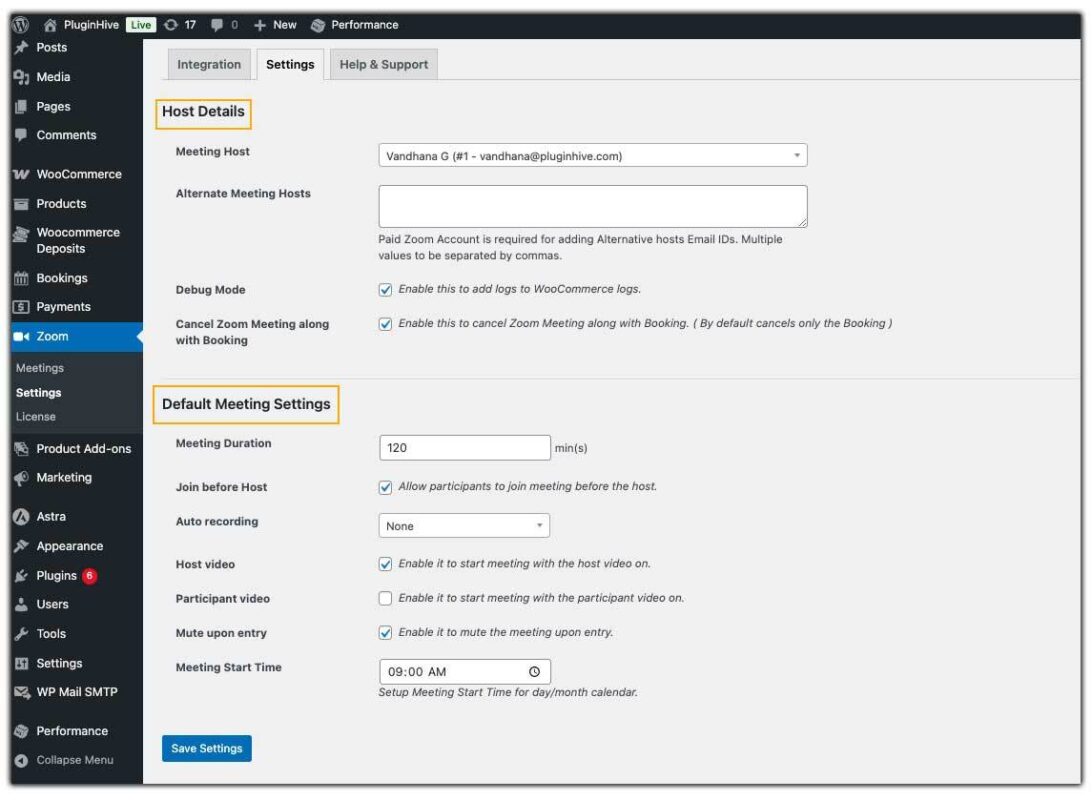
These settings apply by default to all classes but can be customized for specific ones, like webinars or coaching sessions.
- Customizing Individual Classes
Some classes may require their own specific rules. For example, a private coaching session might be shorter, or a workshop may need participants’ cameras on throughout. You can set custom options for each class, including the duration, start time, recording preferences, and video/mute settings. This flexibility ensures every class is perfectly tailored while keeping the process simple for you.

- How Students Book and Join Classes
The booking process is straightforward for your customers. They select the class they want to attend, choose a date and time, and complete the checkout.

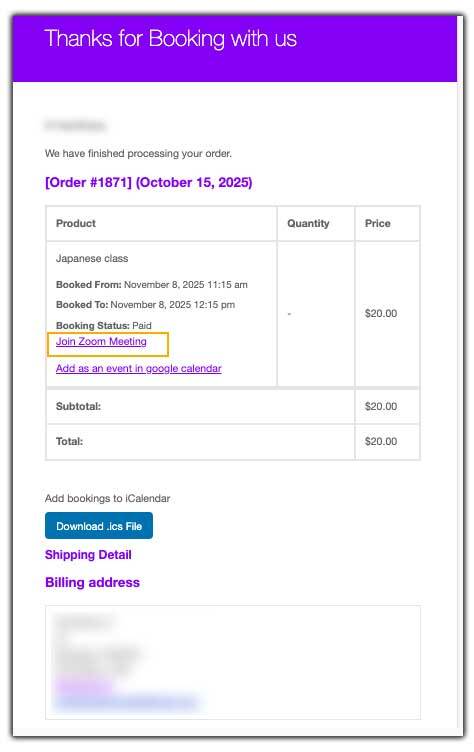
Once the booking is confirmed, a Zoom meeting is automatically created, and the link is sent to their email. At the scheduled time, students can simply click the link in their email to join the class.
You can also see all your upcoming classes in your WooCommerce dashboard, start a session, check details, or cancel if needed.
With this approach, hosting online classes becomes stress-free and professional. You can focus entirely on teaching while WooCommerce and Zoom handle the rest, from booking to sending class links.
Best Practices for Hosting Online Classes on WooCommerce Using Zoom
Hosting online classes is more than just creating a Zoom meeting it’s about delivering a smooth, engaging, and professional experience for your students. Here are some actionable tips:
- Plan Your Classes Ahead of Time: Prepare your class topics, flow, and teaching materials in advance. A well-organized class keeps students engaged and ensures you deliver real value.
- Use the Zoom Waiting Room: Enable the Waiting Room feature to control who joins your class. This ensures only paying customers enter and helps you start the session on time without interruptions.
- Maintain a Professional Presentation: Make sure your camera, microphone, and lighting are clear. A tidy background and professional demeanour build trust and help students stay focused.
- Leverage Class Recordings for Extra Value: Record your sessions so students can revisit lessons or catch up if they miss the live session. Recordings can also be reused as paid content.
- Utilize Automated Reminders: With the PluginHive’s WooCommerce Bookings plugin, you can automatically send reminders to students (e.g., 24 hours and 1 hour before class), helping reduce no-shows.
- Collect Valuable Pre-Class Information: Use the Product Add-Ons for WooCommerce plugin to add a custom field like “What do you hope to learn?” This lets you tailor the class to students’ expectations.
By following these best practices, you can provide a seamless and professional online class experience, delight your students, and grow your WooCommerce business. With proper planning, clear communication, and a focus on engagement, hosting online classes with Zoom becomes both easy and rewarding.
Conclusion
Hosting online classes is no longer complicated. By using PluginHive’s WooCommerce Bookings and Appointments with Zoom for WooCommerce, you can manage your classes smoothly and professionally without extra hassle.
This way, you can focus on sharing your expertise while your store takes care of scheduling, payments, and sending class links automatically. Start reaching more students and growing your online teaching business with ease. If you have any questions or need guidance, you can contact PluginHive support for assistance.
FAQs
Q: Can I sell access to my online classes through WooCommerce using Zoom?
Yes. With the Zoom Integration for WooCommerce plugin, you can make your online classes purchasable directly from your store. When a customer books a class, they automatically receive a unique Zoom meeting link, making enrollment and access seamless.
Q: Do I need a Zoom Pro account to host online classes?
A free Zoom account lets you host sessions for up to 40 minutes, but you’ll need a Zoom Pro or higher plan to host longer classes, record sessions, and use features like breakout rooms to make your classes more interactive.
Q: Do I have to create a Zoom meeting manually for each WooCommerce booking?
No, the plugin automates the process. After you set up your class as a bookable product, it automatically creates a Zoom meeting for each booking, provided you’ve configured the product with the Zoom host and meeting details.
Q: Can a canceled WooCommerce booking automatically cancel the Zoom meeting?
Yes. If a student cancels their booking, the associated Zoom meeting can be canceled automatically. This keeps your schedule organized and avoids unused Zoom links.
Q: Can I customize settings for each online class in WooCommerce?
Absolutely. You can set class-specific options like duration, start time, recording preferences, video settings, and whether students join muted. This lets you tailor each online class to your teaching style while keeping the process simple.
