




If your WooCommerce store sells products that come in different colors, shades, or finishes, giving customers a way to pick their exact preference matters. A plain dropdown that just says “Red” or “Blue” leaves a lot to guesswork, and customers who aren’t sure what a color looks like often abandon the purchase or email you asking for clarification.
This guide shows you how to add a color picker to your WooCommerce product pages using the PH Product Add-ons for WooCommerce plugin, so customers can choose colors confidently and you can offer more customization without creating dozens of product variations.
On This Page
- Why Add a Color Picker to WooCommerce Products?
- Limitations of WooCommerce’s Default Color Options
- How to Add a Color Picker Addon in WooCommerce
- Examples of WooCommerce Products That Can Use a Color Picker
- Best Practices for Using a Color Picker Addon in WooCommerce
- Conclusion
- FAQs
Why Add a Color Picker to WooCommerce Products?
Color is often the first thing a customer notices, and it can make or break the buying decision on your WooCommerce store. A color picker addon helps you offer that choice clearly, right on the product page.
- Builds buying confidence: Customers can see and select the exact shade they want instead of guessing from a text label.
- Reduces pre-sale questions: Fewer “does this come in another color?” emails since the choice is right there on the WooCommerce product page.
- Cuts down on returns: What the customer picks is closer to what they expect to receive.
- Adds choice without extra admin work: You offer more flexibility without creating a new product or listing for every color.
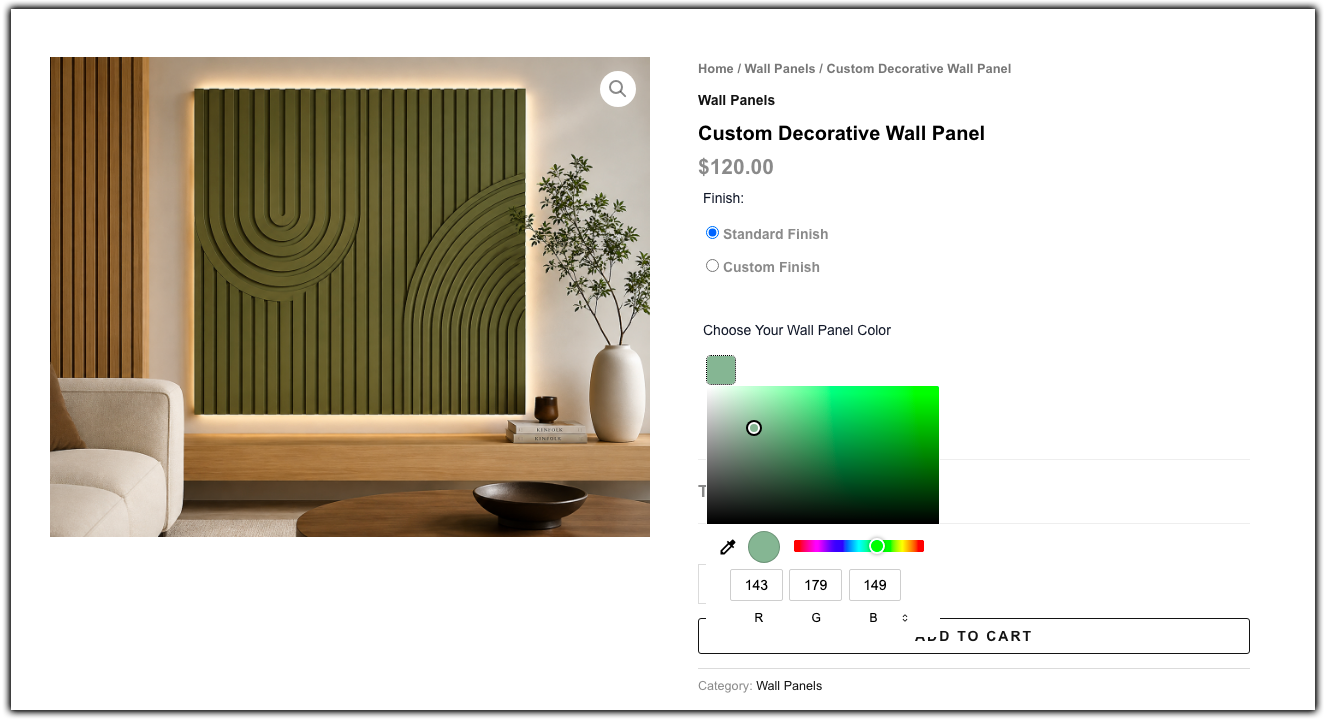
A color picker turns color from a guessing game into a simple, visual choice for your customers.
Limitations of WooCommerce’s Default Color Options
WooCommerce lets you create color as a product attribute, but out of the box, that attribute shows up as a plain text dropdown. Customers see the word “Maroon” or “Teal,” not the actual color, so they’re still guessing.
Here’s where the default setup falls short:
- Text only, no visuals: Native attributes display as plain text, not swatches or an interactive picker, unless you install a separate swatch plugin.
- Locked to a fixed list: Customers can only pick from colors you’ve predefined in advance. There’s no way to offer an open-ended or custom shade, which rules out use cases like engraved or custom-painted items.
- Variations pile up fast: Combining color with other attributes like size can quickly create dozens of variations per product, making your admin harder to manage.
- One color field per product: If a product needs separate color choices for different parts, like a bag’s strap and body, default variations aren’t built to capture that.
This is exactly the gap a color picker add-on fills. Instead of extending your attribute list, it adds a flexible, visual color field directly to the product page. For a closer look at when to use one over the other, see this comparison of product add-ons vs variations.
How to Add a Color Picker Addon in WooCommerce
Setting up a color picker on your WooCommerce store takes just a few minutes with PH Product Add-ons for WooCommerce, no coding needed.
Create an addon group: Install the plugin, then go to PH Product Add-ons and click Add New.

Give the group a clear name, like “Color Picker,” so it’s easy to identify later. This group holds your color picker (and any other fields you add), and you can reuse it across multiple products.
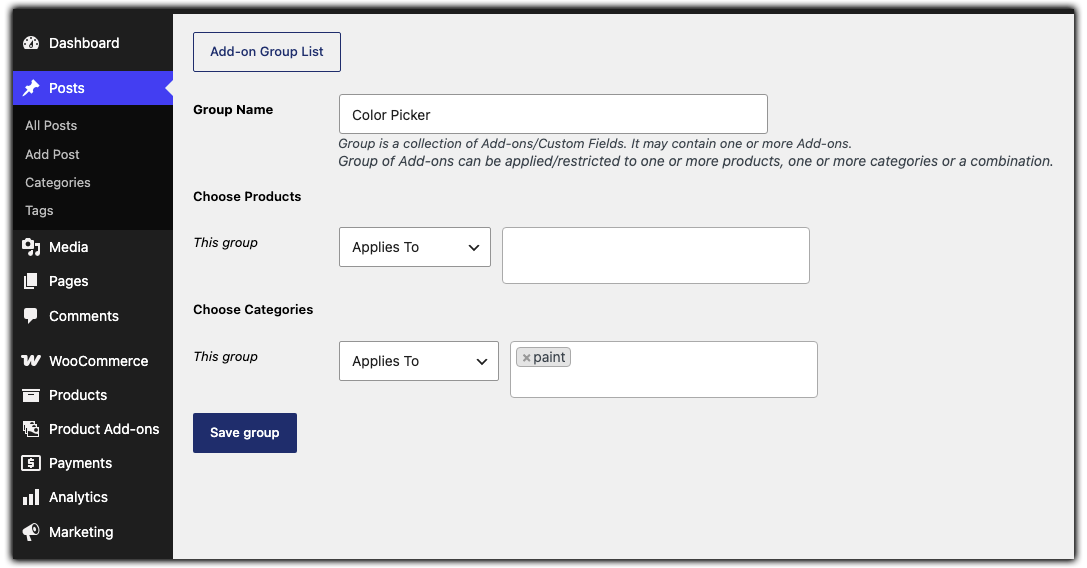
Choose where it appears: Under Applies To, pick the products or categories that should show the color picker. Skip this, and it applies to your entire store by default.
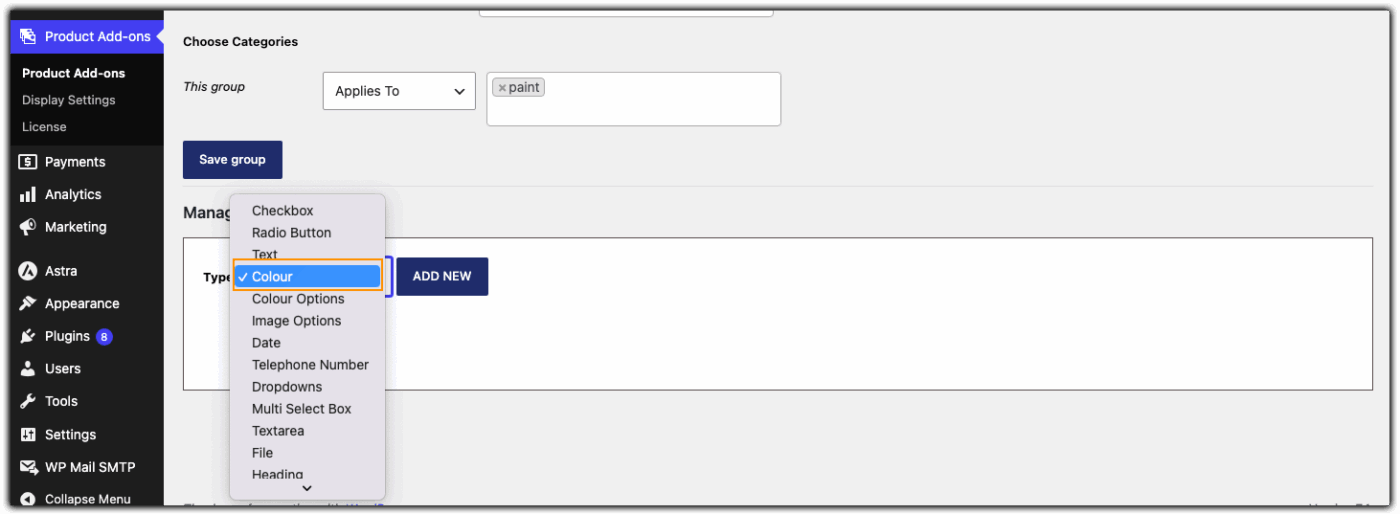
Add the Color field: Inside your group, add a new field and select the Color type. This is what gives customers an actual interactive picker instead of a plain dropdown.
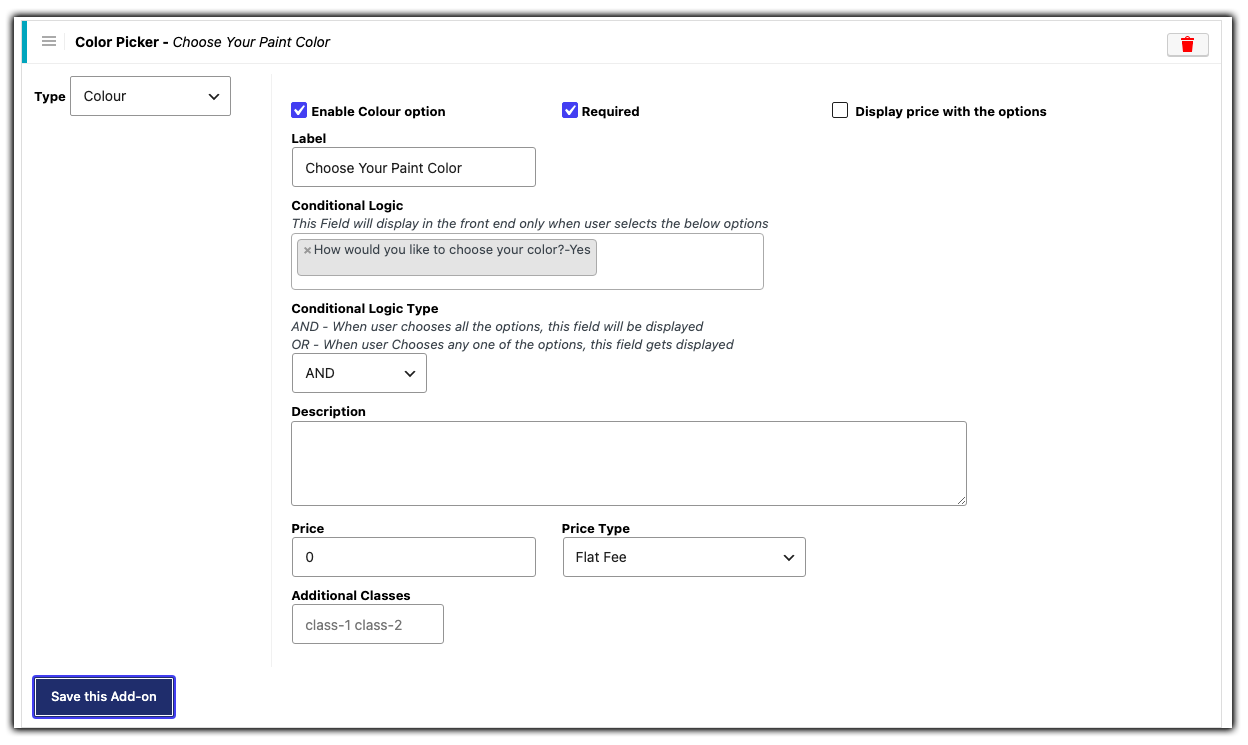
Set it up the way you want: Add a clear label like “Choose your preferred color,” turn on Required if every order needs one, and use Conditional Logic if you only want the picker to appear in specific cases, like after selecting “Custom Paint.”
Test it on your store: Check the product page to confirm the picker displays correctly and the selected color shows up through cart and checkout.
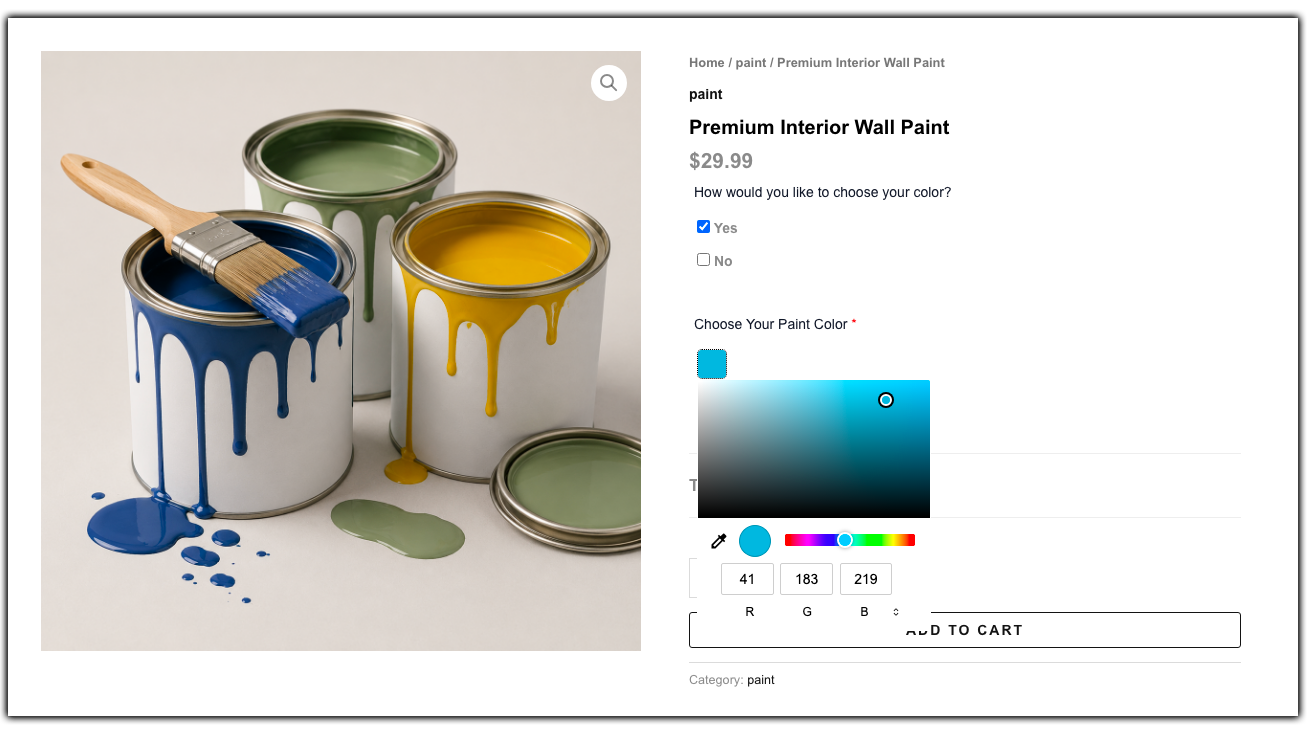
Once it’s set up, the same configuration works across every product you assign it to.
Refer to the setup guide for PH Product Add-ons for WooCommerce for more on each field option.
Color Picker vs. Color Swatches in WooCommerce
A color picker and color swatches solve similar problems but work differently. A color picker lets customers select any shade using an interactive tool, while swatches show a preset list of colors as visual blocks instead of text.
- Color picker: Best when customers need an open-ended or custom shade, like for personalized or made-to-order products.
- Color swatches: Best when you’re offering a fixed set of color choices, like predefined product variations.
If you’re not sure which fits your store, take a look at WooCommerce Color Swatches for more on how swatches work.
Examples of WooCommerce Products That Can Use a Color Picker
A color picker fits naturally into several kinds of WooCommerce stores:
- Paint and coatings: Let customers choose from the available colors or shades for wall paint, furniture paint, or other coatings.
- Custom apparel and merchandise: Let customers select an available color for T-shirts, hoodies, uniforms, or other merchandise.
- Furniture and home decor: Offer different colors or finishes for chairs, tables, cabinets, cushions, and other home products.
- Personalized gifts: Allow customers to choose a color for mugs, tumblers, keychains, phone cases, or other personalized products.
- Gaming accessories: Let customers select from the available colors for controller covers, cases, and other accessories.
For a store selling custom sneakers, for example, a customer could use the color picker to choose the exact shade for the sole, laces, and upper separately, something a fixed dropdown of “5 preset colors” could never offer. This kind of flexibility is also useful alongside other customization fields; see this guide on adding extra product options in WooCommerce for the full range of fields available.
Best Practices for Using a Color Picker Addon in WooCommerce
Getting the most out of a color picker comes down to a few setup choices that are easy to overlook.
- Pair it with an image option where possible: A color picker shows a screen color, not the real material finish. If texture or fabric matters, consider combining it with an image options field so customers see the real product too.
- Use conditional logic to reduce clutter: Only show the color picker when it’s relevant, such as after a customer selects “Customize” on a product.
- Keep the label clear and specific: Instead of “Color,” try “Choose your case color” so customers know exactly what they’re selecting.
- Set it as required only when necessary: If color truly matters for the order, mark the field mandatory so no order goes out unclear.
- Test on mobile: Color pickers can behave differently on smaller screens, so check the experience before publishing.
These small adjustments can make a noticeable difference in how smoothly your store handles color-based customization.
Conclusion
A color picker add-on gives customers the freedom to choose exactly the shade they want, without forcing you to create endless product variations. With PH Product Add-ons for WooCommerce, setting this up takes just a few minutes and works across as many products as you need. If you run into any issues during setup, PluginHive Support is available to help you get it working correctly.
FAQs
1. What is a color picker used for?
A color picker lets customers select an exact color for a product, like the shade of a custom mug or printed T-shirt, instead of choosing from a plain text list.
2. Does WooCommerce have a built-in color picker?
No. WooCommerce only offers color as a text-based attribute by default. You need a plugin like PH Product Add-ons for WooCommerce to add an actual interactive color picker.
3. How do I add a color picker to a WooCommerce product?
Install PH Product Add-ons for WooCommerce, create an addon group, add a Color field, and assign the group to your product. Refer to the setup guide for full steps.
