


When a customer reaches checkout, shipping is often the last thing standing between them and a completed order. If they see one expensive option, no delivery timeline, or a confusing list of irrelevant services, they leave. And most don’t come back.
The Multi-Carrier Shipping Plugin for WooCommerce gives you direct control over what customers see at checkout – which carriers appear, how rates are presented, and whether delivery timelines are visible. In this article, you’ll see exactly how multi-carrier shipping improves the WooCommerce checkout experience and what you can do to reduce drop-offs at the final step.
On This Page
- Why the WooCommerce Checkout Experience Breaks at Shipping
- What Multi-Carrier Shipping Does for WooCommerce Checkout
- How to Set Up Multi-Carrier Shipping for a Better Checkout
- Example Scenario
- Tips to Optimize Your WooCommerce Checkout Shipping Section
- Conclusion
- FAQs
Why the WooCommerce Checkout Experience Breaks at Shipping
WooCommerce doesn’t show real-time carrier rates by default. Without a dedicated shipping plugin, your checkout either displays a flat rate that may feel arbitrary, shows nothing at all, or lists options that don’t match what the customer actually needs.
According to the Baymard Institute, 69.99% of online carts are abandoned, and 48% of those abandonments are due to unexpected or high shipping costs. That’s not a product problem – it’s a checkout problem. Customers are willing to pay for shipping, but only when the options feel fair, relevant, and transparent.
What Multi-Carrier Shipping Does for WooCommerce Checkout
The Multi-Carrier Shipping Plugin for WooCommerce pulls live rates from FedEx, UPS, DHL Express, USPS, and Stamps.com and displays them directly at checkout based on the customer’s address, cart contents, and your defined rules.
This changes the checkout experience in a few specific ways:
- Customers see real rates, not guesses. Rates are fetched in real time from the carrier API based on weight, dimensions, and destination – no manual overrides or outdated flat amounts.
- You control what appears. Using Method Groups and conditional rules, you decide which carrier services show up for which orders. A customer in the US ordering a 1 lb item doesn’t need to see FedEx International options.
- Delivery timelines are visible. The plugin supports showing estimated delivery days next to each service at checkout, so customers can choose based on both price and speed – not just price.
- Checkout never goes blank. Fallback rates ensure that if a carrier API doesn’t respond in time, customers still see a shipping option instead of an empty section that blocks the order.
This is what a clean, informative WooCommerce checkout looks like when multi-carrier shipping is set up correctly. Customers make a choice and move forward instead of second-guessing and leaving.
How to Set Up Multi-Carrier Shipping for a Better Checkout
Once the plugin is active and your carrier credentials are added, here’s what to configure for a better checkout experience:
Connect your carrier accounts: Navigate to WooCommerce → Settings → Shipping → Multi-Carrier Shipping and enter your credentials for UPS, FedEx, USPS, DHL Express, or Stamps.

Enable Test Mode first to confirm rates are returning correctly before going live.
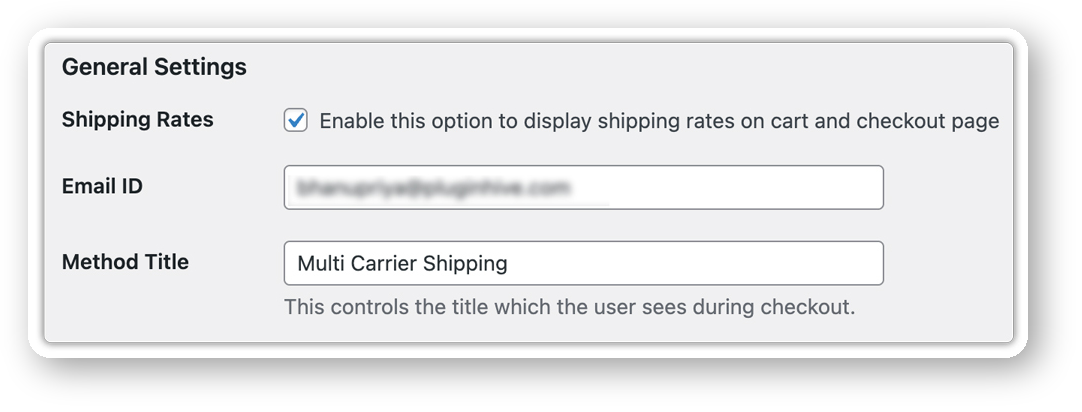
Enable Shipping Rates display: Turn on the option to display rates on both the cart and checkout pages. Set a clear Method Title – this is what customers see next to the rate.
Show Estimated Delivery Days: Enable this option inside each carrier’s settings. Customers see delivery timelines next to each rate, which helps them pick the option that works for their timeline and removes the guesswork that causes hesitation.

Set up Shipping Rules: Create rules that control which carrier or service appears based on product category, shipping class, cart weight, cart value, or destination. For example, show USPS for lightweight domestic orders and UPS for heavier shipments without customers seeing both simultaneously.

Define Shipping Areas: Use the Shipping Area Management feature to create geographic regions by country, state, city, or postal code, and apply different carriers or rates to each. This keeps checkout relevant no matter where the customer is ordering from.

Once everything is configured, your WooCommerce checkout shipping section will display carrier names, live rates, and estimated delivery days all in one clean view. Customers can compare options and decide without leaving the page. Here’s what that looks like:

Example Scenario: How a WooCommerce Store Improves Checkout with Multi-Carrier Shipping
Let’s say you run a WooCommerce store that sells both lightweight items like phone accessories and heavier products like portable speakers, shipping domestically and internationally. Here’s what you’re likely dealing with.
Challenges:
- Flat rate overcharges small orders, making shipping feel unfair
- Heavier orders eat into margins because one rate doesn’t fit all
- International customers see domestic-only options and can’t check out
- No delivery timeline shown, so time-sensitive orders get abandoned
- When a carrier API times out, checkout goes blank, and orders fail
How the Multi-Carrier Shipping Plugin for WooCommerce fixes it:
- USPS appears for lightweight domestic orders – keeping costs low
- UPS or FedEx applies to heavier shipments with accurate live pricing
- International customers see only DHL Express or FedEx International
- Estimated delivery days show next to each option at checkout
- A fallback rate ensures checkout never goes blank
Once the rules are in place, your WooCommerce checkout shipping section runs automatically – right carrier, right order, every time.
Tips to Optimize Your WooCommerce Checkout Shipping Section
Getting multi-carrier shipping live is the first step. These tips help you go further and keep the checkout experience clean, accurate, and conversion-friendly.
- Use Method Groups to prevent rate overload. Showing ten carrier options at once creates decision fatigue. Method Groups let you control how many options appear per order, keeping checkout clean and easy to act on.
- Hide shipping methods that don’t apply. Showing domestic options to international customers or freight services for a 500g order creates confusion and increases abandonment. Use conditional rules to hide irrelevant shipping methods based on location, product type, or cart value.
- Add handling fees to live rates. If your packing costs are consistent, add a handling fee inside the plugin settings rather than inflating your flat rates. This keeps live rates accurate while covering your costs.
- Pair with the Estimated Delivery Date plugin. The multi-carrier plugin shows estimated delivery days per carrier at checkout. Pairing it with the Estimated Delivery Date Plugin for WooCommerce adds delivery timelines based on your shipping zones, cut-off times, and non-working days, giving customers a clearer picture of when their order will arrive.
- Review your rules when carrier rates change. Major carriers like UPS and FedEx apply General Rate Increases annually. Check your shipping rules and fallback rates after each change to make sure checkout rates still reflect your actual costs.
Conclusion
A poor checkout shipping section is one of the most preventable causes of lost orders in WooCommerce. Multi-carrier shipping gives you the control to show accurate rates, relevant options, and clear delivery timelines, all of which directly improve the WooCommerce checkout experience and reduce abandonment at the final step. If you need help setting up the Multi-Carrier Shipping Plugin for WooCommerce, contact PluginHive Support for hands-on assistance.
FAQs
1. Does WooCommerce support multiple shipping carriers by default?
No. WooCommerce includes flat-rate, free shipping, and local pickup by default. To show real-time rates from carriers like FedEx, UPS, USPS, or DHL at checkout, you need a plugin like the Multi-Carrier Shipping Plugin for WooCommerce.
2. How do I show estimated delivery dates at WooCommerce checkout?
The Multi-Carrier Shipping Plugin for WooCommerce has a built-in option to display estimated delivery days next to each carrier at checkout. Enable it from the carrier settings inside the plugin, and customers will see delivery timelines before they place their order.
3. Can I show different carriers to different customers at WooCommerce checkout?
Yes. The plugin lets you create rules based on location, product category, shipping class, cart weight, and cart value. For example, USPS for domestic customers and DHL Express for international ones, each group only sees what’s relevant to them.
