


Customers expect to know where their order is the moment it leaves your warehouse. When that information doesn’t reach them automatically, they turn to your support inbox, and your team ends up chasing carrier websites for updates instead of focusing on the business. For WooCommerce store owners shipping with carriers like UPS, FedEx, USPS, or DHL, this becomes a daily problem fast.
This article walks you through how to offer live order tracking notifications in WooCommerce using Shipment Tracking Pro, so customers stay informed at every delivery stage without any manual effort on your end.
On This Page
- Why Live Order Tracking Notifications Matter in WooCommerce
- Why WooCommerce Doesn’t Handle Order Tracking on Its Own
- How to Offer Live Order Tracking Notifications in WooCommerce
- Example Scenario: How Live Order Tracking Works in WooCommerce
- Tips for Delivering a Better WooCommerce Shipment Tracking Experience
- Conclusion
- FAQs
Why Live Order Tracking Notifications Matter in WooCommerce
Once a customer places an order, their next question is almost always: “When will it arrive?” If your store can’t answer that automatically, the burden falls on your support team, and the customer experience suffers.
Live order tracking notifications change that. Instead of a single “order complete” email, customers receive automatic updates at every meaningful stage of delivery:
- Order shipped – when the package enters the carrier’s network
- In transit – as the package moves toward the destination
- Out for delivery – when a delivery attempt is expected that day
- Delivered – when the carrier confirms drop-off
These updates reduce uncertainty for customers and reduce inbound support queries for your team. Stores that send proactive tracking updates see fewer “Where is my order?” emails because customers already have the answer before they think to ask.
Why WooCommerce Doesn’t Handle Order Tracking on Its Own
WooCommerce does not include built-in shipment tracking. Marking an order as “Completed” triggers a basic order completion email – but that email has no tracking number, no carrier link, and no way to update the customer as the shipment progresses.
There’s also no native mechanism in WooCommerce to connect to carrier APIs, pull real-time delivery statuses, or trigger notifications based on shipment events. Every stage of that process, adding a tracking number, sharing it with customers, and sending follow-up updates, requires a plugin.
How to Offer Live Order Tracking Notifications in WooCommerce
Shipment Tracking Pro for WooCommerce connects your store to 80+ shipping carriers and automates the entire tracking notification flow. For complete setup instructions, refer to the Shipment Tracking Pro setup guide. Here’s how the process works at a high level.
Step 1: Add your shipping carrier: Go to WooCommerce Plugins > Shipment Tracking Pro > Settings and add the carrier(s) you ship with. The plugin includes 80+ carriers out of the box – including UPS, FedEx, USPS, DHL Express, Canada Post, Australia Post, Aramex, and Purolator. You can also add a custom carrier if yours isn’t on the list.

Step 2: Enter your carrier account credentials: For carriers that support live tracking, you’ll need to enter your carrier account details inside the plugin. This allows the plugin to authenticate with the carrier API and pull real-time shipment status updates. Without this step, tracking emails will still go out – but live status notifications won’t work.

Step 3: Enable Live Shipment Tracking Notifications: In the plugin settings, turn on Enable Live Tracking. You’ll then set two things: how many days back to check for active shipments (e.g., 3 days) and how often the plugin checks for updates (e.g., every 60 minutes).

Next, turn on Live Tracking Alerts for Customers. This is what sends the automatic emails. You can customise the email subject, body, and sender name to match your store’s tone – the plugin gives you a default template that works right out of the box.

You can also choose which delivery stages trigger a notification – like In Transit, Out for Delivery, and Delivered – so customers only get updates when it matters.
Once this is set up, your customers will automatically receive email updates every time their shipment status changes – no manual follow-up needed from your end.

Customers can also check their shipment status anytime from their My Account page – just turn on Display Live Tracking Status in My Account in the settings.
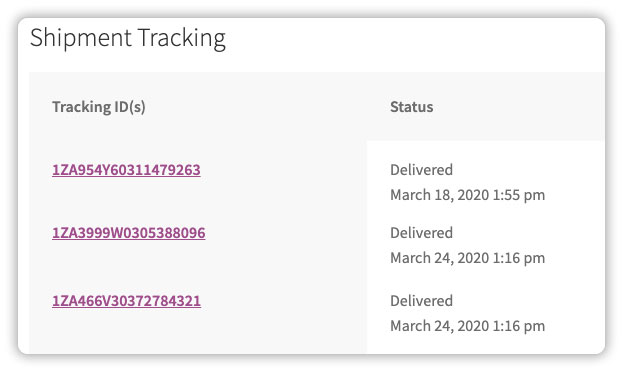
Example Scenario: How Live Order Tracking Works in WooCommerce
Let’s say you run a WooCommerce store shipping domestically with USPS and internationally with DHL Express, processing around 60–80 orders a week. Without a tracking setup, customers email asking where their order is, your team manually copies tracking numbers into individual orders, and support tickets pile up during peak periods.
With Shipment Tracking Pro for WooCommerce configured for both carriers, tracking numbers go out automatically in the order completion email, customers get notified at every delivery milestone, and orders are marked Complete as soon as tracking details are added. Customers can also check their shipment status anytime from your store’s tracking page – no carrier website needed.
Once it’s running, post-purchase tracking is no longer something you manage manually – it just happens.
Tips for Delivering a Better WooCommerce Shipment Tracking Experience
A few small configuration choices make a noticeable difference in how well your tracking setup works for customers. The Shipment Tracking Pro setup guide covers all available settings in detail if you want to go deeper.
- Write a custom tracking message: The default message works, but a short, friendly note in your store’s tone makes the email feel less automated. Include a link to your tracking page so customers know where to check the status at any time.
- Set a realistic check frequency: A shorter interval (every 30-60 minutes) means customers get notified faster when their shipment moves. If you’re shipping high volumes, balance this against your server load.
- Use bulk import to eliminate manual entry: If you’re using third-party shipping software like UPS WorldShip or Royal Mail Click & Drop, you can export a CSV file and import tracking data into WooCommerce in bulk. You can also schedule this import to run automatically at set intervals.
- Add the tracking page link to your emails and store navigation: The tracking page is only useful if customers know it exists. Link to it from your order notification emails, your store’s footer, and your post-purchase confirmation page.
- Confirm your carrier credentials are correct before going live: Live notifications depend entirely on the plugin being able to authenticate with your carrier’s API. Test with a real order before assuming the setup is working end-to-end.
These adjustments help ensure your customers get accurate, timely tracking updates and that your team isn’t stepping in to fill the gaps.
Conclusion
Live order tracking notifications are one of the most practical improvements a WooCommerce store can make to the post-purchase experience. With Shipment Tracking Pro for WooCommerce, you can automate the entire flow – from sending the initial tracking email to notifying customers as the shipment progresses – across 80+ carriers. Customers stay informed, support queries go down, and your team gets time back. If you need help setting it up for your store, the PluginHive Support team is available to assist.
FAQs
Q: Does WooCommerce send order tracking notifications automatically?
No. WooCommerce sends a basic order completion email, but it doesn’t include tracking numbers or real-time status updates. You need a plugin like Shipment Tracking Pro for WooCommerce to automate tracking notifications.
Q: Which carriers support live tracking notifications in Shipment Tracking Pro?
Live tracking is supported for carriers including UPS, FedEx, USPS, DHL Express, Canada Post, Australia Post, Aramex, Purolator, Sendle, Blue Dart, and Colissimo. If your carrier isn’t on the list, contact PluginHive Support to request it.
Q: Can customers check their order status without waiting for an email?
Yes. You can add a dedicated tracking lookup page to your WooCommerce store using the plugin’s shortcode. Customers enter their order number and can view live shipment status directly on your site – no carrier website needed.
