



Accurate shipping rates are essential for a smooth WooCommerce checkout experience. With UPS live rates, customers see real-time costs based on their location and order details, reducing surprises and abandoned carts. For store owners with negotiated UPS rates, it’s also a chance to pass on discounts or increase profit margins.
In this article, we’ll walk you through how to set up UPS live rates in WooCommerce, explain the difference between standard and negotiated rates, and show how they appear at checkout.
On This Page
- Importance of UPS Live Rates in WooCommerce
- Standard UPS Rates vs. Negotiated Rates
- What You Need to Display UPS Live Rates
- How to Show Live UPS Rates in WooCommerce
- Real-World WooCommerce Store Example
- Conclusion
- FAQs
Importance of UPS Live Rates in WooCommerce
Shipping plays a key role in customer satisfaction and conversion rates. When buyers reach checkout, they expect clarity on what they’ll pay, not just for products but also for delivery. If rates are too high or unclear, customers often abandon their carts. By enabling UPS live rates in WooCommerce, you can:
- Provide accurate costs: Rates are calculated in real-time based on package weight, dimensions, and destination.
- Increase transparency: Customers know they’re paying the same rates directly from UPS, avoiding hidden fees.
- Reduce cart abandonment: Clear shipping costs at checkout, eliminate surprises.
- Offer competitive pricing: If you have negotiated rates, you can pass on discounts or keep the savings.
Ultimately, live UPS rates ensure your checkout process is reliable, transparent, and aligned with customer expectations, making it easier to win sales and build loyalty.
Standard UPS Rates vs. Negotiated Rates
When you use UPS for shipping, there are generally two types of rates you’ll come across:
- Standard (Published) Rates: These are the retail rates publicly available on the UPS website or service guides. They apply to anyone shipping without a special agreement.
- Negotiated Rates: These are discounted rates offered to businesses that have a UPS account with an active contract. Discounts depend on shipping volume, frequency, and the agreement you have with UPS.
Let’s see how they differ:
| Feature | Standard / Published Rates | Negotiated / Contract Rates |
|---|---|---|
| Overview | Public rates listed by UPS for all customers. | Special discounted rates agreed upon between UPS and a business. |
| Who Can Use Them | Anyone without a contract, occasional or small-volume shippers. | Businesses with a UPS account and negotiated terms. |
| Pricing | Higher retail rates, no custom discounts. | Lower rates, often 10–30%(+) cheaper depending on volume. |
| Flexibility | Fixed pricing based on weight, distance, and service. | Customized pricing, volume-based discounts, and reduced surcharges. |
| Best For | Small or infrequent shippers. | Medium to large businesses with regular shipping needs. |
Standard rates are fine for occasional shipping, but for WooCommerce stores handling frequent orders, negotiated UPS rates offer a clear cost advantage.
What You Need to Display UPS Live Rates
To show real-time UPS shipping costs at WooCommerce checkout, you only need a few essentials. These ensure both UPS standard and negotiated rates work smoothly in your store.
A UPS Account
- You must have a registered UPS account to access live shipping rates. If you don’t already have one, you can sign up for free on the UPS website.
- If you want to enable negotiated rates, make sure they’re activated on your UPS account. This typically requires reaching out to your UPS representative or ensuring you have an active business agreement.
For a step-by-step guide on setting up your UPS account and API credentials, check out this article: Setting Up a UPS Account for WooCommerce.
WooCommerce UPS Shipping Plugin with Print Label
- The WooCommerce UPS Shipping Plugin with Print Label connects your store to UPS, retrieves real-time rates based on weight, dimensions, and destination, and displays them at checkout.
- It also supports UPS negotiated rates, so customers see your discounted pricing.
To set up the plugin, follow this guide: How to Set Up the WooCommerce UPS Shipping Plugin.
With these two essentials, you’ll be ready to configure and display both standard and negotiated UPS live rates directly at checkout.
How to Show Live UPS Rates in WooCommerce
Setting up UPS live rates in WooCommerce is straightforward with the WooCommerce UPS Shipping Plugin with Print Label, which ensures your customers see accurate shipping costs at checkout. Follow these steps:
Enable negotiated rates in the plugin settings to fetch discounted rates if your UPS account has them.
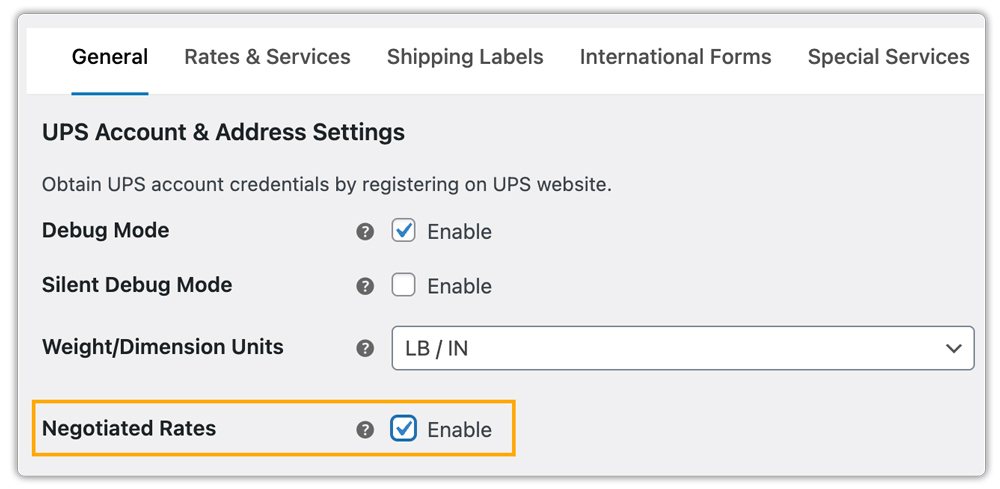
Turn on real-time rates so customers see costs based on destination, package weight, and dimensions.

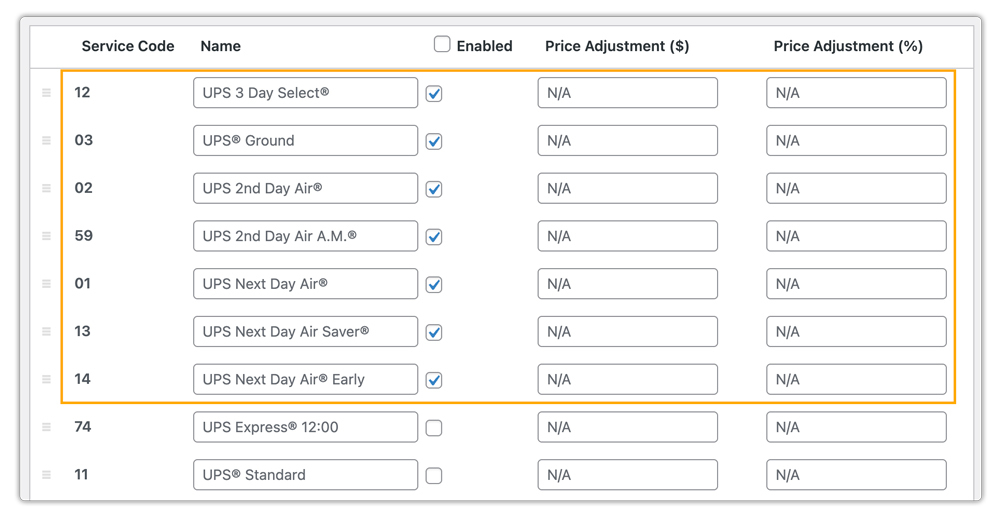
With this plugin, you also have the flexibility to select the UPS services to display at checkout, such as Ground, 2nd Day Air, or Next Day Air.
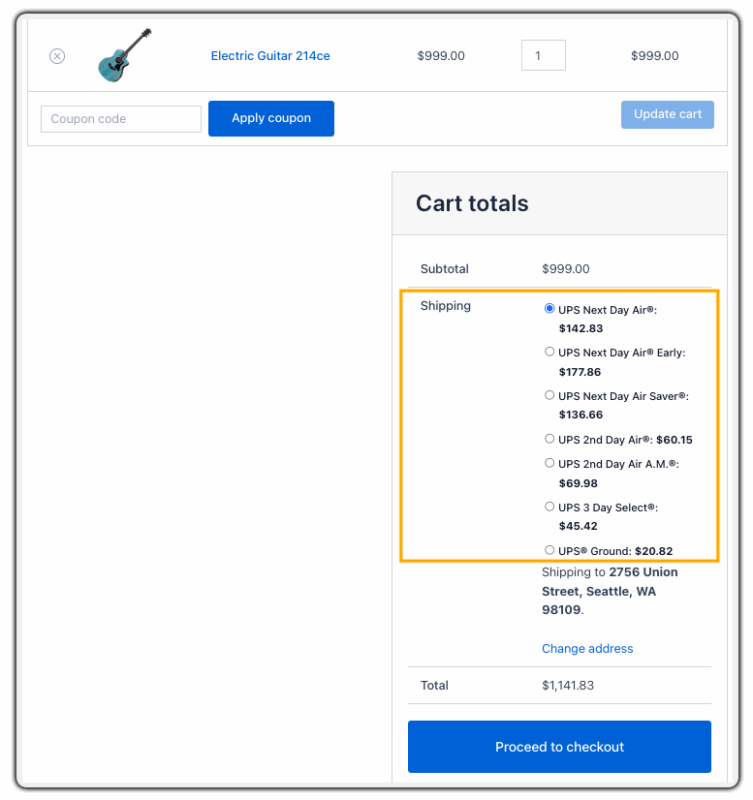
Once configured, customers see live UPS rates on both the cart and checkout pages, improving transparency and trust.
For more details on displaying live UPS rates, check this guide: How to Display UPS Live Rates in WooCommerce.
Real-World WooCommerce Store Example
A WooCommerce store selling household products across the U.S. and internationally experienced rapid growth, making accurate shipping costs and timely delivery crucial for customer satisfaction and repeat purchases.
The store faced several shipping challenges that affected both efficiency and customer experience:
- Customers couldn’t see accurate UPS rates at checkout, causing confusion.
- Multiple shipping options were hard to display clearly.
- Manual rate calculation was time-consuming and inconsistent.
- Negotiated rates weren’t applied, resulting in higher costs.
Solution:
The store used the WooCommerce UPS Shipping Plugin with Print Label to display real-time UPS rates, show multiple shipping options, and integrate UPS negotiated rates for discounted shipping. Labels and pickups were automated, and tracking became seamless.
Results:
- Accurate live rates reduced cart abandonment.
- Discounted rates lowered shipping costs.
- Fulfillment became faster and more efficient.
- Customer satisfaction and trust improved.
Conclusion
Accurate shipping costs are key to a smooth WooCommerce checkout, and UPS live rates make it simple. Using live rates improves transparency and streamlines fulfillment. For stores with frequent orders, enabling UPS live rates is an easy way to enhance both customer experience and efficiency.
Need help with plugin setup? For expert help, contact PluginHive Support.
FAQs
- How can I offer international UPS shipping in WooCommerce?
To provide global delivery options for your WooCommerce store, you can configure UPS international services. Read the detailed guide on setting up UPS international shipping in WooCommerce. - Is UPS suitable for small or lightweight residential shipments in WooCommerce?
Yes, UPS Ground Saver (formerly SurePost) is designed for lightweight residential deliveries at an economical cost. Learn more about UPS Ground Saver services. - How do negotiated rates affect shipping charges at checkout?
UPS Negotiated rates provide discounted UPS pricing for your store. When enabled, customers see lower shipping costs than UPS standard rates, which can improve conversions and customer satisfaction. - Can I print UPS shipping labels from WooCommerce?
Yes, you can print UPS labels directly from your WooCommerce dashboard using the WooCommerce UPS Shipping Plugin with Print Label. For a step-by-step guide, check out: How to Print UPS Shipping Labels in WooCommerce
