



Not all bookings happen online. Many customers still prefer calling your business or walking in to reserve a service. For WooCommerce store owners, managing these manual bookings alongside online ones can be tricky, especially if you rely on spreadsheets or paper notes, which often lead to double bookings and errors.
The Bookings and Appointments for WooCommerce plugin solves this problem by allowing store owners to record phone and walk-in bookings directly in their store. This keeps everything centralised in one booking calendar, ensuring availability stays accurate and business operations run smoothly. This article will walk you through the importance of manual bookings, the ways to manage them in WooCommerce, and best practices to stay organized.
Table of Contents
- The Importance of Managing Manual Bookings in WooCommerce
- Managing Bookings for Walk-in or Phone Customers in WooCommerce
- Real-World Example
- Tips for Smooth Manual Booking Management in WooCommerce
- Conclusion
- FAQs
The Importance of Managing Manual Bookings in WooCommerce
Many businesses don’t receive bookings only through their website—phone reservations, walk-in customers, and repeat clients are common. If you don’t manage these manual bookings properly, they quickly cause scheduling conflicts.
By recording offline bookings in WooCommerce, you keep everything organized in a single booking calendar. This approach ensures:
- Accurate availability: online customers see real-time availability without risk of double-booking.
- Better organisation: staff don’t have to juggle paper notes or spreadsheets.
- Improved customer service: every customer, whether online or offline, gets the same reliable experience.
- Streamlined operations: all bookings stay in one place, making management faster and easier.
Managing manual bookings effectively helps you stay organized, avoid scheduling conflicts, and provide a consistent experience for every customer. Now that we’ve seen why manual bookings matter, let’s look at how you can manage them effectively in your WooCommerce store.
Manage Bookings for Walk-in or Phone Customers in WooCommerce
Managing offline bookings doesn’t have to be complicated. With the Bookings and Appointments for WooCommerce plugin, you can easily add phone and walk-in reservations directly into your store. This ensures that all bookings online or offline are recorded in one place, keeping your calendar accurate and avoiding scheduling conflicts.
Before we begin, make sure the plugin is installed, activated, and configured correctly. You can follow the official setup guide to get everything ready for managing bookings.
Add Manual Bookings
- Adding a manual booking is straightforward. Here’s the step-by-step process: Go to Bookings > Add Booking in your WordPress dashboard, or click Add Booking from the All Bookings page
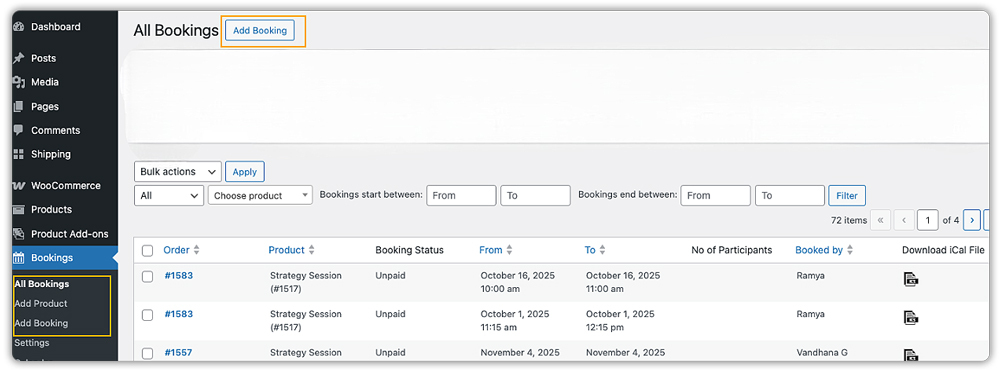
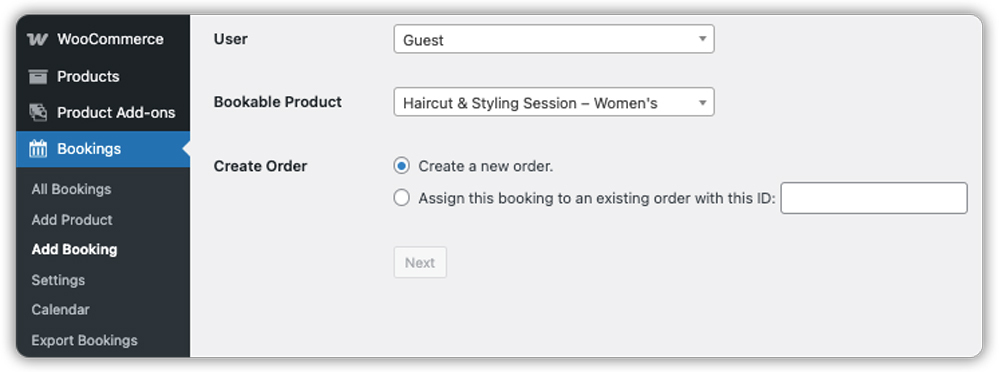
- Keep the User as Guest, select the service (bookable product), and either create a new order or assign the booking to an existing order by entering the order ID.
- Choose the date and time for the booking. The system instantly records it in your calendar.

- Send a payment link to the customer by entering their email address, first name, and last name.

Once added, the booking is saved alongside all your online reservations, keeping your schedule accurate and preventing conflicts.
Add Manual Bookings via Google Calendar
Apart from adding bookings directly in WooCommerce, you can also use two-way Google Calendar sync. With this feature enabled, any changes you make in Google Calendar, like blocking time slots, creating new events, or editing existing ones, automatically reflect in your WooCommerce booking calendar.


This means you can add a walk-in or phone booking directly from Google Calendar, and it will appear in your WooCommerce booking dashboard in real-time, keeping your availability accurate at all times.
Want to set up Google Calendar sync for your WooCommerce bookings? Follow this step-by-step guide.
Learn more about two-way Google Calendar sync here.
Managing Manual Bookings
Once manual bookings are added, you can manage them efficiently:
- Centralised booking dashboard: All bookings, whether online, over the phone, in person, or added via Google Calendar, appear in one place. This makes it easy for staff to stay organised and ensures your schedule is always accurate.
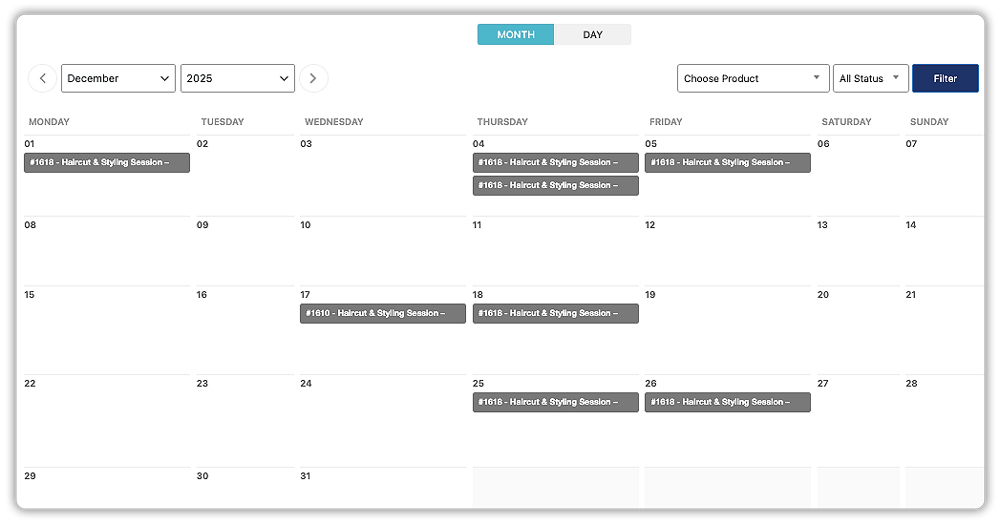
- Booking actions: You can later cancel, mark as paid, or mark as unpaid directly from the dashboard.

- And with Google Calendar sync, you don’t even need to log in to WooCommerce every time; you can manage bookings, block time slots, or edit appointments directly from your Google Calendar.

By combining WooCommerce manual booking features with Google Calendar two-way sync, managing offline reservations becomes seamless, reducing errors and giving you full control while providing a professional experience for your customers.
Real-World Example
Let’s say you operate a WooCommerce-based salon where customers can book haircuts, spa services, and beauty treatments. Many of your clients still prefer calling in or walking in to book a slot, in addition to online reservations.
The Challenges You Will Face
- Double-bookings occur when offline and online reservations overlap.
- Difficulty keeping track of phone and walk-in clients, along with online bookings.
- Extra workload for staff trying to maintain paper notes or spreadsheets.
- Confusion in confirming payment status for manual bookings.
How It Can Be Solved
With the Bookings and Appointments for WooCommerce plugin and Google Calendar two-way sync, these challenges can be solved effortlessly:
- Centralised booking calendar: All offline and online bookings, including those added via Google Calendar, appear in one dashboard, eliminating scheduling conflicts.
- Easy order management: Add manual bookings, cancel reservations if required later, and mark payments as paid or unpaid, all in one place.
- Professional experience: Customers receive instant confirmation and reminder emails, ensuring a smooth and reliable booking experience.
By using the Bookings plugin, managing both phone and walk-in bookings alongside online reservations becomes simple, organised, and professional.
Tips for Smooth Manual Booking Management in WooCommerce
Efficient manual booking management isn’t just about adding reservations; it’s about optimising your workflow, improving customer experience, and reducing errors. Here are some practical tips:
- Train Your Staff Properly: Ensure that anyone handling phone or walk-in bookings knows how to quickly add them into WooCommerce using the Bookings and Appointments plugin. Proper training reduces errors and saves time.
- Monitor Peak Hours: Keep track of busy periods and adjust booking availability or staff schedules accordingly to avoid overloading your calendar.
- Analyse Booking Patterns: Review your manual booking data periodically to identify trends, popular services, or frequent cancellations. This helps in planning resources and improving services.
- Create a Backup Process: Even with a digital system, maintain a simple backup (like exporting bookings weekly). This prevents data loss in case of technical issues.
By implementing these strategies, you can make manual booking management more proactive, reduce errors, and create a smoother experience for both staff and customers.
Conclusion
Managing manual bookings for walk-in and phone customers doesn’t have to be complicated. With the Bookings and Appointments for WooCommerce plugin, you can keep all your bookings online and offline in one centralised system, prevent scheduling conflicts, and ensure a smooth experience for your customers. For adding manual reservations, the plugin helps streamline your booking process and keeps your operations organised.
Need help getting started? Reach out to PluginHive Support for personalised setup assistance and guidance. With the right setup, managing manual bookings becomes simple, efficient, and professional for any WooCommerce store.
Frequently Asked Questions (FAQs)
1. How do I manually add a booking in WooCommerce using the PluginHive Bookings plugin?
To manually add a booking, navigate to Bookings > Add Booking in your WordPress dashboard, select the service, choose the date and time, fill in the customer details, and save the booking.
2. Can I sync manual bookings with Google Calendar?
Yes, the Bookings and Appointments for WooCommerce plugin supports two-way Google Calendar synchronisation. This feature ensures that both online and manual bookings are reflected in your Google Calendar, helping you manage your schedule efficiently.
3. How can I prevent double-bookings with manual entries?
To avoid double bookings, configure your availability settings accurately. The plugin lets you set buffer times between appointments and define maximum booking limits, helping you manage your schedule effectively.
4. Can I export booking data for reporting purposes?
Yes, the plugin provides an option to export booking data to CSV files, making it easier to analyse trends, manage resources, and generate reports.
