


Efficient warehouse management is at the heart of smooth order fulfilment in any WooCommerce store. While managing shipments from a single location is straightforward, things get more complicated when multiple warehouses are involved. You need to decide which warehouse should process an order, keep fulfillment organised, and make sure customers see accurate shipping costs at checkout.
FedEx makes this easier with its global network, real-time rates, and reliable delivery services. However, since WooCommerce doesn’t support multi-warehouse setups out of the box, you’ll need the right plugins and integrations to make it work. This guide covers how to manage single and multi-warehouse shipping in WooCommerce with FedEx, the challenges you might face, and the best practices to achieve faster and more cost-effective fulfillment.
On This Page
- Warehouse Shipping in WooCommerce – Overview
- Challenges of Warehouse Shipping in WooCommerce with FedEx
- How to Manage Warehouse Shipping with FedEx in WooCommerce
- Real-World Example
- Best Practices for Multi-Warehouse Shipping in WooCommerce
- Conclusion
- FAQs
Overview of Warehouse Shipping in WooCommerce
Warehouse shipping in WooCommerce is about more than just sending packages; it’s about making sure each order is shipped from the right warehouse and that inventory stays accurate. For stores with only one location, this is simple. But if you manage multiple warehouses, things can get tricky. Orders may need to ship from different locations, or shipping rates may need to be adjusted based on where the product is coming from.
Since WooCommerce doesn’t support multi-warehouse setups by default, store owners usually rely on plugins and carrier integrations to handle this. FedEx offers reliable shipping options, but without the right setup, managing multiple warehouses can bring several challenges, which we’ll look at in the next section.
Challenges of Warehouse Shipping in WooCommerce with FedEx
While FedEx offers reliable shipping solutions, managing warehouse fulfillment in WooCommerce can still come with a few challenges. Store owners handling multiple warehouses may face issues such as:
- Accurate rate calculation: FedEx shipping rates depend on package size, weight, and the shipping origin. With multiple warehouse origins, it’s important to calculate rates correctly for each order.
- Warehouse routing: Without automation, assigning the right warehouse to an order can be confusing and may result in higher shipping costs or slower deliveries.
- Label generation and pickups: Creating FedEx labels for each warehouse and scheduling pickups can be time-consuming if not automated.
- Limited WooCommerce options: Since WooCommerce is built for single-location stock, advanced features like multi-warehouse routing, automated FedEx shipping, or split shipments require extra plugins.
These challenges can slow down your fulfillment process and increase costs. That’s why many WooCommerce stores use FedEx shipping plugins with multi-warehouse support to make the process smoother and more efficient.
Manage Warehouse Shipping with FedEx in WooCommerce
The WooCommerce FedEx Shipping Plugin with Print Label, along with the Multi-Warehouse Shipping Add-on, makes managing warehouse shipping in WooCommerce simple and efficient.
- Configure the FedEx Plugin: First, connect your WooCommerce store with FedEx. This enables live FedEx shipping rates, label printing, and order tracking directly from your store.
Need help configuring the FedEx plugin? Refer to this step-by-step guide.
- Add Multiple Warehouses: With the Multi-Warehouse Add-On, you can configure multiple warehouse addresses in WooCommerce. Each warehouse can even be linked to its own FedEx account if required.
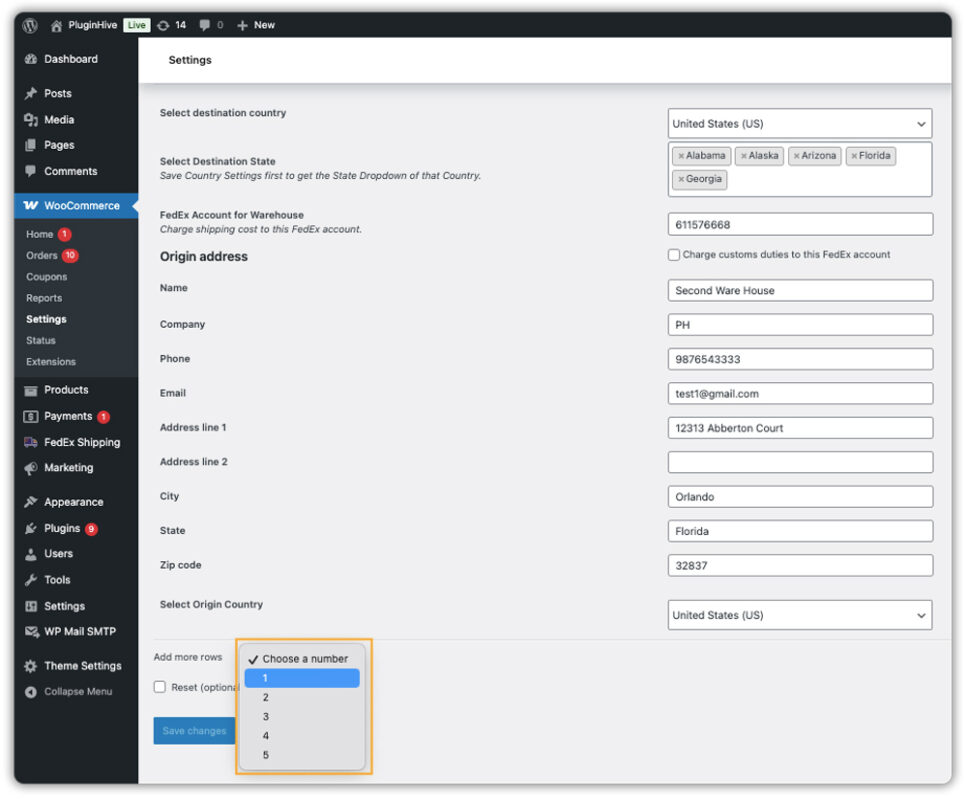
- Define Warehouse Rules: Assign warehouses to specific destination countries and states. For example, you can set one warehouse to handle orders going to California and New York, while another warehouse covers Georgia and Florida.

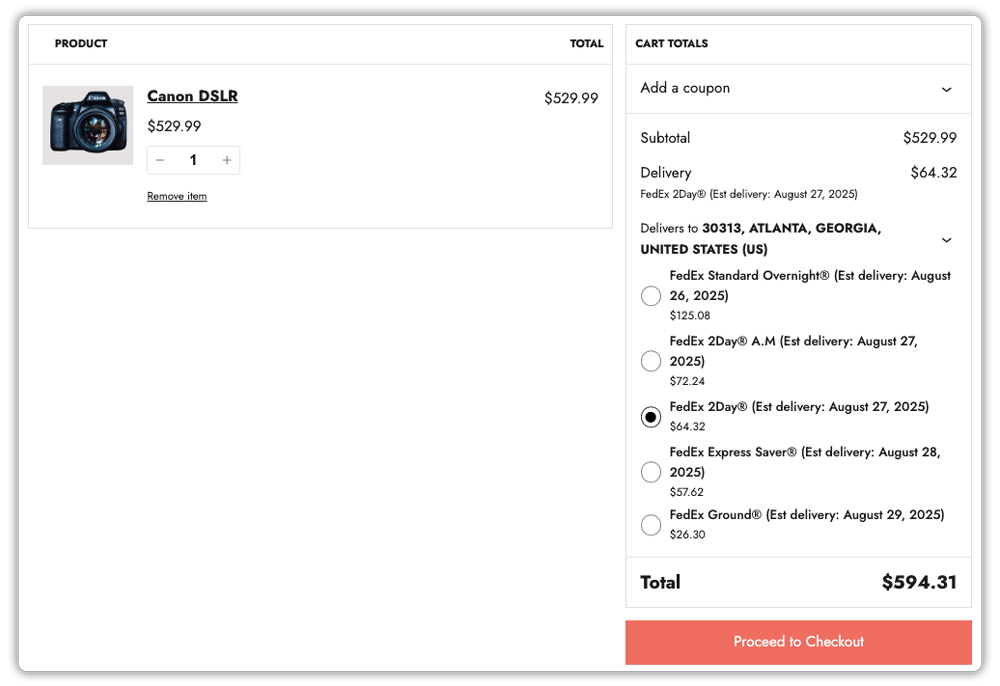
- When a customer places an order, the plugin automatically selects the correct warehouse based on your rules and displays accurate FedEx rates.
- Print Labels & Ship: Generate and print FedEx shipping labels for each warehouse, schedule pickups, and share tracking details with customers, all without leaving WooCommerce.

This integration ensures faster fulfilment, reduced shipping costs, and accurate order routing. With FedEx and WooCommerce working together, multi-warehouse shipping becomes seamless and hassle-free.
Next, let’s look at a real-world scenario of how this works in practice.
Real-World Example
A mid-sized WooCommerce store in the United States operates from three warehouses in Texas, Illinois, and Florida. Each warehouse manages inventory for its region to reduce delivery times and optimise costs.
The Challenges
The store faced multiple fulfilment and shipping issues before using FedEx with WooCommerce:
- Orders were sometimes shipped from the wrong warehouse, increasing delivery time.
- FedEx shipping costs were higher because orders weren’t routed to the nearest warehouse.
- Customers occasionally saw inaccurate shipping rates at checkout.
- Generating and managing FedEx labels for multiple locations created delays and errors.
The Solution
By using the WooCommerce FedEx Shipping Plugin with Print Label along with the Multi-Warehouse Shipping Add-on, the store streamlined its shipping process:
- Configured each warehouse with its unique address and FedEx account.
- Set warehouse rules based on shipping zones.
- Orders were automatically routed to the nearest warehouse for fulfillment.
- Accurate, real-time FedEx shipping rates were displayed at checkout.
- Shipping labels were generated directly from the correct warehouse, with scheduled FedEx pickups.
With this setup, the store reduced shipping costs, eliminated warehouse routing errors, and sped up deliveries. Customers benefited from faster, more reliable shipping while the business saved time and money, improving customer satisfaction and operational efficiency.
Best Practices for Multi-Warehouse Shipping in WooCommerce
To manage FedEx shipping smoothly across multiple warehouses in WooCommerce, here are the best practices to follow:
- Add All Warehouse Locations Correctly: Enter every warehouse address in the Multi-Warehouse Add-on so orders are routed to the right location.
- Regularly Update Stock Levels: Keep inventory accurate across warehouses to avoid overselling and fulfillment issues.
- Use Separate FedEx Accounts if Needed: Assign different FedEx accounts for each warehouse to simplify billing and shipping management.
- Enable Tracking for Customers: Always share FedEx tracking details to improve customer satisfaction and reduce support requests.
- Regularly Review Warehouse Performance: Monitor fulfilment speed, shipping accuracy, and delays to continuously optimise operations.
Implementing these best practices ensures accurate shipping, lower costs, and faster deliveries for your WooCommerce store.
Conclusion
Managing warehouse shipping in WooCommerce becomes much easier with the right tools. By integrating FedEx with the Multi-Warehouse Add-on, you can automate order routing, generate accurate shipping rates, print labels, and provide reliable tracking all from within your WooCommerce store. This setup helps reduce costs, speed up deliveries, and improve overall customer satisfaction.
Need help setting it up? Contact PluginHive Support.
FAQs
Q1: How do I display real-time FedEx shipping rates at checkout in WooCommerce?
By configuring your FedEx API credentials in your WooCommerce settings, the WooCommerce Shipping Plugin for FedEx with Print Label retrieves live FedEx rates, both domestic and international, ensuring accurate checkout pricing.
Q2: Does WooCommerce (FedEx plugin) support multiple warehouse origins by default?
No, WooCommerce doesn’t support multi-warehouse shipping by default. However, PluginHive’s Multi-Warehouse Shipping Add-on fills that gap by letting you configure multiple ship-from addresses and set rules based on destination.
Q3: Can I print shipping labels directly from WooCommerce when using multiple warehouses?
Absolutely. PluginHive’s integration allows you to automatically generate and print FedEx labels for the correct warehouse and even schedule pickups all within WooCommerce.
Q4: Will shipping costs and delivery estimates show correctly when using multiple warehouses?
Yes. PluginHive’s extension displays real-time rates and estimated delivery times at checkout, based on the warehouse origin aligned with the customer’s location.
