


If you run a WooCommerce store that takes recurring bookings for weekly music classes, monthly equipment rentals, or recurring online courses, keeping track of every occurrence manually gets messy fast. Customers want to book once and have it repeat automatically, and you need those bookings to show up on your calendar without double-checking each one by hand.
This article walks you through how recurring bookings work with Bookings and Appointments for WooCommerce and how they connect to Google Calendar, so you can manage them without the manual back-and-forth.
On This Page
- What Are Recurring Events in Google Calendar?
- Why Use Google Calendar for WooCommerce Recurring Bookings?
- What You Need to Manage Recurring Bookings
- Sync WooCommerce Recurring Bookings with Google Calendar for Easier Management
- Tips to Manage WooCommerce Recurring Bookings with Google Calendar
- Conclusion
- FAQs
What Are Recurring Events in Google Calendar?
A recurring event in Google Calendar is any entry that repeats on a set pattern, daily, weekly, or monthly, instead of being created fresh each time. Think of a weekly team meeting or a monthly rent reminder. Google Calendar usually handles this with its own repeat setting, where one event definition generates every future occurrence.
For a WooCommerce store, the “recurring event” you care about is a booking that repeats, like a customer signing up for four consecutive Saturday classes. The booking itself repeats on your store, and each occurrence needs to land on your calendar so you know when to show up.
Why Use Google Calendar for WooCommerce Recurring Bookings?
Most WooCommerce store owners already run their day on Google Calendar. Syncing your bookings there means you are not switching between your WordPress dashboard and your calendar app just to see what is scheduled.
Here is what that gives you:
- One place to check your day – bookings appear alongside your other appointments, so nothing gets missed.
- Fewer double-bookings – once a slot is on your calendar, you can plan staff, resources, or travel time around it.
- Easier sharing – if you work with staff or co-hosts, a synced calendar keeps everyone looking at the same schedule.
- No manual entry – you are not retyping booking details into a separate calendar app after every order.
This matters even more for recurring bookings, since a single order can create several calendar entries at once instead of just one.
What You Need to Manage Recurring Bookings
Before you can offer and manage recurring bookings that sync to Google Calendar, you need two plugins working together:
- Bookings and Appointments for WooCommerce – the core plugin that turns any WooCommerce product into a bookable product and handles the Google Calendar sync.
- PH Recurring Bookings and Appointments for WooCommerce – an add-on that layers recurring booking options on top of the core plugin.
Note: Recurring bookings work with Fixed Block bookings (where you offer a service for a set period, such as 1 hour or 1 day). They don’t work with Calendar Range bookings (where customers can select a start and end date for their booking). Also, customers pay for all sessions in a recurring booking together rather than as separate subscription payments.
If you’d rather see this in action for a specific use case, check out this guide on setting up recurring online courses with WooCommerce Bookings.
Sync WooCommerce Recurring Bookings with Google Calendar for Easier Management
Once both plugins are installed, setting up a recurring bookable product is straightforward.
1. Set up your booking as a fixed time slot: Edit your bookable product and set the booking period to a fixed block, like 1 day or 1 hour, depending on what you’re offering. This setup guide walks you through the rest of the product setup in detail.
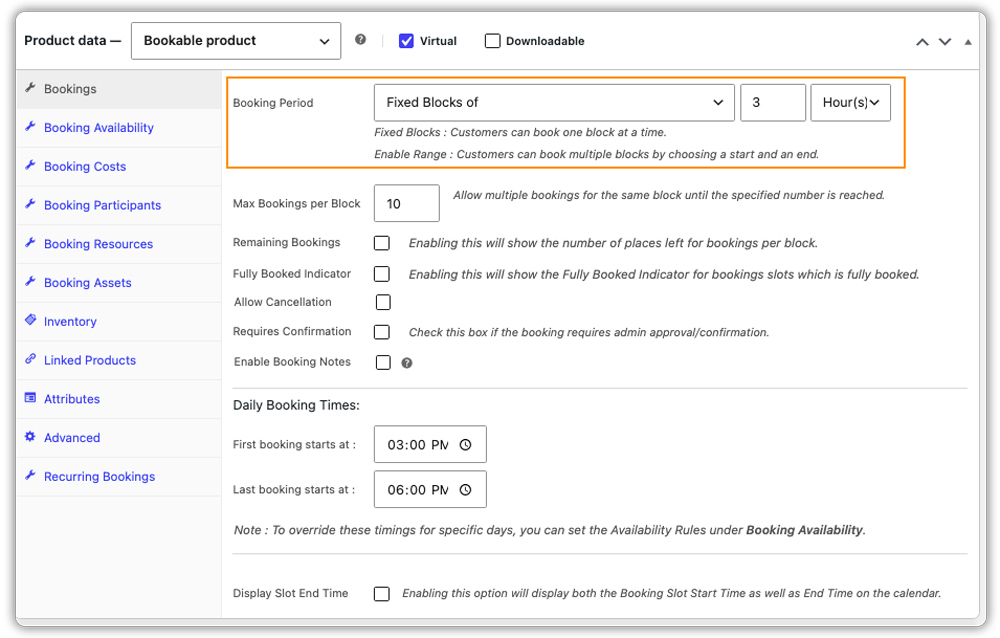
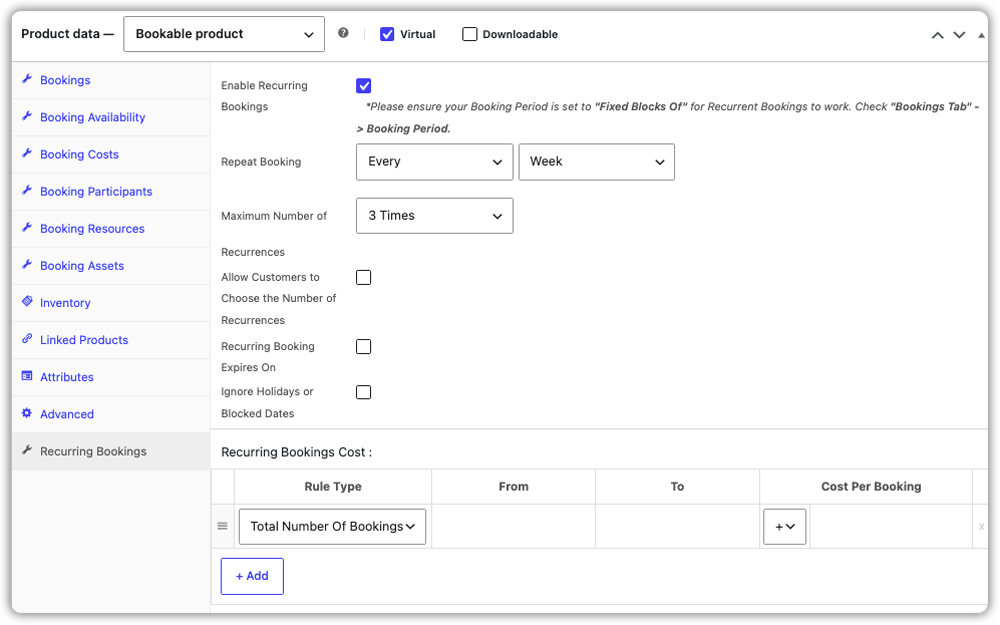
2. Turn on recurring bookings: On the same product, switch to the Recurring Bookings tab and enable it. From here, you can decide how often the booking repeats (daily, weekly, or monthly), set a cap on how many times it can repeat, and choose whether customers get to pick their own number of recurrences. You can also set an end date for the recurrence and have the system automatically skip your holidays or blocked-off dates. Check out this setup doc for a closer look at these settings.
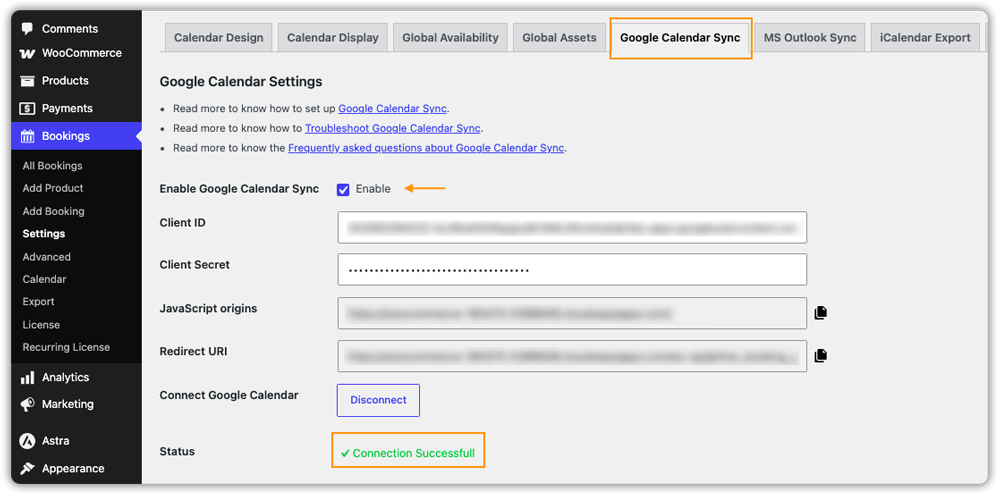
3. Connect Google Calendar: If you haven’t already, connect your store to Google Calendar through the plugin’s sync settings so that every booking shows up automatically. Here’s the guide to get that connected.
4. Let customers book: On the product page, customers pick their preferred dates and times, and the calendar shows every date the booking will repeat on before they add it to the cart.
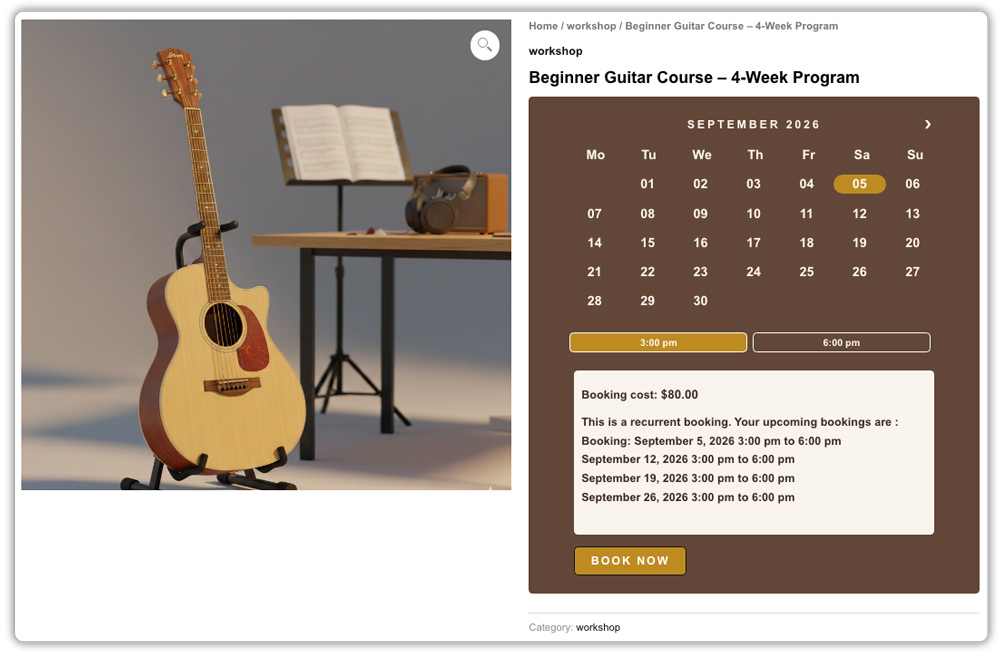
How WooCommerce Recurring Bookings Show Up in Google Calendar
When a customer places a recurring booking, say, four weekly sessions, each occurrence syncs to Google Calendar as its own separate event. So a four-session recurring booking shows up as four individual entries on your calendar, each with its own date and time.
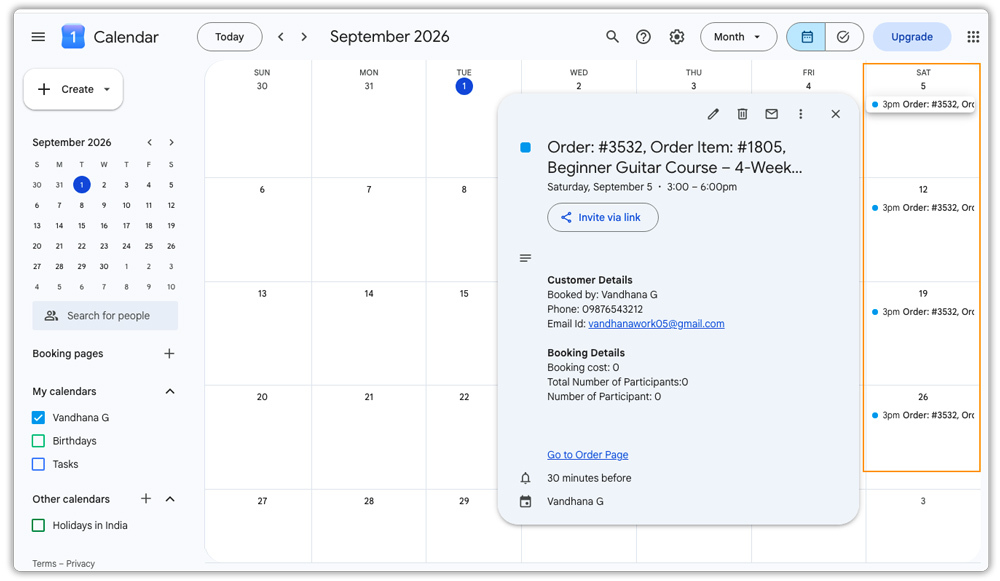
This means every session in the series is visible on your calendar exactly as it was booked, giving you a clear, date-by-date view of the recurring schedule.
Tips to Manage WooCommerce Recurring Bookings with Google Calendar
Once you start offering recurring bookings, a few simple practices can make them easier to manage for both you and your customers.
- Keep the number of sessions manageable: Set a reasonable limit for recurring bookings so your schedule stays predictable and easy to handle.
- Plan around unavailable dates: Make sure your holidays, days off, and other unavailable dates are accounted for when creating recurring schedules.
- Review your upcoming bookings regularly: A quick look at your Google Calendar each week can help you stay on top of upcoming sessions and avoid scheduling conflicts.
- Let customers add bookings to their own calendar: Enable this option in your store settings so customers can add their booked sessions to their own Google Calendar and keep track of upcoming visits themselves.
- Keep your recurring schedule consistent: A regular weekly or monthly schedule makes recurring bookings easier for you to organize and simpler for customers to follow.
These simple practices can help you keep recurring bookings organized as your WooCommerce bookings grow.
Conclusion
Recurring bookings do not have to mean manual calendar entries or juggling spreadsheets. With Bookings and Appointments for WooCommerce and the PH Recurring Bookings add-on working together, each occurrence of a recurring booking syncs to Google Calendar as its own event, giving you a clear, manageable view of your schedule. If you run into a specific recurring booking scenario or hit a snag setting things up, reach out to the PluginHive support team for help.
FAQs
Q: What are recurring events in Google Calendar?
Recurring events are calendar events that automatically repeat on a set schedule, such as daily, weekly, or monthly. For WooCommerce, this can be used to keep track of bookings that happen regularly.
Q: Does WooCommerce support recurring events in Google Calendar?
WooCommerce does not support recurring bookings and Google Calendar sync by default. You can use Bookings and Appointments for WooCommerce with the PH Recurring Bookings and Appointments add-on to offer recurring bookings and sync them with Google Calendar.
Q: How do you create a recurring event in WooCommerce?
To create a recurring booking, use Bookings and Appointments for WooCommerce with the PH Recurring Bookings and Appointments add-on. You can enable recurring bookings for a bookable product and choose how often the booking should repeat, such as daily, weekly, or monthly.
