


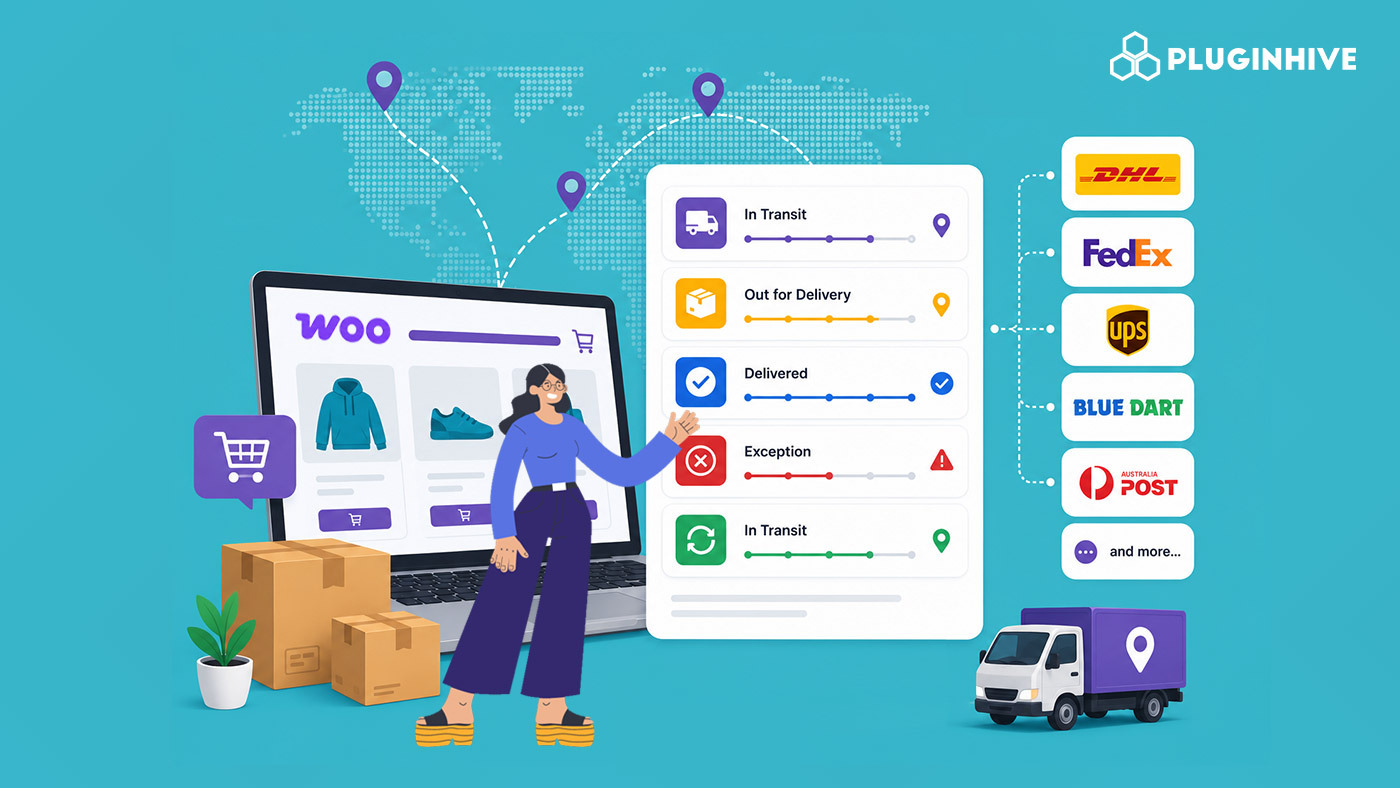
Once an order leaves your warehouse, most of the customer’s remaining questions are about one thing: where is my package? If you ship with more than one carrier, answering that question gets harder, because each carrier has its own tracking page, its own format, and its own delays in updating status. That’s where multi carrier tracking for your WooCommerce store makes a real difference.
This article explains what multi-carrier tracking means, why growing stores need it, and how to set it up on your WooCommerce store without adding extra work to your day.
On This Page
- What Is Multi-Carrier Tracking in WooCommerce?
- Why Growing WooCommerce Stores Need Multi-Carrier Tracking
- How to Add Multi-Carrier Tracking to Your WooCommerce Store
- Example Scenario
- Tips for Improving the WooCommerce Order Tracking Experience
- Final Thoughts
- FAQs
What Is Multi-Carrier Tracking in WooCommerce?
Multi-carrier tracking in WooCommerce brings updates from all the carriers you use – UPS, FedEx, USPS, Royal Mail, Canada Post, and dozens more – into one place inside your store. Each carrier no longer needs its own separate tracking process
Instead of customers hunting down the right carrier website and pasting in a tracking number, they see everything from your WooCommerce store:
- A single tracking view for every order, no matter which carrier shipped it
- Automatic status updates as the package moves from pickup to delivery
- One tracking page on your own site instead of sending customers off to a carrier’s website
This is handled through a dedicated WooCommerce shipment tracking plugin. It connects to your carriers and pulls the tracking data straight into each WooCommerce order.
Why Growing WooCommerce Stores Need Multi-Carrier Tracking
When a store ships only a handful of orders a week with a single carrier, manual tracking is manageable. That changes fast as order volume grows or you start using more than one carrier for different order types.
- Order volume increases the manual workload: Copying tracking numbers into emails one order at a time doesn’t scale.
- Different carriers suit different orders: You might use USPS for light domestic parcels, UPS or FedEx for heavier shipments, and Royal Mail or Canada Post for international orders. Each one adds a separate tracking process to manage.
- Customers expect visibility without asking: A large share of support tickets in any WooCommerce store are simple order tracking questions. A proactive update would have prevented most of them.
- Inconsistent updates hurt trust: If tracking works well for one carrier but not another, customers notice the gap. This is especially true during sales or peak seasons.
A WooCommerce shipment tracking setup addresses all of this. It removes the manual, carrier-by-carrier tracking work and replaces it with one consistent process across every order.
How to Add Multi-Carrier Tracking to Your WooCommerce Store
Setting up multi-carrier tracking on WooCommerce doesn’t require custom development. Shipment Tracking Pro for WooCommerce is built specifically for this, and it works with 85+ shipping carriers out of the box.
Before you begin: Install and activate the plugin, then refer to the setup guide to get started.
Here’s what the setup generally involves:
- Add your shipping carriers: The plugin comes pre-populated with major carriers like UPS, FedEx, USPS, Royal Mail, DHL Express, and Canada Post. You can add or remove carriers as needed.

- Enable live tracking for supported carriers: For carriers like UPS, FedEx, USPS, DHL Express, Canada Post, and a number of others, you can connect carrier account details so tracking status updates automatically instead of relying on a static link.

- Turn on customer notification: The plugin can send tracking details through the WooCommerce order completion email and notify customers again when a shipment is in transit, out for delivery, or delivered.

- Set up a branded tracking lookup page: This lets customers check their order status on your own store instead of being redirected to the carrier’s website.
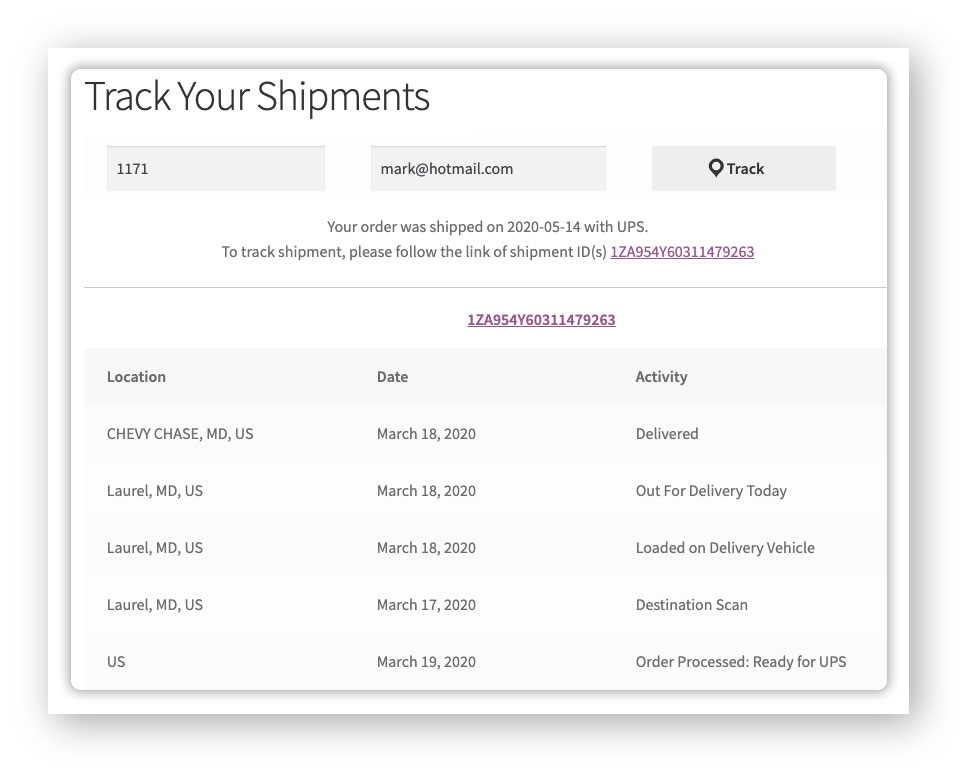
- Import tracking data in bulk if needed: If you fulfil orders using third-party shipping software, you can import tracking numbers through CSV, FTP, or SFTP instead of entering them by hand.

If your store also displays live rates from multiple carriers at checkout, pair this with the Multi-Carrier Shipping plugin. It handles rate display, while Shipment Tracking Pro handles what happens after the order ships.
Example Scenario: Managing orders with multiple shipping carriers in WooCommerce
Let’s say you run a WooCommerce store that ships domestic orders with USPS and international orders with FedEx and Canada Post. Here’s what you’re likely dealing with.
Challenges You’re Probably Facing
- Your support inbox fills up with “where is my order” questions every day, especially for international shipments.
- You’re manually checking three different carrier websites to answer a single customer query.
- Tracking numbers get pasted into emails by hand, which occasionally leads to typos or missed orders.
- Customers can’t see tracking status inside their WooCommerce account, so they email you instead of checking themselves.
- During busy periods, tracking updates fall behind because there isn’t time to manage them manually.
How Shipment Tracking Pro Solves This
Once Shipment Tracking Pro is connected to USPS, FedEx, and Canada Post, the plugin takes over the tracking process for all three carriers from a single dashboard.
- Tracking numbers are added to orders automatically instead of by hand.
- Customers see live tracking status on their My Account page for all three carriers.
- Order completion emails include tracking details without any manual step.
- Customers get notified automatically when a shipment is in transit, out for delivery, or delivered.
- Orders are marked as completed automatically once tracking is added.
Results
- Support tickets asking for order status drop noticeably.
- Store staff no longer visit multiple carrier sites to check shipment progress.
- Customers get consistent tracking updates regardless of which carrier shipped their order.
- Tracking data stays accurate even during high order volumes.
- The store presents one consistent tracking experience instead of three different ones.
Once multi-carrier tracking is set up, keeping customers informed is no longer something you manage order by order – it becomes part of how your WooCommerce store operates.
Tips for Improving the WooCommerce Order Tracking Experience
Getting the most out of your WooCommerce shipment tracking setup comes down to a few choices that are easy to overlook during initial setup.
- Customize your tracking messages: A short, clear note (“Your order has shipped and is on its way”) feels more personal than a bare tracking number, and it reassures customers without extra effort on your part.
- Pair tracking with delivery estimates: Tracking tells customers where a package is; an estimated delivery date tells them when to expect it. Showing both reduces uncertainty at two different stages of the order journey.
- Schedule automatic imports if you use external fulfilment tools: If tracking numbers originate from a warehouse system or shipping software, scheduling automatic CSV or FTP imports avoids the need to update WooCommerce manually every day.
- Review your carrier list periodically: As your store adds new shipping regions or switches carriers, keep the tracking plugin’s carrier list updated so no order type is left without proper tracking.
These small adjustments can make a noticeable difference in how smoothly your store handles order tracking day to day.
Final Thoughts
Multi-carrier tracking turns a scattered, carrier-by-carrier process into one consistent experience for both you and your customers. Instead of manually checking different websites or fielding repeated “where is my order” emails, a woocommerce shipment tracking plugin handles updates automatically and keeps customers informed at every stage.
If you’re ready to set this up on your store, the PluginHive support team can help you get carriers connected and tracking configured correctly.
FAQs
Q: What is multi-carrier tracking?
It lets you monitor shipments from multiple carriers, like UPS, FedEx, USPS, and DHL, from one place instead of checking each carrier’s website separately.
Q: How can I manage multiple shipping carriers in WooCommerce?
Use a multi-carrier shipping plugin like PluginHive’s WooCommerce Shipping Services to connect carriers, compare rates, and generate labels from a single dashboard.
Q: Does this plugin also show delivery date estimates before an order ships?
No, tracking covers what happens after dispatch. Pre-purchase delivery timelines are handled by the Estimated Delivery Date plugin.
