



Businesses that offer appointments, classes, tours, or rentals often attract people from different regions and languages. When visitors land on your WooCommerce store, they feel more comfortable and more likely to book when they can read the details in their own language. The Bookings and Appointments for WooCommerce plugin already makes it easy for you to offer and organize your services, and adding language support simply helps you connect with a wider audience.
Polylang helps bring this multilingual experience to your booking store. It lets you present your pages, booking products, and essential information in the languages your customers prefer, creating a smoother and more inclusive experience. In this article, we’ll explore how Polylang fits into a WooCommerce booking environment and how you can use it to serve a wider audience effortlessly.
Table of Contents
- Overview of Polylang
- Requirements to Make Your WooCommerce Booking Store Multilingual
- Offer Booking Services in Multiple Languages Using Polylang
- Real-World Example
- Best Practices for Running a Multilingual Booking Store on WooCommerce
- Conclusion
- FAQs
Overview of Polylang
Polylang is a WordPress plugin that lets you run your website in multiple languages. Rather than building separate sites, you manage everything from one place, and your visitors simply choose the language they prefer.
For WooCommerce store owners, it’s a practical way to make your store accessible to customers who speak different languages, without adding a lot of complexity to how you manage your site.
What Polylang Offers for WooCommerce Stores
- Language Switcher: Adds a simple dropdown or menu link so customers can switch languages while browsing your store, including on booking product pages.
- SEO-Friendly URLs: Creates a separate URL for each language (like example.com/en/ or example.com/fr/). Because of this, each language version can be indexed properly by search engines.
- WooCommerce Compatibility: Via the Polylang for WooCommerce add-on, it translates product pages, cart, and checkout while keeping pricing and availability consistent across all languages.
- Media Translation: Lets you translate image titles, captions, and alt text so every part of your store feels complete and localized in each language.
Together, these features make Polylang a reliable foundation for any WooCommerce booking store looking to reach a wider, multilingual audience.
Requirements to Make Your WooCommerce Booking Store Multilingual
Before you start, make sure you have the right tools in place. Here’s what you’ll need:
- Polylang Plugin: The core plugin that adds and manages multiple languages on your WordPress site. You can get started with the free version from the WordPress plugin directory.
- Polylang for WooCommerce Add-On: This add-on ensures booking products work correctly in all languages. In addition, it synchronizes availability, pricing, and booking settings and sends booking emails in the correct language.
- Bookings and Appointments for WooCommerce by PluginHive: This is the plugin that powers your appointments, classes, or rentals on your WooCommerce store. It is fully compatible with Polylang, allowing translated versions of your booking products to share the same availability and scheduling rules.
- A Translation-Friendly WordPress Theme: A well-coded theme ensures your language switcher, booking layouts, and translated content all display correctly.
- Stable Hosting: A multilingual store serves more content to more visitors. A reliable hosting plan ensures your booking pages load quickly regardless of which language a visitor selects.
With these in place, you’re ready to offer a smooth and professional booking experience in multiple languages
Offer Booking Services in Multiple Languages Using Polylang
Polylang simplifies multilingual bookings by letting you manage everything from one place. Here’s how.
Create Booking Products in Your Main Language
Start by setting up your booking product in your main language as you normally would. Add the product name, description, pricing, duration, and availability rules using Bookings and Appointments for WooCommerce. This version becomes the base that all translated versions will be linked to.
Need help setting up the Bookings and Appointments for WooCommerce by PluginHive? Refer to this guide – Bookings and Appointments for WooCommerce Setup Guide before you begin.

Translate Booking Products Without Changing Availability
Polylang adds a language column inside your WooCommerce product list. Click it to create a translated version of your booking product. You translate the customer-facing content like the name and description, while availability, pricing, and booking rules stay synchronized across all versions automatically.
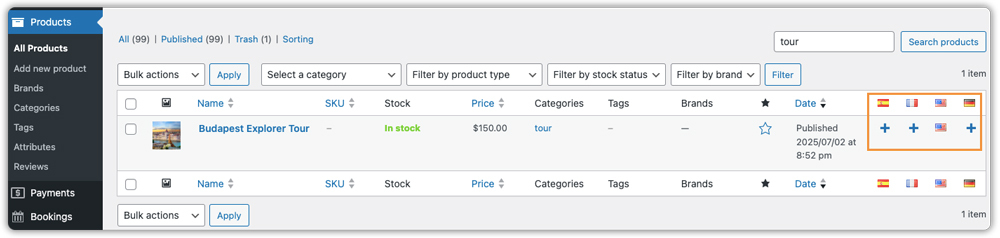

As you can see in the screenshot below, both the English and German versions of the Budapest Explorer Tour share the same availability and booking rules; only the name and description are translated.


Translate Essential Booking Pages
For a complete multilingual experience, you can also translate key pages that customers interact with, such as the booking product page, cart, checkout, confirmation messages, and instructions. This helps customers follow the booking process easily and confidently in their own language.
Cart Page: Here is how the cart page appears for your customers (translated into German by Polylang).

Checkout Page: Here is how the checkout page appears for your customers

Order Confirmation Page: Here is how the order confirmation page appears for your customers.

Let Customers Switch Languages Easily
Add Polylang’s language switcher to your navigation menu or as a widget. Visitors can switch their preferred language at any point, and all booking details and checkout steps update instantly to reflect their selection.

Send Booking Emails in the Customer’s Language
The Polylang for WooCommerce add-on automatically detects the language a customer used when booking and sends all related email notifications, confirmations, reminders, and cancellations in that same language. This keeps the communication professional, consistent, and easy to understand for every customer.

Real-World Example: How a Tour Company Uses Polylang to Reach More Customers
Let’s say you run a small tour company in a popular city. You offer walking tours, museum visits, and weekend excursions, and your customers come from all over the world, Europe, Asia, the U.S., and beyond.
The Challenges
- Customers could only view tour details in one language, limiting accessibility for international visitors.
- Booking confirmation emails were sent in a single language, which required extra effort to communicate clearly with non-English-speaking clients.
- Staff spent time clarifying tour schedules and instructions for visitors using other languages.
The Solution
By integrating Polylang, Polylang for WooCommerce, and Bookings and Appointments for WooCommerce, they were able to:
- Translate booking products, tour descriptions, and schedules into multiple languages.
- Keep availability, pricing, and booking rules synchronized across all translations.
- Add a language switcher so visitors can choose their preferred language.
- Send booking confirmation and reminder emails automatically in the customer’s selected language.
As a result, international visitors could browse tours comfortably, and emails arrived in the correct language. Staff spent less time answering repetitive questions, and bookings increases from global audiences.
Best Practices for Running a Multilingual Booking Store on WooCommerce
Running a multilingual booking store goes beyond just translating your content. Here are five best practices to keep your store running smoothly across all languages.
- Start with your most-requested languages. Check your site analytics to see where your visitors come from and prioritize those languages first. There’s no need to translate into every language at once.
- Use accurate translations. Machine translations are a quick starting point, but can introduce errors that confuse customers or damage trust. For booking-related content like policies and instructions, have a native speaker review the translations where possible.
- Test the full booking flow in each language. After setting up translations, go through the entire booking process in every language, from browsing the product to receiving the confirmation email, to catch any gaps or untranslated elements.
- Keep your language switcher easy to find. Place it in the header or main navigation so visitors can spot it immediately. A hard-to-find switcher defeats the purpose of offering multiple languages.
- Keep all language versions up to date. Whenever you update product descriptions, pricing, or policies in your primary language, make sure the same changes are reflected across all translated versions to keep everything consistent.
Following these practices ensures your multilingual booking store stays consistent, professional, and easy to use, no matter which language your customers are browsing in.
Conclusion
Going multilingual is one of the simplest ways to make your WooCommerce booking store more accessible to a global audience. With Polylang handling the translations and Bookings and Appointments for WooCommerce managing your availability, the entire experience stays smooth and consistent for every customer.
The tools are easy to set up, work well together, and do the heavy lifting for you so your customers can focus on booking, and you can focus on delivering great service.
FAQs
- How to make your WooCommerce booking store multilingual?
Use Polylang along with the Polylang for WooCommerce add-on and Bookings and Appointments for WooCommerce. Together, they let you translate your products, pages, cart, checkout, and emails while keeping availability and pricing synchronized across all languages from one place. - Is Polylang free?
Yes, Polylang has a free version available on the WordPress plugin directory. For a WooCommerce booking store, you will also need the Polylang for WooCommerce add-on, which is a paid add-on starting at €99 per year. - How do I add languages to Polylang?
Go to Languages > Languages in your WordPress admin dashboard. Select a language from the predefined dropdown list and save. If your language is not listed, you can add a custom one manually. - How many languages are there in Polylang?
Polylang comes with over 90 predefined languages and supports an unlimited number of languages, making it suitable for stores targeting audiences across multiple regions.
