


If a customer reaches checkout and sees “No shipping options were found,” they can’t complete their order. This can lead to abandoned carts and lost sales. The issue may seem frustrating, but a simple shipping setting often causes it. Common causes include WooCommerce shipping zones, shipping methods, product settings, or shipping classes.
In this guide, we’ll explain why WooCommerce shows “No shipping options were found.” You’ll also learn how to fix the issue and set up your shipping settings correctly.
On This Page
- What Does “No Shipping Options Were Found” Mean in WooCommerce?
- Why Are No Shipping Options Showing in WooCommerce?
- How to Fix “No Shipping Options Were Found” in WooCommerce
- How to Add More Flexible Shipping Options in WooCommerce
- Tips to Prevent WooCommerce Shipping Problems
- Conclusion
- FAQs
What Does “No Shipping Options Were Found” Mean in WooCommerce?
This message shows up when WooCommerce can’t match a customer’s shipping address to any active shipping method. Every WooCommerce store relies on shipping zones – geographic areas where you attach specific shipping methods.
WooCommerce has nothing to offer when a customer’s address doesn’t fall into any configured zone. The same thing happens when a zone exists but has no working shipping methods inside it. Either way, the store shows this error instead of a shipping cost.
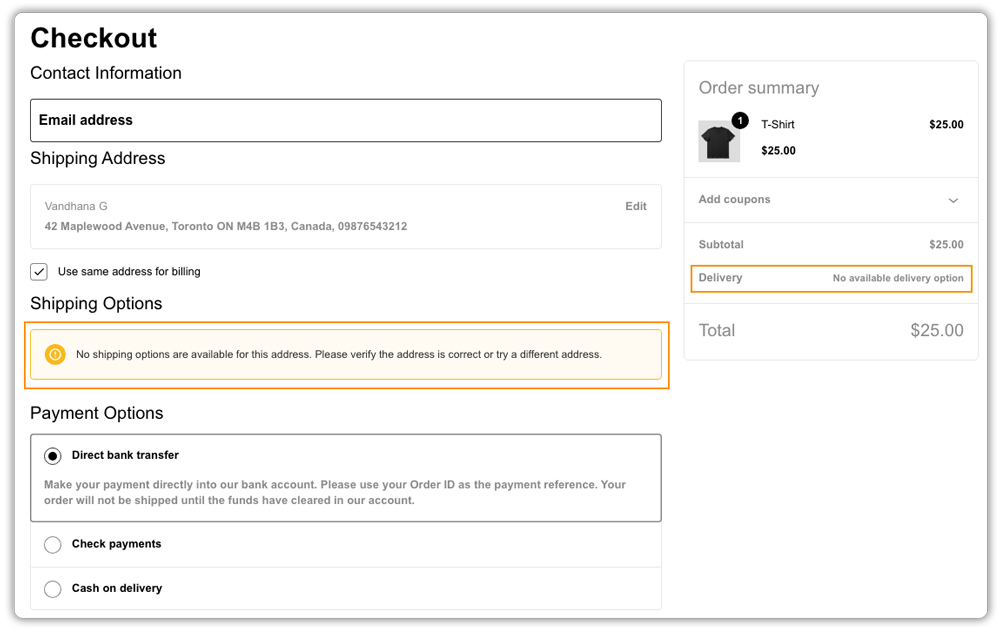
It’s not a bug. It’s WooCommerce’s way of telling you that a shipping rule is missing, disabled, or set up incorrectly for that particular order.
Why Are No Shipping Options Showing in WooCommerce?
A few common issues are usually behind this:
- No shipping zone covers the customer’s address: If you’ve only set up shipping zones for certain countries or states, anyone outside those areas will see the error.
- The shipping zone has no enabled method: You may have created a zone but forgotten to add or activate a shipping method inside it.
- Products are missing weight or dimensions: Some shipping methods, especially ones based on weight or size, can’t calculate a rate without accurate product weight and dimensions.
- A shipping class isn’t mapped to a rate: If a product is assigned a shipping class but no rate exists for that class in the matching zone, WooCommerce won’t show a method.
- Conditions for free or flat-rate shipping aren’t met: If free shipping requires a minimum order value and the cart falls short, and no other method is available, the customer sees nothing.
- Caching or plugin conflicts: Cached pages can serve outdated shipping settings, and conflicts with other plugins can silently block shipping calculations.
- Carrier API issues: If you use a plugin that pulls live rates from carriers, a connection problem or invalid account credentials can result in no rates being returned.
Once you know which of these applies, the fix is usually quick.
How to Fix “No Shipping Options Were Found” in WooCommerce
Work through these checks in order:
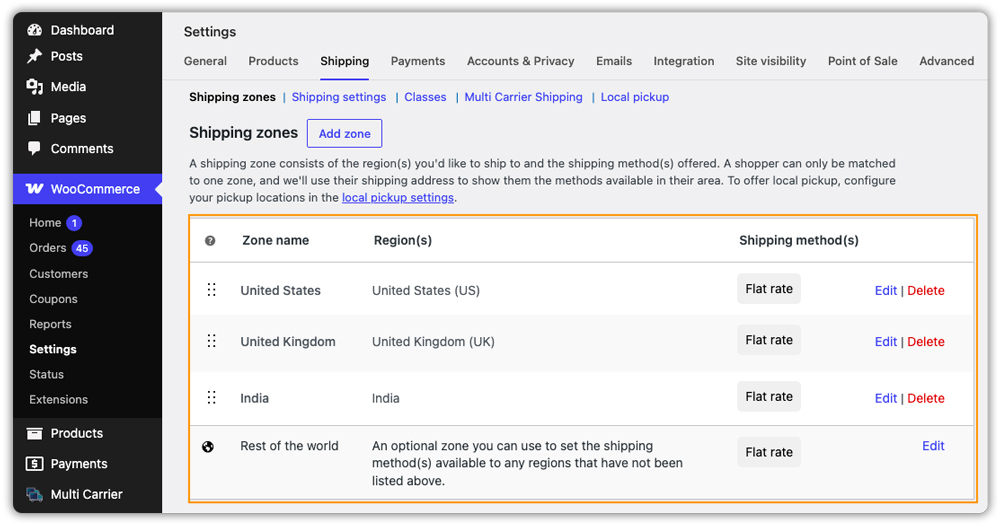
- Review your shipping zones: Go to WooCommerce > Settings > Shipping and check that a shipping zone exists covering the customer’s country, state, or postcode. Add the missing region if needed.
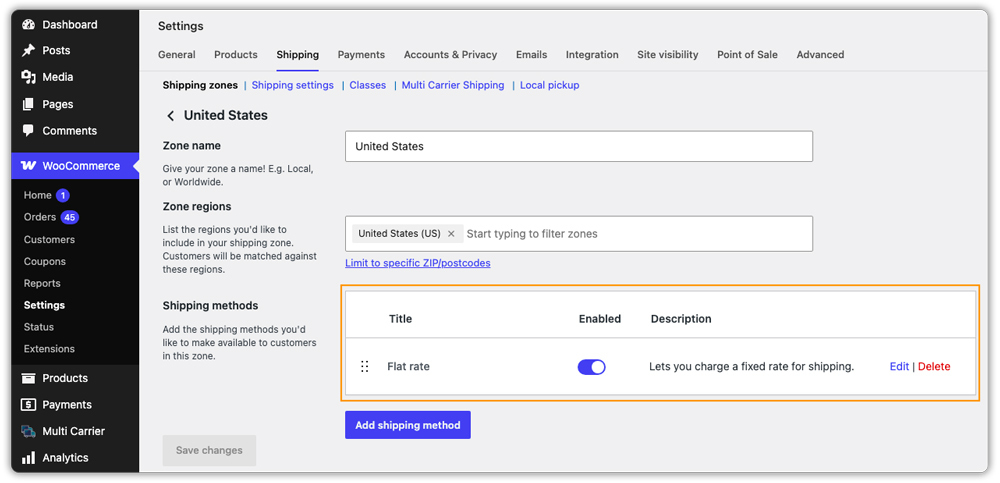
- Confirm a shipping method is added and enabled: Open the zone and make sure at least one shipping method (flat rate, free shipping, or local pickup) is listed and toggled on. A zone with no method attached will always show this error.
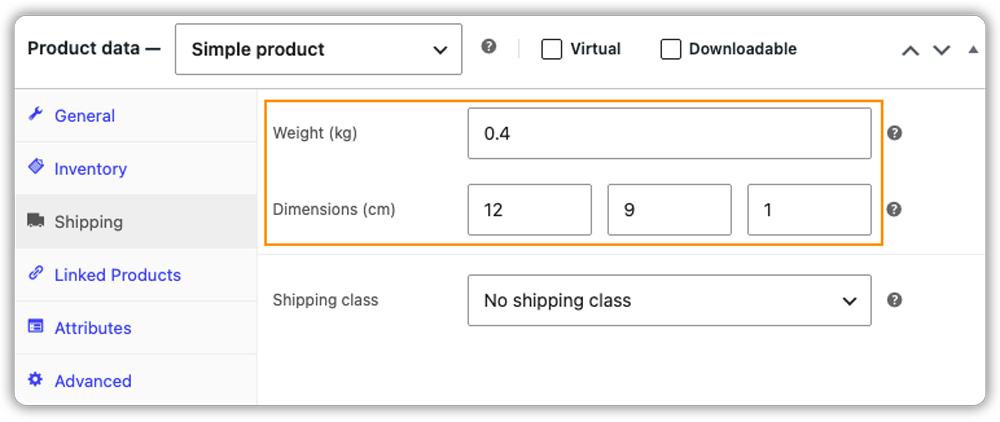
- Check product weight and dimensions: Go to each product’s Shipping tab and fill in weight and dimensions if they’re missing. This matters most if you’re using weight-based rates or real-time carrier rates.
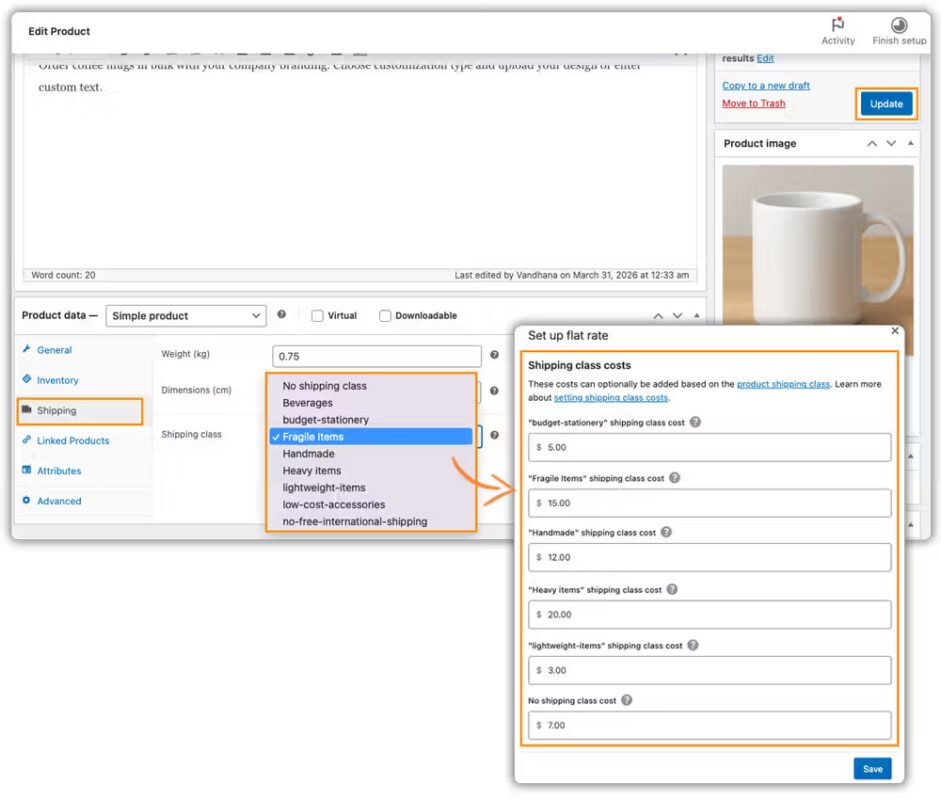
- Match shipping classes to rates: If you use shipping classes, verify that every class assigned to a product has a corresponding rate set up in the relevant zone.
- Test the cart with different addresses: Place a test order using an address in the affected region to see whether the issue is zone-specific or store-wide.
- Clear cache and check for plugin conflicts: Clear your caching plugin and temporarily deactivate other plugins to check whether a plugin conflict is affecting your shipping options. Reactivate them one at a time to identify any compatibility issue.
- Check carrier account connections: If you’re using a plugin that shows live rates from a shipping carrier, log in to the plugin settings and confirm the carrier account is still connected and authenticated. An expired token or incorrect credentials often causes rates to disappear.
Once shipping options reappear at checkout, run a few test orders across different regions and cart sizes to be sure the fix holds.
How to Add More Flexible Shipping Options in WooCommerce
Fixing the immediate error is one thing. Preventing it from happening again usually means building a shipping setup that adapts to more scenarios. Don’t rely on a single flat rate or free shipping rule.
A good approach is to combine methods. You might offer free shipping above a certain order value and a flat rate for smaller orders. Add real-time carrier rates for anything outside your usual delivery zones. This way, there’s always a fallback option instead of a dead end.
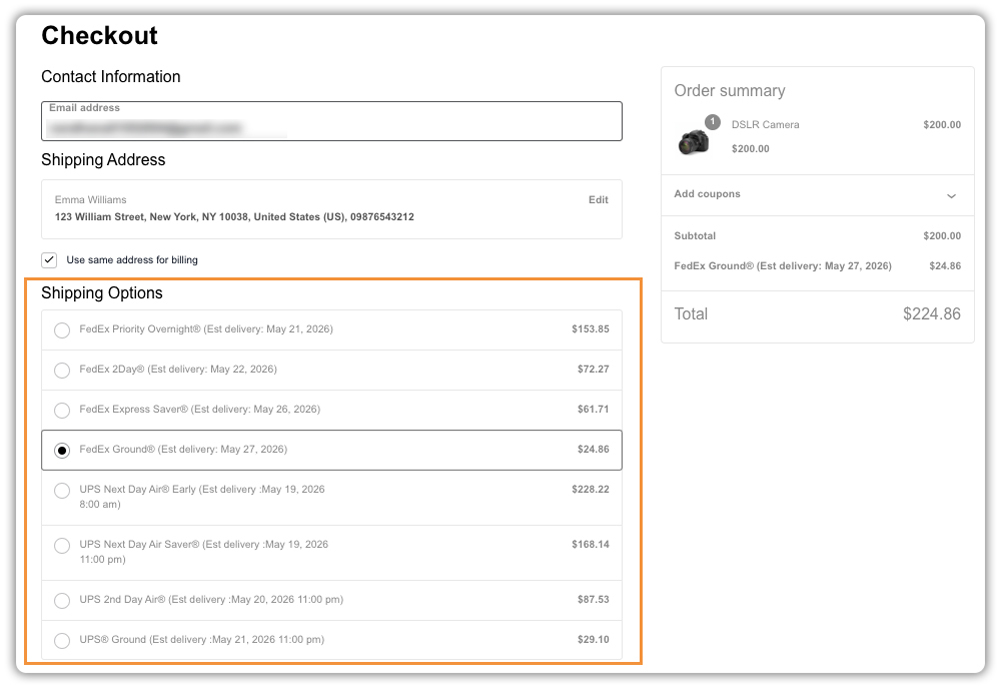
If you ship through multiple carriers like UPS, FedEx, USPS, DHL, or Stamps.com, a multi-carrier shipping plugin can help you display live rates from all of them on the cart and checkout page, based on rules you set for weight, price, product category, or destination.
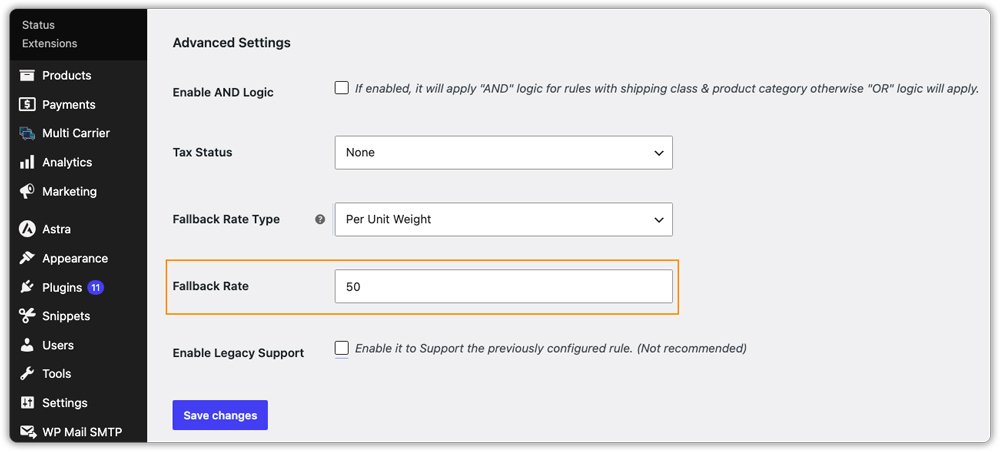
It also lets you configure fallback rates, so customers always see a shipping cost even if the plugin can’t fetch a carrier’s live rate at that moment.
The plugin’s setup guide walks through connecting carrier accounts and setting up shipping rules if you want to go this route.
Whichever combination you choose, the goal is the same: give WooCommerce more than one way to calculate shipping so a single missing setting doesn’t block checkout entirely.
Tips to Prevent WooCommerce Shipping Problems
Once your shipping options are working correctly, a little regular upkeep can keep it that way. Here are a few habits worth building into your routine:
- Recheck your shipping zones and rates after any WooCommerce, theme, or plugin update, since updates can occasionally reset or override settings.
- Keep an eye on the WooCommerce Status page for shipping-related warnings before they turn into customer-facing errors.
- If you add new products regularly, build weight and dimensions into your product upload process so nothing slips through.
- Avoid restricting a shipping zone too narrowly (for example, to a single postcode) unless you’re sure it won’t need to cover other customers.
- If you rely on live carrier rates, check carrier account status periodically rather than waiting for customers to report missing shipping options.
Spending a few minutes on these checks now and then is far less work than troubleshooting a checkout error later.
Conclusion
A missing shipping option is usually easy to fix once you know where to look. The cause may be a shipping zone, product weight, shipping class, or carrier connection.
Take a few minutes to review your shipping setup. This can help prevent missing shipping options and lost orders. If you can’t resolve the issue or need help creating a more flexible shipping setup, the PluginHive support team can help.
FAQs
Q: How do I set up shipping settings in WooCommerce?
Go to WooCommerce > Settings > Shipping and create a shipping zone for each region you serve. Add at least one shipping method – flat rate, free shipping, or local pickup – to every zone. Make sure your products have accurate weight and dimensions if you use weight-based rates.
Q: Why does WooCommerce say “no shipping options are available for this address, please verify the address is correct or try a different address”?
This message appears when the entered address doesn’t match any of your configured shipping zones. It can also appear when a shipping class or rate restriction blocks that specific product from shipping there. Checking your shipping zones and shipping class settings usually resolves it.
Q: Why are my shipping options not showing up in WooCommerce?
A disabled shipping method, a missing shipping zone for the customer’s region, incomplete product weight or dimensions, or a caching plugin serving outdated settings often causes this. Working through each of these in order will usually reveal which one is causing the issue.
