


In today’s fast-paced creative industry, time is money, especially for photography and film studio owners. Whether you’re managing a cozy portrait studio or a full-scale production space, your clients expect instant availability, flexible scheduling, and a seamless booking experience.
Manual booking methods, back-and-forth emails, and calendar chaos are no longer sustainable if you want to stay competitive. That’s where WooCommerce, combined with the Bookings and Appointments for WooCommerce plugin, comes in as a powerful solution to automate studio rentals, eliminate booking conflicts, and grow your business without the overhead. In this article, we’ll show how studio owners can use WooCommerce to streamline bookings, boost revenue, and deliver a better client experience.
Table of Contents
- Challenges in Creative Studio Rentals
- Studio Rental Automation with WooCommerce Bookings
- Real-World Example: Automating a Multi-Studio Rental Business
- Best Practices for Managing Studio Rentals
- Conclusion
- FAQ’s
Challenges in Creative Studio Rentals
Running a photography studio isn’t just about lights and lenses; it’s about logistics. Without a professional booking system, owners often face:
- Double Bookings: Overlapping reservations due to manual entries or poor scheduling tools.
- Empty Time Slots: Gaps between sessions that reduce studio utilization and profitability.
- Manual Coordination: Endless emails or phone calls just to confirm bookings, reschedule, or follow up.
- Underutilized Equipment: Props, gear, and backdrops that could be monetized but aren’t being booked.
These inefficiencies don’t just waste time; they directly affect revenue, client trust, and your ability to scale. Automating your rental process is not just a convenience; it’s a business imperative.
Studio Rental Automation with WooCommerce Bookings
The Bookings and Appointments for WooCommerce plugin makes it easy to turn your WooCommerce store into a fully automated rental system tailored for studios, whether it’s for photography, video production, podcasting, or dance classes.
To get started, make sure the Bookings plugin is installed, activated, and properly configured. You can follow this quick setup guide before moving ahead.
Configure Booking Durations & Availability
You can offer hourly, half-day, or full-day bookings, depending on how your studio operates. Need time for cleanup or setup between sessions? Add buffer time. Want to close bookings on weekends or specific dates? Easily block those days.
Example: A studio open from 9 AM to 9 PM can offer hourly sessions with a 1-hour buffer between the rentals. You can also block Sundays and holidays.
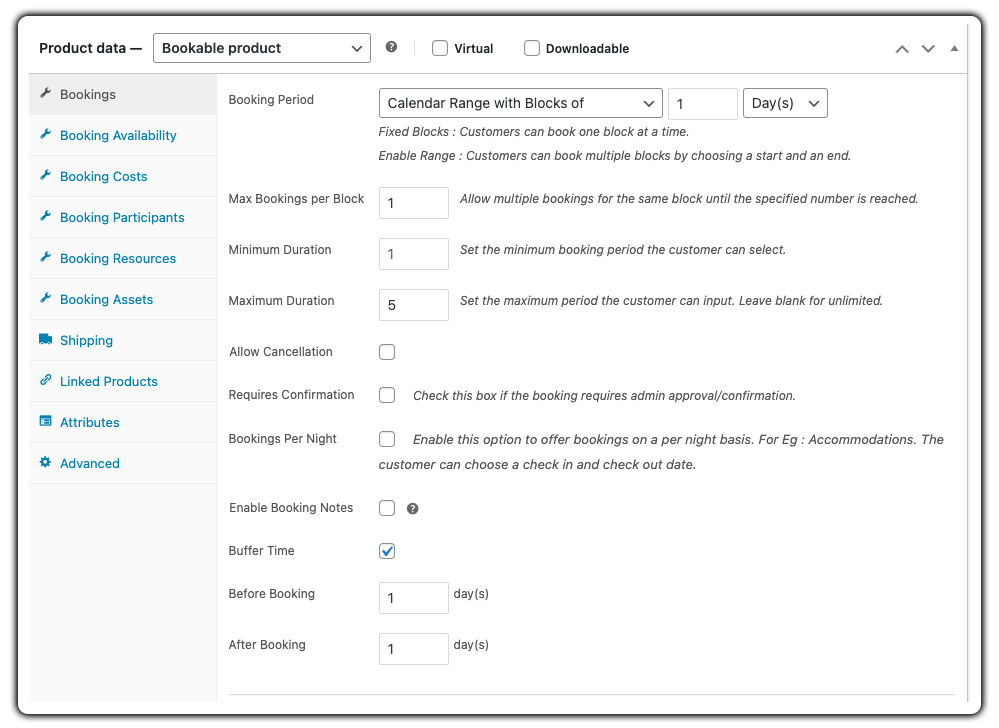
Set it up step by step: How to configure booking availability and add buffer time between bookings
Define Booking Costs and Pricing Rules
Charge customers based on duration, day of the week, or time of day. You can also apply discounts for longer sessions or special events. Pricing updates automatically based on what the customer selects.
Example: Charge $65 per hour on weekdays and $100 per hour on weekends.
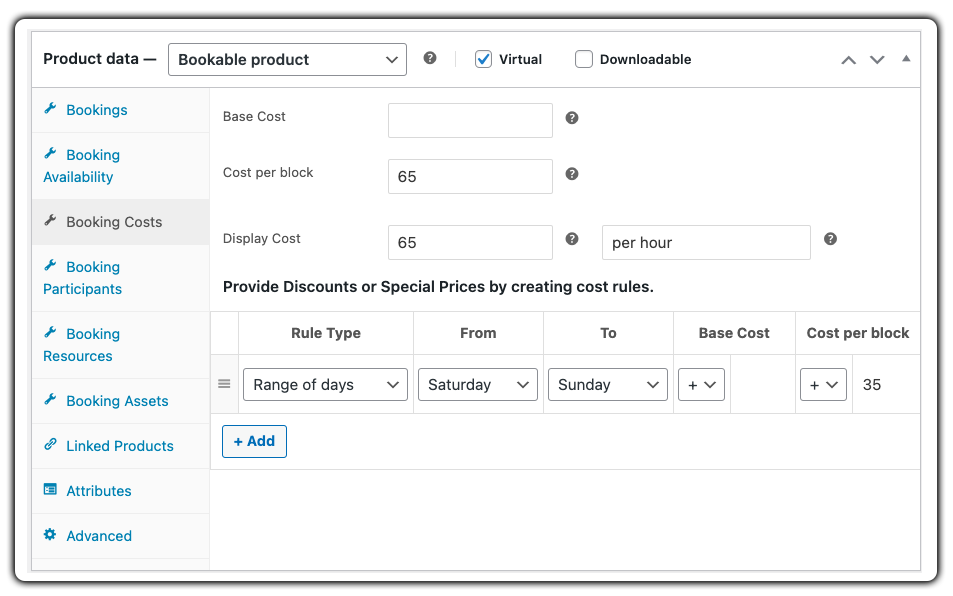
Want to set dynamic pricing? Learn how to set booking costs in WooCommerce
Add Resources and Upsell Extras
You can offer optional services or enhancements like premium backdrops, studio props, or additional lighting configurations as resources during the booking process. Customers can select these extras before checkout, and pricing updates automatically based on their selection.
Example: A video studio may offer a green screen or studio props as optional add-ons. Customers can select these while choosing their time slot, and the cost adjusts automatically
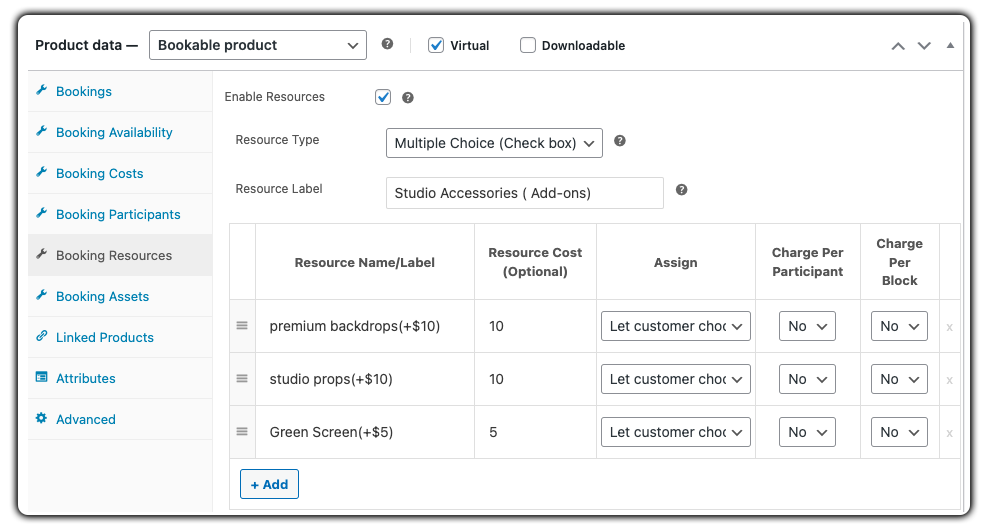
Want to upsell studio add-ons with bookings? See how to add resources in WooCommerce Bookings
Assign Staff with Booking Assets
If your service includes assigning staff like a lighting assistant, videographer, or audio technician, you can use booking assets. These allow you to manage their availability and prevent overlapping bookings.
Example: Customers can select one assistant, such as a Sound Engineer or Lighting Assistant, for their session. The system ensures that each staff member is only booked for one session at a time, preventing scheduling conflicts.
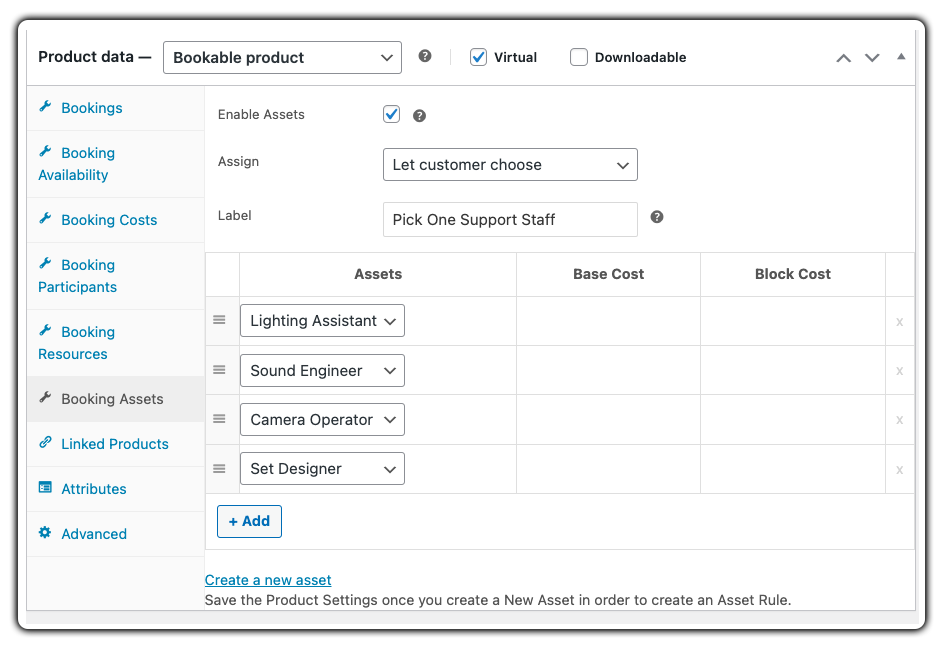
Set it up in minutes: How to manage staff using booking assets
This is how the booking interface appears to your customers: they can choose their preferred date, time slot, assistant, and optional studio add-ons before confirming the reservation.

Real-World Example: Automating a Multi-Studio Rental Business
Let’s say you run a professional film and photography studio in Gelderland that offers multiple rooms, each tailored for different types of shoots. You rent these rooms by the hour and also offer equipment like tripods, LED lights, and microphones. Bookings come from photographers, filmmakers, and content creators looking for a reliable space with minimal back-and-forth.
The Challenges You Will Face
- Managing Bookings Across Multiple Studios: Each studio has different capacities and usage rules. Without a centralized calendar and booking logic, it’s difficult to manage availability, avoid double bookings, and keep things organized.
- Offering Equipment Add-Ons: Customers often require extra equipment, but it’s hard to upsell them when there’s no system in place to add these during booking with real-time pricing.
- Manual Scheduling & Communication: Before automation, scheduling was handled through emails or phone calls. This led to delays, booking conflicts, and a lot of manual work confirming time slots and availability.
- Time Gaps Between Bookings: Switching between clients required setup or cleaning time. But without buffer control, bookings often got scheduled back-to-back, leaving no breathing room.
How It Can Be Solved
With the Bookings and Appointments for WooCommerce plugin, this business completely transformed its workflow:
- Studio-Level Booking with Calendar View: Each studio is a separate bookable product with hourly slots. Customers can view real-time availability via a clean calendar interface and book directly, no calls or emails required.
- Add-Ons Like Equipment or Extras: Extras such as lighting kits, camera rigs, or backdrop rolls are added as optional resources. Customers can choose them during booking, and prices adjust dynamically.
- Automated Booking Flow: Once booked, customers receive confirmation emails instantly. The booking appears in the admin’s calendar and syncs with Google Calendar, keeping the team informed and organized.
- Buffer Time Setup: Buffer time is configured between bookings to allow for setup, reset, or cleanup. This ensures a smooth experience for both customers and staff. By switching to the Bookings and Appointments for WooCommerce plugin, this professional studio in Gelderland now handles its studio and equipment rentals completely online, reducing manual work and increasing bookings with a streamlined experience.
Best Practices for Managing Studio Rentals
Once your studio booking system is live, the next step is to fine-tune how you manage and present your rentals. These best practices will help you boost bookings, improve customer experience, and run your business more efficiently.
- Optimize Your Studio Pages: Treat each rental space as a unique WooCommerce product. Add clear descriptions, high-quality photos, and videos. Before publishing studio images, basic photo color correction can help keep lighting, wall colors, and backdrops accurate and consistent.Highlight key features like natural lighting, soundproof walls, or special gear. Mention what’s included and what’s available as add-ons.
- Show Social Proof with Reviews: Ask clients to leave reviews after each session. Positive testimonials build trust and influence new customers. Display reviews on product pages and in a dedicated testimonials section.
- Set Clear Cancellation Policies: Clearly mention your cancellation and refund rules. Add them to the booking terms and require customers to accept them before confirming. This avoids confusion and saves admin time.
- Automate Emails and Reminders: Send confirmation emails right after booking. Use reminder emails before the session and follow-ups afterwards. This reduces no-shows and improves customer engagement.
- Track Booking Data: Review bookings to see your busiest hours, most booked studios, and popular add-ons. Use these insights to adjust pricing, create packages, or run promotions during slow times.
Conclusion
Simplifying your studio rental workflow is key to running a more efficient and profitable photography business. With WooCommerce studio booking powered by Bookings and Appointments for WooCommerce plugin, you can automate reservations, avoid double bookings, manage staff and resources, and deliver a seamless experience to your clients.
Whether you’re renting a single photography space or managing multiple studios, this solution streamlines operations and maximizes studio utilization.
Ready to upgrade your photography rental automation? Reach out to our support team for tailored assistance.
FAQ’s
Q: Does the Bookings and Appointments for WooCommerce plugin support hourly bookings for creative studios?
Yes, you can offer hourly slots, full-day rentals, or custom time blocks based on your studio’s workflow.
Q: Can the Bookings and Appointments for WooCommerce plugin prevent double bookings for my studio spaces?
Yes, once a time slot is booked, it’s automatically blocked to prevent overlapping appointments.
Q: Can I manage multiple studio locations using the Bookings and Appointments for WooCommerce plugin?
Yes, each location or room can be set up as a separate bookable product with independent availability and pricing.
Q: Does the Bookings and Appointments for WooCommerce plugin allow syncing bookings with Google Calendar?
Yes, it integrates with Google Calendar so you can track bookings in real-time and manage schedules more effectively.
Q: Can customers reschedule or cancel their photography bookings in WooCommerce?
Yes, you can set flexible rescheduling and cancellation policies that customers can act on through their account or confirmation emails.
Q: Can the Bookings and Appointments for WooCommerce plugin handle different pricing for weekdays and weekends?
Yes, you can create dynamic pricing rules based on day, time, or session length.
