



Every parcel PostNord sends across a customs border needs the right paperwork attached, and getting it wrong is one of the most common reasons an international order gets held up or returned. For WooCommerce stores shipping through PostNord to destinations outside the customs union, knowing exactly which document applies, and when, is what keeps international orders moving instead of sitting in a customs facility.
This guide covers the customs documents PostNord actually requires, when each one applies, and how to generate them directly from WooCommerce using the PH PostNord Shipping Plugin for WooCommerce with Print Label.
On This Page
- The Customs Documents PostNord Requires
- CN22 vs CN23 for PostNord Shipments in WooCommerce
- Information Every PostNord Customs Document Needs
- How to Generate PostNord Customs Documents in WooCommerce
- Real-World WooCommerce Use Case
- Conclusion
- FAQs
The Customs Documents PostNord Requires
PostNord requires customs documentation on shipments crossing an external customs border, sent from Sweden, Denmark, Finland, Norway, or Iceland to a non-EU or non-customs-union destination. According to PostNord’s own business guidance, the specific documents required depend on the shipping service used and the value of the goods, but three documents come up consistently:
- CN22: a simplified customs declaration for lower-value items, including a safety declaration
- CN23: a full customs declaration required for higher-value shipments
- Commercial invoice or pro forma invoice: required alongside CN22 or CN23 once the shipment crosses PostNord’s value threshold, or always required for certain PostNord international services regardless of value
For some PostNord international parcel services, the shipping document itself comes pre-printed with the customs declaration built in, available from PostNord partner outlets and business service centres.
CN22 vs CN23 for PostNord Shipments in WooCommerce
Which form applies to a PostNord shipment comes down to the declared value of the goods. PostNord’s own threshold is SEK 2,000:
| CN22 | CN23 | |
|---|---|---|
| When PostNord requires it | Shipment value SEK 2,000 or less | Shipment value more than SEK 2,000 |
| Type | Simplified declaration with safety declaration | Full customs declaration |
| Extra document needed | Commercial invoice not required below the threshold | Commercial invoice or pro forma invoice always required alongside it |
| EORI / personal ID / VOEC | Required if sent for commercial purposes | Always required |
Getting this threshold right matters because using CN22 for a shipment that actually needs CN23, or omitting the required commercial invoice, is one of the more common reasons a PostNord international parcel gets delayed at customs rather than clearing straight through.
Information Every PostNord Customs Document Needs
Regardless of which form applies, PostNord requires specific information to be completed accurately on every customs document:
- A clear description of the goods – vague descriptions like “gift” or “merchandise” cause delays
- The declared value of the goods – the actual transaction value, not an estimate
- EORI number, personal ID number, or VOEC number, when the item is being sent for commercial purposes – this is a firm PostNord requirement, not optional for business shipments
- A VOEC number specifically, if the selling company has a VAT account registered in Norway
- The date and sender details, always required regardless of form type
- A signature from the sender, certifying the declaration was completed correctly
The personal ID number requirement can be satisfied by including it on an enclosed invoice or receipt rather than the export declaration itself, which is a detail worth knowing if a customer’s ID number can’t be shown directly on the customs form for privacy reasons.
How to Generate PostNord Customs Documents in WooCommerce
The PH PostNord Shipping Plugin for WooCommerce with Print Label generates CN22, CN23, and the commercial invoice directly alongside the shipping label, no separate form-filling process outside WooCommerce.
For a step-by-step setup walkthrough, refer to the WooCommerce PostNord Shipping Plugin Setup Guide .
Open the Order and Find the Label Summary
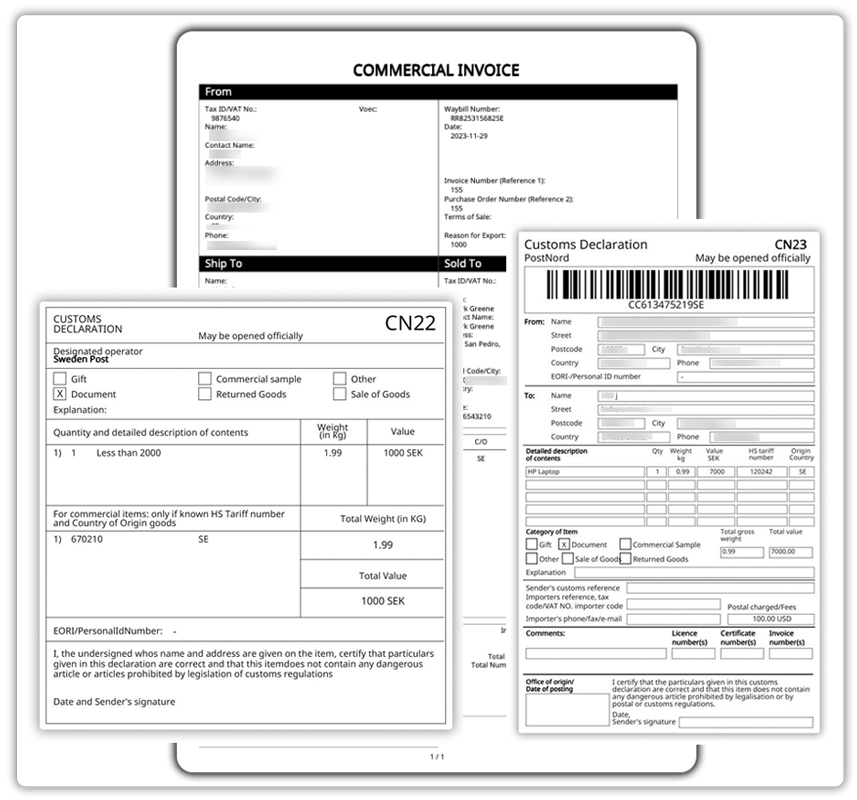
Go to WooCommerce > Orders and open the international order. The plugin automatically uses the order and customer details to populate the customs documents. Click Print Label to generate the shipping label and related customs documents:
- PostNord Shipping Label
- CN22 or CN23 customs form
- Commercial Invoice
Configure Product-Level Customs Data in Advance
Add the required customs details to each product in the plugin’s product settings. Include the product description, value, and HS tariff information required for the destination.
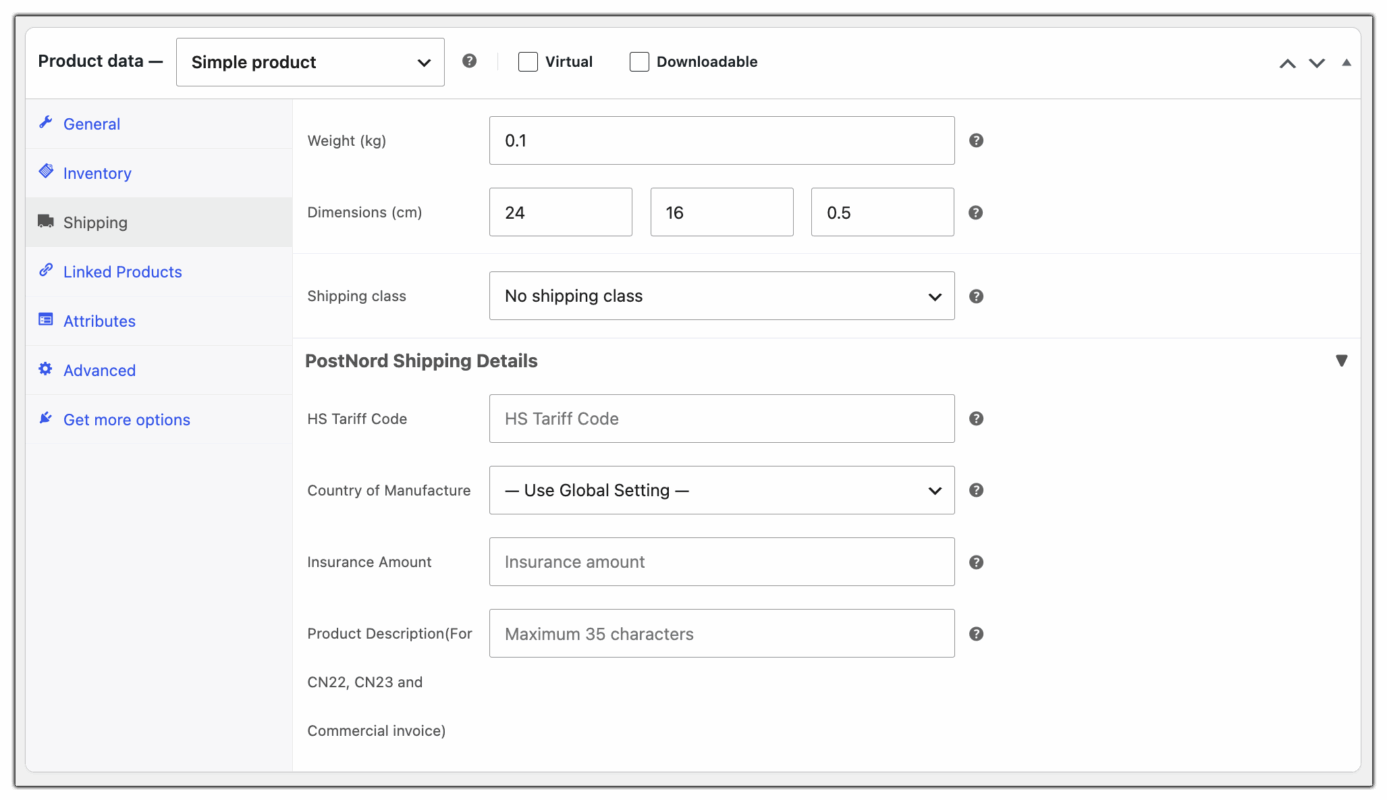
The plugin then uses this information to populate the customs documents automatically for international orders, so you don’t need to enter the same details manually for each shipment.
Real-World WooCommerce Use Case
A WooCommerce store selling handmade jewellery from Sweden had started shipping internationally to the UK and Switzerland, both outside the EU customs union. Orders were shipped via PostNord with the shipping label printed from WooCommerce, but the CN22 or CN23 customs form was still being filled out by hand at a PostNord service point for every order, a separate trip that added time to every international shipment and occasionally resulted in the wrong form being used for higher-value pieces.
How the Plugin Helped
The store configured product-level customs details, accurate descriptions, and declared values in the PH PostNord Shipping Plugin for WooCommerce with Print Label. From that point, generating the shipping label from WooCommerce also generated the correct CN22 or CN23 form and commercial invoice automatically, available to download from the order’s Label Summary.
The Result
- Manual customs form completion at a PostNord service point was eliminated entirely
- The correct form – CN22 or CN23- was applied consistently based on each order’s actual declared value
- International shipments cleared customs without the delays previously caused by incomplete or mismatched paperwork
- Fulfillment time per international order dropped, since labels and customs documents were ready together
Conclusion
Getting PostNord customs paperwork right isn’t complicated once the rule is clear: CN22 for shipments up to SEK 2,000, CN23 above that, with a commercial or pro forma invoice required alongside either once the threshold is crossed. The PH PostNord Shipping Plugin removes the manual step entirely: configure product-level customs data once, and the correct form generates automatically alongside every international PostNord label printed from WooCommerce.
Need help setting up PostNord customs documentation in WooCommerce? The PluginHive support team is here.
FAQs
Q. Is an EORI or VOEC number always required on a PostNord customs form?
An EORI number, personal ID number, or VOEC number must be stated whenever the item is being sent for commercial purposes. A VOEC number specifically applies when the selling company has a VAT account registered in Norway. These aren’t optional for business shipments; PostNord requires them on the customs documentation.
Q. Can I generate PostNord customs documents automatically from WooCommerce?
Yes. The PH PostNord Shipping Plugin for WooCommerce with Print Label generates the CN22 or CN23 form and commercial invoice automatically when a shipping label is created, available for download from the order’s Label Summary under Extra Documents.
Q. What happens if the wrong customs form is used for a PostNord shipment?
Using CN22 for a shipment that should have CN23, or omitting a required commercial invoice, is a common cause of delays at customs. The parcel may be held at the destination customs facility until the correct paperwork is provided, or returned to the sender.
Q. Can I track PostNord international shipments from WooCommerce?
Yes. Tracking numbers are saved to WooCommerce orders automatically when PostNord labels are printed. For live tracking links in order emails and the customer’s My Account page, use the Shipment Tracking Pro for WooCommerce alongside the PostNord plugin.
