


Returns are a natural part of running any WooCommerce store, but managing them manually can quickly eat into your time and resources. Creating return labels one by one, chasing customers for confirmation, and tracking incoming shipments across spreadsheets, it all adds up. For store owners shipping across Sweden, Denmark, Norway, and Finland, customers expect a smooth return experience, and a clunky process can cost you repeat business.
The good news is that the PH PostNord Shipping Plugin for WooCommerce with Print Label makes return management simple. It eliminates the usual back-and-forth. From generating PostNord return labels on the WooCommerce orders page to allowing customers to access them on their My Account page, the plugin handles the heavy lifting. In this guide, you’ll learn exactly how to manage WooCommerce returns with PostNord.
Table of Contents
- Why Manual Return Management Doesn’t Scale in WooCommerce
- Prerequisites for Managing PostNord Returns in WooCommerce
- How to Generate PostNord Return Labels in WooCommerce
- Real-World Example: Managing WooCommerce Returns with PostNord
- Best Practices for Managing PostNord Returns
- Conclusion
- FAQs
Why Manual Return Management Doesn’t Scale in WooCommerce
Managing WooCommerce returns manually might work for a handful of orders, but as your store grows, the cracks show fast:
- Label creation takes too long: Generating labels outside WooCommerce means switching systems and re-entering order details, leaving room for errors.
- Customers are left waiting: Without automation, customers must contact support and wait for a label, which hurts your reviews.
- Tracking returns is messy: Without a connected return shipment, you have no easy way to know when a return is on its way.
- Support workload increases: Every non-self-service return adds a ticket to your queue, pulling your team away from more important work.
- Refund delays affect trust: Slow return workflows mean slow refunds, and that leads to unhappy customers.
Ultimately, connecting PostNord directly to WooCommerce turns returns from a reactive headache into a smooth, automated process.
Prerequisites for Managing PostNord Returns in WooCommerce
Before setting up PostNord returns in WooCommerce, make sure you have the following ready:
- PH PostNord Shipping Plugin for WooCommerce with Print Label: installed, activated, and connected to your PostNord account.
- A valid PostNord API key: available from the PostNord developer portal.
- PostNord commercial account: required for printing outbound and return labels.
- Product weights and dimensions configured in WooCommerce: essential for accurate label generation.
If you haven’t set up the plugin yet, follow the WooCommerce PostNord Shipping Plugin setup guide first. The return label feature only works once you properly configure the plugin.
How to Generate PostNord Return Labels in WooCommerce
Once the PH PostNord Shipping Plugin for WooCommerce with Print Label is set up and an outbound shipment is created, generating a return label is straightforward.
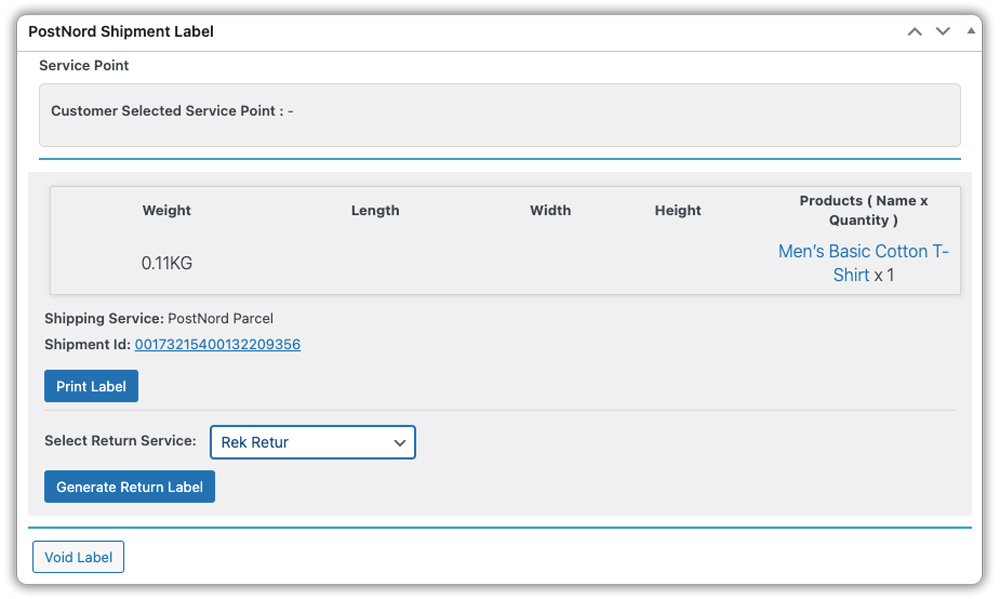
Go to WooCommerce > Orders, open the order, and scroll down to the PostNord shipment label section. Under Select Return Service, choose the return service that suits your shipment – Rek Retur, Varubrev Retur, PostNord Return, or PostNord Return Pickup, and click Generate Return Label.
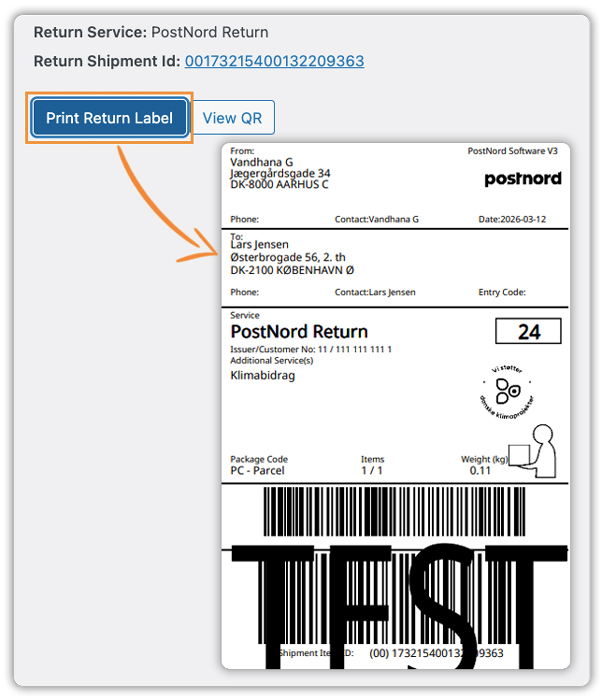
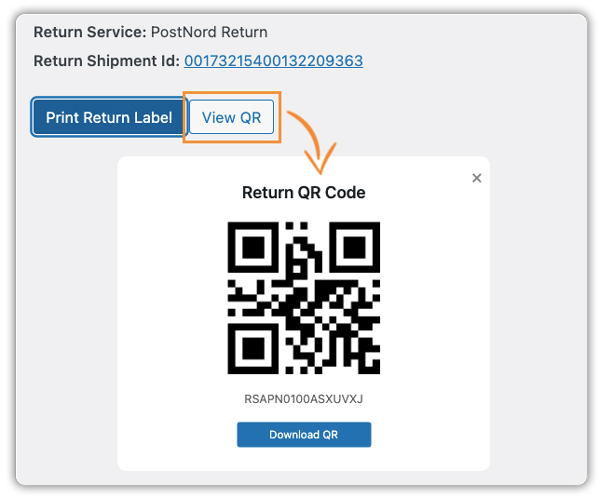
Once generated, the Return Service and Return Shipment ID appear directly on the order page. You can then click Print Return Label to download the label, or click View QR to access the return QR code, which is useful for customers who prefer dropping off at a PostNord service point without printing a label.
Everything stays within the WooCommerce order. As a result, you never need to log into PostNord’s portal or handle anything outside your dashboard.
Let Customers Access Return Labels from My Account Page in WooCommerce
To allow customers to access the return label themselves, enable the Allow Customers to Print Return Label option under WooCommerce > Settings > Shipping > PostNord > Shipping Label.

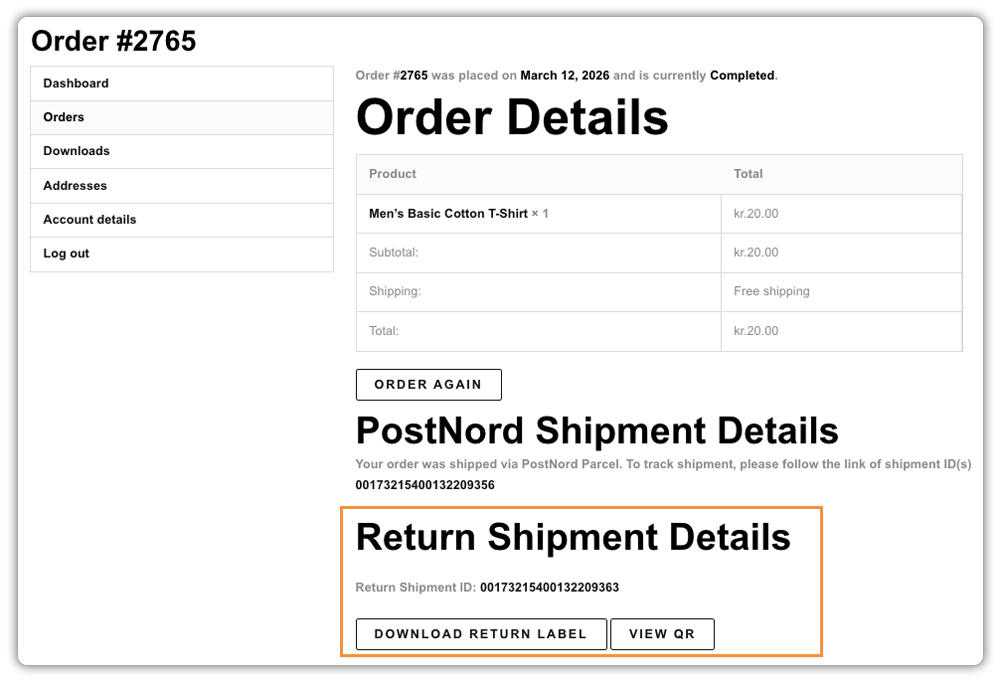
Once enabled, customers can visit My Account > Order Details to find the Return Shipment Details section, where they can download the return label or QR code and drop off the package at any nearby PostNord service point, no need to contact support at all.
Real-World Example: Managing WooCommerce Returns with PostNord
Let’s say you run a WooCommerce store selling winter apparel across Sweden and Denmark. A customer requests a return because their jacket doesn’t fit.
Without automation, for instance, this means manually creating a return label, emailing it, waiting for confirmation, and tracking the return through a separate portal, all while managing new orders.
With the PostNord plugin, the process is much simpler:
- Return label ready in seconds: Create the return shipment directly from the WooCommerce order page, without switching between systems.
- Customer handles the rest: The customer downloads the return label from their My Account page and drops the package at their nearest PostNord service point.
- Tracking stays in WooCommerce: The return tracking ID is saved in the order, so you know exactly when the package is on its way back and can refund promptly.
Ultimately, a quick, professional return turns a dissatisfied customer into a returning one.
Best Practices for Managing PostNord Returns
A few simple practices can make your WooCommerce returns process even more reliable:
- Set a clear return policy: State your return window, item conditions, and who covers shipping costs on the product page, at checkout, and in confirmation emails.
- Generate return labels proactively: For frequently returned products, include the return label in the original package to remove any barrier for the customer.
- Use tracking to process refunds on time: Since PostNord tracking is saved in the WooCommerce order, you can refund as soon as the package is received without waiting for the customer to confirm.
- Monitor return patterns: High return rates on specific products often point to packaging issues or inaccurate descriptions – worth fixing at the source.
- Communicate at every step: Notify customers when the return label is ready, when you’ve received the package, and when the refund is processed.
Overall, a predictable return process builds customer trust, and that trust brings them back.
Conclusion
Managing returns well is a sign of a well-run WooCommerce store. When customers can access their PostNord return label and receive their refund without friction, it turns a potentially negative experience into one that builds loyalty. The PH PostNord Shipping Plugin for WooCommerce keeps the entire process automated, trackable, and customer-friendly, all from within your WooCommerce dashboard.
Ready to make PostNord returns seamless for your customers? Getting started is simpler than you think. If you need help setting up this in your WooCommerce store, the PluginHive support team is ready to assist you with configuration and guidance.
FAQs
1. Can I generate PostNord return labels in WooCommerce?
Yes. With the PH PostNord Shipping Plugin, you can create return labels directly from the WooCommerce order page, without the need for external tools.
2. Can the post office print off my return label?
Yes. The PH PostNord Shipping Plugin for WooCommerce generates a QR code along with every return label. Customers can show this QR code at any PostNord service point for drop-off, no printer needed.
3. How to send a return label?
Once generated, the return label can be emailed to the customer as a PDF or made available directly on their My Account > Order Details page, whichever works best for your store.
4. How do I process a refund in WooCommerce?
Once the returned package arrives, open the WooCommerce order and issue the refund directly from the order page. Since return tracking is saved within the order, you always know when the package is received and ready to refund.
