


Important Notice: Sendle has ceased operations since 11 Jan 2026. Merchants are advised to move to stable shipping carriers such as Australia Post.
Solutions like WooCommerce Shipping Services and the PH Australia Post MyPost Business Shipping for WooCommerce can help automate shipping, replace Sendle, and reduce future delivery risks.
Sendle is a popular shipping carrier for small and medium-sized businesses, offering affordable, carbon-neutral delivery. For WooCommerce store owners, printing Sendle shipping labels directly from the WooCommerce dashboard helps streamline order processing, remove manual entry, and ensure accurate shipping details.
This guide explains how to generate and print Sendle shipping labels in WooCommerce, including bulk label printing options.
On This Page
- Sendle Shipping for WooCommerce Stores
- Benefits of Printing Sendle Labels from WooCommerce
- How to Print Sendle Shipping Labels from WooCommerce
- Real-world Use Case
- Conclusion
- FAQs
Sendle Shipping for WooCommerce Stores
Sendle is a shipping carrier built specifically for small and medium-sized businesses, operating across Australia, the U.S., and Canada, with ongoing global expansion. It is the first 100% carbon-neutral courier in these regions, and shipping emissions are automatically offset at no extra cost, making it an eco-friendly choice for WooCommerce stores. Instead of owning delivery vehicles, Sendle partners with trusted courier networks, such as DHL and USPS, ensuring reliable delivery across both metropolitan and regional areas.
It offers flexible shipping options that suit different delivery speeds and budget requirements:
- Sendle Saver: The most cost-effective option, with delivery in 2–8 business days. Includes tracking and up to US $100 / AU $100 shipment cover.
- Sendle Preferred: A balanced option for faster deliveries (1–5 business days), offering US$150 / AU$150 cover, full tracking, and priority support.
- 2-Day & 3-Day Guaranteed Delivery: Available in select regions (such as metro areas in Australia and the U.S.). If delivery isn’t met within the guaranteed timeframe, the shipping fee is refunded.
In addition to domestic shipping, Sendle supports international deliveries across major markets in North America, Europe, Asia, and Oceania, making it a practical solution for WooCommerce stores selling globally.
Benefits of Printing Sendle Shipping Labels from WooCommerce
Printing Sendle shipping labels directly from your WooCommerce dashboard helps streamline your entire shipping workflow. Here’s how it benefits WooCommerce store owners:
- Faster Order Fulfillment: You can create Sendle shipping labels directly from WooCommerce orders, reducing the time spent switching between platforms and speeding up day-to-day dispatch operations.
- Reduced Manual Errors: Shipping details such as customer address, package weight, and service type are automatically pulled from the WooCommerce order, minimizing mistakes caused by manual data entry.
- Centralized Shipping Management: All Sendle shipments, labels, and order details stay within WooCommerce, making it easier to manage pickups, reprints, and shipment status from one dashboard.
- Improved Customer Experience
Accurate labels and timely tracking updates reduce delivery issues and increase transparency, leading to fewer support requests and higher customer satisfaction. - Scalable Shipping Operations: Whether you process a few orders or handle bulk shipments, printing Sendle labels from WooCommerce keeps your shipping workflow consistent and efficient as your store grows.
How to Print Sendle Shipping Labels from WooCommerce
Printing Sendle shipping labels from WooCommerce is simple when you use a shipping solution that integrates Sendle directly into your store. This allows you to manage rates, labels, and tracking without leaving your WooCommerce dashboard.
Start by installing and activating the WooCommerce Shipping Services Plugin on your store. This plugin supports Sendle live rates, label printing, and tracking within WooCommerce.
For a detailed walkthrough, refer to the Setup Guide for the WooCommerce Shipping Services Plugin.
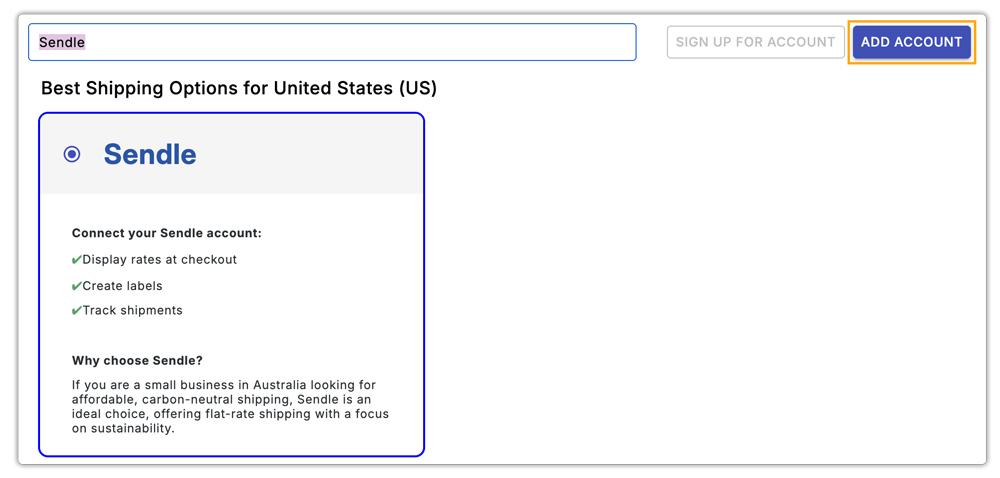
Once the plugin is installed, navigate to the plugin settings and enable Sendle as a shipping carrier (as shown in the setup screen).
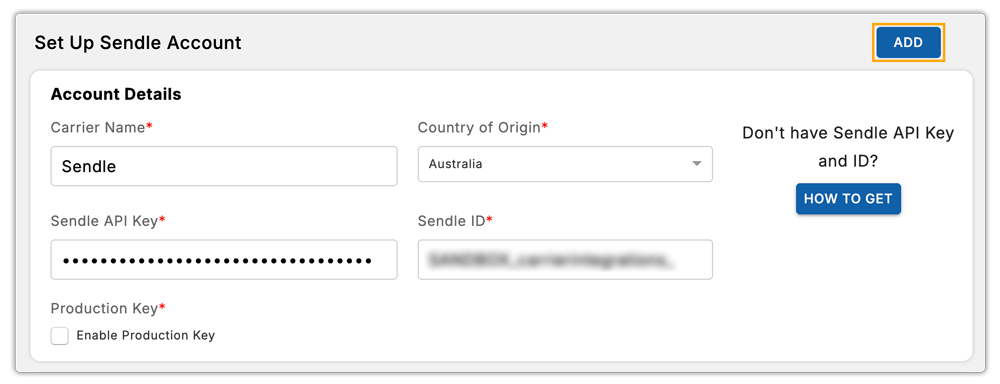
Enter your Sendle ID and API Key in the respective fields to connect your Sendle account with WooCommerce. This establishes secure communication between your store and Sendle.
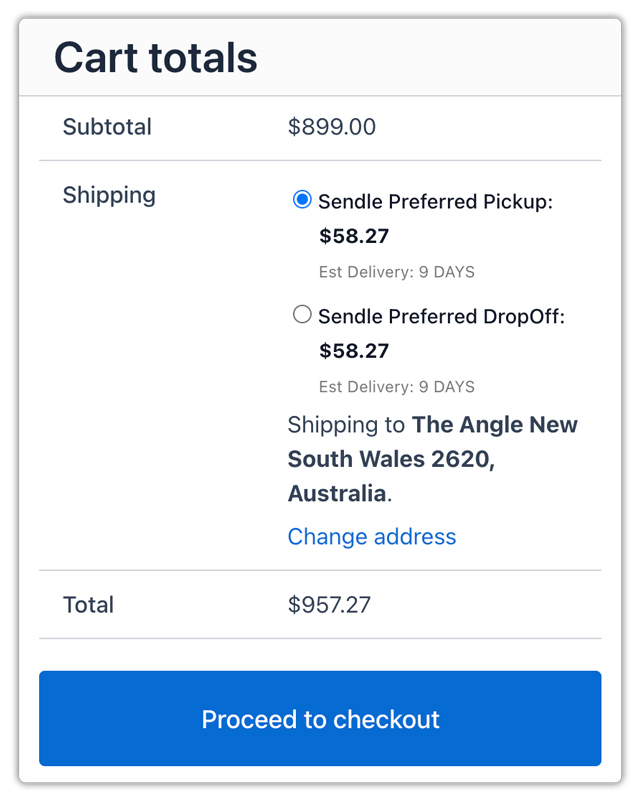
After a successful connection, your WooCommerce cart and checkout pages will automatically display live Sendle shipping rates, helping customers choose accurate shipping options in real time.
From the WooCommerce order page, you can generate and print Sendle shipping labels with just a few clicks. Tracking details are automatically synced to the order, keeping customers informed.
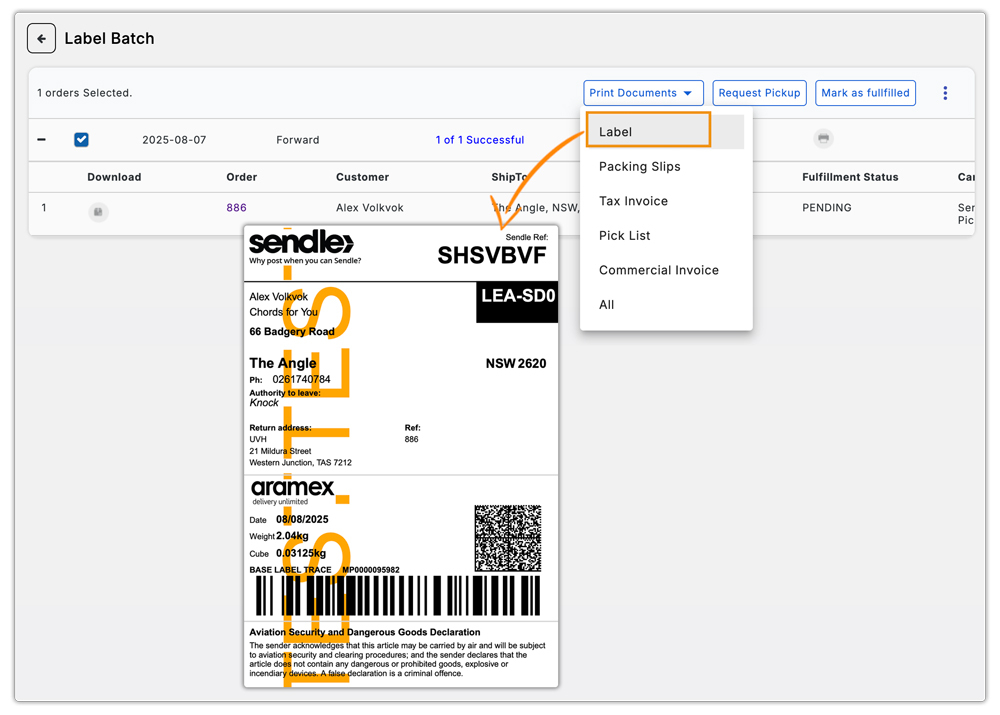
If you process multiple orders at once, you can also generate Sendle shipping labels in bulk, saving time and improving fulfillment efficiency. For more details, refer to the Generate Shipping Labels in Bulk guide.
Real-World Use Case: An Australian WooCommerce Store Automating Sendle Label Printing
An Australia-based WooCommerce store selling eco-friendly lifestyle and home-use products relied heavily on domestic shipping to customers across metro and regional areas. As brand awareness grew, daily order volumes increased from 30-40 orders per day to over 110 orders during peak sales periods, with Sendle handling the majority of shipments.
As order volumes scaled, the store began facing several operational challenges:
Key Challenges
- Manually booking shipments on the Sendle dashboard for every order
- Printing labels one by one, slowing down fulfillment
- Switching between WooCommerce and Sendle to copy addresses and order details
- Delays in dispatch during peak days, impacting delivery commitments
The Solution
To streamline operations, the store integrated Sendle directly into WooCommerce via the WooCommerce Shipping Services Plugin.
The Results
- Label creation time reduced by nearly 65%, as shipping labels were generated directly from WooCommerce orders
- Bulk label printing cut daily fulfillment work from 3-4 hours to under 90 minutes during peak sales
- Faster dispatch cycles, with most orders shipped the same day
- Improved customer experience, as tracking details were automatically shared after label creation
The store owner noted that the biggest improvement was operational simplicity. The fulfillment team no longer needed to jump between multiple dashboards or manually re-enter shipping details. This is how automating Sendle label printing can significantly improve efficiency and scalability for WooCommerce stores.
Conclusion
Printing Sendle shipping labels directly from your WooCommerce dashboard helps simplify order fulfillment. By centralizing shipping tasks inside WooCommerce, store owners can minimize errors and provide customers with timely tracking updates and reliable deliveries. With the right setup in place, managing Sendle shipments becomes a scalable and stress-free part of your WooCommerce operations.
If you need help with setup or have questions, reach out to support here: PluginHive Support.
FAQs
- Can I show customers the estimated delivery date for Sendle shipments at checkout?
Yes, with the WooCommerce Shipping Services Plugin, you can easily display expected delivery dates. For more flexibility, you can use the Estimated Delivery Date Plugin for WooCommerce.
- How do I provide tracking updates to customers once Sendle shipments are dispatched?
Use the WooCommerce Shipment Tracking Pro Plugin to automatically share Parcelforce tracking links with customers via email and the order page.
- Can I use Sendle for bulky or oversized items in WooCommerce?
Sendle works best for small to medium-sized parcels. It may not support oversized or very heavy items, depending on your region.
- Can I manage Sendle shipping for a multi-vendor WooCommerce store?
Yes. The WooCommerce Multi-Vendor Shipping Addon lets each vendor generate their own Parcelforce labels, track shipments, and manage orders independently.
