



For WooCommerce store owners shipping with USPS, managing the shipments efficiently is key to fast, error-free fulfillment. Manually creating labels outside WooCommerce can be slow and prone to mistakes, especially with multiple orders. Printing USPS shipping labels directly from your WooCommerce dashboard automates the process, pulling shipping details, generating labels, and adding tracking automatically.
In this guide, we’ll show you how to print USPS shipping labels in WooCommerce step by step.
On This Page
- Why Printing USPS Shipping Labels Directly from WooCommerce Matters
- How to Print USPS Shipping Labels from WooCommerce Orders
- Real-World Example
- Conclusion
- FAQs
Why Printing USPS Shipping Labels Directly from WooCommerce Matters
Efficient order fulfillment is one of the most important aspects of running a successful WooCommerce store. When you print USPS shipping labels directly within WooCommerce, you eliminate the need to copy customer details into the USPS website or third-party tools. This not only saves time but also ensures accuracy across every shipment.
With direct USPS label printing in WooCommerce:
- You streamline your workflow: no more switching between multiple platforms.
- Labels are auto-filled with correct addresses, package weight, and service details.
- Tracking numbers are instantly added to WooCommerce orders and shared with customers.
- Shipping errors are reduced, preventing costly delivery issues and returns.
- Fulfillment speed improves, which helps maintain customer satisfaction and repeat business.
In short, integrating USPS label printing into WooCommerce turns a manual, repetitive process into a quick, automated workflow, ideal for growing online stores handling multiple daily shipments.
How to Print USPS Shipping Labels from WooCommerce Orders
In WooCommerce, you can print USPS shipping labels directly from your store dashboard using the PH WooCommerce USPS Shipping Plugin. This helps you save time, ensure shipment accuracy, and streamline your entire fulfillment process.
To get started, refer to the USPS Shipping Setup Guide for WooCommerce for step-by-step integration instructions.
Manual Label Printing
This method is ideal when automatic label generation isn’t suitable, for example, for orders that require custom packaging, international documentation, or special handling.
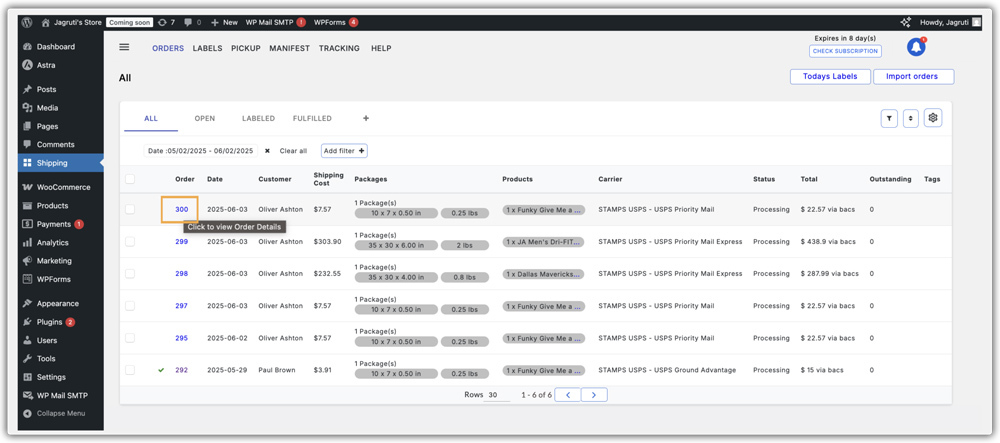
Go to the WooCommerce Orders page and click the Order Number to open that specific order’s detail page.
Once all shipment and packing details are verified, click Generate Label to create the USPS shipping label using your preferred service.

Use Print Documents to print the label and any required shipping papers, such as customs forms for international shipments.

After the label is generated, the tracking number is automatically added to the order, and the customer receives a notification email with tracking details.
Automatic Label Generation
For stores processing a high volume of orders, the plugin can automatically generate USPS shipping labels as soon as an order is placed. Make sure to enable it in Label Automation as shown in the image.

This is the best option for merchants who prefer a hands-free shipping process.
Generate USPS Shipping Labels in Bulk
Bulk label generation is ideal for busy shipping days when multiple USPS orders need to be processed together.
Go to the Open Orders tab in the plugin dashboard and select the checkboxes next to the orders you want to process. Click Generate Labels to begin.

Once the batch is complete, select the checkbox next to it, click Print Documents → Label

All USPS labels are in a ready-to-ship format, ensuring consistency, speed, and compliance across all your shipments.

To learn more about USPS shipping labels in WooCommerce, watch this video.
Real-World Example: WooCommerce Store Streamlining USPS Shipping and Label Printing
A U.S.-based WooCommerce store selling handcrafted home decor was struggling with manual USPS shipping processes. Each order required manually entering customer details on the USPS website, generating labels individually, and then updating tracking numbers by hand, a time-consuming and error-prone workflow.
Challenges:
- Delays in order fulfillment due to manual label generation.
- Occasional address entry errors are causing returned shipments.
- Increased workload during peak sales periods with multiple daily orders.
Solution:
The store integrated the PH WooCommerce USPS Shipping Plugin, enabling direct USPS label printing within WooCommerce. This change allowed them to:
- Automatically generate USPS shipping labels as soon as an order is placed.
- Print labels in bulk for multiple orders with just a few clicks.
- Instantly update tracking details in customer order emails.
- Use custom packaging rules for fragile or oversized decor items.
The store cut down its label creation time by over 70%, eliminated most address errors, and shipped orders faster, all without leaving the WooCommerce dashboard. By fully automating USPS label printing, the store achieved faster shipping turnarounds.
Conclusion
Printing USPS shipping labels directly from your WooCommerce dashboard transforms order fulfillment into a faster, more accurate, and fully automated process. Whether you handle a few orders a day or hundreds, integrating label printing into WooCommerce keeps your shipping workflow simple, consistent, and reliable.
Need help with the plugin setup? Visit the WooCommerce Shipping Setup Guide for complete instructions or reach out to the PluginHive Support Team for assistance.
FAQs
- Can I display USPS international shipping rates and print labels in WooCommerce?
Absolutely. The PH USPS Shipping Plugin for WooCommerce supports both domestic and international USPS shipping. Learn more: USPS International Shipping with WooCommerce
- Can I reprint a USPS shipping label?
Yes. You can easily reprint any previously generated USPS label directly from the order page in WooCommerce without incurring extra charges.
- Does the plugin support scheduled USPS pickups?
Yes. Once you have generated labels, you can schedule USPS pickups without leaving WooCommerce. For more info, visit – WooCommerce pickup with USPS.
- Is it possible to void or cancel a USPS shipping label?
Yes. You can void a USPS label within the allowed USPS cancellation window (usually within 24 hours) directly from your WooCommerce order page.
- Can I handle USPS drop-off locations for my WooCommerce shipments?
Yes. After printing your USPS shipping labels from WooCommerce, you can drop off your packages at any USPS drop-off location. To learn more, check out this guide: Where Can You Drop Off USPS Packages?
