



If you ship across Canada, Purolator is probably one of your regular carriers. Creating Purolator shipping labels on the carrier’s website, though, means switching tabs, retyping addresses, and hoping nothing gets mistyped along the way. With the WooCommerce Shipping Services plugin by PluginHive, you can create and print those labels right from your WooCommerce dashboard.
In this guide, we will cover why direct label printing matters, what you need to get started, and how to print a Purolator shipping label in WooCommerce and make the shipping process easier to manage.
On This Page
- Why Print Purolator Shipping Labels Inside WooCommerce?
- What You Need Before You Start
- How to Print Purolator Shipping Labels in WooCommerce
- Real-World Example: A WooCommerce Candle Store Shipping Across Canada
- Best Practices for Printing Purolator Labels
- Conclusion
- FAQs
Why Print Purolator Shipping Labels Inside WooCommerce?
The label is the moment an order becomes a shipment, which makes it the step where small mistakes cost the most. A wrong service or an incomplete address can lead to delays, follow-up emails with customers, or a parcel that has to be sent again. Handling labels inside your store keeps the order and its shipment connected from checkout to delivery.
- The label matches the order: The Purolator service your customer paid for is the one that carries through to the label.
- Your routine scales with your sales: A process that works for five orders a week still works when that becomes fifty a day.
- Customers hear from you sooner: Tracking details can go out as soon as the order is fulfilled, which means fewer “where is my parcel?” messages.
In short, printing from WooCommerce turns labels into a repeatable routine instead of a daily chore.
What You Need Before You Start
Make sure these four things are in place before you print your first label.
- A Purolator account. You will need your Web Service Key, Web Service Password, and Account Number. If you do not have them yet, here is how to create a Purolator account and get your credentials.
- The WooCommerce Shipping Services plugin. It connects Purolator to your store and adds label printing to your dashboard. Since it supports other carriers too, Purolator can sit alongside them.
- A shipper address in Canada. Purolator requires the warehouse or shipper address in the plugin to be within Canada.
- Product weights and dimensions. These help the plugin work out the right packages for each order.
With these ready, you can move on to the actual printing.
How to Print Purolator Shipping Labels in WooCommerce
Once Purolator is connected, printing a label takes only a few clicks. The same steps work whether you are shipping one parcel or fifty.
Review the Order First
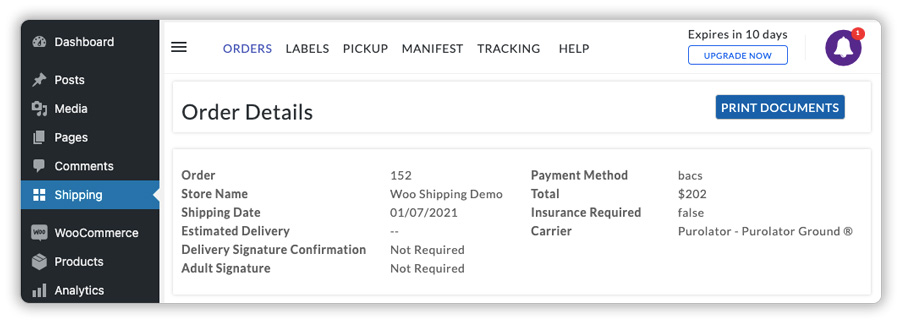
Open the Shipping tab in your WordPress dashboard. The plugin lists your orders here, but only those marked Processing. If an order has a different status, change it to Processing in WooCommerce, and it will appear. In the order details, verify the Purolator service before you print the label.
Generate and Print the Label
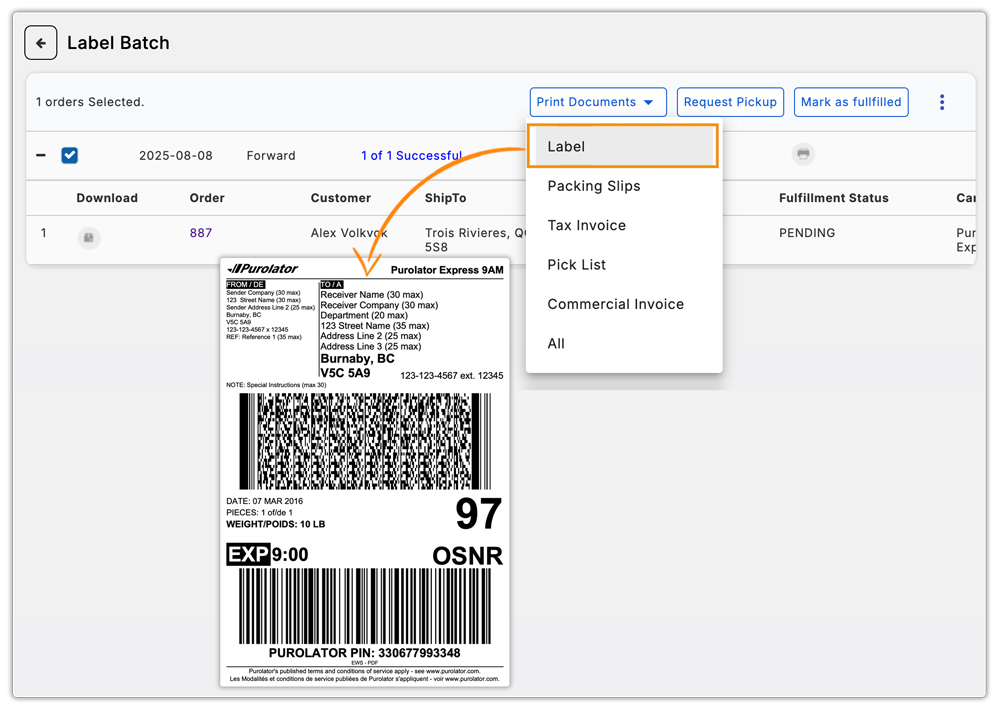
Go to the Orders tab, select the order, and click Generate Labels. Then select the order again and click Print Documents. The plugin opens a print page showing the label along with other documents, such as the tax invoice. Print the label and attach it to your parcel.
Once the Label Is Printed
The label is only one part of getting a parcel out the door. From the same plugin, you can request a Purolator pickup, fulfill the order, send the completion email with tracking details, and print a manifest for the person collecting your parcels. If you want help with pickups, here is a guide on scheduling Purolator pickups for WooCommerce orders.
That covers the full path from a Processing order to a parcel on its way.
Real-World Example: A WooCommerce Candle Store Shipping Across Canada
Let’s say you run a WooCommerce store selling handmade candles to customers across Canada, and most orders go out with Purolator. Here’s what you’re likely dealing with.
Challenges You’re Probably Facing
- Labels are created separately from your orders, so you keep double-checking that each parcel has the right service.
- A few orders use free shipping, and you are never sure which Purolator service to pick for them.
- Order details, labels, and tracking numbers are scattered across different tabs.
- During sales and holiday weeks, printing labels one by one eats up your packing time.
How WooCommerce Shipping Services Solves This
Once you connect Purolator to the WooCommerce Shipping Services plugin, the label work moves into your dashboard.
- Processing orders show up in a single list, ready to ship.
- Free shipping orders get a Purolator service picked for you.
- Rush days call for selecting a batch of orders and printing their labels together.
- Tracking details reach customers through the order completion email.
Results
- Each label follows the service the order was assigned.
- Free shipping orders no longer hold up your packing table.
- Sale weeks feel more organized because labels are printed in batches.
- Customers receive tracking details without extra effort from you.
Once the plugin is set up, label printing is no longer something you manage order by order. It becomes part of how your WooCommerce store operates.
Best Practices for Printing Purolator Labels
Getting the most out of label printing comes down to a few setup choices that are easy to overlook.
- Run a few test orders first: Place orders with different Purolator services and check the labels before real customers are involved.
- Keep weights and dimensions accurate: Packages are built from these numbers, so a wrong value can lead to the wrong package or rate.
- Pick a packing method that suits your products: You can use weight-based packing or box packing if you ship products in standard box sizes.
- Double-check your shipper address: It is used for both rates and labels, so a typo here follows you everywhere.
- Glance at each label before it ships: A quick look at the recipient details and Purolator service catches problems before the parcel leaves.
These small checks save you from corrections and delays later.
Conclusion
Printing Purolator shipping labels from WooCommerce brings labels, pickups, and tracking into one routine that grows with your order volume. With the WooCommerce Shipping Services plugin, you can print labels for a single order or a full batch without leaving your store.
Need help setting it up? Contact PluginHive Support.
FAQs
Q: How do I get a shipping label from Purolator?
You can create one on the Purolator website with your account. If you sell on WooCommerce, you can generate and print Purolator shipping labels from your dashboard with the WooCommerce Shipping Services plugin, using the order details already in your store.
Q: Is Purolator cheaper than FedEx?
It depends on the parcel’s weight, size, destination, and the service you choose. The best way to know is to compare live rates for the same order. The plugin lets you connect Purolator alongside other carriers, so you can compare their prices from one dashboard.
Q: What are Purolator’s shipping rates?
Purolator rates are not fixed. They change with the package weight and dimensions, the delivery address, and the service selected. With the plugin, live Purolator rates are calculated from your products’ weight and dimensions and shown to customers at checkout.
Q: How does Purolator shipping work?
You pick a Purolator service, print the label, and attach it to your parcel. Purolator then collects the parcel and delivers it, and a tracking number lets you and your customer follow it along the way.
