


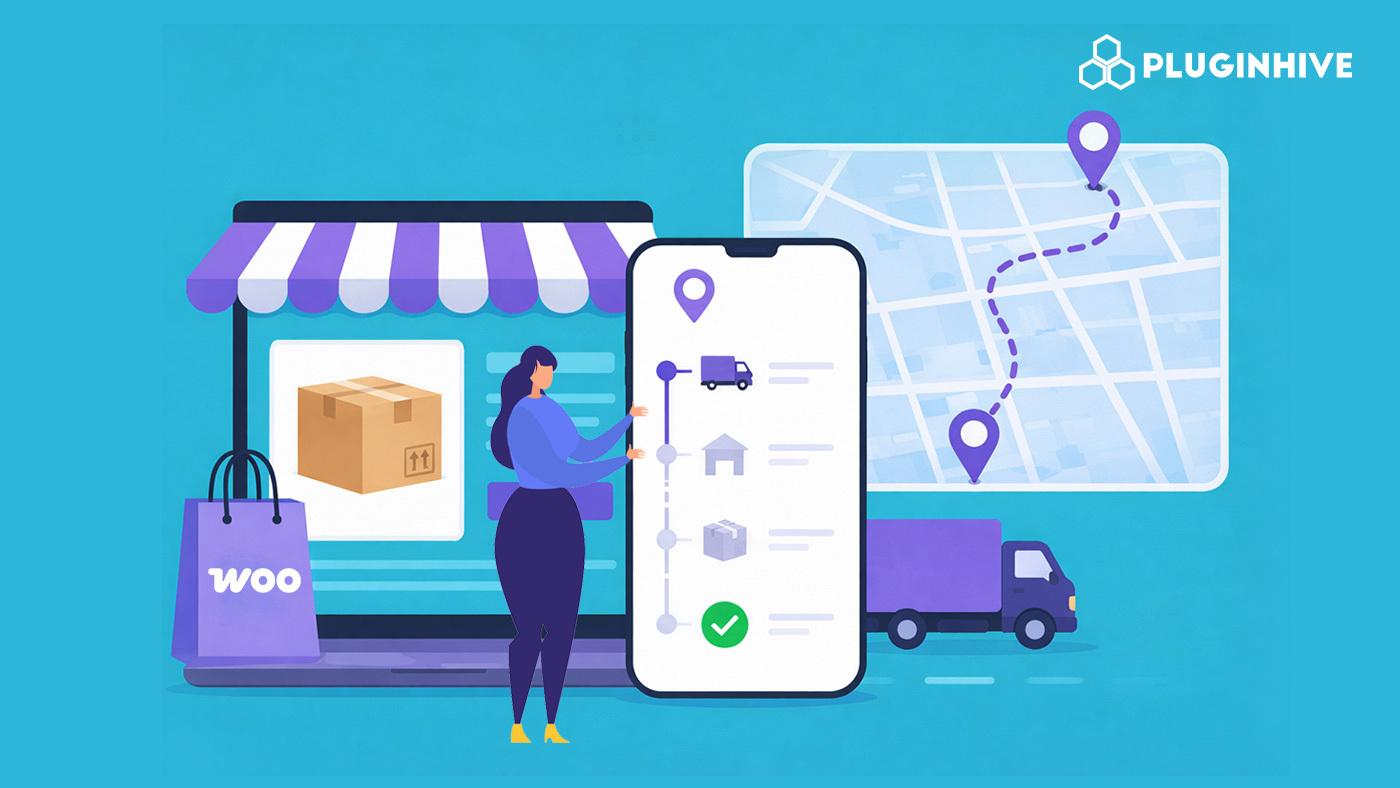
You ship an order, mark it complete, and move on to the next one. A few days later, an email lands in your inbox: ‘Hi, just checking on my order – haven’t heard anything since I paid.’ That’s a WISMO query, and if your WooCommerce store isn’t showing tracking information anywhere, you’ll get one for almost every order when the customer doesn’t know what’s happening with their shipment.
This article covers how to cut these queries down at three points in the order journey: setting delivery expectations before checkout, giving customers a self-serve way to check status once an order ships, and sending live updates so most customers never need to ask at all.
On this page
- Why WooCommerce Stores Get Flooded with WISMO Queries
- Layer 1: Set Delivery Expectations Before WooCommerce Checkout
- Layer 2: Give Customers a Self-Serve Way to Check Status
- Layer 3: Automate WooCommerce Order Status Updates
- Real-World Example
- Tips to Reduce WISMO Queries in Your WooCommerce Store
- Conclusion
- FAQs
Why WooCommerce Stores Get Flooded with WISMO Queries
WooCommerce has no built-in shipment tracking. Once an order ships, the customer has no way to see where their package is unless the store owner adds that information manually.
This creates a gap between “order placed” and “order delivered” where customers are left guessing. A few common reasons the gap shows up:
- No visible delivery estimate at checkout or on the product page
- Tracking numbers shared inconsistently, often only when a customer asks
- Multiple carriers used across orders, each with a different tracking link format
- No dedicated place on the store where a customer can check status themselves
The sections below walk through closing this gap in order – from the moment a customer is deciding whether to buy, to the moment their package is actually on its way.
Layer 1: Set Delivery Expectations Before WooCommerce Checkout
The best way to handle WISMO queries is to prevent them from being sent in the first place. Most of these questions start with uncertainty about when an order will arrive, not just where it currently is.
Showing an expected delivery date on the product page and at checkout removes that uncertainty before the customer even places the order. This is handled by the Estimated Delivery Date Plugin For WooCommerce, which displays delivery estimates tailored by product, location, and shipping method. If you’re setting it up for the first time, this guide for the Estimated Delivery Date Plugin walks through the configuration.
What this layer covers:
- Delivery date on product pages so buyers know timelines before checkout

- Delivery date at cart and checkout to confirm the estimate before payment


- Order confirmation emails that repeat the estimate, not just the order summary
Customers who see this estimate upfront rarely ask when their order will arrive. The next question they’ll have is where it currently is, once it’s actually shipped.
Layer 2: Give Customers a Self-Serve Way to Check Status
Once an order ships, customers need somewhere to check its status without emailing you. This is where a shipment tracking plugin does most of the work.
With Shipment Tracking Pro for WooCommerce, tracking becomes part of the store instead of a separate step you handle manually:
- My Account tracking: Customers see tracking details under their own order in the My Account page, no need to dig through email.

- Branded tracking page: Instead of sending customers to a carrier’s website, you can offer a tracking page within your own store.

- No-login tracking: Customers can track shipments using the link in their tracking email, even without logging in.
- 80+ supported carriers: Whether you ship with FedEx, UPS, USPS, DHL, or a regional carrier, tracking shows up in one consistent place.
If you’re setting this up for the first time, this guide on setting up Shipment Tracking Pro walks through adding carriers and tracking setup step by step. A tracking page only helps, though, if the customer thinks to check it, which is why the next layer pushes updates to them instead.
Layer 3: Automate WooCommerce Order Status Updates
Self-serve tracking works only if customers know to check it. The next layer is pushing updates to them automatically, so they get the answer before they think to ask.
- Automatic tracking emails: As soon as a tracking number is added to an order, the plugin sends the carrier name, tracking number, and a clickable tracking link to the customer.

- Custom tracking messages: You can personalize what the email says using shortcodes for date, service, and carrier, so it matches your store’s tone.
- Auto order completion: Orders are marked complete automatically once tracking data is imported, so status updates don’t lag behind.
- Bulk import for high order volumes: CSV, FTP, or SFTP import means tracking numbers get added and emailed out even when you’re processing hundreds of orders a day.
With all three layers in place, a delivery estimate at checkout, a self-serve tracking page, and automatic status emails most orders won’t generate a single WISMO email.
Example Scenario: A WooCommerce Store Cutting Down WISMO Emails
Let’s say you run a WooCommerce store selling gift hampers that sees a big spike in orders around the holidays. Here’s what you’re likely dealing with.
Challenges You’re Probably Facing:
- Customers buying gifts want to know the delivery date will actually be met, since many orders are timed for a specific occasion
- Your inbox fills up with “will this arrive in time” and “where is my order” emails during peak weeks
- Support has to manually check each carrier’s site to answer a single question
- A slow reply during the holiday rush feels worse to the customer than at any other time of year
How PluginHive’s Plugins Solve This:
Setting up the Estimated Delivery Date Plugin alongside Shipment Tracking Pro for WooCommerce addresses both the “will it arrive on time” and “where is it now” questions without extra support effort.
- Product pages show a delivery estimate before the customer even adds the item to cart
- Tracking numbers and links go out automatically once each order ships
- Customers see live status updates without needing to contact support
- Support only steps in for the small number of orders that are genuinely delayed
Results:
- Fewer pre-purchase and post-purchase emails during the busiest weeks of the year
- Customers get a clear delivery expectation instead of guessing
- Support time during peak season goes toward real issues instead of routine status checks
- The same setup keeps working through the rest of the year, not just during the rush
For a store like this, the biggest win isn’t any single feature – it’s that the delivery date, the tracking page, and the status emails all work together, so no single moment in the customer’s wait feels uncertain.
Tips to Reduce WISMO Queries in Your WooCommerce Store
A few configuration choices make a noticeable difference in how well this setup holds up in practice.
- Set the delivery estimate realistically: An overly optimistic date creates more WISMO emails than no estimate at all, since customers message you the moment it’s missed.
- Link to your tracking page from order emails and your site footer: A tracking page only reduces queries if customers actually know it exists.
- Customize the tracking and live update messages: A short, clear note in your own tone reduces confusion compared to a generic default message.
- Review carrier performance periodically. If one carrier repeatedly causes delays, it’s worth adjusting which service you offer for that shipping zone.
None of these changes take long to make, but together they close most of the gaps that lead to a WISMO email in the first place.
Conclusion
WISMO queries usually come down to a gap in visibility, not a shipping problem. Closing that gap with delivery estimates, self-serve tracking, and live order notifications means most customers get their answer without ever contacting your store. For help setting this up for your specific carriers, reach out to PluginHive Support.
FAQs
1. What does WISMO mean in WooCommerce?
WISMO stands for “Where Is My Order” – it refers to customer queries asking for shipment status after a purchase.
2. How do I reduce WISMO queries?
Keep customers informed at every stage of the order, from checkout to delivery, so they always know where things stand without needing to ask.
3. Does showing a delivery estimate actually reduce WISMO queries?
Yes. Most WISMO emails come from uncertainty about timing. Showing an estimate on the product page and at checkout, using the Estimated Delivery Date Plugin For WooCommerce, addresses that upfront.
