



Selling by weight on WooCommerce isn’t as straightforward as it should be. You can set a product weight, sure, but that’s purely for shipping. The moment a customer needs to order 250g of your specialty coffee or 2kg of your pet feed, WooCommerce has no idea what to charge them. That’s exactly what this guide fixes, using the PH Product Add-ons for WooCommerce to set up live, input-driven pricing that works right on the product page.
On This Page
- Why WooCommerce Doesn’t Support Weight-Based Pricing by Default
- Real-World WooCommerce Use Cases for Selling by Weight
- How to Sell by Weight in WooCommerce
- Example Scenario
- Tips to Improve Weight-Based Pricing in WooCommerce
- Conclusion
- FAQs
Why WooCommerce Doesn’t Support Weight-Based Pricing by Default
WooCommerce was built around fixed-price products. Each product has a price, customers add it to the cart, and they pay that price. Weight in WooCommerce exists purely for shipping – it tells the carrier how heavy the package is, not how much to charge the customer for the product itself.
So if you’re selling specialty coffee at $12 per 100g or wool yarn at $8 per 50g, WooCommerce has no native field for WooCommerce weight pricing – nothing that links the price per unit to the quantity a customer enters. You’d need either dozens of product variations (100g, 200g, 300g…) or a proper solution built for this.
That solution is the PH Product Add-ons for WooCommerce plugin. It lets you add a number input field to your product page, set a price per unit, and use the Multiply Cost by the Number Entered pricing mode so the total updates in real time as the customer types.
Real-World WooCommerce Use Cases for Selling by Weight
Before jumping into the setup, here are a few WooCommerce store types where WooCommerce weight pricing comes up regularly:
- Delis and specialty food stores: selling cheese, deli meats, or dried goods by the gram or pound
- Fabric and craft stores: pricing fabric by the metre or yarn by the gram
- Organic and bulk grocery stores: spices, nuts, grains sold loose
- Pet food stores: raw or mixed feed sold in custom quantities
- Florists and nurseries: soil, gravel, mulch sold by the kilogram
In all of these cases, customers need to enter how much they want, and the price needs to reflect that input directly on the product page.
How to Sell by Weight in WooCommerce
The PH Product Add-ons for WooCommerce lets you add a number input field directly to your product page. When a customer types in how much they want, the price updates automatically. No variations, no manual calculations – it just works.
Note: To get started, install and activate PH Product Add-ons for WooCommerce from your WordPress dashboard. Once active, you’ll see a Product Add-ons menu in your sidebar. For help with setup and configuration, refer to the setup guide.
Step 1: Create a new addon group
To get started, install and activate PH Product Add-ons for WooCommerce from your WordPress dashboard. Once active, you’ll see a Product Add-ons menu in your sidebar. For help with setup and configuration, refer to the setup guide .
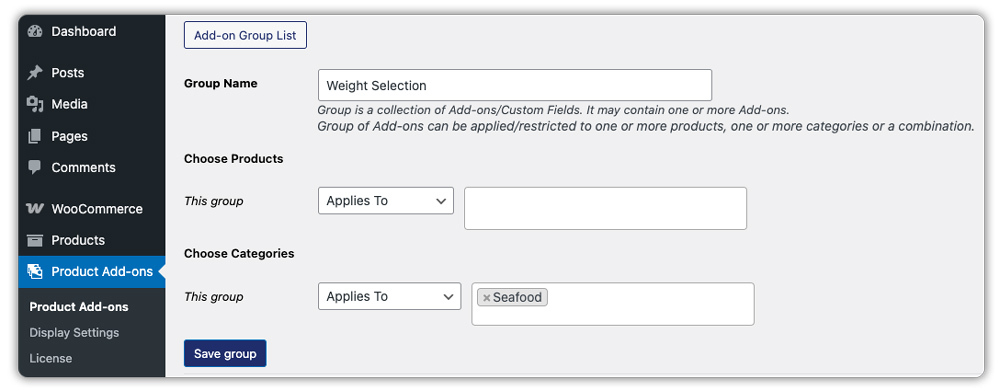
Go to Product Add-ons → Add New. Give the group a name, something like “Weight Selection”, and save it. An addon group is a container for the fields you’ll add to your product page.

Step 2: Assign it to your products
Choose which products or categories this group applies to. If you sell multiple items by weight, one group covers all of them. Set it up once, assign everywhere.
Step 3: Add a number input field
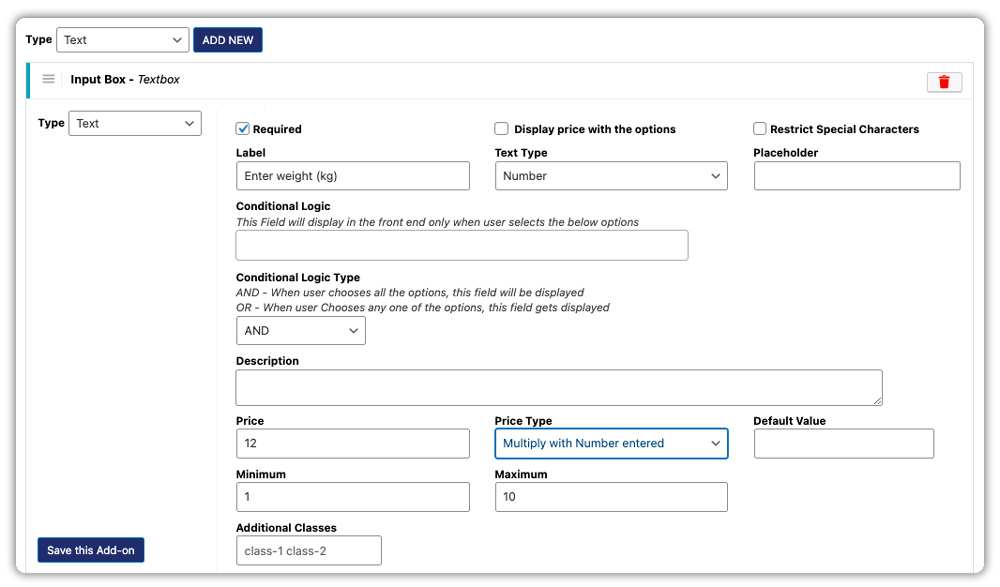
Click Add Field and select Text Field (Number type). Fill in these details:
- Label – “Enter weight in grams” or “How many kg do you need?”
- Price – your rate per unit (e.g., $0.05 per gram or $5 per kg)
- Price Type – select Multiply Cost by the Number Entered
- Required – turn this on so no one can skip it
Step 4: Hide the default quantity field
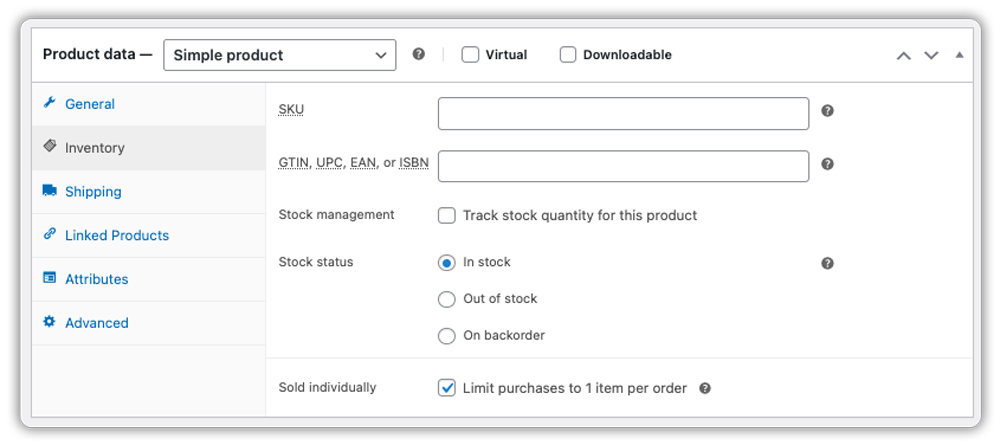
Go to the Inventory tab on your product and tick Limit purchases to 1 item per order. This hides WooCommerce’s standard quantity box because you’re selling by weight now, not by piece.
Step 5: Save and check how it looks
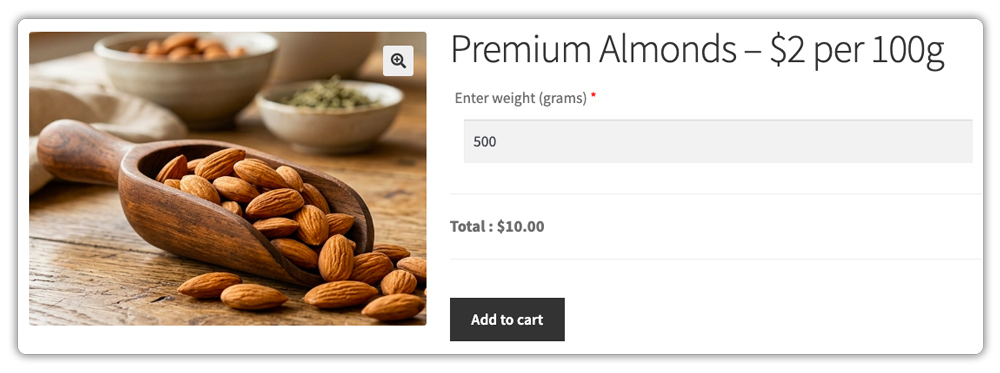
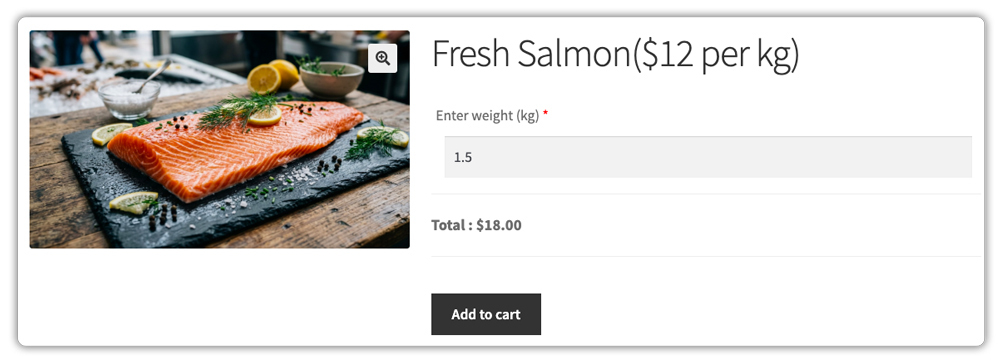
Save your settings and open the product page on your store. For example, if you’re selling fresh salmon at $12 per kg, and a customer enters 1.5 into the field, the price will instantly update to $18. The selected quantity and calculated price will carry through seamlessly to the cart, checkout, and order confirmation.
Example Scenario: Selling Products by Weight in WooCommerce
Let’s say you run a WooCommerce store selling artisan cheese, and you want customers to order by weight. Here’s what you’re likely dealing with.
Challenges You’re Probably Facing
- Your product page shows a fixed price, but customers want to order 150g, 250g, or 400g, and each needs a different total
- You’re either creating a separate product for each weight option (messy) or manually adjusting orders after the fact (slow)
- Customers can’t see how much they’ll pay before they reach checkout, which causes cart abandonment
- You’re getting support messages asking “how much is 300g?” because there’s nowhere on the page to calculate it
How PH Product Add-ons Solve This
The PH Product Add-ons for WooCommerce lets you add a number input directly to the cheese product page. Set the price per gram, choose Multiply Cost by Number Entered, and you’re done. Customers type their desired weight, the total appears instantly, and the order lands in your dashboard with the exact amount noted.
- Customers enter their required weight on the product page itself
- Price updates live as they type – no guesswork, no back and forth
- The entered weight and the calculated price appear in the cart, at checkout, and in the order details
- The same addon group can be applied to all your cheese varieties in one click
- Mandatory field validation means no one can skip the weight entry and place an incomplete order
Results
- Fewer customer support messages about pricing
- No more creating individual product variations for each weight option
- Clean, professional order summaries with weight and price clearly recorded
- Faster setup when adding new products, assign the existing addon group, done
Once weight-based pricing is set up with PH Product Add-ons for WooCommerce, calculating the right total for each customer is no longer something you handle manually – it becomes part of how your WooCommerce store operates.
Tips to Get More Out of Weight-Based Selling in WooCommerce
Setting up weight-based pricing is just the first step. These tips will help you improve accuracy and the overall buying experience:
- Use Weight-Based Shipping Rules: When order weight varies, shipping should adjust too. You can use the PH Table Rate Shipping Pro plugin for WooCommerce to set shipping costs based on weight slabs, ensuring both small and large orders are charged correctly.
- Show Real-Time Carrier Rates: If you ship with carriers like FedEx, UPS, or DHL, accurate pricing matters. The Multi-Carrier Shipping Plugin for WooCommerce helps display live shipping rates based on the final order weight.
- Offer Add-ons for Packaging or Extras: You can improve the buying experience by offering optional add-ons like gift wrapping, premium packaging, or handling charges. With PH Product Add-ons for WooCommerce, you can easily add these options and charge an additional fee when selected.
- Make the Weight Field Mandatory: Always mark the weight input field as required so customers must enter a value before adding the product to the cart.
These small changes make weight-based selling easier and more accurate for both you and your customers.
Conclusion
WooCommerce doesn’t support weight-based pricing natively, but with the PH Product Add-ons for WooCommerce, you can set it up cleanly and without any custom code. An input field, the right pricing mode, and a per-unit price are all you need to let customers order by weight and see the correct total before checkout. Pair it with a weight-aware shipping setup, and your store handles the full flow from price calculation to shipping cost without manual work. If you run into any issues setting this up or need help configuring it for your specific store, the PluginHive support team is ready to help.
FAQs
- How do I get the weight unit in WooCommerce?
WooCommerce allows you to set a default weight unit (kg, g, lbs, etc.) in settings, but this is only used for shipping. To use weight for pricing, you need a plugin that links the unit to product price calculation. - How do I sell by weight in WooCommerce?
You can sell by weight in WooCommerce by using a plugin like PH Product Add-ons for WooCommerce. It allows customers to enter the required quantity (kg, grams, etc.) and automatically calculates the total price based on your price per unit. - Can I use WooCommerce variations for weight-based pricing?
Yes, but it’s not ideal. You’ll need to create multiple variations for each weight, which becomes hard to manage. Using a product add-ons plugin is a simpler solution. If you’re deciding between the two, this guide on WooCommerce product add-ons vs variations explains the difference clearly.
