



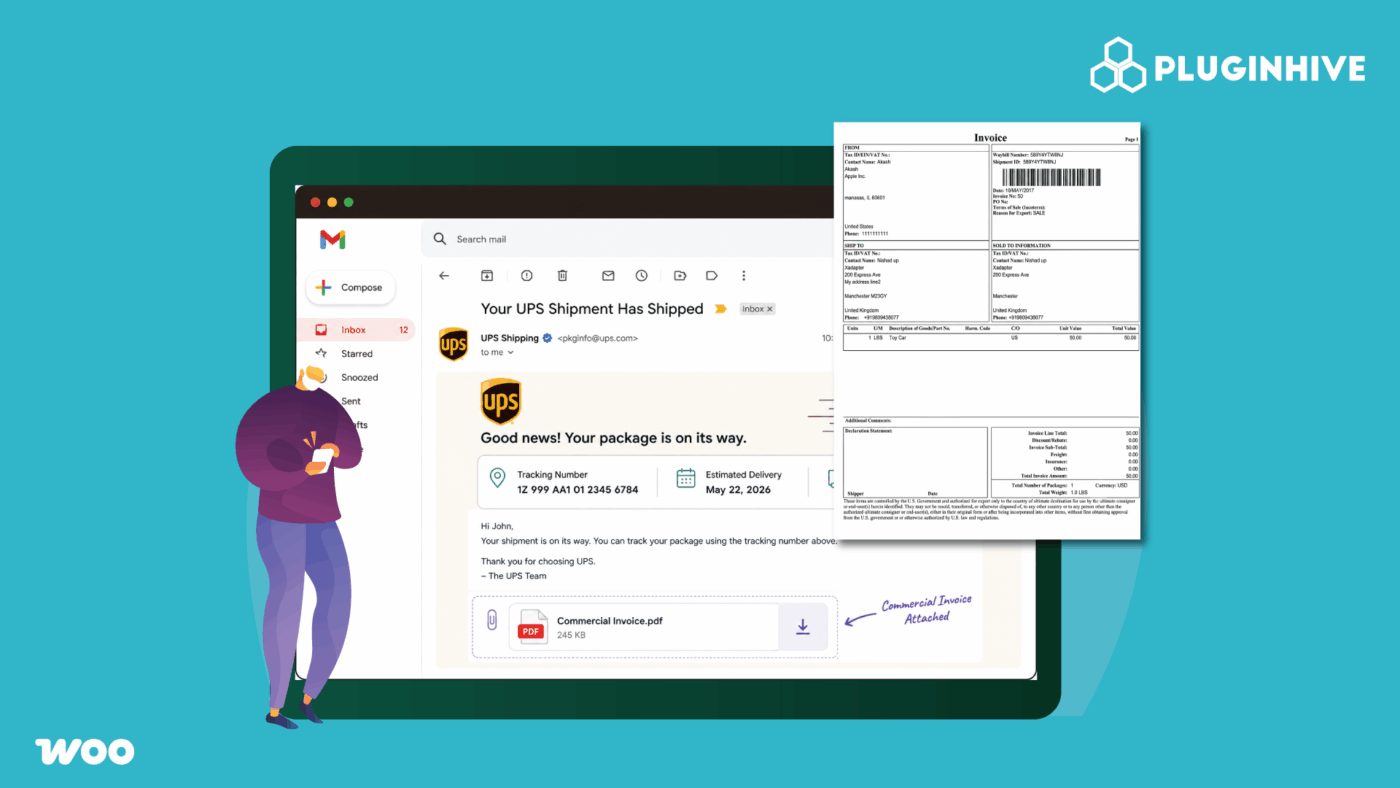
Every UPS international shipment needs a commercial invoice, and forgetting to send it, or having it sit unattached while your shipper hunts for it manually, is a small mistake that causes real customs delays. If your WooCommerce store ships internationally via UPS, the commercial invoice should reach whoever needs it automatically, attached to the same email as the shipping label, without anyone remembering to do it by hand.
This guide explains what a UPS commercial invoice needs to include, and how to configure the WooCommerce UPS Shipping Plugin with Print Label so it’s attached automatically to your shipping label emails.
On This Page
- Why the Commercial Invoice Matters for UPS Shipments in WooCommerce
- What Goes on a UPS Commercial Invoice
- How to Automatically Attach the Commercial Invoice to UPS Emails in WooCommerce
- Real-World WooCommerce Use Case
- Conclusion
- FAQs
Why the Commercial Invoice Matters for UPS Shipments in WooCommerce
UPS requires a commercial invoice, or a pro forma invoice, for every cross-border shipment; the only exception is pure documents that carry no commercial value. It functions as the bill of sale between seller and buyer, and it’s the primary document customs uses to assess duties, verify compliance, and clear the shipment.
If the invoice isn’t transmitted electronically through UPS’s Paperless Invoice system, you must include three signed copies with the physical shipment: one original and two copies. For a WooCommerce store generating labels through a plugin, the practical version of this requirement is simpler: make sure whoever is printing and attaching the invoice to the parcel actually receives it every time, without relying on someone remembering to generate and forward it separately.
What Goes on a UPS Commercial Invoice
A UPS commercial invoice needs to include a specific set of details to avoid customs delays:
- A description of the shipment and the value of each product being shipped
- The country of origin for the goods
- A harmonized tariff (HS) code for the merchandise, which speeds up customs processing
- The reason for export: commercial sale, gift, sample, or return
- Sender and recipient details, matching the shipping label
For WooCommerce stores using the UPS Shipping Plugin, the plugin generates the invoice from the order and product information already configured in WooCommerce. It automatically populates the invoice with this existing data, so you don’t need to enter the details manually for each order.
How to Automatically Attach the Commercial Invoice to UPS Emails in WooCommerce
The WooCommerce UPS Shipping Plugin with Print Label generates the commercial invoice alongside the shipping label for international orders. It also includes a dedicated email notification section that automatically attaches the invoice to the outgoing label email.
For a step-by-step setup walkthrough, refer to the WooCommerce UPS Shipping Plugin Setup Guide .
Open the Shipping Label Email Settings and Choose Who Receives the Shipping Label Email
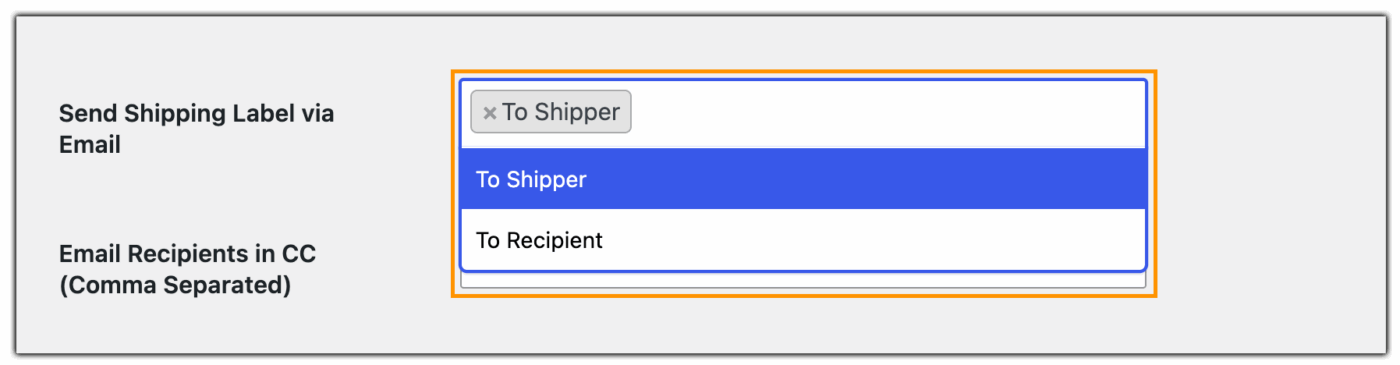
Under Send Shipping Label via Email, select who the email and its attachments should go to. Selecting To Shipper sends it to whoever is handling the physical shipment on your end, which is typically who needs the commercial invoice in hand to attach to the parcel. Additional recipients can be added under Email Recipients in CC if more than one person needs a copy.
Customise the Email Subject
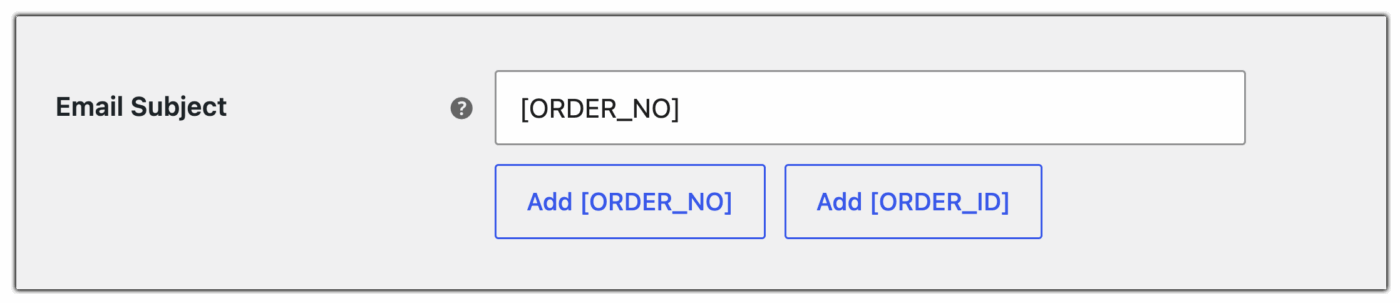
The Email Subject field supports adding ORDER_NO and ORDER_ID, which inserts the relevant order reference directly into the subject line, so each email is identifiable at a glance without opening it.
Include the Additional Labels Tag in the Email Content
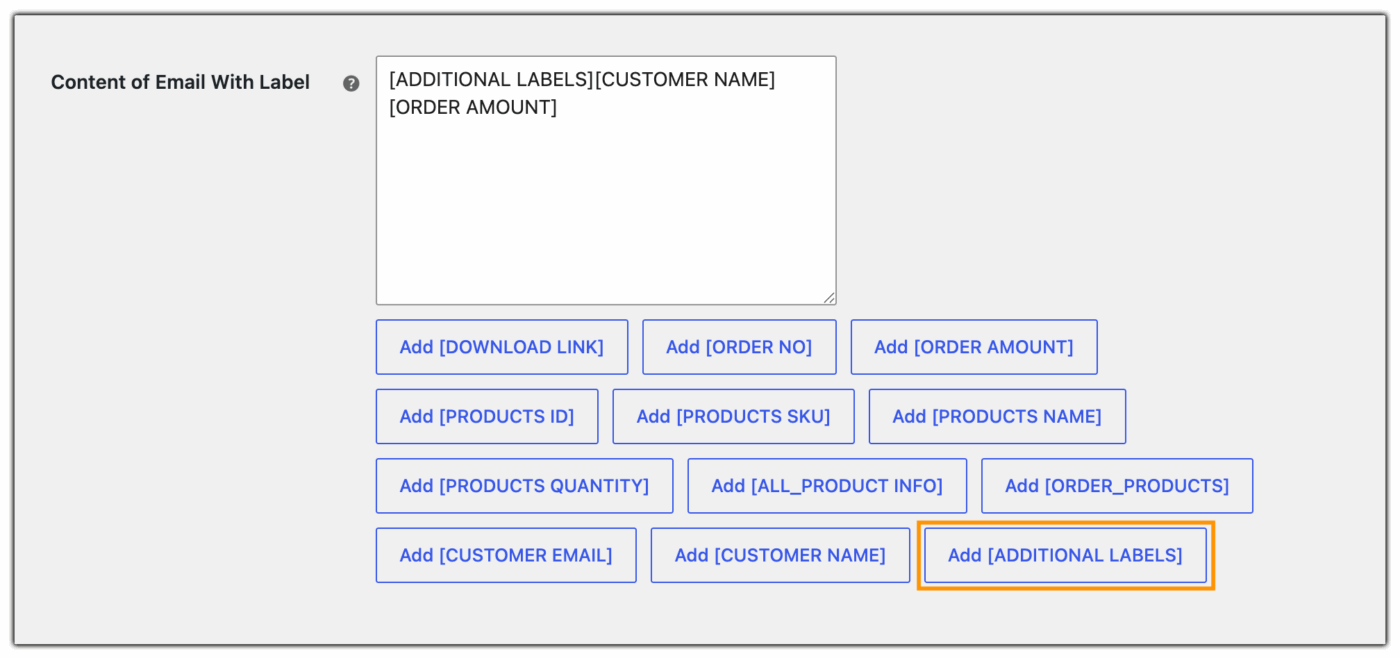
This is the step that actually attaches the commercial invoice automatically. In the Content of Email With Label field, use the Add [ADDITIONAL LABELS] merge tag. This tag pulls in any additional generated documents for that shipment, including the commercial invoice for international orders, and attaches them to the same email as the primary UPS label, rather than requiring a separate manual step to send the invoice across.
Save the settings, then generate a label for a test international order. Confirm the resulting email includes both the UPS label and the commercial invoice as attachments, and that the subject line and content reflect the merge tags configured.
Real-World WooCommerce Use Case
A WooCommerce store selling specialty coffee equipment shipped internationally via UPS several times a week. The team generated and printed shipping labels directly from WooCommerce, but the warehouse staff had to locate and email the commercial invoice separately for each international order. On busy shipping days, team members sometimes missed this extra step, and parcels left without the invoice attached. As a result, customs held those shipments until the missing paperwork was provided.
How the Plugin Helped
The store updated the notification settings in the WooCommerce UPS Shipping Plugin with Print Label to include the [ADDITIONAL LABELS] merge tag in the shipping label email content, and set the email to go directly to the Shipper. From that point, every international order’s label email arrived with the commercial invoice already attached, no separate lookup or manual forwarding required.
The Result
- Customs holds caused by a missing commercial invoice stopped occurring entirely
- The warehouse team received the label and invoice together in one email, removing a manual step from every international order
- International order processing time dropped slightly, since staff no longer needed to track down invoices separately
Conclusion
A UPS commercial invoice only helps when it reaches the person preparing the shipment. Automating the process ensures that the required customs documents reach the right person with each international shipment, without requiring anyone to send or attach them manually. For WooCommerce stores handling regular international orders, a streamlined shipping workflow can reduce manual steps and help keep customs documentation consistent.
Need help setting up your UPS email notifications? The PluginHive support team is here.
FAQs
Q. Is a commercial invoice required for every UPS international shipment?
Yes, with one exception. UPS requires a commercial invoice, or a pro forma invoice, for all cross-border shipments except pure documents that carry no commercial value.
Q. Can the shipping label and commercial invoice email go to more than one recipient?
Yes. The UPS Shipping Plugin lets you set the primary recipient under Send Shipping Label via Email. You can usually set this recipient as the shipper. Add more recipients under Email Recipients in CC. This sends them a copy of the label and invoice.
Q. Does the commercial invoice get generated automatically, or does it need to be filled in manually?
Yes. The UPS Shipping Plugin automatically generates the commercial invoice for international UPS shipments. It uses the order and product information configured in WooCommerce. You don’t need to enter the details manually for each order.
Q. What information does UPS require on a commercial invoice?
A UPS commercial invoice must include a description and value of the goods. It must also include the country of origin and harmonized tariff code. The invoice should state the reason for export. Sender and recipient details must match the shipping label.
