


A bestseller sells out on Friday, and the restock is two weeks away. You can show “Sold out” and lose the sale, or keep selling and ship when the stock lands. Shopify Backorders let you take the second route, but the setting is only half the job. You also have to tell customers about the delay, keep late orders from clogging your fulfillment queue, and ship them cleanly when inventory arrives. This guide covers the setup, the fulfillment workflow, and where PluginHive’s shipping apps fit in.
In This Article
- How Shopify Backorders Work
- When to Allow Backorders (and When Not To)
- Set Up Shopify Backorders Step by Step
- Set Customer Expectations on Delays
- Fulfill Backordered Items Without Losing Track
- Ship Shopify Backorders with PluginHive Apps
- Conclusion
- FAQs
How Shopify Backorders Work
Shopify doesn’t have a separate “backorder” status. It uses one inventory setting called Continue selling when out of stock. An item counts as out of stock when inventory is tracked and the level is zero or below, and by default customers can’t buy it.
A few rules to know before you turn it on:
- The option only works when Inventory tracked is turned on.
- It doesn’t apply to Shopify POS, where staff can keep selling at zero or below. POS warns them first.
- Multiple locations matter. If the location that fulfills online orders is at zero, the item shows as out of stock online even when another location has units. Add stock to the online-fulfilling location.
The setting is a simple on/off choice per product or variant. Keep an eye on how many units you’ve sold beyond stock, so you don’t promise more than your next shipment covers.
When to Allow Backorders (and When Not To)
Shopify lists the common reasons for selling out-of-stock items: preorders, stock arriving soon, and selling first before ordering supplies.
Backorders work best when:
- You have a confirmed restock date or a reliable supplier lead time
- The product is a repeat purchase or has loyal demand
- A delay of a few days to a couple of weeks won’t ruin the purchase, such as a gift deadline
Skip them when the restock date is unknown, or the item is time-sensitive. A “notify me” approach protects trust better than an open-ended wait.
Set Up Shopify Backorders Step by Step
These are the steps from Shopify’s inventory documentation:
- From your Shopify admin, go to Products
- Click the product you want to allow backorders for
- Optional: If it has variants, click the specific variant
- In the Inventory section, turn on inventory tracking
- Click Sell when out of stock, then select Continue selling when out of stock
- Click Save

Enable this only for products you can realistically restock. A store-wide switch makes it easy to oversell items you have no supply for.
Set Customer Expectations on Delays
Customers who know about a delay at checkout rarely complain. Customers who find out afterward often do. Practical ways to communicate:
- Product page: Add a short note such as “Ships in 10–14 days” to the description
- Order confirmation: Explain the delay and the expected ship window
- Follow-up: Email again when the item ships, with tracking
Delivery dates need extra care. Shopify’s automated delivery dates only appear when the products are in stock and can be fulfilled immediately. A backordered item won’t get an automated date, so the timing has to come from your own messaging. The Shopify estimated delivery date guide explains how fulfillment time and delivery dates work for the rest of your catalog.
Fulfill Backordered Items Without Losing Track
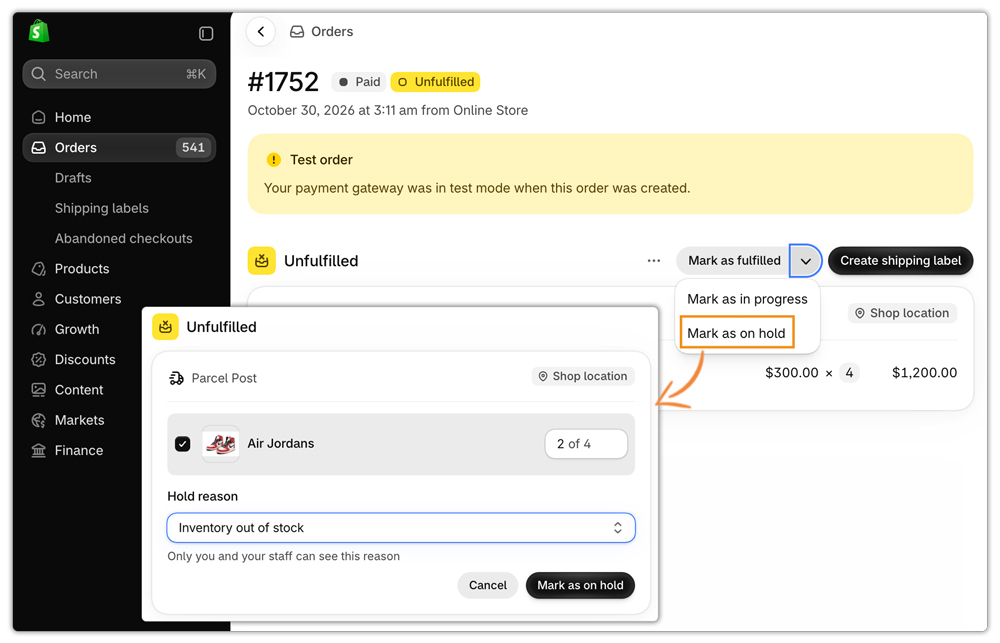
The risk with backorders is clutter. Orders you can’t ship sit in your Unfulfilled list next to ones you can. Shopify’s hold feature solves this. You can put a fulfillment on hold for reasons such as inventory not being available. Held orders are excluded from your Unfulfilled list, and when the hold is released, the status returns to what it was before.
To hold backordered items:
- Go to Orders and open the order
- In the Unfulfilled section, click the drop-down icon, then Mark as on hold
- Select the items you’re waiting on
- Choose a Hold reason
- Click Mark as on hold
When the stock arrives:
- Open the order
- In the On hold section, click Release hold
- Fulfill the released items
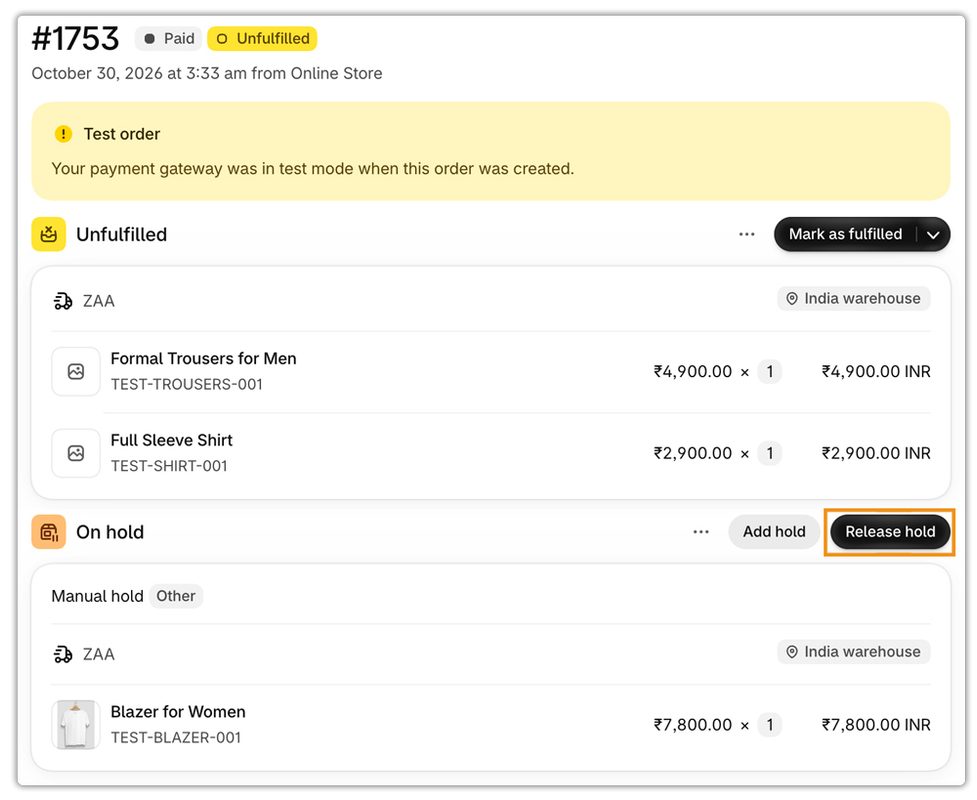
If part of an order is ready, ship it now and hold the rest. If one fulfillment is on hold and another is unfulfilled, the order shows as Unfulfilled. With one on hold and one fulfilled, it shows as On hold. The full walkthrough is in the guide to Shopify partial fulfillment.
Backorders also pile up during busy periods. Before peak season, check the Shopify holiday shipping guide so a restock doesn’t land after carrier cutoffs.
Ship Shopify Backorders with PluginHive Apps
Shopify handles inventory and holds. The apps below handle the shipping side: rates, labels, and tracking for the shipments that go out later. None of them change your inventory settings.
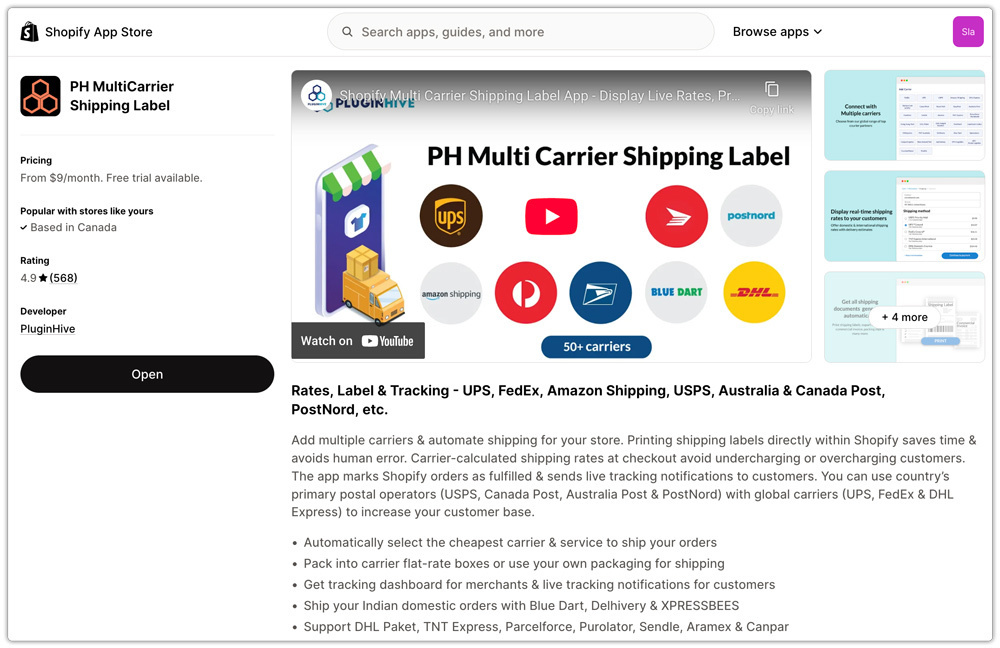
PH MultiCarrier Shipping Label App
The PH MultiCarrier Shipping Label App works with Shopify’s hold-and-release flow for split orders.
- Put the backordered items on hold, so only the ready items appear in the app
- Generate the label for the first shipment and mark it fulfilled
- Release the hold when stock arrives, refresh the order, and generate a second label
- Use live carrier rates and rate automation to keep checkout pricing accurate while items are delayed
- When a restock clears a pile of held orders, print labels in bulk
PluginHive’s guide on splitting and partially fulfilling Shopify orders shows each step in the app.
PH Ship, Rate & Track for FedEx
If you ship with FedEx, the PH Ship, Rate & Track for FedEx app lets you create labels straight from the Shopify order page.

- When a held order is released, you generate the FedEx label at that moment, using current package details and your FedEx account rates, and tracking updates sync to the order.
- The FedEx label printing guide covers the process, and the app also supports bulk label generation for restock days.
PluginHive Australia Post Ship App
For Australian stores, the PluginHive Australia Post Ship App works the same way.
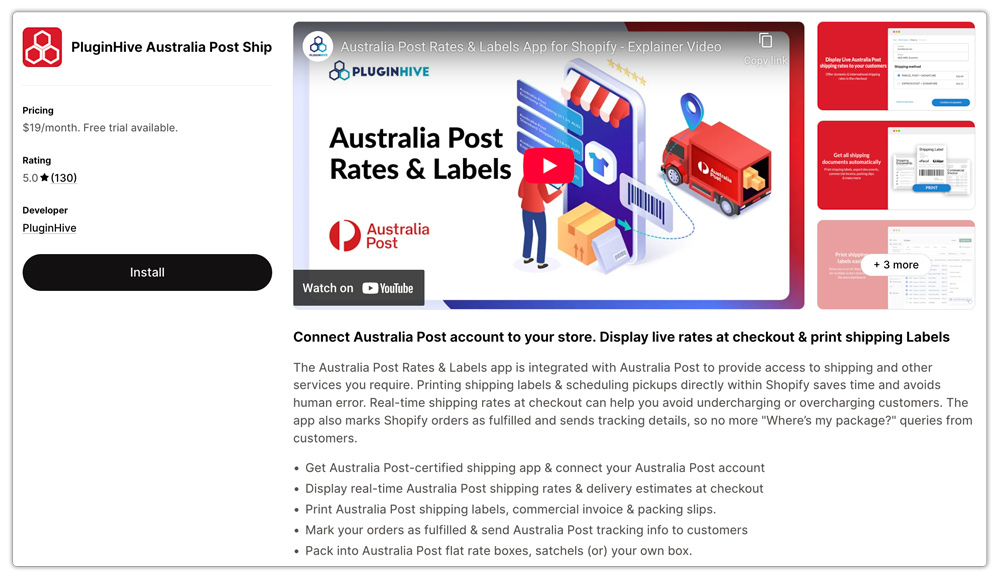
- Generate Australia Post labels from the order page once the delayed item is ready, for domestic or international parcels, with tracking synced back to Shopify. The Australia Post label guide walks through it.
- Before you rely on any of this during a real restock, place a test backorder and follow it through hold, release, label, and tracking. The Shopify shipping integration checklist lists what to verify.
Conclusion
Shopify Backorders come down to one setting, Continue selling when out of stock, plus the habits around it. Enable it only for products with a realistic restock date. Tell customers about the delay on the product page and in emails, and use fulfillment holds to keep your queue clear. When stock arrives, a shipping app that generates labels from the order page makes the restock-day rush manageable.
FAQs
Q. Does Shopify have a backorder setting?
Not by that name. You enable it with Continue selling when out of stock in a product or variant’s Inventory section, and inventory tracking must be on.
Q. Does the backorder setting work for POS orders?
No. It doesn’t apply to Shopify POS, where staff can sell at zero or below, with a warning.
Q. Why does my product show as out of stock when another location has units?
The location that fulfills online orders is at zero. Stock at a location that doesn’t fulfill online orders doesn’t count, so add stock to the right location.
Q. Will customers see a delivery date for backordered items?
Not an automated one. Shopify’s automated delivery dates require in-stock products that can ship immediately, so communicate timing yourself.
Q. Can I ship part of a backordered order now?
Yes. Fulfill the available items, hold the rest, and release the hold when stock arrives.
