



When a customer is deciding whether to complete a purchase, one of the most influential pieces of information on the checkout page is when the order will actually arrive. A vague “5-10 business days” estimate does less work than a specific date. And a specific date that turns out to be wrong does more damage than no date at all. For Shopify merchants, showing accurate estimated delivery dates at checkout is now well within reach either through Shopify’s built-in delivery date settings or by connecting your own carrier accounts for live, service-level delivery estimates. This guide covers both approaches, the requirements and limitations of each, and how the right setup depends on your carriers and fulfillment workflow.
In This Article
- Why Estimated Delivery Dates Matter at Checkout
- How Shopify Calculates Delivery Dates
- Option 1: Automated Delivery Dates in Shopify
- Option 2: Manual Delivery Dates in Shopify
- Option 3: Live Delivery Estimates via Your Carrier Account
- Conclusion
- FAQs
Why Estimated Delivery Dates Matter at Checkout
Displaying a Shopify estimated delivery date at checkout does three things for your store:
- Reduces cart abandonment: Clear delivery windows encourage customers to complete purchases, especially for time-sensitive orders like gifts.
- Reduces “where is my order” tickets: Clear delivery expectations help prevent customer confusion and unnecessary support requests.
- Creates a competitive advantage: Clear delivery dates help your store stand out from competitors that provide vague or no estimates.
The key word is accurate. An estimated delivery date that is consistently wrong is worse than no date; it drives refund requests and negative reviews. Getting the inputs right (fulfillment time + transit time) is what makes the difference. For a full picture of how the label and tracking side of fulfilment connects to this, the Shopify shipping integration checklist covers what to verify end to end before going live with any carrier setup.
How Shopify Calculates Delivery Dates
Fulfillment time covers the period from when a customer places an order until you hand the shipment to the carrier. This is the variable that merchants control, and it feeds directly into the delivery date calculation alongside the carrier’s transit time.
Your fulfillment time is added to the transit time of the carrier, and then the estimated delivery date range is displayed instead of an estimated transit time range in your online store.
A few important rules Shopify applies to this calculation:
- Weekends and statutory holidays are included in the estimated delivery dates calculation
- Business days are considered Monday to Friday
- The business day cutoff time is 12 pm in the local timezone of the shipping origin
This means an order placed after 12 pm on a Wednesday is not counted as that day’s fulfillment start. If your fulfillment time is set to 2 business days, the clock starts on Thursday, so the delivery date calculation shifts accordingly.
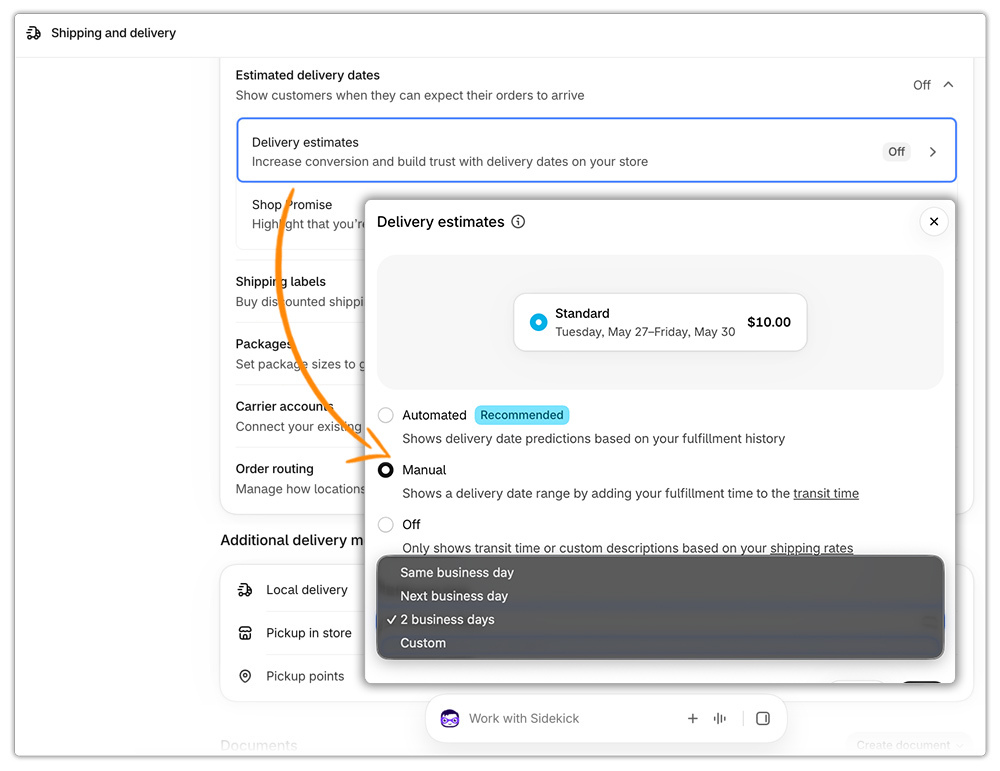
You can choose from the following fulfillment time options: Same business day, Next business day, 2 business days, or Custom (3 to 40 business days, or 1 to 8 weeks).
Shopify gives merchants two methods to display a Shopify estimated delivery date: automated and manual. Both are set up under Settings > Shipping and delivery > Estimated delivery dates.
Option 1: Automated Delivery Dates in Shopify
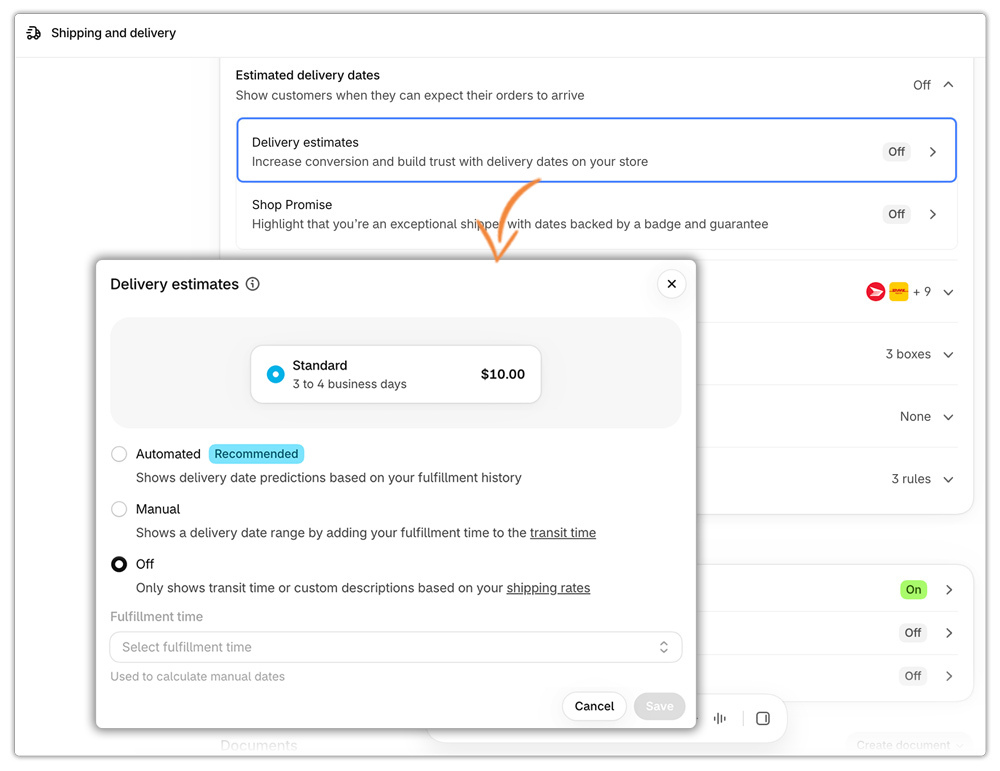
Automated delivery dates predict specific dates based on your shipping performance, such as Estimated delivery Mon, Jun 30. The predictions use your fulfillment history to calculate when orders will arrive.
This is the smarter option for merchants with consistent fulfillment history; it adapts based on your actual performance rather than a static configuration.
Requirements
To display automatic delivery dates to your customers, your store must: be on the Basic plan or higher; use the latest version of related Shopify features, such as shipping settings; never have violated the Shopify Acceptable Use Policy; have fulfilled at least one domestic order; and have an active fulfillment location within an eligible country.
- Supported regions include the United States, Canada, New Zealand, and select European countries (Austria, Belgium, France, Germany, United Kingdom, and more).
Order-level eligibility
Not every order in an eligible store will show a delivery date. Each order must also meet these criteria:
- The delivery date prediction is within 4 days for European orders, or 5 days for orders in the United States, Canada, or New Zealand
- The origin and destination must be within the same region; delivery dates are not shown for cross-region orders such as US to France or Canada to New Zealand
How to set it up
- From your Shopify admin, go to Settings > Shipping and delivery > Estimated delivery dates
- Click Estimated delivery dates, then select Automated
- From the Fulfillment time drop-down menu, select your fulfillment time
- Optional: If you select Custom, enter a custom number of business days or weeks
- Click Save
Option 2: Manual Delivery Dates in Shopify
Manual delivery dates calculate date ranges based on your fulfillment time and transit time, such as Wednesday, October 27 – Thursday, October 28.
This option gives you more control and is available on all Shopify plans.
Requirements
To display manual delivery dates in your online store, you need to: update to the latest shipping settings if you use legacy shipping settings; set up fulfillment time; and set up any of the following shipping rates: flat shipping rates with transit time, shipping label calculated rates, or negotiated carrier-calculated rates.
Which carriers and origins support manual delivery dates:
| Rate Type | Origin | Carriers |
|---|---|---|
| Flat rates with transit time | US, Canada, UK, France, Italy, Spain, Germany, Australia | Not applicable |
| Shipping label calculated rates | US, Canada, Australia | USPS, UPS, Canada Post, DHL Express |
| Negotiated carrier-calculated rates | US, Canada | USPS, UPS (select services), Canada Post (select services) |
How to set it up
- From your Shopify admin, go to Settings > Shipping and delivery > Estimated delivery dates
- Click Estimated delivery dates, then select Manual
- From the Fulfillment time drop-down menu, select your fulfillment time option
- Optional: If you select Custom, enter a custom fulfillment time and unit
- Click Save
For merchants managing international shipping alongside domestic, the Shopify international shipping guide is a useful reference for understanding how delivery dates and transit times interact across markets.
Option 3: Live Delivery Estimates via Your Carrier Account
Shopify’s built-in delivery date settings work well for merchants using Shopify’s native carrier integrations. But if you ship with your own carrier accounts to access negotiated rates, specific service levels, or carriers that Shopify does not natively support, you need a carrier app integration.
The advantage here is accuracy: instead of a Shopify estimated delivery date calculated from a manually set transit time, the customer sees delivery estimates derived from the carrier’s real-time data.
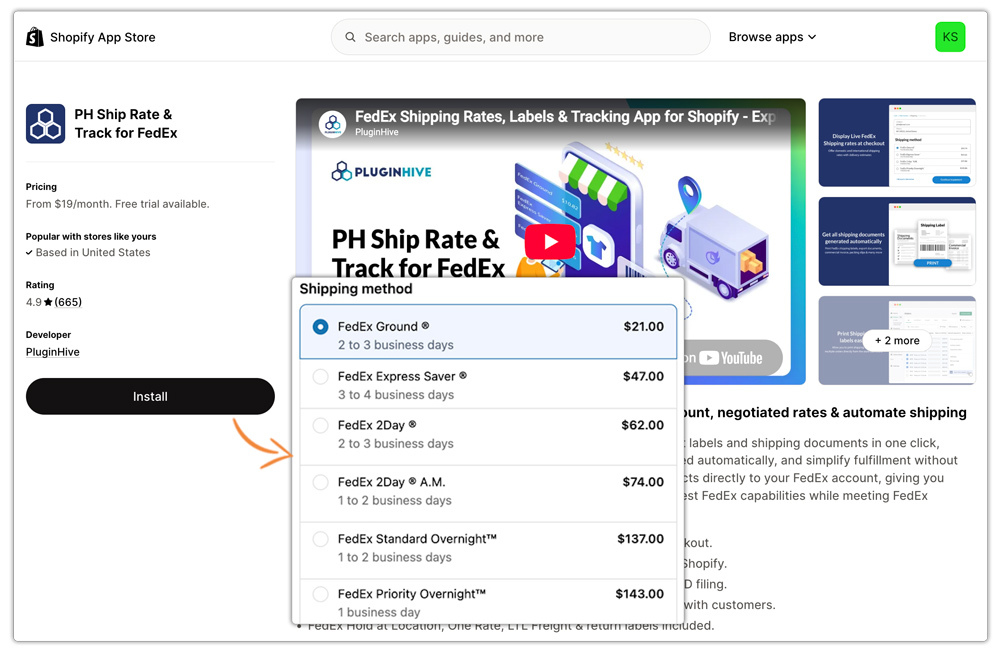
- For FedEx shipments, the PH Ship, Rate & Track for FedEx app connects your FedEx account to Shopify and displays live FedEx delivery estimates at checkout alongside carrier-calculated rates, so a customer selecting FedEx Express sees the actual expected delivery date for that service, not a generic range.
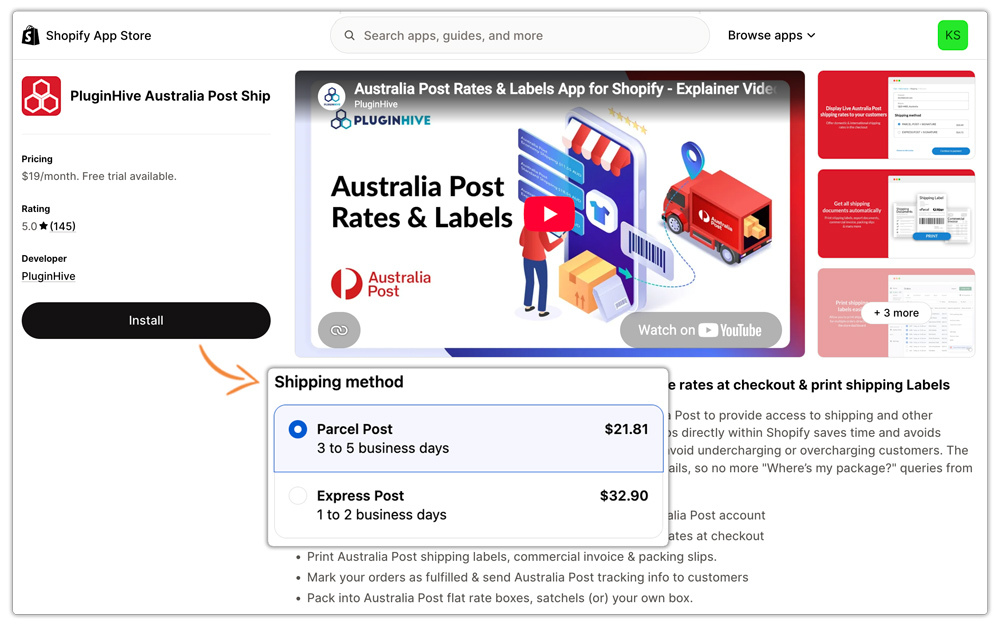
- For Australian merchants using Australia Post, the PluginHive Australia Post Ship App connects your Australia Post account to Shopify and displays live delivery estimates for Australia Post domestic and international services at checkout. For context on how Australia Post rates and delivery data interact in Shopify, the Australia Post shipping guide for Shopify covers the full setup.
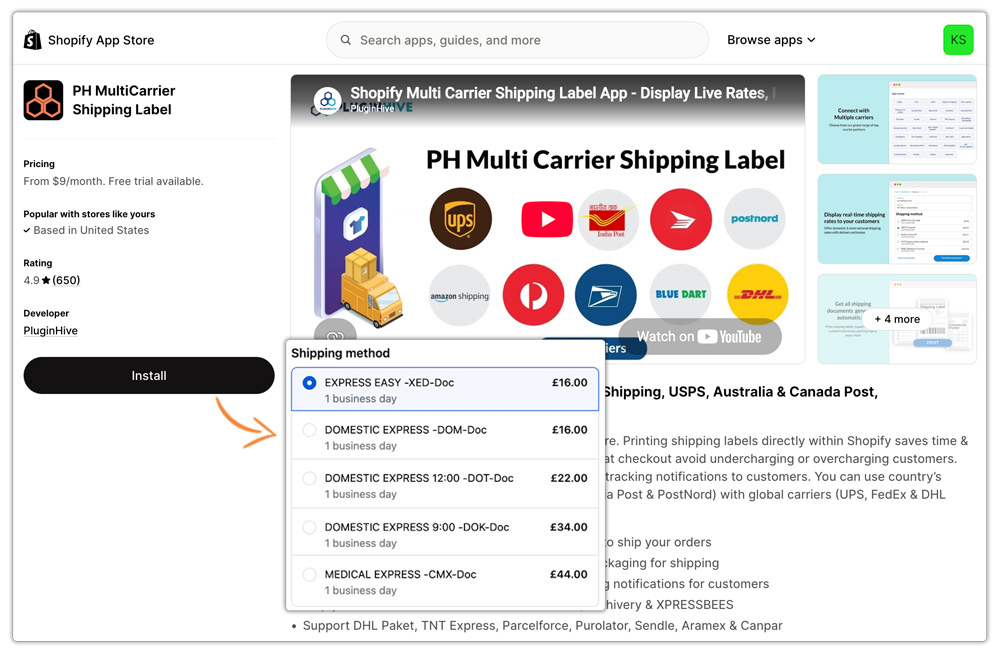
- For merchants shipping across multiple carriers, the PH MultiCarrier Shipping Label App connects multiple carrier accounts to Shopify in a single integration, displaying live rates and delivery estimates from each carrier at checkout simultaneously. Customers see the available service options with their estimated arrival dates, and merchants manage all carriers in one workflow.
Conclusion
There are two fundamentally different approaches to showing a Shopify estimated delivery date at checkout: using Shopify’s built-in settings (automated or manual), or connecting your carrier accounts through a shipping app to pull live delivery estimates from the carrier directly. The right choice depends on which carriers you use, whether Shopify natively supports your region and carrier combination, and how important accuracy is relative to setup simplicity.
For merchants whose carriers are covered by Shopify’s native delivery date features USPS, UPS, Canada Post, DHL Express within eligible regions the built-in automated or manual options are a solid starting point. For merchants using FedEx, Australia Post, India Post, or multiple carriers simultaneously, a carrier-specific app integration is what brings accurate, live delivery estimates into the Shopify checkout experience.
FAQs
Q. What is the difference between automated and manual delivery dates in Shopify?
Automated delivery dates predict specific calendar dates based on your historical shipping performance; they adjust dynamically. Manual delivery dates display a date range calculated from a fixed fulfillment time you set plus the carrier’s transit time. Automated is more precise but has regional and plan requirements. Manual is available on all plans and supports more countries.
Q. Why are delivery dates not showing at checkout even though I have set them up?
The most common cause is having a mix of eligible and ineligible shipping rates in your checkout. If even one rate is ineligible for example, a rate from a third-party shipping app Shopify does not display delivery dates for any of your rates. Review your active shipping rates and remove or separate any ineligible ones.
Q. Do Shopify delivery dates work with FedEx negotiated rates?
No. Shopify’s manual delivery date feature does not support negotiated FedEx-calculated rates. For live FedEx delivery estimates connected to your FedEx account, a dedicated app integration is needed.
