



Shopify Order tracking statuses can be surprisingly confusing for customers. While updates like “Shipping information received” or “In transit” make sense from a shipping standpoint, they don’t always feel clear to someone simply waiting for their order. If tracking doesn’t change for a day or two, many customers assume something is wrong even when the package is moving exactly as it should.
This confusion is what leads to so many “Where is my order?” emails. Most customers don’t know the difference between a label being created and a parcel actually being picked up by the carrier. They may not realize that packages aren’t scanned while traveling between facilities, or that small delays are normal. When tracking looks inactive, concern quickly turns into a support request.
When you understand what each Shopify order tracking status really means, you can respond with clarity and confidence. Instead of guessing, you can reassure customers, explain delays calmly, and prevent unnecessary refunds or disputes. In this guide, we’ll walk through each stage from label creation to final delivery so you can manage expectations better and create a smoother post-purchase experience for your customers.
In This Article:
- Tracking Statuses in Shopify
- How to Show Shopify Order Tracking Statuses to Customers Automatically
- Common Shopify Order Tracking Problems and What They Mean
- Conclusion
- FAQ’s
Tracking Statuses in Shopify
Below is a brief overview of the common Shopify Order tracking statuses you’ll see throughout the shipping journey, along with what each one typically means for you and your customers.
Shipping Information Received (Label Created)
When you see “Shipping information received” in Shopify, it means the shipping label has been generated, and the shipment details have been shared with the carrier. A tracking number is active, but the parcel hasn’t physically moved yet.
When It Appears in Shopify
- This status shows up immediately after you fulfill an order and generate a shipping label, which also triggers the tracking number to be sent to the customer. It can sometimes give the impression that the package is already on its way, even though it may still be with you.
What This Actually Means
- At this stage, only the shipment information has been transmitted to the carrier’s system. The carrier has not yet scanned or received the parcel, and the physical handover has not happened.
What Merchants Should Tell Customers
- Reassure customers that this is a normal first step in the shipping process. Let them know that tracking will update once the parcel is picked up or dropped off, which typically happens within one business day.
Shipment Received by Carrier
When you see “Shipment received by carrier” in Shopify, it means the carrier has physically received the parcel and scanned it for the first time. This is the moment the package officially leaves your hands and enters the carrier’s delivery network. From here, the shipping journey truly begins.
Label Creation vs Physical Handover
- Creating a shipping label only sends shipment details to the carrier’s system; it does not mean the package has shipped.
- The parcel must be physically dropped off or picked up before anything moves.
- The first carrier scan confirms they now have the package and are responsible for delivery.
Typical Timeframes
- This status is usually updated on the same business day the parcel is handed over.
- If the drop-off or pickup happens late in the day, the scan may appear the next business day.
- After this first scan, tracking typically begins showing regular movement as the parcel travels through the network.
For customers, this is a reassuring update; it confirms their order is officially on its way.
Processed at Sorting Facility
When a parcel is marked “Processed at sorting facility”, it means it has arrived at one of the carrier’s distribution centers and has been scanned. From there, it’s sorted based on where it needs to go next. This is a normal part of the shipping journey.
What Happens at a Sorting Facility
- The parcel is scanned as soon as it arrives, which updates the tracking.
- It is sorted according to its destination, delivery route, and shipping service.
- Once sorted, it’s prepared to be sent to the next facility closer to the customer.
Why This Status May Appear Multiple Times
- Most shipments pass through several sorting facilities, especially if they’re traveling long distances.
- Each time the parcel is scanned at a new facility, the same tracking message may appear.
- Seeing this update more than once usually means the package is moving forward normally.
In short, multiple sorting scans are a sign of progress, not a problem.
In Transit to Next Facility
When tracking shows “In transit”, it simply means the parcel has left one facility and is on its way to the next. At this stage, the package is physically moving through the carrier’s network even if you don’t see frequent updates.
What “In Transit” Really Means
- The parcel has departed from a sorting or processing center.
- It’s traveling by road, air, or sometimes rail to the next location.
- No new scans are recorded while it’s physically in motion.
Why Updates May Seem Slow
- Carriers don’t scan packages during transport, only when they arrive at a facility.
- Long-distance shipments naturally take more time between scans.
- It’s normal for tracking not to change for 24–72 hours.
If customers get concerned during this stage, reassure them that no update doesn’t mean no movement. It usually just means the package is on the road (or in the air), heading closer to its destination.
Arrived at Facility
When tracking shows “Arrived at facility”, it means the parcel has reached another carrier location and has been scanned upon arrival. This update confirms the package has safely made it to the next step in the delivery network.
Distribution Center vs Local Delivery Hub
- Large distribution centers handle high volumes of parcels and route them across cities, regions, or states.
- Local delivery hubs are smaller facilities closer to the customer’s address and focus on last-mile delivery.
- If the facility listed is near the customer’s location, it usually means delivery is getting close.
What Usually Happens Next
- The parcel is sorted based on its final delivery route.
- It is assigned to a local delivery vehicle.
- The tracking status may soon update to “Out for Delivery.”
At this stage, the package is typically in the final stretch of its journey.
Out for Delivery
“Out for Delivery” is one of the most anticipated tracking updates for customers. It means the package has been loaded onto the delivery vehicle and is scheduled to arrive that same day.
What This Means for Customers
- The parcel is on the delivery truck and expected to be delivered today.
- Delivery timing can vary depending on the driver’s route and the number of stops.
- Minor delays can happen due to traffic, weather, or operational issues.
What Merchants Should Advise
- Ask customers to keep an eye on their phone or email for delivery notifications.
- Remind them to ensure someone is available if a signature is required.
At this stage, the order is in its final step; it’s just a matter of hours before it reaches the customer.
Delivered
When tracking shows “Delivered,” it means the carrier has completed the shipment and marked the order as successfully delivered. From the carrier’s perspective, the delivery process is finished.
What “Delivered” Usually Means
- The parcel was handed directly to the recipient.
- It may have been left in a safe place, such as a doorstep or reception area.
- It could also have been placed in a mailbox, parcel locker, or designated pickup point.
Proof of Delivery
- The tracking update typically includes a delivery timestamp.
- Some shipments require a signature, which is recorded as confirmation.
- In certain cases, carriers provide a delivery photo as additional proof.
If a Customer Says They Didn’t Receive It
- First, confirm the shipping address on the order.
- Ask the customer to check around their property or with neighbors.
- If needed, contact the carrier to request detailed proof of delivery.
While “Delivered” usually means everything went smoothly, handling these situations calmly and professionally helps maintain trust if questions arise.
How to Show Shopify Order Tracking Statuses to Customers Automatically
Manually responding to tracking questions can take up a lot of time. Instead, you can automate the entire process and keep customers informed without extra effort.
The Shipment Tracking & Notify app helps you streamline and automate Shopify tracking communication in a simple, professional way.
What the Shipment Tracking & Notify App Allows You to Do
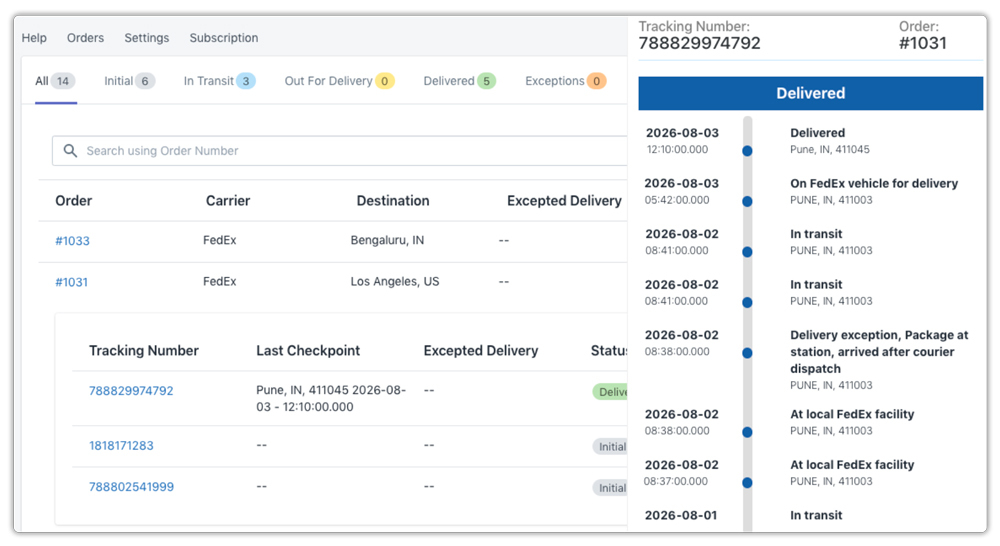
- Automatically send tracking updates to customers as soon as an order is fulfilled and as the shipping status changes that match your brand voice and design, instead of relying on generic carrier notifications.

- Track shipment journey: The shipment status is also visible end-to-end for the order
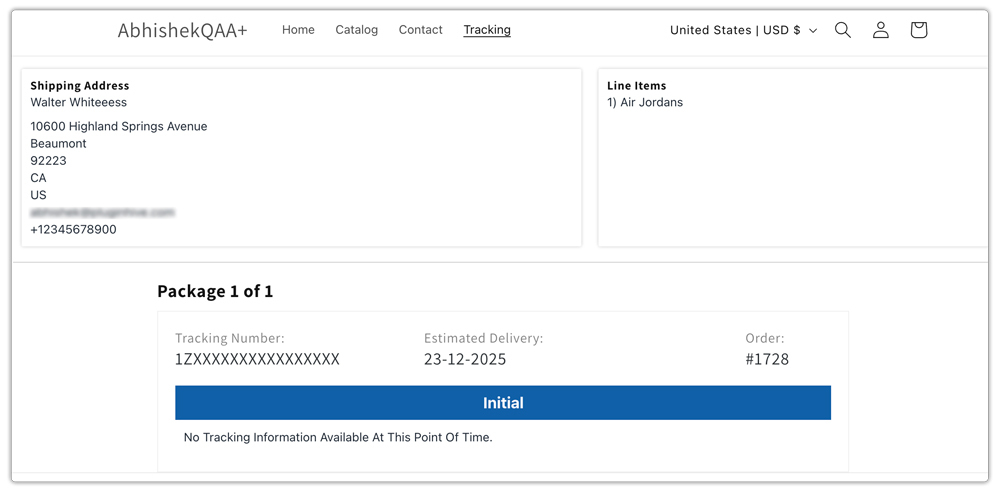
- Provide a custom tracking page on your storefront, allowing customers to track their orders directly on your website instead of being redirected to a carrier’s site. Where you can showcase featured collections, highlight new arrivals, and remarket products while they check their order status.
By automating tracking updates, you not only reduce “Where is my order?” emails, but you also turn the post-purchase experience into an opportunity to build trust and encourage repeat sales.
Common Shopify Order Tracking Problems and What They Mean
Even when shipments are moving normally, certain Shopify Order tracking updates can make customers anxious. Here’s what these situations usually mean.
Shopify Order Tracking Not Updating:
If tracking hasn’t changed for a while, it doesn’t automatically mean something is wrong.
- The shipment may still be waiting for its first carrier scan after label creation, or it could be physically moving between facilities where no scans happen during transport.
- In some cases, there may be a minor carrier delay, but that does not mean the package is lost.
Most tracking updates resume within 24–72 hours without any action required.
Shopify Order Tracking Stuck for Several Days:
When tracking seems frozen for multiple days, there’s usually a reasonable explanation.
- International shipments may be going through customs clearance, while domestic shipments can be affected by weather disruptions, operational slowdowns, or weekend and holiday backlogs.
Delays can feel worrying, but they’re often just part of the normal shipping process.
Shopify Order Tracking Shows Delivered, But Customer Says Not Received:
This is one of the most stressful scenarios, but it’s also fairly common.
- The parcel may have been placed in a mailbox, parcel locker, safe drop location, or left with a neighbor or building reception. It’s also important to double-check that the shipping address was correct. If needed, you can contact the carrier to request detailed proof of delivery.
Handling the situation calmly and verifying each step usually leads to a smooth resolution.
Conclusion
Shopify Order tracking statuses can easily confuse customers, especially when updates pause or don’t clearly explain what’s happening. But when you understand what each status truly means, you can reduce unnecessary support tickets, respond with confidence, and create a smoother post-purchase experience.
Clear communication during shipping builds trust. Instead of customers worrying about delays or lost packages, they feel informed and reassured at every step.
To make this even easier, tools like PluginHive’s Shipment Tracking & Notify app help automate tracking updates, send branded notifications, and provide a custom tracking page directly on your store. This keeps customers informed while also keeping them engaged with your brand.
At the end of the day, great tracking communication isn’t just about delivering updates; it’s about improving customer experience, reducing support workload, and encouraging repeat purchases.
FAQ’s
Q. Why does my customer see “Shipping information received” but no movement?
This means the shipping label has been created, but the carrier hasn’t scanned the parcel yet. The package is usually waiting to be picked up or dropped off. Tracking typically updates within one business day after the first scan.
Q. How long can a tracking status stay on “In transit”?
It’s normal for tracking to remain on “In transit” for 24–72 hours without updates. Carriers only scan packages when they arrive at facilities, not while they’re physically moving between locations.
Q. Why does “Processed at sorting facility” appear multiple times?
Most shipments pass through several facilities before reaching the customer. Each time the parcel is scanned at a new location, the same status may appear again. This usually indicates progress, not a delay.
