


A customer orders three items. Two are on your shelf, while the third is backordered for a week. You can hold the entire order and make the customer wait, or ship what is available now and send the remaining item later. Shopify partial fulfillment supports this second approach, allowing you to fulfill available items separately while keeping the customer updated on each shipment.
This guide covers when to ship an order in parts, how Shopify handles multiple shipments, the exact steps for each fulfillment method, and how to generate shipping labels and tracking for every shipment.
In This Article
- When Shopify Partial Fulfillment Makes Sense
- How Shopify Handles Multiple Shipments With Partial Fulfillment
- Before You Start: Check Your Order Processing Settings
- Method 1: Fulfill Part of an Order in Shopify
- Method 2: Hold Items and Release Them Later
- Splitting and Merging Partial Fulfillments in Shopify
- Generate Shipping Labels for Each Partial Fulfillment in Shopify
- Keeping Customers Informed Across Shipments
- Conclusion
- FAQs
When Shopify Partial Fulfillment Makes Sense
Shipping in parts is a practical response to a few common situations:
- Out-of-stock items: Part of the order is ready while the rest is on backorder
- Pre-order items mixed with in-stock items: The customer wants the available items now
- Items stored in different locations: No single warehouse can fulfill the whole order
- Different processing times: Made-to-order or customized items take longer than ready stock
- Peak-season delays: During busy periods, shipping available items first protects your delivery promise. The Shopify holiday shipping guide covers the carrier cutoffs to plan around.
The trade-off is cost. Every shipment needs its own label and its own postage, so use Shopify Partial Fulfillment only when waiting would hurt the customer experience more than the extra shipping cost.
How Shopify Handles Multiple Shipments With Partial Fulfillment
Shopify tracks fulfillment per shipment, not just per order. If all items can ship together, they appear in one Unfulfilled section. If they can’t, the order is split into multiple Unfulfilled sections, called fulfillments, and each one is fulfilled separately.
Shopify can create these splits automatically when items can’t ship together, such as pre-orders, subscription items, items in different shipping profiles, or items that no single location can cover. You can also split an order yourself.
Shopify shows the order’s overall status as follows:
- Partially fulfilled: you’ve fulfilled some, but not all, of the items in the order
- On hold: the fulfillment can’t be completed until the hold is released
- Fulfilled: every item has shipped
Customers receive a separate confirmation for each shipment. Because each fulfillment is processed separately, a customer can get more than one shipping confirmation email for the same order. Tell customers upfront that their order may arrive in more than one package.
Before You Start: Check Your Order Processing Settings
Shopify Partial Fulfillment won’t work as expected if automatic fulfillment is turned on. To fulfill part of an order manually, deactivate automatic order fulfillment first.
- From your Shopify admin, go to Settings > General
- Open the Order processing section
- Make sure automatic fulfillment of line items is turned off
- Save your changes

Method 1: Fulfill Part of an Order in Shopify
This is the quickest option when you know which items are ready to ship.
- From your Shopify admin, go to Orders
- Click the order you want to fulfill
- In the order page section, click Mark as fulfilled
- Enter the item quantities you want to fulfill in this shipment
- Click Mark as fulfilled

The remaining items stay unfulfilled, and the order status changes to Partially fulfilled. When the rest of the items are ready, repeat the same steps.
Method 2: Hold Items and Release Them Later
Holding fulfillment is the better option when unready items are likely to stay delayed. It keeps them out of your active fulfillment queue.
To hold the unready items:
- Go to Orders and open the order
- Click on the dropdown next to “Mark as fulfilled” and choose Mark as hold
- Select the items to hold and choose a reason
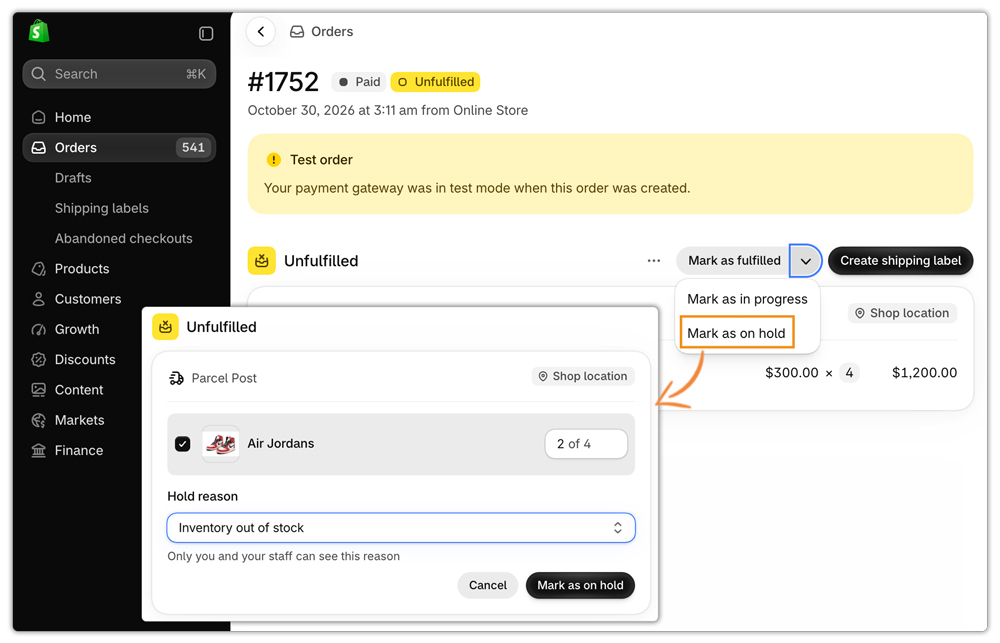
Held items stay in the order but are excluded from the current shipment. Fulfill the available items first.
When the held items are ready:
- Open the original order
- Find the items under On hold and click Release hold
- Fulfill them as a second shipment

Two rules apply. Orders or fulfillments on hold can’t have their status changed, so release all holds before marking them as fulfilled. Also, while one fulfillment is on hold and another is fulfilled, the order may still display as On hold. It shows as Partially fulfilled once a third fulfillment is unfulfilled, or after the hold is released.
Splitting and Merging Partial Fulfillments in Shopify
Shopify also lets you restructure fulfillments after an order arrives.
Split a fulfillment
You can split a fulfillment by line items and quantities, for example, when one item is out of stock and the others should reach the customer quickly. In the Unfulfilled section, click the horizontal menu, choose Split fulfillment, select the items, and confirm.
Merge fulfillments
You can merge multiple fulfillments from the same location into one, which simplifies fulfillment and can reduce shipping costs. This is useful when a split order becomes fully available before you’ve shipped anything.
Generate Shipping Labels for Each Partial Fulfillment in Shopify
The built-in Shopify steps above handle the status changes, but each shipment still needs a label with the right carrier, service, and package details. If you ship with your own carrier accounts, the PH MultiCarrier Shipping Label App handles this directly from your Shopify orders.
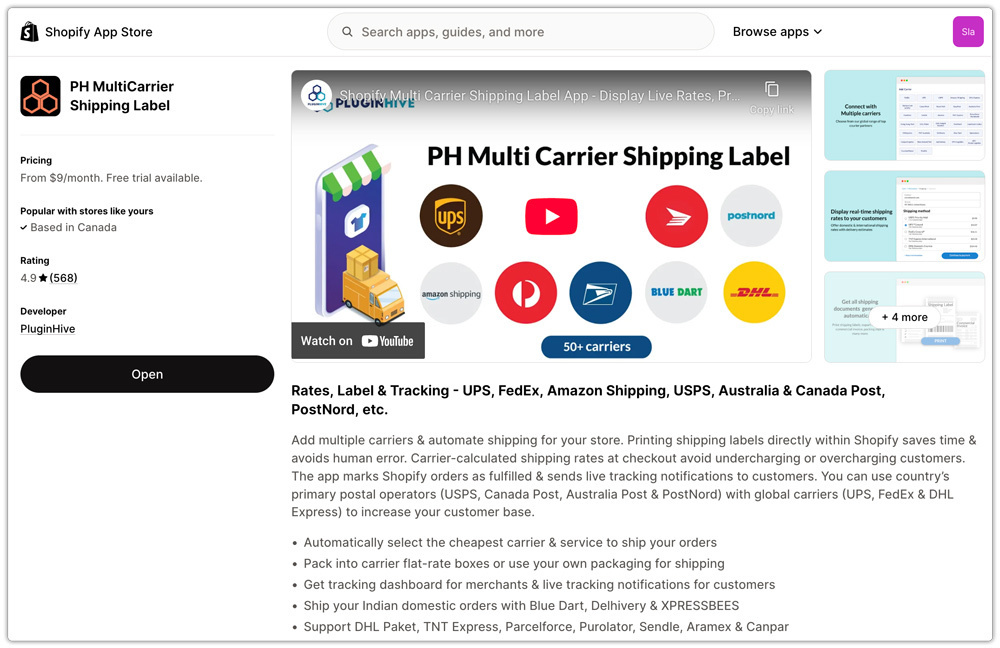
The workflow follows the same hold-and-release method. PluginHive’s guide to splitting and partially fulfilling Shopify orders covers it in detail:
- Put the unready items on hold in Shopify. Only the ready-to-ship items then appear in the app.

- Click Generate Label and print the label and any related documents.

- Request a pickup if needed, then click Mark As Fulfilled. Shopify updates the order, and the shipped items show as fulfilled while the rest remain on hold.

- Release the hold when the remaining items arrive. The order shows as Partially fulfilled.
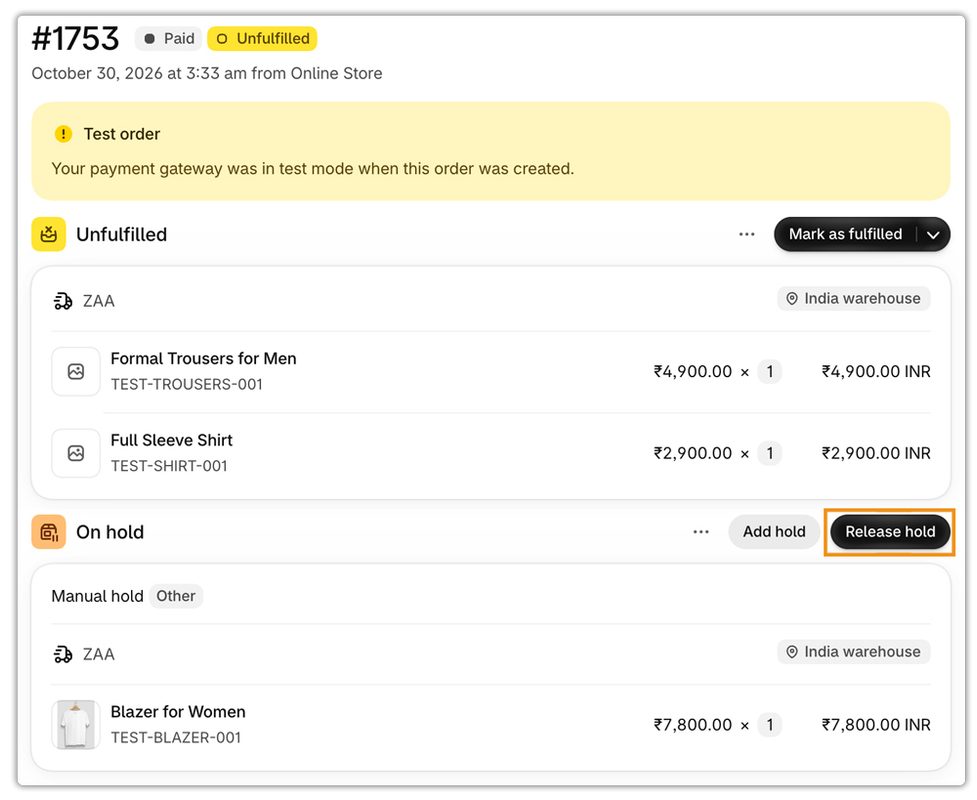
- Refresh the order in the app. The released items appear, ready for a second label.


- Click Generate Label, or Generate Label and Fulfill to do both in one step.

Tracking details go to the customer through Shopify’s order shipped email for each shipment. If you turn on real-time tracking updates in the app, customers also receive live status updates. Both shipments stay visible in the app’s Tracking tab, and the Shopify order timeline keeps the full fulfillment history.
Keeping Customers Informed Across Shipments
Customers rarely complain about a split order. They complain when it arrives without explanation. A few habits prevent most support tickets:
- Set expectations at checkout: Make delivery timing clear for every item. The guide to the Shopify estimated delivery date explains how fulfillment time feeds into the dates customers see.
- Add tracking for every shipment: Each shipment needs its own tracking number.
- Mention the split in your first email: A short note that the order will ship in two parts saves explanations later.
- Test the flow first: Run a test order through hold, release, and second-label steps before a busy period.
Two edge cases deserve attention. If items ship from different locations, you can fulfill each from its own warehouse. The knowledge base on handling Shopify shipping with multiple warehouses walks through a FedEx multi-location setup. For international orders, each shipment needs its own customs documentation, as covered in the international shipping guide for Shopify.
Conclusion
Shopify Partial Fulfillment lets you ship what’s ready and keep the rest moving, without holding an entire order hostage to one delayed item. Turn off automatic fulfillment first. Then either mark part of the order as fulfilled or hold the unready items and release them later. Every shipment needs its own label, tracking number, and customer notification. Handling those consistently, whether manually or through the PH MultiCarrier Shipping Label App, keeps split orders from turning into support tickets.
FAQs
Q. Can I partially fulfill an order in Shopify?
Yes. Open the order, click Mark as fulfilled in the Unfulfilled section, and enter the quantities you’re shipping. The order shows as partially fulfilled until every item ships.
Q. Will customers get one email or several?
Several, if you notify them each time. Each fulfillment is processed separately, so a customer can receive a shipping confirmation for each shipment.
Q. Why can’t I fulfill an order that I put on hold?
Fulfillments on hold can’t be marked as fulfilled. Release the hold first, then fulfill the items.
Q. Do I need a separate label for each shipment?
Yes. Each shipment travels as its own package, so each needs its own label and tracking number.
