



Adding a new carrier to your Shopify store is one of those tasks that feels complete the moment the credentials are saved and the first test rate shows up at checkout. It rarely is. The gaps in Shopify shipping integrations almost never appear during setup; they appear on the first real orders, in front of paying customers, at the worst possible time.
A label generated with the wrong service. A tracking number that syncs to Shopify but the customer notification never fires. A rate that is correct for a standard domestic order but silently falls back to a flat rate for anything unusual. These are the failure points a pre-launch test sequence is designed to catch.
This checklist covers every layer of Shopify shipping integrations with specific things to verify.
In This Article
- Rates: Does Your Shopify Shipping Integration Show What You’ll Actually Pay?
- Label Generation: What to Verify Before Your First Real Order
- Customs and Documentation for International Carriers
- Tracking: Is Your Shopify Shipping Integration Syncing Back to Shopify?
- Edge Cases to Test in Shopify Shipping Integrations Before Going Live
- Pre-Launch Quick Reference Checklist
- Conclusion
- FAQs
Rates: Does Your Shopify Shipping Integration Show What You’ll Actually Pay?
This is the most consequential test in Shopify shipping integrations because rate errors are immediately visible to customers and directly affect whether they complete checkout or abandon it.
- Test across multiple weight bands: Create test orders at different weight points: something light (under 500g), something mid-range, and something at the heavier end of your typical catalog. Confirm the rate at checkout matches what the carrier’s own rate calculator returns for the same inputs.
- Test multiple destination zones: Run at least one local order, one domestic long-distance order, and one international order if you ship globally. Zone-based pricing differences are one of the most common sources of checkout rate inaccuracies.
- Check residential vs. commercial classification: Most major carriers apply a residential delivery surcharge on top of the base rate. Test a home-delivery order and confirm the rate includes the surcharge.
- Watch for the flat-rate fallback: Some Shopify shipping integrations silently return a flat rate when a carrier API call fails rather than showing an error or returning no result. Test what happens when you enter an unusual destination, an incomplete postcode, or an edge-case weight.
For merchants integrating FedEx, the PH Ship, Rate and Track for FedEx app lets you configure negotiated FedEx rates per destination zone directly in Shopify so the rate shown at checkout reflects your actual account pricing rather than published retail rates.

Label Generation: What to Verify Before Your First Real Order
A rate that is correct at checkout can still produce a label with the wrong service, wrong dimensions, or incorrect declared value.
- Verify the correct service tier is selected: Confirm the service the customer selected at checkout is the one applied at label generation. If your integration maps “Standard Shipping” to a carrier service code, check that mapping is correct for every service you offer.
- Check address field completeness on the label: Generate a test label for an address that includes a unit or apartment number and verify it appears correctly on the label. Missing secondary address lines are one of the most consistent sources of address correction fees after shipment.
- Check declared value at label creation: Verify that declared value is populating correctly, not left at zero or defaulted to a fixed amount regardless of order value. For high-value orders, this is both a compliance issue and an insurance coverage gap.
- Print and scan a test label: Print a test label and confirm it scans correctly with a barcode scanner or phone camera before committing to the format for production.
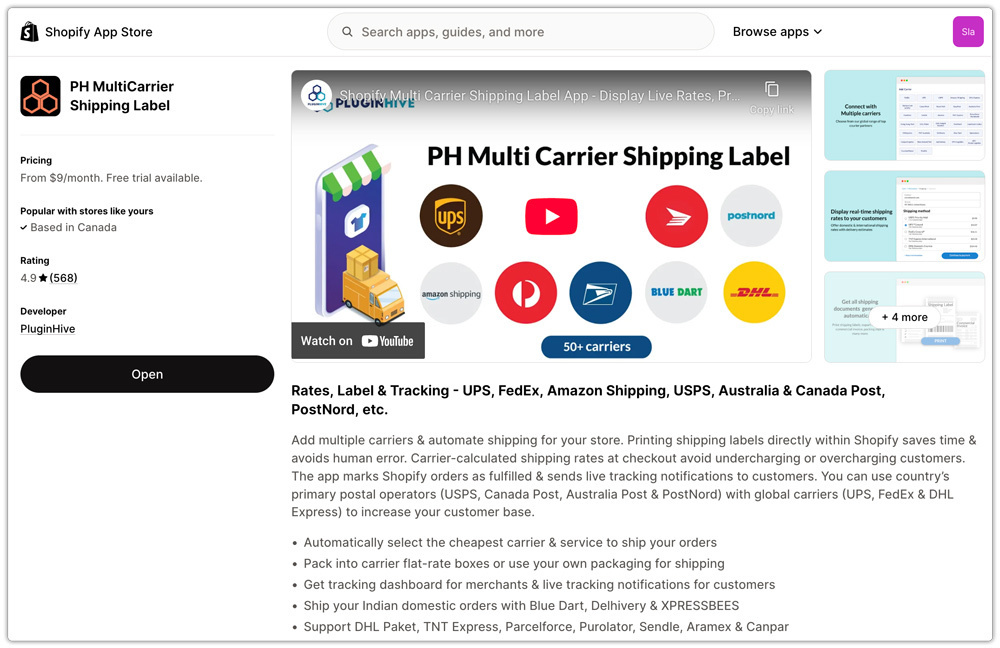
For merchants managing labels across multiple carriers in a single workflow, the PH MultiCarrier Shipping Label app supports saved box configurations, service tier mapping, and declared value entry per shipment so each of the checks above can be verified in one place rather than separately across each carrier’s portal.
Customs and Documentation for International Carriers
If the new carrier integration handles international shipments, customs documentation is a separate test layer. A technically correct label can still be held at customs if the accompanying documentation is missing, incomplete, or inconsistent.
- Confirm commercial invoice generation: For international shipments, verify that a commercial invoice is generated alongside the carrier label, not just the label alone. The commercial invoice needs to include item description, quantity, unit value, total value, country of origin, and HS code.
- Check that HS codes are pulled from Shopify product settings: Verify that HS codes stored against your products in Shopify are being passed through to the customs documentation.
- Verify declared value consistency: The declared value on customs documentation must match the declared value on the label. Discrepancies between the two are a flag for customs authorities.
- Country of origin: Verify that each product has the correct country of origin assigned.
For a detailed look at how customs documentation interacts with cross-border shipping costs and carrier requirements, the Shopify international shipping guide covers what is required by shipment type and carrier.
Tracking: Is Your Shopify Shipping Integration Syncing Back to Shopify?
Tracking is the part of a Shopify shipping integration that gets tested last and that customers notice first. A tracking number that exists in the carrier system but does not sync back to Shopify means customers are emailing you to ask where their order is when the answer is sitting in a system you already paid for.
- Confirm the tracking number appears in the Shopify order: After generating a test label, check the Shopify order record and verify the tracking number appears in the fulfilment details.
- Verify the customer notification email fires: Check that the Shopify shipping confirmation email fires when the order is marked as fulfilled, and that the tracking number in the email is correct.
- Verify tracking status updates flow through: Where the integration supports real-time tracking status updates in Shopify, check that status changes. Merchants who send proactive post-shipment notifications to customers rather than waiting for them to check manually see significantly lower “where is my order” support volume.
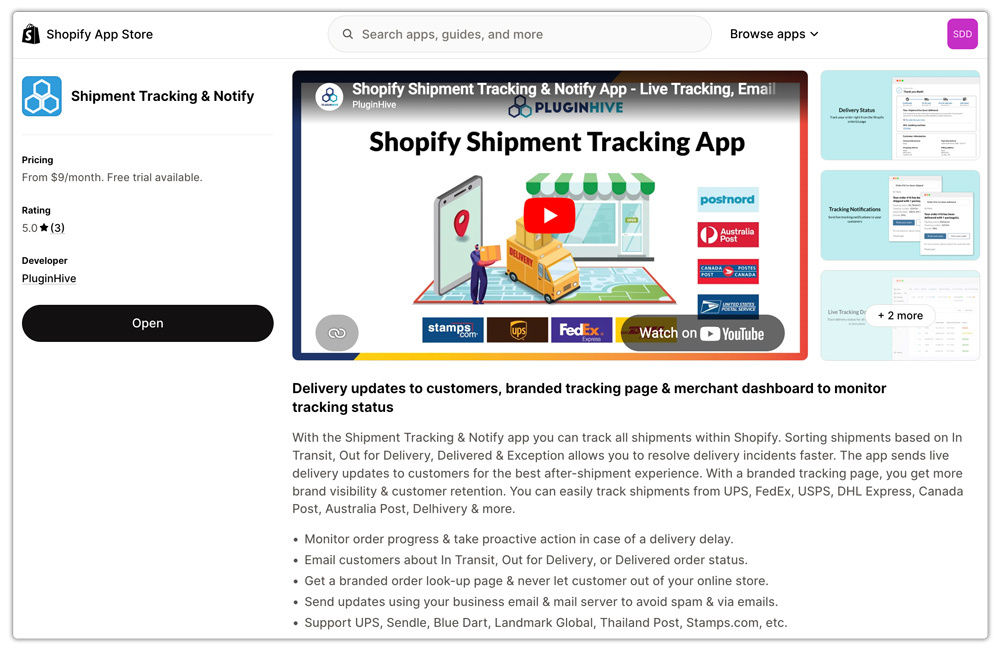
The PluginHive Shipment Tracking and Notify app syncs tracking events from multiple carriers back to Shopify and triggers branded notification emails at each status change.
Edge Cases to Test in Shopify Shipping Integrations Before Going Live
Standard test orders with clean addresses, typical weights, and familiar destinations pass most integrations without issue. The failures appear in the orders that fall outside the normal pattern.
- Orders near carrier surcharge thresholds: If your catalog includes products that sit close to a carrier’s additional handling or large package threshold — for example, a box with a second-longest side close to 30 inches for UPS — test that order specifically. A product that clears the threshold by one inch may not the next time if packed slightly differently.
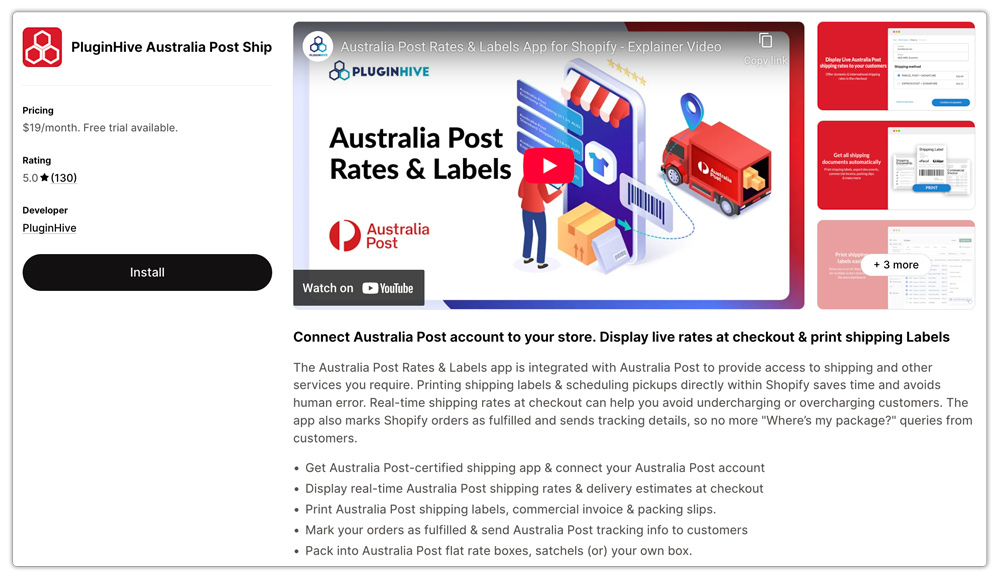
- PO Box destinations: Most private carriers cannot deliver to PO Boxes. Test what happens when a customer enters a PO Box address at checkout. Does your integration return no rate, display an error, or silently return a rate that will fail at delivery? For Australian merchants, this is particularly important because Australia Post supports PO Box delivery, unlike most private carriers. An integration such as the PluginHive Australia Post Ship App can help Shopify merchants display live Australia Post rates and generate shipping labels for domestic and international shipments, including eligible PO Box deliveries.
- Unusual addresses: Test missing postcodes, remote locations, special characters, and unusually long address lines.
- Multi-package shipments: Test orders that require multiple packages and confirm Shopify displays the correct checkout rate.
Pre-Launch Quick Reference Checklist
Rates
- Live rates tested at multiple weight bands
- Multiple destination zones verified
- Residential surcharge included in checkout rate
- Dimensional weight applied correctly
Labels
- Correct service tier selected per order type
- Secondary address lines appear on label
- Box profile mapped correctly per product type
- Declared value populating correctly
- Test label prints and scans correctly
Customs (international shipments)
- Commercial invoice generated alongside label
- HS codes pulled from Shopify product settings
- Declared value consistent across label and invoice
- Country of origin correct per product
Tracking
- Tracking number synced to Shopify order after fulfilment
- Customer notification email fires with correct tracking link
- Tracking URL resolves to correct carrier page
- Status updates flow to Shopify order timeline
Edge Cases
- Orders near surcharge thresholds tested
- PO Box address behaviour confirmed
- Unusual or incomplete address inputs tested
- Multi-package orders tested
- Free shipping threshold interaction verified
- High declared value international orders tested
Conclusion
New Shopify shipping integrations that have not been tested end-to-end are not ready to go live; they are ready to surface problems in front of customers. Each section of this checklist covers a failure mode that is common enough to appear in the first week if it has not been explicitly checked. Working through rates, labels, customs documentation, tracking, and edge cases before you switch the carrier on for real orders is the difference between a smooth launch and a reactive support queue.
Run through the checklist once per carrier you are adding; a failure in one carrier’s configuration can mask a separate issue in another if you test them all together. Once each carrier passes individually, run a final multi-carrier test to confirm rates from all connected carriers display correctly at checkout side by side.
FAQs
Q. How do I know if my Shopify shipping integration is returning live rates or a flat-rate fallback?
The clearest signal is a suspiciously round number appearing at checkout where a carrier-calculated rate should be. Compare the checkout rate against the carrier’s own rate calculator for the same origin, destination, and package weight. If the numbers differ and your checkout rate is a round figure, you are likely seeing a fallback firing.
Q. Do I need to test every carrier separately if I am integrating multiple carriers at once?
Yes. Test each carrier individually before running multi-carrier comparisons. Complete the checklist per carrier, then verify that multiple carriers display correctly together at checkout. A failure in one carrier’s rate return can otherwise mask a separate failure in another.
Q. What should I do if tracking numbers sync to Shopify but the customer notification email does not fire?
Check your Shopify notification settings under Settings > Notifications. The shipping confirmation email is triggered when an order is fulfilled. If fulfillment skips notifications, check channel settings and whether an app or automation bypasses Shopify’s standard fulfillment flow.
